

Under minimum specs? We got you covered.
 Crimson Blacksun
Dec 24, 2025 @ 11:19am1,22428
Gameplay BasicsMaps or LevelsModding or ConfigurationMultiplayerWalkthroughsEnglish
Current Investigations
CURRENTLY WORKING ON GETTING A NEW SSD PURELY FOR ASA. ALL EDITS ARE ON HOLD UNTIL RE-INSTALLED (Sorry!)
ASA CLIENT
-Commands not resetting on game shutdown/launch
-Redundant Command Line entries
-Extreme VFX tame performance (pyromane, phoenix, etc.)
-FluidNinja documentation
NITRADO SERVERS
-Server Restarts - Duplicate IP Hitching
DISCLAIMER!!!
TESTED ON 1.OFFICIAL AND 2.NON-OFFICIAL SERVERS IN A PRIVATE CLUSTER. IF YOU WISH TO EXPEDITE PERFORMANCE CHECKS OF SPECIFIC AREAS, ASK IN THE COMMENTS.
Valguero
- 1. Not Tested / 2. Performance is AcceptableThe Island
- Playthrough (Finished) - 1. Base loading can break a lot of willpower / 2. Performance is AcceptableScorched Earth
- Playthrough - (Army stage) - 1. Not Tested / 2. Performance is AcceptableThe Center
- Planned for achievement - TBD ~FebruaryRagnarok
- Planned for Engram Unlock - TBD ~FebruaryAberration
- Playthrough - TBDExtinction
- Playthrough - TBDLost Colony
- 1 & 2. Performance is Above Expectations at SpawnsNOT FOR A LONG TIME, SORRY!
Dragontopia
- Might become Home ServerCrystal Isles
- Planned - TBDGenesis Part 1
- Playthrough - TBDGenesis Part 2
- Playthrough - TBDBob’s True Tales: Tides of Fortune
- TBDAtlantis
- This terrifies my PC - TBDBob’s True Tales: Galaxy Wars
- TBDLegacy of Santiago – Part 1
- TBDFjordur
- Planned TBDLost Island
- TBD
The Main Menu Settings
So, you're unsure if your system can even handle ASA. Before you jump into your solo world to benchmark with the awful default settings every game comes with, let's use some previous knowledge of how other games are handled on your system.
We know that ASA is running on Unreal5, so we have immediate red flags placed all around. Not to worry! As abysmal as it sounds, we should be looking at our graphics card. For this guide, we will be utilizing the NVIDIA GTX980 gpu (AMD Radeon RX 590 equivalent). Let's head to the "Video" tab under "General" in the Menu Settings of ASA and see what we're dealing with.
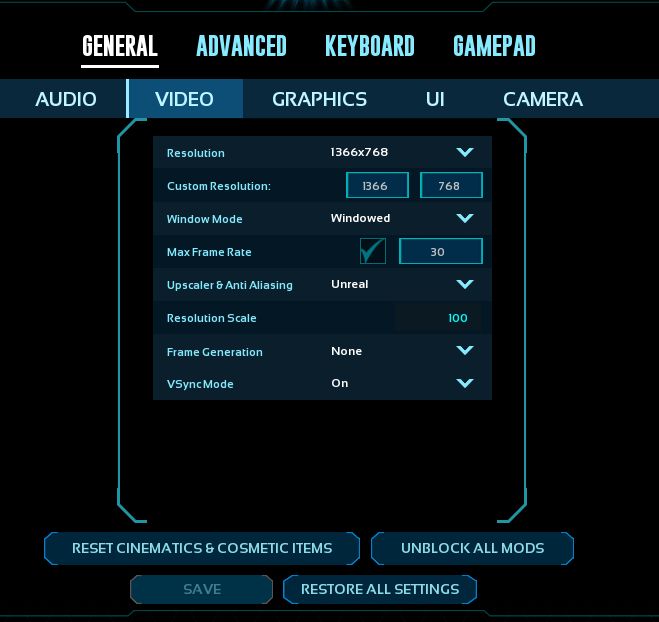
With what we know about our GPU, we can discern it runs games best at a modest resolution of 1366x768. Anything lower, we get too much pixelation. Any higher, and the card begins to heavily struggle under the render load. Since it's Unreal5, 60fps should not be your target framerate, so we'll go ahead and set this to 30.
Why 30fps? We'll be utilizing the Unreal upscaler at 100 Resolution Scale. Upscalers are finnicky creatures, constantly changing the textures in-game higher or lower in order to hit the target framerate. The lower the target, the better we can make our visuals (in most cases). Lowering the cap to 15fps helps reduce GPU temps as well.
The Window Mode doesn't change much, but it really affects your "alt-tab" game. If you're hard set on being a Fullscreen user, you should utilize the "alt-enter" keybind combo before alt-tabbing. For the sake of troubleshooting, we set this to "Windowed".
Frame Generation. For the love of Raptor Claus set this to NONE and bury it six feet below like a Giga. We do not need this precious processing power wasted like Syntac's army fighting Grendel (My man, what were you THINKING?)
VSyncMode we most definitely want ON. Screen tearing will be prevalent if left off and WILL disorient you across several maps.
DO NOT FORGET TO SAVE YOUR SETTINGS
Phew, still with me? Good. Now let's navigate over to the GRAPHICS tab under GENERAL. This is not where the true optimization magic begins, but moreso building the skeletal foundation.
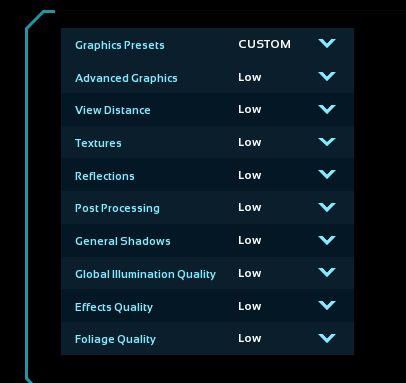
The settings on the left — No, that's your right. The LEFT. You see all those beautiful options? LOW EVERYTHING. You heard me. Everything to LOW. Remember, this is not the magic. ASA doesn't look horrible with this, and if you say otherwise I'm going to require telling you that you cannot define by opinion. We want to play the game, not watch a slideshow with a hefty input latency. We're not done yet, though. The current experience with these settings is not enough to justify your purchase, so we'll be looking to the right side of the settings to bolster that moolah.
Alright! Now we're talking most of the finer processing things. Yes, I called them things. However...
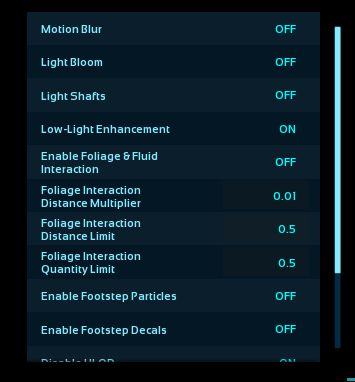
MOTION BLUR IS LIKE SWAMP FEVER. WE STAY MILES AWAY FROM IT. TURN THAT OFF. :>
Light Bloom we turn off, same with Light Shafts being turned off. We'll touch more on that later when we get to the MAGIC part.
Low-Light Enhancement? Sure, yeah. On or off, depending on your monitor.
All of those foliage settings? Definitely want those as low or off as possible. That's processing power being used when we need it the most (aka RUN FOR YOUR DAMN LIFE WITHOUT HITCHING).
Footstep Particles? Gone. OFF. We don't want to be generating things when we move. Footstep Decals you can leave on or off, depends on how much attention to detail you want (mainly for Screenshot purposes would you actually use this).
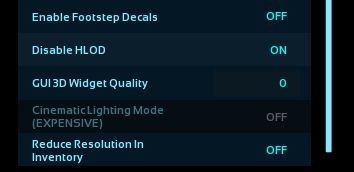
Disable HLOD. This is a trick setting. It says DISABLE. HLOD stands for HIGH LEVEL OF DETAIL (I presume). If set to OFF, we create a double-negative scenario meaning it WILL UTILIZE HLOD. Turn this on, because we are enlightened to the English language.
GUI 3D Widget Quality. I haven't played much with this setting, to be honest. I really should while writing. However I am currently sitting in Scorched Earth making this at the very early stages so for expedited purposes let's set that to 0.
Reduce Resolution In Inventory. This is a toss of a coin on hitching. ON or OFF, you will still experience the infamous frame-lock hitching while opening an inventory every now and then. Save your processing power and set it to OFF. That sounds backwards, doesn't it? The reason is that ASA renders it first, then lowers the resolution. Having it OFF prevents the extra last step.
These are all mostly personal preference settings. Feel free to adjust these to your situation, I'm not your dad. However, there are two(2) specific settings I will tell you to change in the CAMERA tab.
CAMERA SHAKE SCALE. Set that to 0. Why? Why am I getting rid of that? Occlusion Culling is a blessing and a curse - it de-renders what you can't see. But when coming into view, it renders again. If this is being rapidly implemented, it will bog down the system more. CAMERA VIEW BOB, we set to OFF as well to mitigate as much as possible.
"What about the 'Hide Enemy Structure Cosmetics'? That'll hurt my system too!"
Well yes, it will. This is personal preference though. I like seeing what other people have done, and I have the tolerance to stare in awe as they all load.
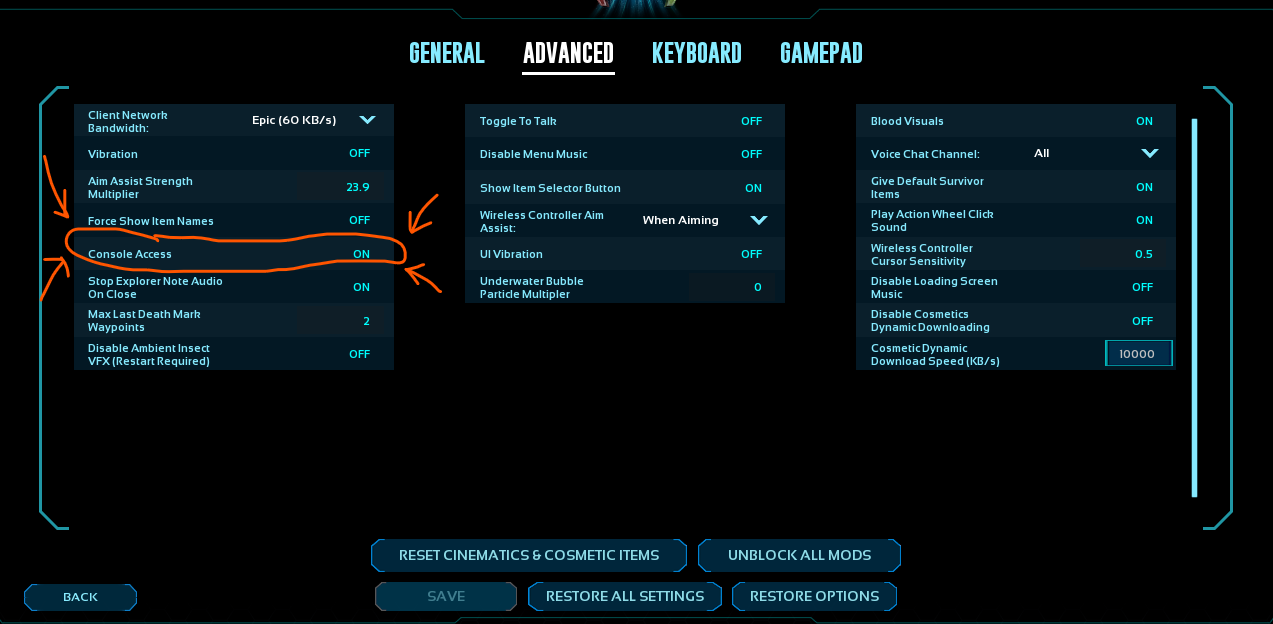
Whew, almost through the menu settings! Soon, we can play, right? WRONG! You still have much to learn, my survivor! This is still NOT ENOUGH to quote-unquote play. We're about to activate the MAGIC area now! Navigate to the ADVANCED tab of your menu settings. On the far left side, you'll see some text that says Console Access. Slap that to ON and ascend to the next Ark- I mean Chapter. Move to the next Chapter.
FIRST AND FOREMOST!
We know that ASA is running on Unreal5, so we have immediate red flags placed all around. Not to worry! As abysmal as it sounds, we should be looking at our graphics card. For this guide, we will be utilizing the NVIDIA GTX980 gpu (AMD Radeon RX 590 equivalent). Let's head to the "Video" tab under "General" in the Menu Settings of ASA and see what we're dealing with.
GENERAL - VIDEO
With what we know about our GPU, we can discern it runs games best at a modest resolution of 1366x768. Anything lower, we get too much pixelation. Any higher, and the card begins to heavily struggle under the render load. Since it's Unreal5, 60fps should not be your target framerate, so we'll go ahead and set this to 30.
Why 30fps? We'll be utilizing the Unreal upscaler at 100 Resolution Scale. Upscalers are finnicky creatures, constantly changing the textures in-game higher or lower in order to hit the target framerate. The lower the target, the better we can make our visuals (in most cases). Lowering the cap to 15fps helps reduce GPU temps as well.
The Window Mode doesn't change much, but it really affects your "alt-tab" game. If you're hard set on being a Fullscreen user, you should utilize the "alt-enter" keybind combo before alt-tabbing. For the sake of troubleshooting, we set this to "Windowed".
Frame Generation. For the love of Raptor Claus set this to NONE and bury it six feet below like a Giga. We do not need this precious processing power wasted like Syntac's army fighting Grendel (My man, what were you THINKING?)
VSyncMode we most definitely want ON. Screen tearing will be prevalent if left off and WILL disorient you across several maps.
DO NOT FORGET TO SAVE YOUR SETTINGS
GENERAL - GRAPHICS
Phew, still with me? Good. Now let's navigate over to the GRAPHICS tab under GENERAL. This is not where the true optimization magic begins, but moreso building the skeletal foundation.
The settings on the left — No, that's your right. The LEFT. You see all those beautiful options? LOW EVERYTHING. You heard me. Everything to LOW. Remember, this is not the magic. ASA doesn't look horrible with this, and if you say otherwise I'm going to require telling you that you cannot define by opinion. We want to play the game, not watch a slideshow with a hefty input latency. We're not done yet, though. The current experience with these settings is not enough to justify your purchase, so we'll be looking to the right side of the settings to bolster that moolah.
Alright! Now we're talking most of the finer processing things. Yes, I called them things. However...
MOTION BLUR IS LIKE SWAMP FEVER. WE STAY MILES AWAY FROM IT. TURN THAT OFF. :>
Light Bloom we turn off, same with Light Shafts being turned off. We'll touch more on that later when we get to the MAGIC part.
Low-Light Enhancement? Sure, yeah. On or off, depending on your monitor.
All of those foliage settings? Definitely want those as low or off as possible. That's processing power being used when we need it the most (aka RUN FOR YOUR DAMN LIFE WITHOUT HITCHING).
Footstep Particles? Gone. OFF. We don't want to be generating things when we move. Footstep Decals you can leave on or off, depends on how much attention to detail you want (mainly for Screenshot purposes would you actually use this).
Disable HLOD. This is a trick setting. It says DISABLE. HLOD stands for HIGH LEVEL OF DETAIL (I presume). If set to OFF, we create a double-negative scenario meaning it WILL UTILIZE HLOD. Turn this on, because we are enlightened to the English language.
GUI 3D Widget Quality. I haven't played much with this setting, to be honest. I really should while writing. However I am currently sitting in Scorched Earth making this at the very early stages so for expedited purposes let's set that to 0.
Reduce Resolution In Inventory. This is a toss of a coin on hitching. ON or OFF, you will still experience the infamous frame-lock hitching while opening an inventory every now and then. Save your processing power and set it to OFF. That sounds backwards, doesn't it? The reason is that ASA renders it first, then lowers the resolution. Having it OFF prevents the extra last step.
GENERAL - UI & CAMERA
These are all mostly personal preference settings. Feel free to adjust these to your situation, I'm not your dad. However, there are two(2) specific settings I will tell you to change in the CAMERA tab.
CAMERA SHAKE SCALE. Set that to 0. Why? Why am I getting rid of that? Occlusion Culling is a blessing and a curse - it de-renders what you can't see. But when coming into view, it renders again. If this is being rapidly implemented, it will bog down the system more. CAMERA VIEW BOB, we set to OFF as well to mitigate as much as possible.
"What about the 'Hide Enemy Structure Cosmetics'? That'll hurt my system too!"
Well yes, it will. This is personal preference though. I like seeing what other people have done, and I have the tolerance to stare in awe as they all load.
GENERAL - ADVANCED
Whew, almost through the menu settings! Soon, we can play, right? WRONG! You still have much to learn, my survivor! This is still NOT ENOUGH to quote-unquote play. We're about to activate the MAGIC area now! Navigate to the ADVANCED tab of your menu settings. On the far left side, you'll see some text that says Console Access. Slap that to ON and ascend to the next Ark- I mean Chapter. Move to the next Chapter.
DO NOT FORGET TO SAVE YOUR SETTINGS
The Console
Congratulations on your Ascension to this Chapter, Survivor! The main menu settings are akin to The Island as the Console is akin to Scorched Earth. Saddle up, and get ready to be terrified of altering anything.
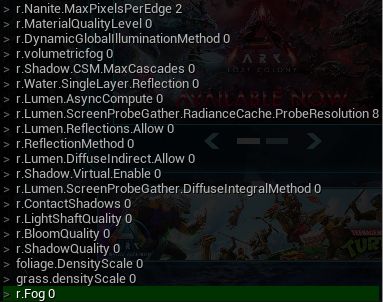

Welcome to the sweet vegetable cake that is optimization. To access this part, just hit the ~ (Tilde) key on your keyboard. Before you start typing anything, let's go with a rundown of what each does, where it effects the most, and how to fine tune it to your liking. FROM THE TOP!
Not so fast, hotshot! There's still a couple more things you should be aware of, like the PrimalConsole.ini. In this file, you'll find EVERY COMMAND YOU HAVE EVER INPUT. Due to our troubleshooting nature, our in-game console will become FLOODED with commands we won't be using again. Where do you find this file?
Another note! This does not make the commands run on startup, just loads them into the CONSOLE HISTORY. To access the history of commands used, while the console bar is showing at the bottom of the screen, press the UP or DOWN arrow.
If utilizing all (or most) of these commands, get ready to become an audiophile! These commands will make it so you DO NOT SEE WEATHER EVENTS!!! Scorched Earth Sandstorms? Not visible. Lightning Strikes? Not visible. Valguero Storms? Not visible. You get the idea. The Jerboa tame is going to be your greatest asset!
Do note that you haven't been told to join any servers or start a game. We do this from the Main Menu, or anywhere for that matter
WHAT IN THE UNHOLY OVERSEER IS THAT LIST?!?!
Welcome to the sweet vegetable cake that is optimization. To access this part, just hit the ~ (Tilde) key on your keyboard. Before you start typing anything, let's go with a rundown of what each does, where it effects the most, and how to fine tune it to your liking. FROM THE TOP!
r.Nanite.MaxPixelsPerEdge 2
- Most notably visuals. Want it looking like PS2 graphics at a distance? keep it at 2. You can get away with having it set to 4-16, but no higher. We like our performance, and it doesn't affect too much when viewing things up closer.MaterialQualityLevel 0
- This is not a must, but preferred. Setting this to 0 heavily affects performance in the best way possible. Now we're getting them oldschool graphics - If your minimap is fuzzy and can't handle looking at it, replace "0" with "1" and wait a bit. Have patience.r.DynamicGlobalIlluminationMethod 0
- This setting balances ALL lighting in reference to the base lighting of your camera. It enables you to see and save on post-processing power. (TL;DR you can find a much better description than mine)r.volumetricfog 0
- Fog is one of the main affecters for performance. Setting this to 0 disables fog entirely with exception to a map's baked in fog (See Valguero)r.Shadow.CSM.MaxCascades 0
- Immediately noticeable and significantly impacts performance. Removing shadows does not affect the cascades, so this is just a step for removing all shadowsr.Water.SingleLayer.Reflection 0
- Removes reflections from water, allowing you to kinda see into it while not in it. It does minimally impact performancer.Lumen.AsyncCompute 0
- Minimal impact, not noticeable with our settingsr.Lumen.ScreenProbeGather.RadianceCache.ProbeResolution 8
- Minimal impact, not noticeable with our settingsr.Lumen.Reflections.Allow 0
- Minimal impact, not noticeable with our settingsr.ReflectionMethod 0
- Minimal impact, hardly noticeable with our settingsr.Lumen.DiffuseIndirect.Allow 0
- Moderate impact, visually noticeable by lighting up shadowsr.Shadow.Virtual.Enable 0
- Significant impact, not noticeable visually but you can sure as heck feel itr.Lumen.ScreenProbeGather.DiffuseIntegralMethod 0
- Minimal impact, not noticeable with our settingsr.ContactShadows 0
- Significant impact, visually noticeable as a step to completely remove shadowsr.LightShaftQuality 0
- Minimal impact, not noticeable with our settingsr.BloomQuality 0
- Minimal impact, hardly noticeable with our settings due to the Global Illumination liner.ShadowQuality 0
- Major impact, removes baseline shadows from existence. To fully remove shadows, see all shadow commands abovefoliage.DensityScale 0
- Significant impact, removes foliage clutter in a radius around the cameragrass.densityScale 0
- Minor impact, removes most grass clutter in a radius around the camerar.Fog 0
- Significant impact, not as powerful as the volumetric fog line but definitely piggybacks the processgrass.enable 0
- Does not workgrass.sizeScale 0
- Medium impact, makes non-harvestable grass disappearr.Streaming.PoolSize #
- Does absolutely N O T H I N G after thorough testing on our systemr.LightShaftDownSampleFactor 1
- Very minor impact, not noticeable with our settingsr.VolumetricCloud 0
- BIGGEST IMPACT. ASA utilizes REAL CLOUD SIMULATIONS. This removes ALL OF THEM and renders the simulating INERT, REDUNDANT, and a 2x framerate boostkillparticles
- Situational impact. This disables almost ALL particles. However, this removes your ability to visually identify buffs, alpha dinos, shiny dinos (mod). I have not figured out the command to revert this. Relaunching the game enables particles. ALSO DISABLES SEEING ARTIFACTSFX.AllowGPUParticles 0
- Disables gpu rendered particlesFX.MaxCPUParticlesPerEmitter 0
- Removes particles from things such as the Air Conditioner (ie. no more A/C fog)fx.NiagaraAllowGPUParticles 0
- Disables GPU particles for whatever that isark.DisableFluidSim 1
- Disables NinjaLive's fluid simr.Streaming.PoolSizeForMeshes 2000
- If your dinos look straight up PS1 Hagrid, use this. Other variables that have been known to work are 500 / 1000 / 1500IF YOU ARE MORE ENLIGHTENED WITH ANY OF THESE SETTINGS, DROP US SOME EDITS!
"COOL! CAN I PLAY NOW?!"
Not so fast, hotshot! There's still a couple more things you should be aware of, like the PrimalConsole.ini. In this file, you'll find EVERY COMMAND YOU HAVE EVER INPUT. Due to our troubleshooting nature, our in-game console will become FLOODED with commands we won't be using again. Where do you find this file?
(drive_letter):\SteamLibrary\steamapps\common\ARK Survival Ascended\ShooterGame\Saved\Config\Windows
You can adjust all of these safely, just remember, though: ANY EDITS YOU MAKE AND SAVE WHILE THE GAME IS OPEN WILL BE UNDONE ON NEXT LAUNCH. MAKE SURE THE GAME'S PROCESS IS FULLY ENDED BEFORE MAKING EDITS AND SAVINGAnother note! This does not make the commands run on startup, just loads them into the CONSOLE HISTORY. To access the history of commands used, while the console bar is showing at the bottom of the screen, press the UP or DOWN arrow.
If utilizing all (or most) of these commands, get ready to become an audiophile! These commands will make it so you DO NOT SEE WEATHER EVENTS!!! Scorched Earth Sandstorms? Not visible. Lightning Strikes? Not visible. Valguero Storms? Not visible. You get the idea. The Jerboa tame is going to be your greatest asset!
One more chapter ascension, survivor. This Overseer isn't done with you yet...
Jiniix806 Request
Two 7% Ciders in on New Year's Eve...
Alright. I've been avoiding this for a while. I never trust startup commands, and after 2 hours of wanting to scream at Wildcard on this front plus tons of outdated info provided by the community everywhere... Get ready to follow this train wreck. If you've provided info on this topic of running console commands on game launch using Steam, thank you for your patronage towards this guide. I have scoured all over numerous forums, websites, and the like to figure this out in addition to troubleshooting each and every method. I'm at sorrow to say that on startup command is not feasible with this list, and the amount of Unreal crash reports I've sent has been more in the past 2 hours than in the past 5 years of my gaming history.
But all is not lost...
THANK YOU REDDIT POSTERS. BE NOTICED. BE PROUD.Perusing through the info of a 2yr/old discussion, we have a mutual compromise that works with most, if not all commands in our list INCLUDING THE CLOUD LINE!
"Oh heck yes. Tell me OR ELSE!"
Woah, woah, WOAH!! This is my personal time we're talking, here... Geez...Open your file browser, and navigate yourself to ...\ShooterGame\Binaries as shown in the folder below and make a text file (.txt) here.
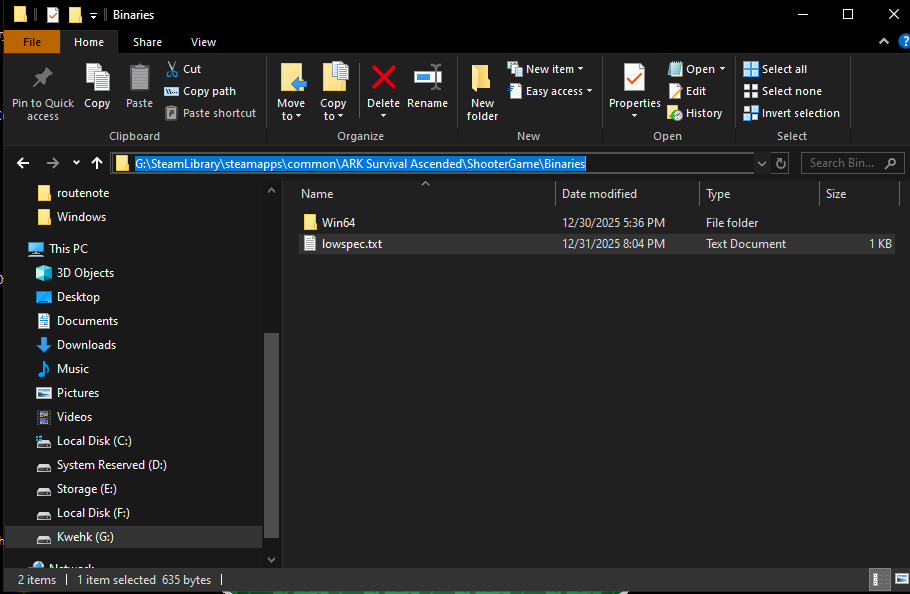 Name it whatever you want, but DO NOT INCLUDE A SPACE IN THE NAME. Make it simple, memorable, and easy to type. For me, lowspec.txt
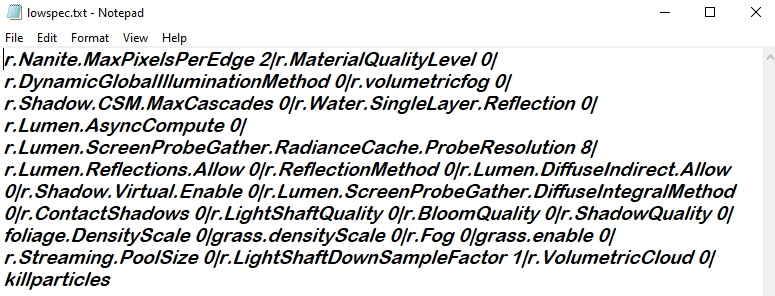
In this file, we are going to input Every darn command in this list separated by a |, no spaces required. In the end, the text file should look like this:
r.Nanite.MaxPixelsPerEdge 2|r.MaterialQualityLevel 0|r.DynamicGlobalIlluminationMethod 0|r.volumetricfog 0|r.Shadow.CSM.MaxCascades 0|r.Water.SingleLayer.Reflection 0|r.Lumen.AsyncCompute 0|r.Lumen.ScreenProbeGather.RadianceCache.ProbeResolution 8|r.Lumen.Reflections.Allow 0|r.ReflectionMethod 0|r.Lumen.DiffuseIndirect.Allow 0|r.Shadow.Virtual.Enable 0|r.Lumen.ScreenProbeGather.DiffuseIntegralMethod 0|r.ContactShadows 0|r.LightShaftQuality 0|r.BloomQuality 0|r.ShadowQuality 0|foliage.DensityScale 0|grass.densityScale 0|r.Fog 0|grass.enable 0|r.Streaming.PoolSize 0|r.LightShaftDownSampleFactor 1|r.VolumetricCloud 0|killparticles
"Okay, this will run on startup, right? RIGHT?!?! Holds gun to your head
No, but this does prevent you from pasting a long string of code! Allow me to introduce you to the exec command!Whether you're in the main menu or in game, open your Console and type
exec (filename).txt
Because of how we formatted the text in the file, it will run every command in order, but be prepared for a much longer response time for the game to implement everything at mach3, if not done in menu.Also figured out that individual chapters for Steam Guides have a character limit because of this, so thank you for the suggestion to add this to the guide!
How Does It Look?
Due to findings, I have removed some screenshots. I'll be adding more over time, just bear with me to repopulate
I am a merciful Overseer. Here you can see how it looks as still-images throughout the troubleshooting phases. Keep in mind that still-images will always look worse than in-the-moment action, and monitor sizes create per-user basis on visuals. I utilize a 32" monitor and I can count the pixels from 3 feet away (regardless of program running).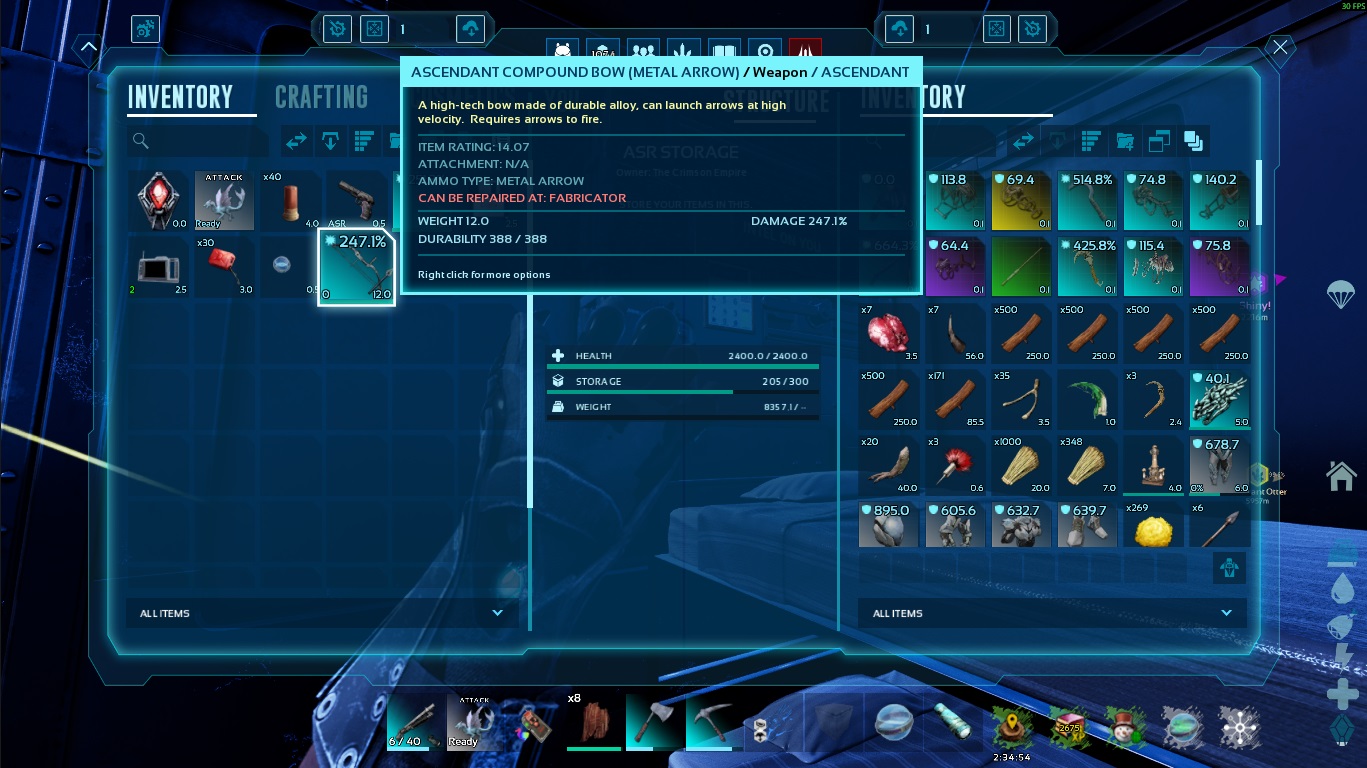
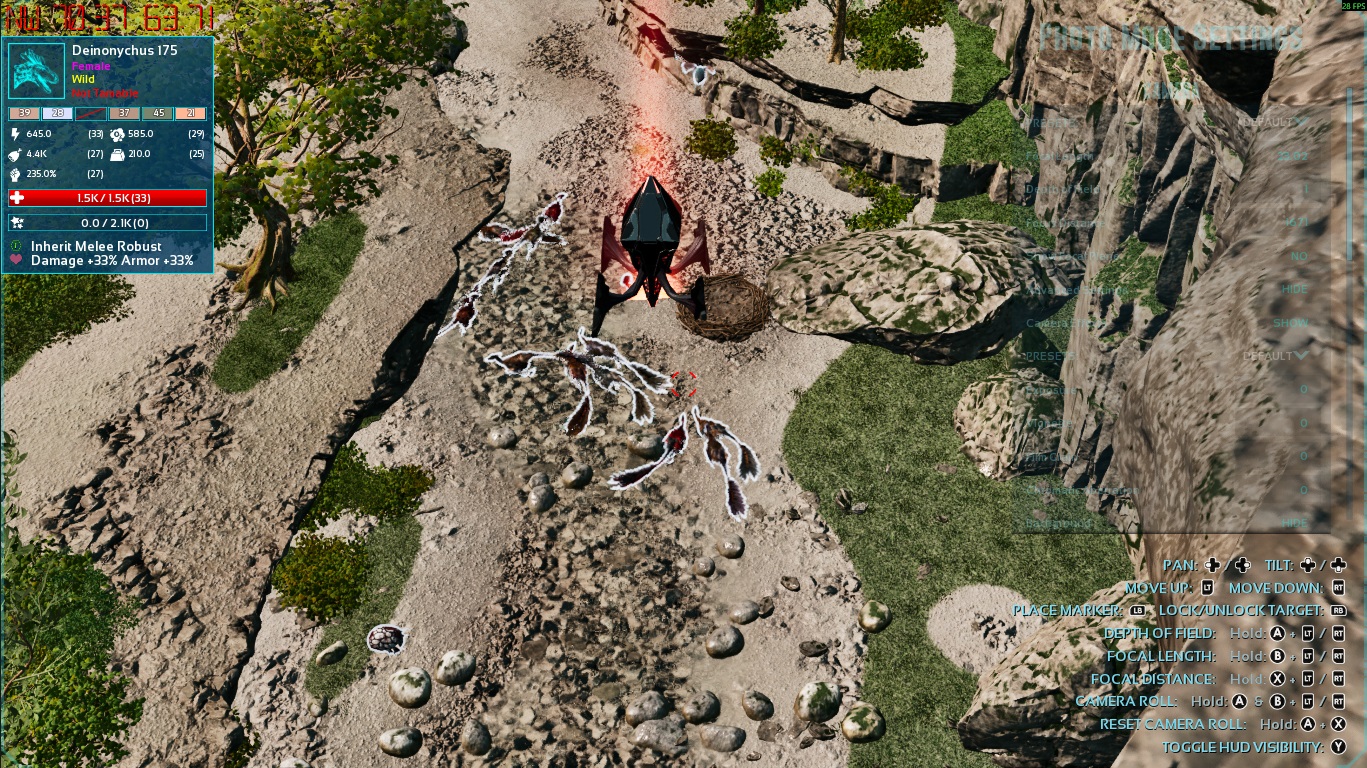
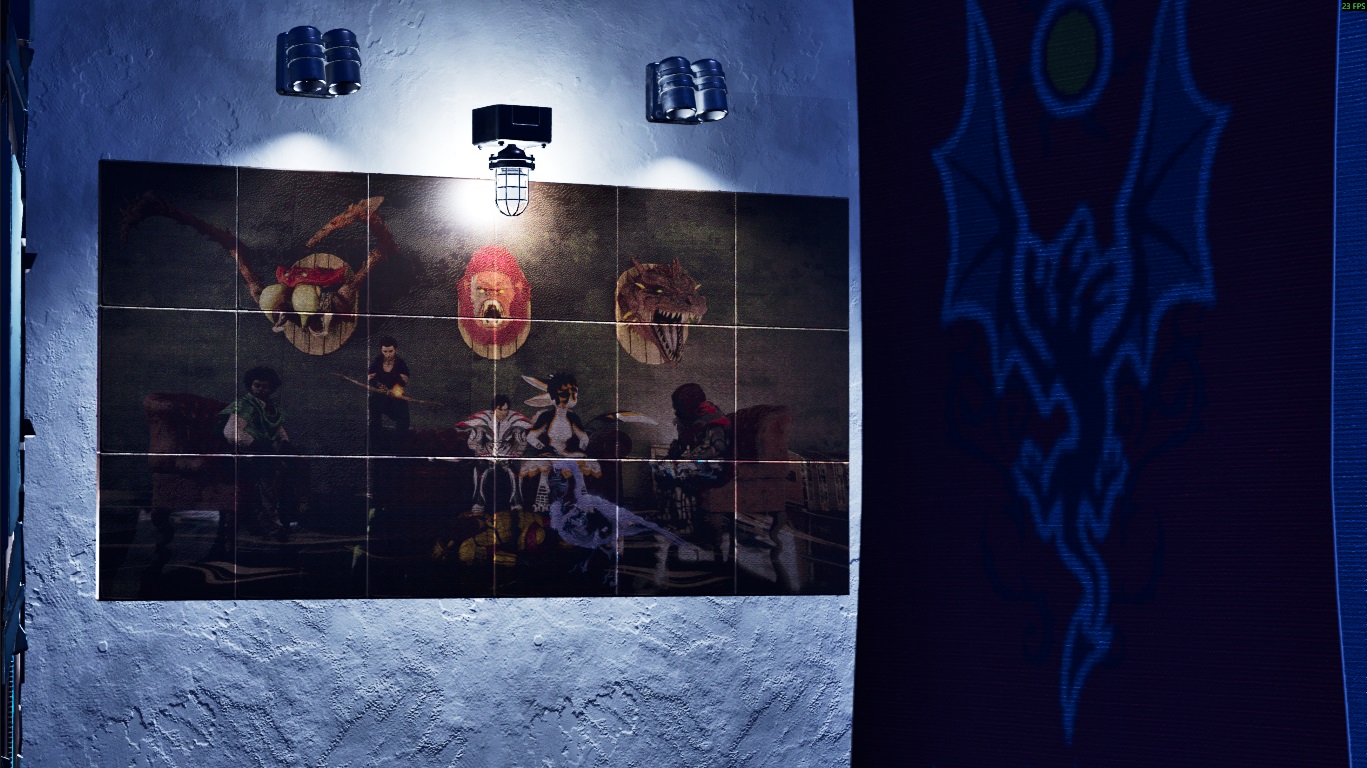


This may be the conclusion of the guide, but you can help edit it further by commenting suggestions. There is no room for arguing in the comments; not everyone is running the same machine. Now go, survivor! Select your spawn, and SURVIVE THE ARKS.
Bonus Tips!
You can gain more performance by hiding Dino Names in game by pressing the END key on your keyboard.
The Super Spyglass is a heavy hitter on performance, only use when needed
Find yourself "rubberbanding" on the spot, but your connection is fine? Mount a dino. If already mounted, unmount. This corrects the issue. However, if common occurrence while flying...
- Wear charged Tek Armor to mitigate fall damage or fly back up to the dino.- Always have a couple Parachute on hotbar to gain that spare time to whistle the dino to follow.
- If you log in after sleeping on a bed, simply lay back down and get up to fix the rubberbanding.
With the GTX980 GPU, having your inventory open utilizes 10-20% more GPU usage.
Slow patching the game after an update?
- Try to keep enough space on your drive, ideally 300-400gb extra space.- If not enough space on the installation drive, Steam will use another drive that has enough space to do the patching, and more often than not it will utilize the worst drive possible.
- If none of your drives has enough space to reinstall ASA fully, you're in for a bad time.
Broadcasting
"This can't be possible... Right? There's no way!"
Survivor... I'm going to ask you to have a LOT more confidence in your system... Open your Open Broadcaster Software (OBS)
Navigate to your settings and look for Output on the left bar.
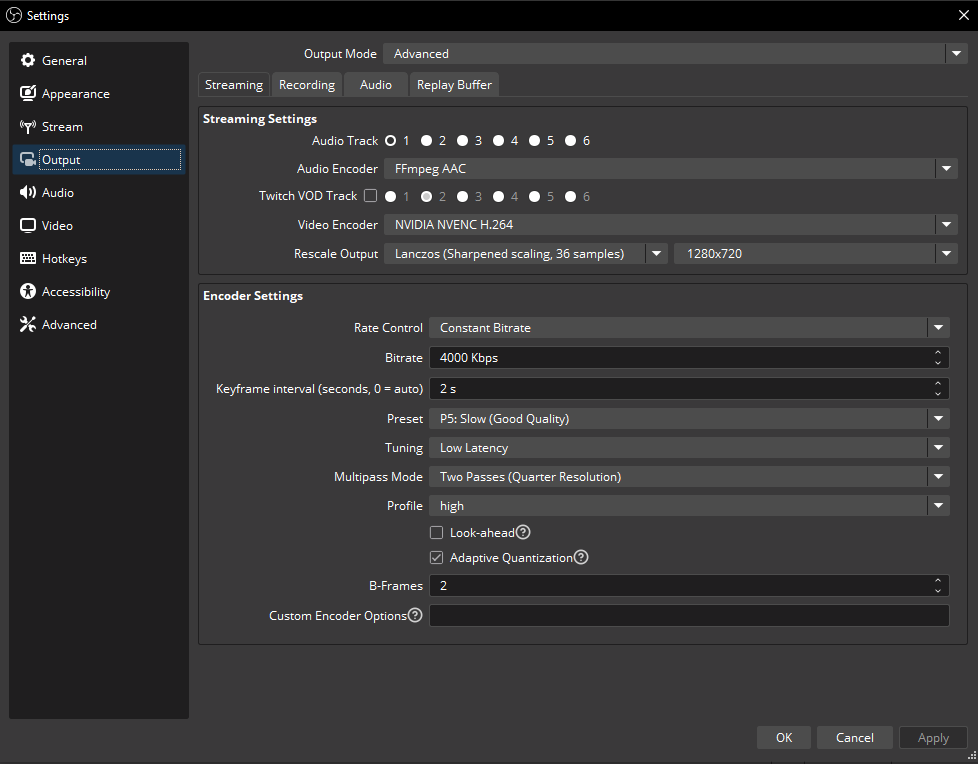 Audio Encoder - FFmpeg AAC
Video Encoder - NVIDIA NVENC H.264
Rescale Output - Lanczos (Sharpened scaling, (36 samples) / 1280x720
Encod- "I THOUGHT YOU SAID LOWERING RESOLUTION MADE EVERYTHING PIXELATED OR SOME BS IN A PREVIOUS CHAPTER!!" ..... This is different. This guarantees the broadcast platform to rescale the output so viewers have options to watch in higher or lower qualities because 720p is a staple resolution in the baseline constant. Can I continue now? Sweet!
Encoder Settings box. Rate Control should always be Constant Bitrate. Bitrate is 100% dependent on your Internet Service Provider (ISP) plan. Funny how we're entering 2026, and rural networks still PALE IN COMPARISON. Mine is set to 4000 because of my ISP, but if you've got a powerhouse of a network, set to 6000.
Keyframe interval - 2 s. If you're streaming to Twitch, this is staple and do not change it.
Preset - P5: Slow (Good Quality). Just below average, this doesn't consume too many resources while maintaining quality.
Tuning - Low Latency.
Multipass Mode - Two Passes (Quarter Resolution)
Profile - high. This setting sets OBS's process priority to Above normal when you hit the Start Streaming button.
Look-ahead - Off. This setting is akin to the game's UPSCALER. We don't need another set of variable visual quality jumping around the place like a Procoptodon. It also eats resources. Mouseover the (?) to learn more
Adaptive Quantization - On. Mouseover the (?) to learn more because I just woke up.
B-Frames - 2.
DO NOT FORGET TO HIT Apply TO SAVE YOUR SETTINGS
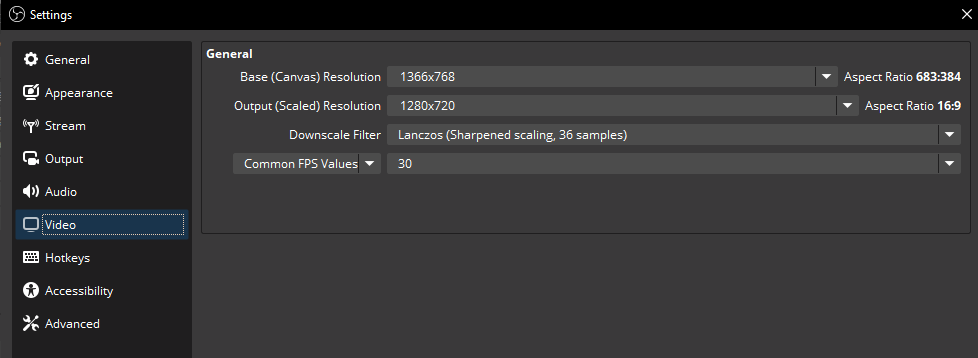 Now we'll be looking at the Video tab of the settings, and here we can justify that rescaled output further. Notice how our base canvas resolution is NOT A STANDARD ASPECT RATIO. Broadcaster platforms do not like this. 683:384? Yeah, they'll be throwing spears at you. Set that Output (Scaled) Resolution to 1280x720 to get that industry-standard 16:9 for selectable quality options for the viewer.
Downscale Filter - Lanczos (Sharpened scaling, 36 samples).
This dropbox, we want to select Common FPS Values and set that to 30. Since we're playing the game at 30fps, we do not need to be spitting out more than that.
Apply those settings, then select Advanced from the left list
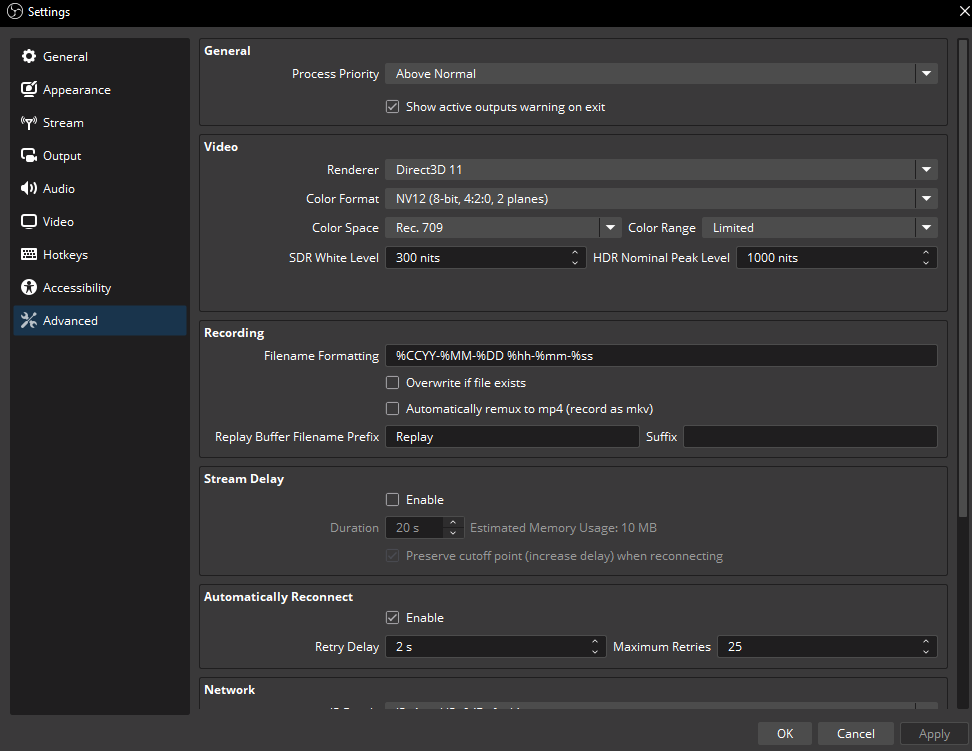
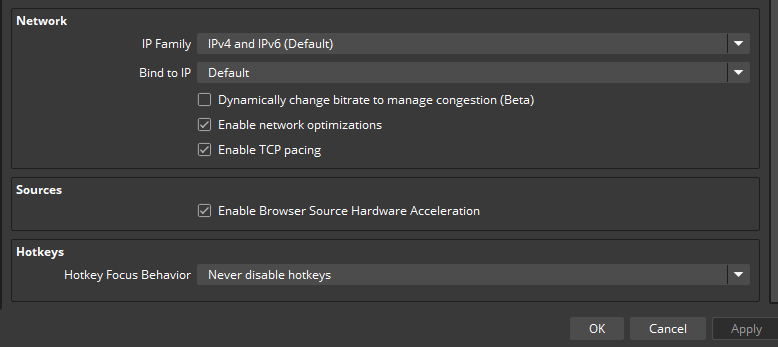 I'm not going to delve into this section too much, as I'm immediately assuming you have at least some knowledge of experience here, or have the brainpower to put 2 and 2 together to figure this out. However, for you PVP players....
UTILIZE THE Stream Delay SETTING. YOU HAVE NO EXCUSE OF BEING STREAM SNIPED. WELCOME TO THE PUBLIC SIDE OF THINGS. DO YOUR DAMN DILIGENCE.
IN CONCLUSION
Yes, you can stream ASA. This also means that High-end pc users no longer have an excuse while I exist. Ark: Survival Ascended only runs as you make it run. If you make the settings so that it runs like slower than an Achatina, that's on YOU, not Wildcard.
Avoid
TAMES
Phoenix
-Due to the visual effects and/or animations, the Phoenix will devour your performance when in close proximity and looking at it (within 5-10ft). Taming it is a hassle, due to the increased input latency and choppy framerate. Riding one is alright, but there is still a negative performance impact that can be disorienting. I consider this a prize tame and worth the suffering, but don't leave it out where you frequently move about.-GPU usage increases by ~60%+
AREAS
VALGUERO
Emerald Forest
-If you enter through the crystal entrance, be prepared for several load hitches (3-5) as you progress to the underground. Be prepared to reset your position by dismounting/mounting in order to break the rubberbanding after hitching.MODS
ANYTHING WITH AN AI THUMBNAIL
-If they used AI for the image, they probably used it for the textures, and they probably used it for the code.
AI Blacklist - Modders
35% Done
The names put in here have expressed interest in Gen-AI, think it's cool, or actively utilize Gen-AI in some form. If I miss any names, please call them out in the comments section. These names will not be removed for any reason, even if they choose to replace assets or whine that the person wanted it (you could have said "no"). Only way to get removed from this list by having the artist contact me with the project file for the art unless stated otherwise. Mod icons have been filtered through 7+ Gen-AI detectors.
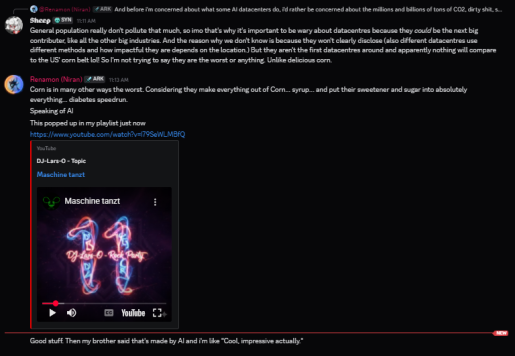
NiranV, as evident in their discord server — publicly accessible through mod descriptions, not subject for removal.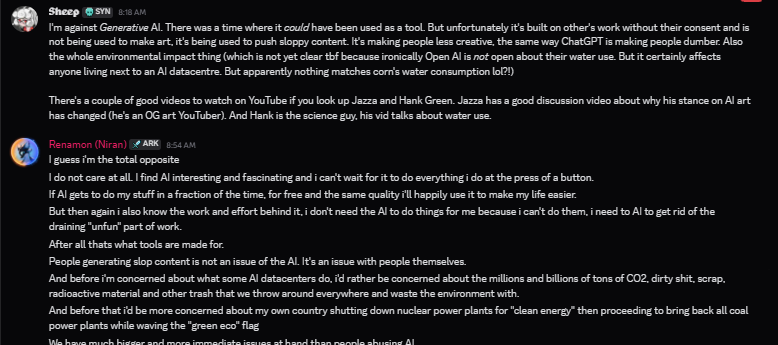
coco_ape — Thumbnail
CyberAngel — Thumbnail
kavan87 — Thumbnail
pelayori — Thumbnail
Silentrizz — Thumbnail
W1K1P3D14 — Thumbnail
thinkaboutit — Thumbnail
Sandi_00 — Thumbnail
HyPerZ_XD — Thumbnail
Joehelp — Thumbnail
Nanoh — Thumbnail
HexenLord — Thumbnail
Azuremoon13 — Thumbnail
Valyria — Thumbnail
MrChaos — Thumbnail
TheRealHypernatrema — Thumbnail
Brandimade — Thumbnail
Cocolosowasted — Thumbnail
Jams_uWu — Thumbnail
GodOfNoiseMods — Thumbnail
CZSHomer — Thumbnail
Quellcrest — Thumbnail
Jods — Thumbnail
Kiz3rMomo — Thumbnail
Deckard — Thumbnail
Lethal_Plugins — Thumbnail
PeterPan — Thumbnail
equillizer04 — Thumbnail
TeaBagBrit — Thumbnail
unknown01110101 — Thumbnail
SnowyTrain — Thumbnail
Shinygati — Thumbnail
Monark37 — Thumbnail
Yoru029 — Thumbnail
WETBATMAN — Thumbnail
LordErbosGaming — Thumbnail
mxtsdev — Thumbnail
Glitch_DK — Thumbnail
GUNN3R — Thumbnail
RedDwarf_Mods — Thumbnail
sektor50000 — Thumbnail
Loops117 — Thumbnail
nevcairiel — Thumbnail
SpitfireSolutions — Thumbnail
Natanorcus — Thumbnail
ragingarcher — Thumbnail
HNStudios — Thumbnail
oldmate124 — Thumbnail
Kineko_1 — Thumbnail
RyanLucas007 — Thumbnail
ElementalLegion — Thumbnail
elkay — Thumbnail
brunoamaraltm — Thumbnail
KalugaStudios — Thumbnail
SlayerXtremeTV — Thumbnail
Sloyserg — Thumbnail
j26arkitecto — Thumbnail
belkaraine — Thumbnail
Mawbster — Thumbnail
kalahad_ — Thumbnail
bry4n — Thumbnail
Ketaros — Thumbnail
TheNyor — Thumbnail
EpicMinerva — Thumbnail
Lutralix — Thumbnail
JohnD — Thumbnail
YuTayARKMods — Thumbnail
Trixt3r — Thumbnail
BADSBC — Thumbnail
AlmostNormal — Thumbnail
DreamDoctor — Thumbnail
Cannibalistik — Thumbnail
EJ_TY — Thumbnail
mewingpie3645 — Thumbnail
Berus — Thumbnail
TheChetu — Thumbnail
pig871 — Thumbnail
Fantiuz91 — Thumbnail
brunoamaraltm — Thumbnail
anialatorx1 — Thumbnail
ArkkoviaMods — Thumbnail
HighArk_Vox — Thumbnail
TROCKII — Thumbnail
Shokomaki — Thumbnail
Brandimade — Thumbnail
Farkom_net — Thumbnail
Petermadnize — Thumbnail
TheRealBob — Thumbnail
azkalimas — Thumbnail
speajax — Thumbnail
T4LLY7 — Thumbnail
TheGrandSeraph1 — Thumbnail
twasmuth2003 — Thumbnail
Cvijo_G — Thumbnail
applez — Thumbnail
Cezog — Thumbnail
Farkom_de — Thumbnail
leanedtv — Thumbnail
cyrusCreates — Thumbnail
Seb2121 — Thumbnail
BangPlaysGames — Thumbnail
cai1343005339 — Thumbnail
TIGERX — Thumbnail
Troyar_ARK — Thumbnail
KromarTDW — Thumbnail
AI Blacklist - Streamers
Will be filled over time. Soon, but not right now as I'm busy with other things. Forgive me for not doing this sooner.
The names put in here have expressed interest in Gen-AI, think it's cool, or actively utilize Gen-AI in some form. If I miss any names, please call them out in the comments section. These names will not be removed for any reason, even if they choose to replace assets or whine
Guide Update Log
Posting patch notes to the guide! This way you can see what changes over time. I'm in this for the long haul, just like my story completion playthrough with friends.
ALL TIMES ARE EST
December 24, 11:32pm
-Fixed minor spelling mistake in The Console Chapter (3:55pm)-Added Chapter Guide Update Log
-Added AMD GPU equivalent in Chapter The Main Menu Settings
December 25, 6:41pm
-Added info about Weather Events in chapter The ConsoleDecember 27, 8:26am
-Added killparticles to the Chapter The Console-Added entry to the Chapter Bonus Tips! (10:11am)
December 28, 10:52am
-Updated r.Lumen.DiffuseIndirect.Allow 0 impact in Chapter The ConsoleDecember 30, 12:46am
-Added Chapter Broadcasting and begun info filling-Populated Chapter Broadcasting (2:03am)
-Added Chapter Current Investigations and populated info (9:44am)
December 31, 4:18am
-Added Screenshot to Chapter How Does it Look?-Capitalized chapter How Does It Look for consistency
-Added QA estimated timeframes for maps in Chapter Current Investigations (3:00pm)
-Added Chapter Jiniix806 Request after Chapter The Console and populated info (9:35pm)
January 2, 12:38pm
-Added info to the end of 4th paragraph in Chapter The Main Menu Settings-Added entry to the Chapter Bonus Tips! (2:09pm)
January 5, 8:02am
-Added 2 entries to the section ASA CLIENT in Chapter Current InvestigationsJanuary 6, 9:20am
-Added Chapter Avoid and populated with info-Changed info in Chapter Current Investigations
January 7, 6:00am
-Added MODS section in Chapter Avoid-Removed redundant time clarification in Chapter Guide Update Log
-Added tip under Rubberbanding in the Chapter Bonus Tips! (6:17am)
January 10, 11:09am
-Added more entries to the Chapter The Console, edited descriptions of some others-Added artifact impact to killparticles in Chapter The Console (7:28pm)
January 13, 9:52am
-Updated r.Streaming.PoolSize line descriptor in Chapter The ConsoleJanuary 14, 12:53pm
-Updated Chapter Current InvestigationsJanuary 15, 5:25am
-Clarified keybind name in Chapter The Console-Added GPU usage to Phoenix in Chapter Avoid (5:34am)
January 17, 9:49am
-Added Chapter AI Blacklist, Section 1, populating with names at a later time-Updated introductory text
-Removed some screenshots in Chapter How Does it Look? (9:40pm)
-Updated command line r.MaterialQualityLevel in Chapter The Console (9:43pm)
-Clarified Chapter AI Blacklist, Section 1 within text body (9:55pm)
January 18, 1:37am
-Retitled Chapter to AI Blacklist - Modders-Added Chapter AI Blacklist - Streamers, populating with names at a later time
January 20, 4:24am
-Populated Chapter AI Blacklist - Modders with namesJanuary 25, 4:26pm
-Updated FX.MaxCPUParticlesPerEmitter 0 description in Chapter The ConsoleJanuary 28, 6:56pm
-Added Pagefile Location to the Chapter Current InvestigationsFebruary 2, 8:45am
-Updated overall performance of tested maps in Chapter Current InvestigationsFebruary 11, 12:17pm
-Added command line to the Chapter The Console in light of a recent update affecting dino polysFebruary 14, 2:28pm
-Added entry pertaining to update patching in Chapter Bonus Tips!February 24, 11:22am
-Removed KBD Ascended: Valyrian Reins mod by Kraken_1 from the Chapter Avoid as it has been fixed-Updated disclaimer in Chapter Current Investigations
March 1, 8:19pm
-Updated Chapter Current Investigations to inform about situation