

Creating Custom Units for WH3
 Casualfield
(38 ratings)
Sep 21, 2024 @ 2:56pm1,86469
Modding or Configuration
Requirements
I assume most people reading this will be beginner modders so go to https://tw-modding.com/wiki/Main_Page and read through the tutorials like Beginner's Guide, RPFM For Dummies & RPFM Post-Setup for Beginners so you can set up the tools correctly and get a grasp of the basics.
My Personal Settings for RPFM
At the top left go to PackFile > settings > settings tab in the new window.
Under UI Settings I recommend un-checking "Delete empty folders".
--Delete empty folders when Enabled will automatically delete a folder if it has no contents which in my experience, is a hassle. I want to keep the folder so the file path is correct if I later want to import files. If I wanted to delete the folder well... I'll just delete the folder...
Under Table Settings I recommend enabling Tight Mode.
--Tight Mode will fit the rows to be the size of the text and remove empty space allowing for more rows to be visible at once but has the downside of only taking effect once you actually make a table change and sometimes it will also just not work properly and cut off columns.
Read the rest of the settings, change what you want, hit save when you are done.
Back to the top left;
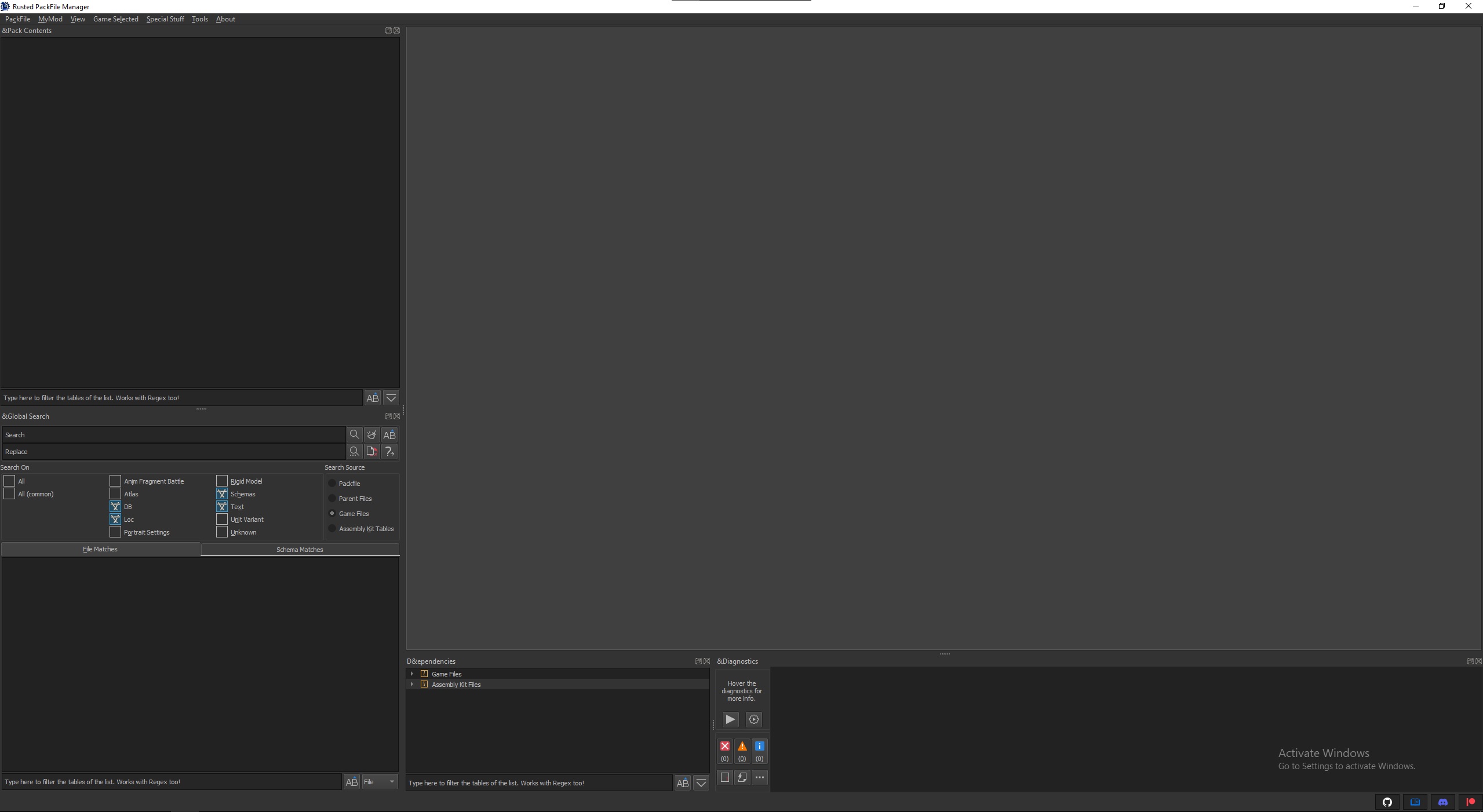
View > Toggle Global Search Window. I recommend dragging this window far left and 50/50 splitting it with Pack Contents as this is the bread and butter window which you will be using constantly.
View > Toggle on Dependencies Window, I recommend dragging this window to the left of the Diagnostics window. This gives you access to all the game files and AssKit files if for some reason you need those.
Under UI Settings I recommend un-checking "Delete empty folders".
--Delete empty folders when Enabled will automatically delete a folder if it has no contents which in my experience, is a hassle. I want to keep the folder so the file path is correct if I later want to import files. If I wanted to delete the folder well... I'll just delete the folder...
Under Table Settings I recommend enabling Tight Mode.
--Tight Mode will fit the rows to be the size of the text and remove empty space allowing for more rows to be visible at once but has the downside of only taking effect once you actually make a table change and sometimes it will also just not work properly and cut off columns.
Read the rest of the settings, change what you want, hit save when you are done.
Back to the top left;
View > Toggle Global Search Window. I recommend dragging this window far left and 50/50 splitting it with Pack Contents as this is the bread and butter window which you will be using constantly.
View > Toggle on Dependencies Window, I recommend dragging this window to the left of the Diagnostics window. This gives you access to all the game files and AssKit files if for some reason you need those.
The Main Tables
First let's go to PackFile > New Pack to make a new Pack. Now let's save and name it so we don't lose any progress, PackFile > Save PackFile As. DO NOT end the name in a number to avoid issues . It's best practice to put your name/initials w/e in front, so cf_new_black_guards.pack, but you do you. The default location will be Total War WARHAMMER III\data folder. I recommend you save it in another location as the data folder can be modified which can corrupt or revert changes made to your pack file. This requires that you install (PackFile > Install) the mod every time you want to test the mod in-game.
Find a Base Game Unit to use as a Foundation
I HIGHLY recommend to always use a base game unit for a foundation; creating new units from scratch is very time consuming, will leave you with loads of empty columns and a single empty/invalid key won't always trigger diagnostics and your game will CTD with no error leaving you on a hair pulling needle in a haystack search trying to fix it. You'll need to reference a base unit anyways to see where and how it's added in-game.
Finding a Base Game Unit, or anything really
The main_units table is a good place to start, but how do I find my unit? I want to base my unit off the Dark Elves Black Guard. We need find that units' key. USUALLY the units are named after their screen name so we can search black in the search bar at the bottom. Once you have the units key global search it so you can see all the tables it's used in.
If we can't find the key use Global Search (View > Toggle Global Search Window), make sure the source is game files and both DB & loc are checked. The text option will search other files like .lua and documentation and variantmeshdefinitions.
In this case "Black Guard of Naggarond" is connected to land_units_onscreen_name_wh2_main_def_inf_black_guard_0. The unit key is wh2_main_def_inf_black_guard_0 so now global search it so you can see all the tables it's used in..
Alternatively we can do a right click > go to ... > definition.
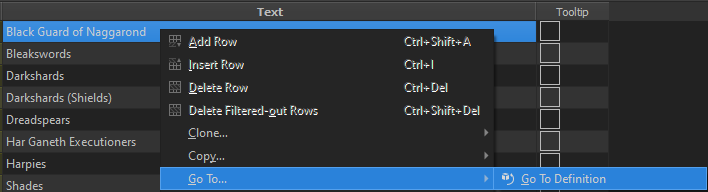
Alternatively again you can use find references.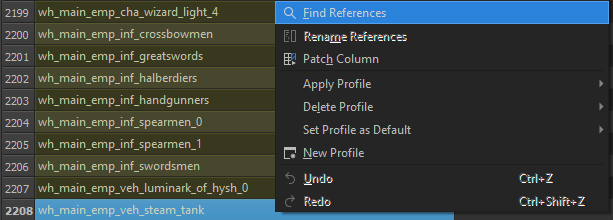
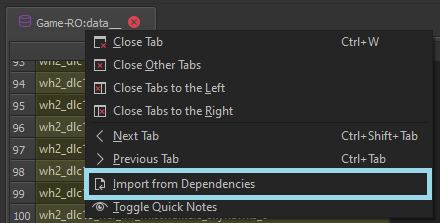
I open the new imported table, then highlight the whole table with ctrl + a, delete everything and paste the copied row[s] back in with ctrl + shft + v.
Tables to Import
db/allied_recruitment_unit_permissions_tables -- Allows the unit to be recruited via Outposts.
db/armed_citizenry_unit_groups_tables -- The main key to add your unit to a garrison.
db/building_level_armed_citizenry_junctions_tables -- Assign your unit to a building to add it to the garrison. MUST use a UNIQUE ID key.
db/battle_set_piece_tables --Ignore, quest battle stuff. Add if you want your unit in quest battles but I'm not going over that in this guide.
db/building_units_allowed_tables -- Adds the unit to a building for local and global recruitment. MUST use a UNIQUE ID key.
db/campaign_map_attrition_unit_immunities_tables -- Give the unit attrition immunity, imagine vampires taking vampire attrition.
db/campaign_rogue_army_group_units_tables --Can Ignore. Adds the unit to Rogue armies, xp is unit rank. MUST use a UNIQUE ID key.
db/cdir_military_generator_unit_qualities_tables --Helps the AI understand the unit's performance and role when recruiting, also used for custom battle auto generate.
db/faction_rebellion_units_junctions_tables --Can Ignore. Adds unit to rebel armies.
db/land_units_tables --The second most important table. Contains the stats and other very import things, will go in-depth later on.
db/land_units_to_unit_abilites_junctions_tables --Add an ability to the unit.
db/loading_screen_quotes_tables --Add the unit to loading screens.
db/ loading_screen_quotes_to_units_tables. --Required for above table and uses the land_units description texts and ui_unit_bullet_point_unit_overrides_tables for in-game text/information.
db/main_units_tables --The main table for the unit. Messing things up here will cause many issues especially crashes, will go in-depth later on.
db/ui_unit_bullet_point_unit_overrides_tables --Controls the bullet points on the unit card, max of four. Can make your own and set what order they are shown.
db/unit_attributes_groups_tables --Main key for enabling attributes to the unit.
db/unit_attributes_to_groups_junctions_tables --Add attributes to the unit like cause_fear.
db/unit_banner_unit_height_offsets_tables --Control the banner above the unit in battles & on the campaign map, use to avoid clipping.
db/unit_set_to_unit_junctions_tables --Adds the unit to a set, sets are used in effects like Technologies & Skills. New sets can be created.
db/unit_variants_tables --Connects the unit to a variant and unit card. The variant will be a different name and will need to be searched for separately in most cases.
db/units_custom_battle_permissions_tables --Add the unit to a faction in custom battles.
db/units_to_exclusive_faction_permissions_tables --Add or not allow a unit to a specific faction. Used for RoRs but can also be used for normal units for niche situations.
db/units_to_groupings_military_permissions_tables --Add the unit to a factions military group which enables it in campaign.
db/variants_tables --Connects the unit variant in unit_variants_tables to a variant mesh definition that controls the model, textures, weapons, ect.
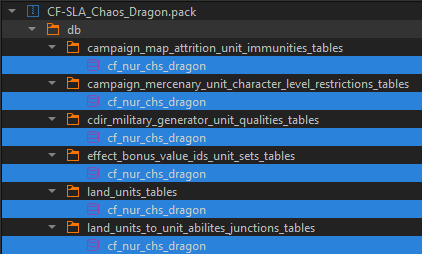
BEFORE TESTING: Highlight all the tables by ctrl + left clicking them and then press ctrl + r to rename them all at once. Leaving them named data__ will overwrite the base game files, don't do that.
Find a Base Game Unit to use as a Foundation
I HIGHLY recommend to always use a base game unit for a foundation; creating new units from scratch is very time consuming, will leave you with loads of empty columns and a single empty/invalid key won't always trigger diagnostics and your game will CTD with no error leaving you on a hair pulling needle in a haystack search trying to fix it. You'll need to reference a base unit anyways to see where and how it's added in-game.
Finding a Base Game Unit, or anything really
The main_units table is a good place to start, but how do I find my unit? I want to base my unit off the Dark Elves Black Guard. We need find that units' key. USUALLY the units are named after their screen name so we can search black in the search bar at the bottom. Once you have the units key global search it so you can see all the tables it's used in.
If we can't find the key use Global Search (View > Toggle Global Search Window), make sure the source is game files and both DB & loc are checked. The text option will search other files like .lua and documentation and variantmeshdefinitions.
In this case "Black Guard of Naggarond" is connected to land_units_onscreen_name_wh2_main_def_inf_black_guard_0. The unit key is wh2_main_def_inf_black_guard_0 so now global search it so you can see all the tables it's used in..
Alternatively we can do a right click > go to ... > definition.
Alternatively again you can use find references.
Importing Tables and Rows
The method I use is select the whole row I want by clicking on the row number and copying it with ctrl + c, then import the whole table by right clicking the table tab at the top and import from dependencies. I open the new imported table, then highlight the whole table with ctrl + a, delete everything and paste the copied row[s] back in with ctrl + shft + v.
Tables to Import
db/allied_recruitment_unit_permissions_tables -- Allows the unit to be recruited via Outposts.
db/armed_citizenry_unit_groups_tables -- The main key to add your unit to a garrison.
db/building_level_armed_citizenry_junctions_tables -- Assign your unit to a building to add it to the garrison. MUST use a UNIQUE ID key.
db/battle_set_piece_tables --Ignore, quest battle stuff. Add if you want your unit in quest battles but I'm not going over that in this guide.
db/building_units_allowed_tables -- Adds the unit to a building for local and global recruitment. MUST use a UNIQUE ID key.
db/campaign_map_attrition_unit_immunities_tables -- Give the unit attrition immunity, imagine vampires taking vampire attrition.
db/campaign_rogue_army_group_units_tables --Can Ignore. Adds the unit to Rogue armies, xp is unit rank. MUST use a UNIQUE ID key.
db/cdir_military_generator_unit_qualities_tables --Helps the AI understand the unit's performance and role when recruiting, also used for custom battle auto generate.
db/faction_rebellion_units_junctions_tables --Can Ignore. Adds unit to rebel armies.
db/land_units_tables --The second most important table. Contains the stats and other very import things, will go in-depth later on.
db/land_units_to_unit_abilites_junctions_tables --Add an ability to the unit.
db/loading_screen_quotes_tables --Add the unit to loading screens.
db/ loading_screen_quotes_to_units_tables. --Required for above table and uses the land_units description texts and ui_unit_bullet_point_unit_overrides_tables for in-game text/information.
db/main_units_tables --The main table for the unit. Messing things up here will cause many issues especially crashes, will go in-depth later on.
db/ui_unit_bullet_point_unit_overrides_tables --Controls the bullet points on the unit card, max of four. Can make your own and set what order they are shown.
db/unit_attributes_groups_tables --Main key for enabling attributes to the unit.
db/unit_attributes_to_groups_junctions_tables --Add attributes to the unit like cause_fear.
db/unit_banner_unit_height_offsets_tables --Control the banner above the unit in battles & on the campaign map, use to avoid clipping.
db/unit_set_to_unit_junctions_tables --Adds the unit to a set, sets are used in effects like Technologies & Skills. New sets can be created.
db/unit_variants_tables --Connects the unit to a variant and unit card. The variant will be a different name and will need to be searched for separately in most cases.
db/units_custom_battle_permissions_tables --Add the unit to a faction in custom battles.
db/units_to_exclusive_faction_permissions_tables --Add or not allow a unit to a specific faction. Used for RoRs but can also be used for normal units for niche situations.
db/units_to_groupings_military_permissions_tables --Add the unit to a factions military group which enables it in campaign.
db/variants_tables --Connects the unit variant in unit_variants_tables to a variant mesh definition that controls the model, textures, weapons, ect.
BEFORE TESTING: Highlight all the tables by ctrl + left clicking them and then press ctrl + r to rename them all at once. Leaving them named data__ will overwrite the base game files, don't do that.
Adding .locs
Keep importing from vanilla. You only need one .loc file so you can combine them or just paste what you need into one .loc file, or follow vanilla.
Like data table names, DO NOT keep the .loc file names the same to prevent overwriting vanilla.
Keep .loc at the end when renaming!
Don't enabled tooltip checkbox unless the vanilla entry does.
In land_units_tables the columns "Historical Description Text" & "Short Description Text" keys connect to unit_description_historical_texts_tables & unit_description_short_texts_tables which then connect to the .loc file.
Here are the keys you will need for units:
unit_description_historical_texts_UNITKEY (The name that will appear in-game on the unit)
land_units_concealed_name_UNITKEY (Leave empty)
unit_description_short_texts_text_UNITKEY (Short Text will show up on the unit card.)
unit_description_historical_texts_text_UNITKEY (Historical Text will show up next to the unit card when inside the Unit Roster list.)

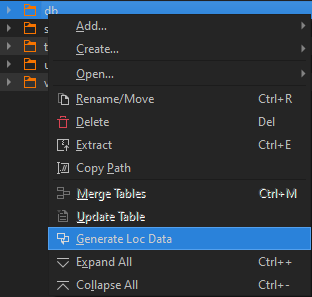
Alternately you can right click the packfile name and generate missing .loc data.
This can also help if the mod is crashing as sometimes a .loc is needed but missing.
Not everything is always needed that's generated like the loading quotes. The file path is also not the same as vanilla so I change it to match but it will still work if you don't so you don't have to bother with it if you don't want to.
Like data table names, DO NOT keep the .loc file names the same to prevent overwriting vanilla.
Keep .loc at the end when renaming!
Don't enabled tooltip checkbox unless the vanilla entry does.
In land_units_tables the columns "Historical Description Text" & "Short Description Text" keys connect to unit_description_historical_texts_tables & unit_description_short_texts_tables which then connect to the .loc file.
Here are the keys you will need for units:
unit_description_historical_texts_UNITKEY (The name that will appear in-game on the unit)
land_units_concealed_name_UNITKEY (Leave empty)
unit_description_short_texts_text_UNITKEY (Short Text will show up on the unit card.)
unit_description_historical_texts_text_UNITKEY (Historical Text will show up next to the unit card when inside the Unit Roster list.)
Alternately you can right click the packfile name and generate missing .loc data.
This can also help if the mod is crashing as sometimes a .loc is needed but missing.
Not everything is always needed that's generated like the loading quotes. The file path is also not the same as vanilla so I change it to match but it will still work if you don't so you don't have to bother with it if you don't want to.
Disclaimer
Different factions have different tables, recruitment methods ect. You'll need to use deductive reasoning to determine if a table I didn't mention should be added that is appearing in the global search. You can create a post/question in the modding discord found here https://discord.gg/moddingden if you need help.
Use Global Search to Replace all Keys
A huge reason to import from base game aside from getting less headaches is the replace all feature in the global search window.
Paste the unit key in the search box "wh2_main_def_inf_black_guard_0".
Type your custom key into the Replace box, "cf_new_def_inf_black_guard_0".
Make the source Packfile and hit the replace all button which is a page icon with a red page behind it with a small red x on it.

And just like that a huge amount of the work is done. CHECK DIAGNOSTICS to ensure no oopsies or issues and save the pack file. Usually not everything will be using the same key so you may need to replace the other keys as well.
Paste the unit key in the search box "wh2_main_def_inf_black_guard_0".
Type your custom key into the Replace box, "cf_new_def_inf_black_guard_0".
Make the source Packfile and hit the replace all button which is a page icon with a red page behind it with a small red x on it.
And just like that a huge amount of the work is done. CHECK DIAGNOSTICS to ensure no oopsies or issues and save the pack file. Usually not everything will be using the same key so you may need to replace the other keys as well.
Customizing the main_units_table
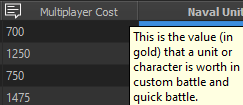
For the sake of saving space and time, I'll just refer you to use the tooltips in RPFM (not always correct but close enough) and again just reference vanilla. If there are no tooltips usually that means the name of the row is self explanatory or it's not used. In the case of naval stuff just reference the vanilla table. If literally every single unit has "wh_main_shp_transport" in Naval Unit, yours should too....
If you need help please hop into the discord[discord.gg], only a few people bite....
If you need help please hop into the discord[discord.gg], only a few people bite....
Customizing the land_unit_table
This table is pretty self explanatory. Use the tooltips in RPFM to see what things do and link to. Global Search stuff to find things like the melee weapon so you can create a new one for the unit and customize the melee damage and weapon stats.
Man Entity references the battle_entities table, which controls things like the unit speed, mass, and hitbox. You can also create a new one if needed.
If you want to change the unit to a different type of weapon style i.e from halberds to dual wield you'll need to look at the Man Animation and you need to match the skeleton or the model will become all stretchy and spaghetti. So Hu1c's have to use Hu1c animations, if they don't have an animation you want you'll need to make a custom one, lucky for you I made a guide for that, found here Creating Custom Unit Animation Sets.
Man Entity references the battle_entities table, which controls things like the unit speed, mass, and hitbox. You can also create a new one if needed.
If you want to change the unit to a different type of weapon style i.e from halberds to dual wield you'll need to look at the Man Animation and you need to match the skeleton or the model will become all stretchy and spaghetti. So Hu1c's have to use Hu1c animations, if they don't have an animation you want you'll need to make a custom one, lucky for you I made a guide for that, found here Creating Custom Unit Animation Sets.
Customizing the Unit Card Picture and Variant
The unit_variants_tables references the unit card file which can be found in ui/units/icons/filename.png. Import a vanilla one for easy folder creation to ensure the path is correct. You can export a random one to your desktop and edit it to your liking and then right click the folder and add file to import it. Make sure you use the correct size and type of file (png) and do not do things like interlace the image.
The unit_variants_tables will reference the variants_tables which links to a variantmeshdefinition. Import a vanilla one to ensure the file path is correct. Inside the variantmeshdefinition you can change things like the model & weapons of the unit. Again if the model doesn't fit the skeleton you'll get a mess in game. Different animations use different weapon slots and some slots require a name. Just always fall back on a vanilla file if you have issues you can create a post/question in the modding discord found here https://discord.gg/moddingden if you need help.
The unit_variants_tables will reference the variants_tables which links to a variantmeshdefinition. Import a vanilla one to ensure the file path is correct. Inside the variantmeshdefinition you can change things like the model & weapons of the unit. Again if the model doesn't fit the skeleton you'll get a mess in game. Different animations use different weapon slots and some slots require a name. Just always fall back on a vanilla file if you have issues you can create a post/question in the modding discord found here https://discord.gg/moddingden if you need help.
Common Issues & Troubleshooting Steps
If you are crashing to the desktop immediately after opening the game with no error message you likely are missing a table that is being called on by something or you have an empty field/key and RPFM diagnostic didn't catch it.
If you are crashing when loading into a custom battle it's probably something in the main_units table, caste, unit type, voice over stuff or empty fields are likely.
If you you are crashing loading into a NEW campaign it could be any of the above or more invalid keys. Pretty much applies to if you can load into the campaign but crash when it has to load your unit, something like missing permission tables.
If your model is invisible you need to look at the variant and variantmeshdef. They could be missing or broken.
If the weapons are on their back or side and not in the units hand or proper position the meshdefinition will be the cause. If you are trying to make a spearman dual wield that requires changing the animation, animations have different weapon slot positions and require changing the variantmeshdefinition, some units like ranged units will use props in their animation meta.data, so a new animation pack will need to be made and the meta.data changed.
REFERENCE VANILLA, and I personally do this ALL the time, re-read over everything and quadruple check because you probably miss read or just completely missed something.
Ask for help in the modding discord[discord.gg]!
If you are crashing when loading into a custom battle it's probably something in the main_units table, caste, unit type, voice over stuff or empty fields are likely.
If you you are crashing loading into a NEW campaign it could be any of the above or more invalid keys. Pretty much applies to if you can load into the campaign but crash when it has to load your unit, something like missing permission tables.
If your model is invisible you need to look at the variant and variantmeshdef. They could be missing or broken.
If the weapons are on their back or side and not in the units hand or proper position the meshdefinition will be the cause. If you are trying to make a spearman dual wield that requires changing the animation, animations have different weapon slot positions and require changing the variantmeshdefinition, some units like ranged units will use props in their animation meta.data, so a new animation pack will need to be made and the meta.data changed.
Troubleshooting Steps
Run RPFM diagnostics AFTER you make sure RPFM & dependencies are updated. REFERENCE VANILLA, and I personally do this ALL the time, re-read over everything and quadruple check because you probably miss read or just completely missed something.
Ask for help in the modding discord[discord.gg]!