

PUBG FPS/Latency Bible II - (English Guide) 29.08.2025
 ムStreamム
(97 ratings)
Oct 15, 2024 @ 8:15am9,626151
Modding or ConfigurationMultiplayerWalkthroughsWorkshopEnglish
Introduction
🎯 Introduction & Purpose of the Guide
The main goal of the guide is to help you optimize your PC/Game to achieve the most competitive experience from PUBG.
All of the provided tweaks (and many not provided) were tested either by me, multiple of my friends, or communities of PUBG (and not only) that I participated in — including some pros.
Many of the mentioned sources below inspired huge groups of people, including the community of tweakers, or provided an insight into what many of the functions do/do not do, and how to possibly use 'em to get some advantage.
Everything here is safe and it won't break your PC.
Multiple settings can be easily restored to default, so no worry.
⚠️ For safety reasons:
MAKE SURE TO CREATE A WINDOWS RESTORE POINT
---
📊 Benchmark Notes
Benchmark results will differ depending on setups.
The target of the guide is mostly Nvidia / Intel users.
After installing a new, debloated driver, the performance can be worse for a short amount of time as shaders have to re-build.
---
📌 Important Notes
‼️ IMPORTANT ‼️
- 1. All of the benchmarks and my own recommendations are not only based on different users' experience, but also my own — on multiple PC setups, going from low-end to high-end, including different peripherals and monitors.
- 2. Some of the sources mention old Windows builds or old drivers. Many of 'em can be outdated, and are upgraded in the guide itself.
Guides also contain a lot of stuff that my guide does not mention due to multiple reasons:
(e.g. game-breaking experience, stuff being outdated, unmeasurable lack of stability, placebo in newer builds and PC components)
Nvidia Driver
🧹 Proper Nvidia Driver Installation (Debloated Setup)
In order to get the best possible FPS/latency, we need to install the GPU driver the correct way and get rid of functions that heavily affect performance/latency.
As of the day 29.08.2025 — any Nvidia driver released within the last 2–3 months performs pretty much the same and is free from the “3–4 hour crash” bug,
so I heavily recommend downloading one of the latest drivers using the method down below.
---
📥 Step-by-Step Driver Cleanup
A) Download both software:
- 1. Display Driver Uninstaller (DDU)[www.guru3d.com]
- 2. NvCleanInstall by TechPowerUp[www.techpowerup.com]
B) Enter Windows 10/11 Safe Mode
C) Open DDU software
D) Go to Options (top-left corner) and make sure this is checked:

E) After you tick "Prevent downloads...", close the window, select GPU, and press:
→ Clean and restart (Highly Recommended)
---
✅ Good — now you got rid of your current Nvidia driver.
Time to install the driver and debloat it (get rid of telemetry, overlays, etc. that could result in stuttering, lower FPS, or higher latency).
---
⚙️ Installing Debloated Driver with NvCleanInstall
A) Open NvCleanInstall software
B) Select "Manually select a driver version" and choose any latest Desktop version
C) At "Select Components To Install", choose:
- Display Driver
- PhysX
- HD Audio via HDMI (ONLY if you use it)
- Microsoft Visual C++ 2017 Runtimes
The rest depends on your personal preferences.
D) Wait for it to reach 100%. When the software prompts you with "Installation Tweaks", select the following:
- Disable Installer Telemetry & Advertising
- Perform a Clean Installation
- Show Expert Tweaks:
- Disable Telemetry
- Enable Message Signaled Interrupts (set both values to Default)
- Disable HDCP
- Use Method Compatible with Easy Anti-Cheat
- Accept Warning
- Disable Telemetry
E) Follow the on-screen installation instructions.
---
✅ There we go — you’ve installed the driver the correct way.
---
📢 Important Reminder
!!! IMPORTANT !!!
You’ve just installed the debloated and optimized Nvidia driver.
Functions like:
Nvidia Experience / Nvidia Overlay
ARE NO LONGER part of your driver.
💡 Reason: These tools heavily affect performance/latency and constantly run in the background.
Telemetry sends data to Nvidia every time you play the game — we just got rid of it.
If you choose to use Nvidia Experience or Nvidia Overlay — you’re doing it knowing that you’re sacrificing performance and latency for their extra features.
This guide was created to optimize your gaming experience, and that’s why many unnecessary functions are being cut.
Nvidia Control Panel + Nvidia Profile Inspector
🧠 Nvidia Control Panel & Inspector Settings — Myths and Tweaks
There are many myths around Nvidia settings. I'm willing to say 99% of YouTube videos that you watch clearly show placebo or incorrect settings.
As of the day of 03.08.2024 — ANY RTX USER can use the 'default' Nvidia Settings for 'Global Settings', and just tweak them depending on the app (if needed).
Many Nvidia settings no longer work in the majority of games and if they do — the application usually forces its own based on the engine the game was made with.
The reason people disable some of those functions is to make the game look a bit more 'competitive' (potato) and possibly achieve better latency.
I personally tend to tweak my Nvidia Control Panel/Inspector as I can achieve some latency/FPS/% lows improvement, so here we go:
---
⬇️ Step A — Download Nvidia Profile Inspector
Download NvidiaProfile Inspector[github.com]
---
⚙️ Step B — Apply Recommended Settings
Open the software, find the proper sections and simply set the recommended settings below.
Save it using the button in the top corner.
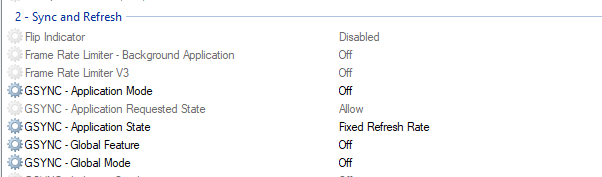
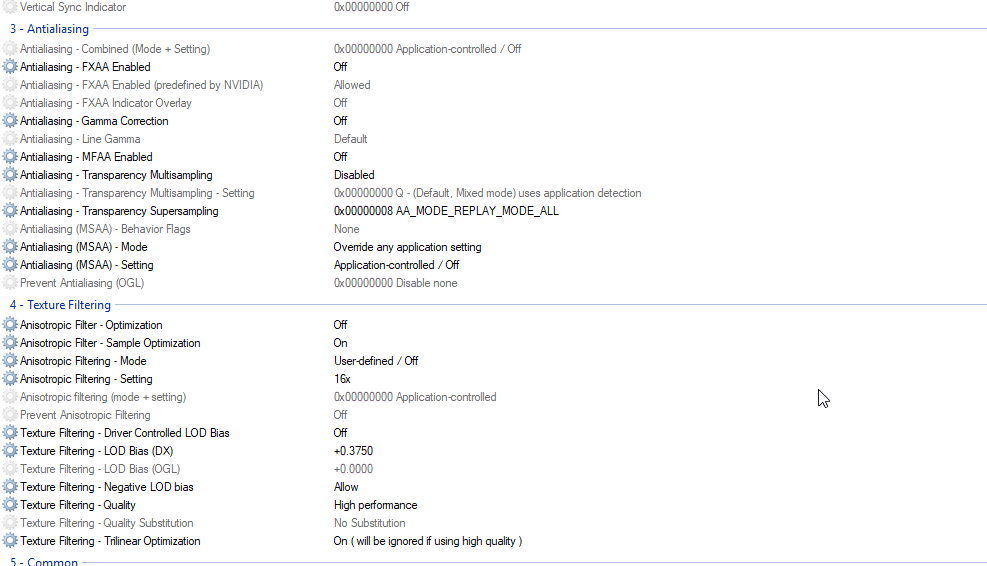
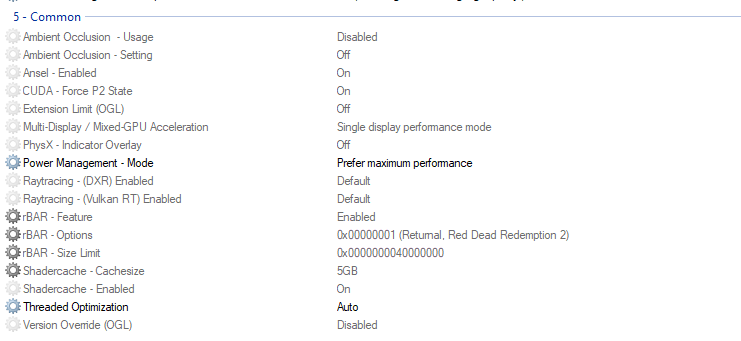

---
🖥️ Step C — Nvidia Control Panel Adjustments
Come back to Nvidia Control Panel.
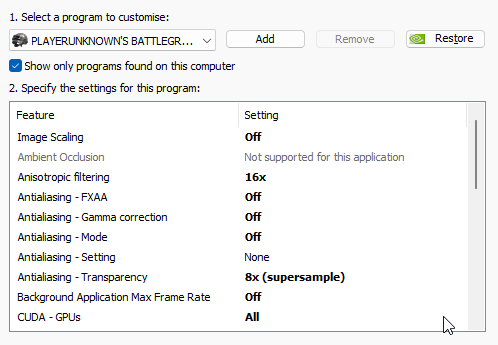
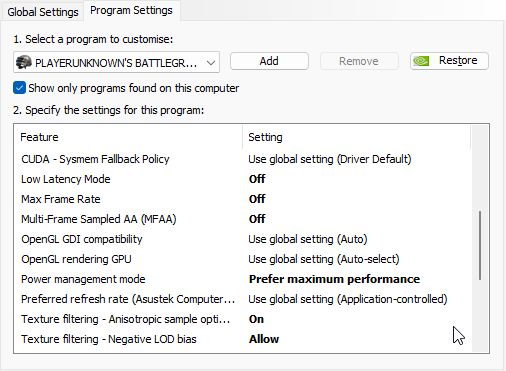
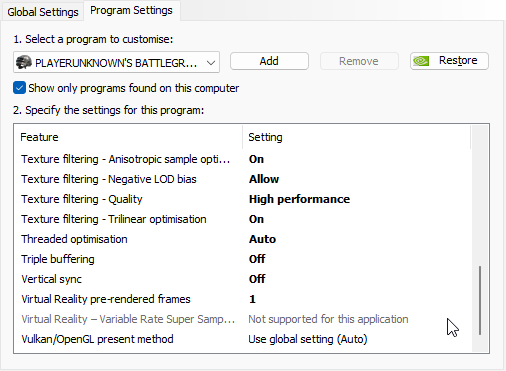
Firstly, adjust the 3D Settings for PUBG and then follow the rest of the guide.
Enter: "Adjust Desktop size and position"
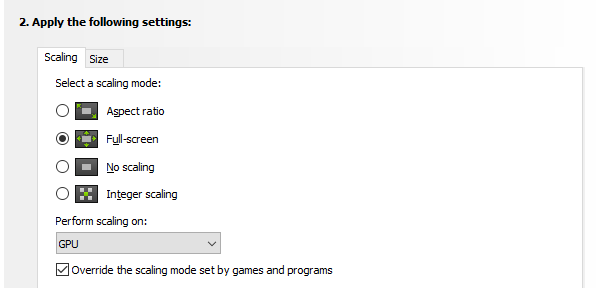
GPU scaling in new GPUs is superior and usually provides the most consistent results.
So if you're an RTX user, just feel free to use it. Unless you have a terrible PC but an amazing monitor — then Display could possibly (non-confirmed) be the better option.
!!! NOTE !!!
- If you ALWAYS play in native resolution — You can untick 'Override...' and set the scaling mode to 'No Scaling'.
---
📐 Step D — Create a Custom Resolution for PUBG
Enter: "Change Resolution" on the left side of Nvidia Control Panel.
Go for 'Customize'
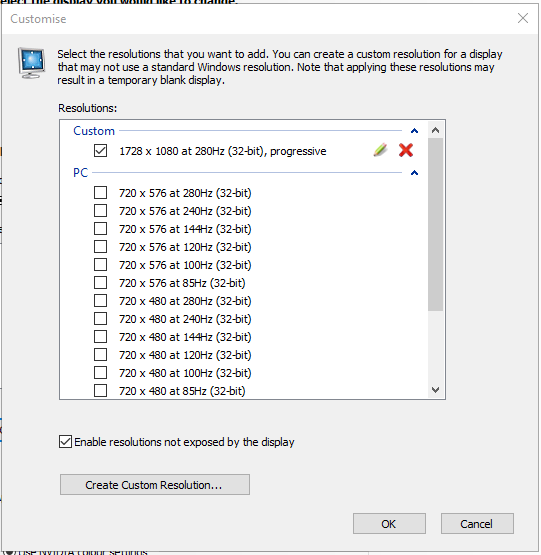
Tick: Enable resolutions not exposed by the display.
Create new resolution:
- For 1080p users - 1728 x 1080 + the highest monitor Hz
- For 1440p users - 2304 x 1440 + the highest monitor Hz
Press 'Test'.
Yes, your monitor will return to your native resolution — this is good.
You've just created a resolution that you will be able to choose in PUBG.
This is what we were meant to do.
---
✨ OPTIONAL SETTINGS
Power Management Mode → I highly recommend checking both default settings and 'Prefer Maximum Performance'.
In 2024 people get different results. Nvidia employees highly recommend using default settings.
It doesn't mean your GPU would perform any worse — it can still go up to 100%, but not all the time (which 'maximum performance' offers).
I highly recommend testing it yourself.
Texture Filtering: Quality — (Quality/Performance/High Performance)
The option should be tested. For many users in 2024, the option 'Performance' actually gives the best results.
My suggestion is 'High Performance' as not everyone uses the latest GPUs and drivers.
If you have time — test it yourself; if not — stick to my .nip.
Latency Mode (Max Pre-Rendered Frames) — I kept this setting 'OFF' and this is what I recommend.
PUBG is a CPU-based game, so using it on either ON (1 frame) or Ultra (less than 1 frame) actually leads to higher latency and stuttering.
If PUBG ever implements 'Nvidia Reflex', this is what we're going to be using.
Threaded Optimization (Auto/On/Off) → This option heavily depends on your CPU.
Some theory behind it:
OFF/Auto — For people with 4 CPU cores or less. Provides better FPS and might result in better responsiveness.
ON — For people with 6+ CPU cores. Overall improves smoothness at the cost of responsiveness.
Auto is technically the best.
If you know your stuff and some general rules (see above), you can make your own tests.
My .nip uses 'Auto' as it's the most 'user friendly' option.
---
G-Sync
PUBG is a competitive online game, so any kind of G-Sync/FreeSync is useless and affects our input lag/latency.
This is the main reason why pro players from all FPS games do not use it.
Our goal is to reach the highest possible FPS to get the lowest possible latency and input lag.
By limiting your FPS to match your refresh rate — you simply increase your input lag and latency, as you can usually get way higher FPS than your refresh rate.
In my case:
I get from 280 to 400 FPS in PUBG and over 600 in some other competitive games (ex. Valorant).
My monitor is 280 Hz.
In my scenario, I get zero advantage from G-Sync.
If you get 260–300+ FPS on 144 Hz/165 Hz, then using G-Sync is a HUGE DISADVANTAGE.
If you really want to limit your FPS while maintaining very high FPS, you could use either in-game or Nvidia limiter to lock them at 80% of your max achievable FPS, to get the most consistent frametimes, but don't use G-Sync.
Things get different if your PC isn't good and you either hit your refresh rate or play below it and experience unbearable screen-tearing.
This is where G-Sync might do us a favor.
The function is also good for AAA single-player games.
In this case, I highly recommend following this article[blurbusters.com] to set G-Sync properly.
Other than that — the user jorimt in forum BlurBusters is an authority when it comes to G-Sync.
I highly recommend reading his posts about the function + checking BlurBuster's monitor benchmarks to learn more about some of your functions that could impact your in-game experience latency/input lag wise.
Win10 Basic Settings + Win32PS + Mouse/Keyboard Tweaks
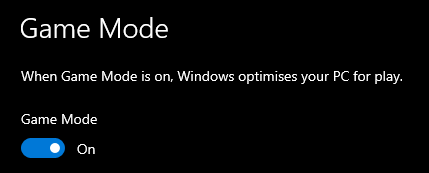
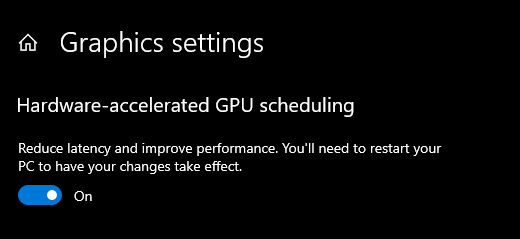
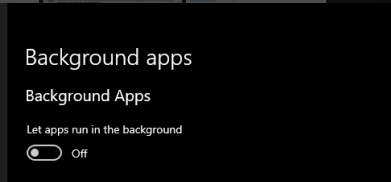
Basic stuff:
Registry tweaks:
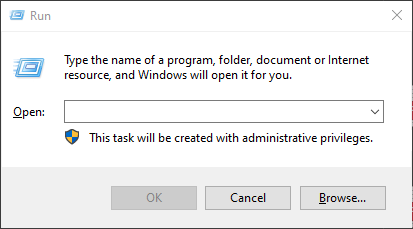
1. Press: Windows+R + type regedit
2. Copy/paste following paths:
A) Computer\HKEY_LOCAL_MACHINE\SYSTEM\CurrentControlSet\Control\PriorityControl
This might be an important tweak for many of you. It's important to understand that it can affect your game smoothness, mouse feeling, hit registry, fps and % lows, input latency.
Such thing as 'best value' doesn't exist as every PC setup is different. Changing the value takes an instant effect and doesn't require you to restart your PC.
In the last section of the guide -> sources, there's multiple stuff about this tweak, so please — take a read.
Find: 'Win32PrioritySeparation'
- Set 'Hexadecimal'
- Set: 26
Note: There are many Win32Ps values.
- Value of: 26
Seems to offer the best experience for most people when it comes to performance, mouse feeling, and latency.
- Value of: 16
Seems to be the best overall due to the nature of the way this function works and the best for AAA games, at least to me.
It's my personal 'Go-To', but my PC is very strong and optimized.
I will not recommend it for the majority, because this value can make you feel like you're delayed + your mouse feeling might be sluggish. Test it.
- Value of: 2A
Seems to perform similar to 26, so just test which one gives you better results.
- Value of: 28
Gives the best mouse responsiveness, but performance results are inconsistent.
- Value of: 25
Seems to be 'in between' 26 and 28.
- Value of: 24
The value is simply NoForeground boost which some people find superior.
To me, it gives the snappiest feeling, but the game lacks smoothness.
Some people get very good performance with it (IF: there's really minimal context switching), so definitely try it yourself.
IMPORTANT:
There is no best value. Every single user will have different results due to different hardware.
I personally switch those values all the time, they make an instant impact so you don't need to restart your PC.
---
B) Computer\HKEY_LOCAL_MACHINE\SYSTEM\CurrentControlSet\Services\mouclass\Parameters
Make a Dword32Bit called: MouseDataQueueSize
Set decimal value to: 50
!!! IMPORTANT !!!
-> '100' is the basic Windows value.
'50' is the most safe value.
If you own a High End PC - Set the value to '16' decimal to get the best possible results.
---
C) Computer\HKEY_LOCAL_MACHINE\SYSTEM\CurrentControlSet\Services\kbdclass\Parameters
Make a Dword32bit called: KeyboardDataQueueSize
Set decimal value to: 50
!!! IMPORTANT !!!
-> '100' is the basic Windows value.
'50' is the most safe value.
If you own a High End PC - Set the value to '16' decimal to get the best possible results.
TURN OFF your PC for 2min
TURN ON your PC after 2min
---
D)
[codebox]
[HKEY_CURRENT_USER\Control Panel\Mouse]
"MouseSensitivity"="10"
"SmoothMouseXCurve"=hex:\
00,00,00,00,00,00,00,00,\
C0,CC,0C,00,00,00,00,00,\
80,99,19,00,00,00,00,00,\
40,66,26,00,00,00,00,00,\
00,33,33,00,00,00,00,00
"SmoothMouseYCurve"=hex:\
00,00,00,00,00,00,00,00,\
00,00,38,00,00,00,00,00,\
00,00,70,00,00,00,00,00,\
00,00,A8,00,00,00,00,00,\
00,00,E0,00,00,00,00,00
[HKEY_USERS\.DEFAULT\Control Panel\Mouse]
"MouseSpeed"="0"
"MouseThreshold1"="0"
"MouseThreshold2"="0"
[/codebox]
Registry tweaks:
1. Press: Windows+R + type regedit
2. Copy/paste following paths:
A) Computer\HKEY_LOCAL_MACHINE\SYSTEM\CurrentControlSet\Control\PriorityControl
This might be an important tweak for many of you. It's important to understand that it can affect your game smoothness, mouse feeling, hit registry, fps and % lows, input latency.
Such thing as 'best value' doesn't exist as every PC setup is different. Changing the value takes an instant effect and doesn't require you to restart your PC.
In the last section of the guide -> sources, there's multiple stuff about this tweak, so please — take a read.
Find: 'Win32PrioritySeparation'
- Set 'Hexadecimal'
- Set: 26
Note: There are many Win32Ps values.
- Value of: 26
Seems to offer the best experience for most people when it comes to performance, mouse feeling, and latency.
- Value of: 16
Seems to be the best overall due to the nature of the way this function works and the best for AAA games, at least to me.
It's my personal 'Go-To', but my PC is very strong and optimized.
I will not recommend it for the majority, because this value can make you feel like you're delayed + your mouse feeling might be sluggish. Test it.
- Value of: 2A
Seems to perform similar to 26, so just test which one gives you better results.
- Value of: 28
Gives the best mouse responsiveness, but performance results are inconsistent.
- Value of: 25
Seems to be 'in between' 26 and 28.
- Value of: 24
The value is simply NoForeground boost which some people find superior.
To me, it gives the snappiest feeling, but the game lacks smoothness.
Some people get very good performance with it (IF: there's really minimal context switching), so definitely try it yourself.
IMPORTANT:
There is no best value. Every single user will have different results due to different hardware.
I personally switch those values all the time, they make an instant impact so you don't need to restart your PC.
---
B) Computer\HKEY_LOCAL_MACHINE\SYSTEM\CurrentControlSet\Services\mouclass\Parameters
Make a Dword32Bit called: MouseDataQueueSize
Set decimal value to: 50
!!! IMPORTANT !!!
-> '100' is the basic Windows value.
'50' is the most safe value.
If you own a High End PC - Set the value to '16' decimal to get the best possible results.
---
C) Computer\HKEY_LOCAL_MACHINE\SYSTEM\CurrentControlSet\Services\kbdclass\Parameters
Make a Dword32bit called: KeyboardDataQueueSize
Set decimal value to: 50
!!! IMPORTANT !!!
-> '100' is the basic Windows value.
'50' is the most safe value.
If you own a High End PC - Set the value to '16' decimal to get the best possible results.
TURN OFF your PC for 2min
TURN ON your PC after 2min
---
D)
[codebox]
[HKEY_CURRENT_USER\Control Panel\Mouse]
"MouseSensitivity"="10"
"SmoothMouseXCurve"=hex:\
00,00,00,00,00,00,00,00,\
C0,CC,0C,00,00,00,00,00,\
80,99,19,00,00,00,00,00,\
40,66,26,00,00,00,00,00,\
00,33,33,00,00,00,00,00
"SmoothMouseYCurve"=hex:\
00,00,00,00,00,00,00,00,\
00,00,38,00,00,00,00,00,\
00,00,70,00,00,00,00,00,\
00,00,A8,00,00,00,00,00,\
00,00,E0,00,00,00,00,00
[HKEY_USERS\.DEFAULT\Control Panel\Mouse]
"MouseSpeed"="0"
"MouseThreshold1"="0"
"MouseThreshold2"="0"
[/codebox]
Mouse Pooling Rate
Mouse Polling Rate Issue in PUBG
I decided to add this as an additional section in this guide as many people keep dm'ing me about this.
After multiple testing on multiple mouses -
!!!PUBG HAS A SIGNIFICANT ISSUE HANDLING 8K POLLING RATE!!!
I use Logitech SuperLight 2 Dex and the difference between 1k and 8k is SIGNIFICANT!!!
- 1k offers me completely stutter-free experience with great performance.
- It feels like the game engine is not optimized for 8k.
The best example is Valorant - the game works flawlessly with 8k and the performance is not really affected in my case. Sadly - I can not say this about PUBG.
There's countless of people who I set the polling rate to 1k from their previously used 8k - and the difference is night/day.
Some low end users might benefit from 500hz, but it's for very old setups.
1k is the 'go to' when it comes to current version of PUBG.
I decided to add this as an additional section in this guide as many people keep dm'ing me about this.
After multiple testing on multiple mouses -
!!!PUBG HAS A SIGNIFICANT ISSUE HANDLING 8K POLLING RATE!!!
I use Logitech SuperLight 2 Dex and the difference between 1k and 8k is SIGNIFICANT!!!
- 1k offers me completely stutter-free experience with great performance.
- It feels like the game engine is not optimized for 8k.
The best example is Valorant - the game works flawlessly with 8k and the performance is not really affected in my case. Sadly - I can not say this about PUBG.
There's countless of people who I set the polling rate to 1k from their previously used 8k - and the difference is night/day.
Some low end users might benefit from 500hz, but it's for very old setups.
1k is the 'go to' when it comes to current version of PUBG.
Windows Registry Settings Part 1
Registry Tweaks & Windows Optimization
; Sync Settings
[HKEY_CURRENT_USER\SOFTWARE\Microsoft\Windows\CurrentVersion\SettingSync]
"SyncPolicy"=dword:00000005
[HKEY_CURRENT_USER\SOFTWARE\Microsoft\Windows\CurrentVersion\SettingSync\Groups\Personalization]
"Enabled"=dword:00000000
[HKEY_CURRENT_USER\SOFTWARE\Microsoft\Windows\CurrentVersion\SettingSync\Groups\BrowserSettings]
"Enabled"=dword:00000000
[HKEY_CURRENT_USER\SOFTWARE\Microsoft\Windows\CurrentVersion\SettingSync\Groups\Credentials]
"Enabled"=dword:00000000
[HKEY_CURRENT_USER\SOFTWARE\Microsoft\Windows\CurrentVersion\SettingSync\Groups\Accessibility]
"Enabled"=dword:00000000
[HKEY_CURRENT_USER\SOFTWARE\Microsoft\Windows\CurrentVersion\SettingSync\Groups\Windows]
"Enabled"=dword:00000000
; Personalization Tab (Disable Transparency)
[HKEY_CURRENT_USER\SOFTWARE\Microsoft\Windows\CurrentVersion\Themes\Personalize]
"EnableTransparency"=dword:00000000
; Gaming Tab AND Graphics Settings Part In System Tab
; Disable Game Bar & Game DVR
[HKEY_LOCAL_MACHINE\SOFTWARE\Microsoft\PolicyManager\default\ApplicationManagement\AllowGameDVR]
"value"=dword:00000000
[HKEY_LOCAL_MACHINE\SOFTWARE\Policies\Microsoft\Windows\GameDVR]
"AllowGameDVR"=dword:00000000
[HKEY_CURRENT_USER\System\GameConfigStore]
"GameDVR_Enabled"=dword:00000000
[HKEY_CURRENT_USER\SOFTWARE\Microsoft\Windows\CurrentVersion\GameDVR]
"AppCaptureEnabled"=dword:00000000
; Enable Game Mode
[HKEY_CURRENT_USER\SOFTWARE\Microsoft\GameBar]
"AllowAutoGameMode"=dword:00000001
"AutoGameModeEnabled"=dword:00000001
; Enable Hardware Accelerated GPU Scheduling (Windows 10 2004 + NVIDIA 10 Series Above + AMD 5000 and Above)
[HKEY_LOCAL_MACHINE\SYSTEM\CurrentControlSet\Control\GraphicsDrivers]
"HwSchMode"=dword:00000002
; Disable Variable Refresh Rate
[HKEY_CURRENT_USER\SOFTWARE\Microsoft\DirectX\UserGpuPreferences]
"DirectXUserGlobalSettings"="VRROptimizeEnable=0;"
; Ease of Access Tab (Disable Ease Of Access Features)
[HKEY_CURRENT_USER\Control Panel\Accessibility\MouseKeys]
"Flags"="0"
[HKEY_CURRENT_USER\Control Panel\Accessibility\StickyKeys]
"Flags"="0"
[HKEY_CURRENT_USER\Control Panel\Accessibility\Keyboard Response]
"Flags"="0"
[HKEY_CURRENT_USER\Control Panel\Accessibility\ToggleKeys]
"Flags"="0"
; Privacy Tab
; General Tab
[HKEY_CURRENT_USER\SOFTWARE\Microsoft\Windows\CurrentVersion\AdvertisingInfo]
"Enabled"=dword:00000000
[HKEY_CURRENT_USER\Control Panel\International\User Profile]
"HttpAcceptLanguageOptOut"=dword:00000001
[HKEY_CURRENT_USER\SOFTWARE\Microsoft\Windows\CurrentVersion\Explorer\Advanced]
"Start_TrackProgs"=dword:00000000
[HKEY_CURRENT_USER\SOFTWARE\Microsoft\Windows\CurrentVersion\ContentDeliveryManager]
"SubscribedContent-338393Enabled"=dword:00000000
"SubscribedContent-353694Enabled"=dword:00000000
"SubscribedContent-353696Enabled"=dword:00000000
; Speech Tab
[HKEY_CURRENT_USER\SOFTWARE\Microsoft\Speech_OneCore\Settings\OnlineSpeechPrivacy]
"HasAccepted"=dword:00000000
; Inking & Typing Personalization Tab
[HKEY_CURRENT_USER\SOFTWARE\Microsoft\Personalization\Settings]
"AcceptedPrivacyPolicy"=dword:00000000
[HKEY_CURRENT_USER\SOFTWARE\Microsoft\InputPersonalization]
"RestrictImplicitInkCollection"=dword:00000001
"RestrictImplicitTextCollection"=dword:00000001
[HKEY_CURRENT_USER\SOFTWARE\Microsoft\InputPersonalization\TrainedDataStore]
"HarvestContacts"=dword:00000000
; Diagnostics & Feedback Tab
[HKEY_CURRENT_USER\SOFTWARE\Microsoft\Windows\CurrentVersion\Diagnostics\DiagTrack]
"ShowedToastAtLevel"=dword:00000001
[HKEY_LOCAL_MACHINE\SOFTWARE\Policies\Microsoft\Windows\DataCollection]
"AllowTelemetry"=dword:00000000
[HKEY_CURRENT_USER\SOFTWARE\Microsoft\Windows\CurrentVersion\Privacy]
"TailoredExperiencesWithDiagnosticDataEnabled"=dword:00000000
[HKEY_LOCAL_MACHINE\SOFTWARE\Microsoft\Windows\CurrentVersion\Diagnostics\DiagTrack\EventTranscriptKey]
"EnableEventTranscript"=dword:00000000
[HKEY_CURRENT_USER\SOFTWARE\Microsoft\Siuf\Rules]
"NumberOfSIUFInPeriod"=dword:00000000
"PeriodInNanoSeconds"=-
; Activity History Tab
[HKEY_LOCAL_MACHINE\SOFTWARE\Policies\Microsoft\Windows\System]
"PublishUserActivities"=dword:00000000
"UploadUserActivities"=dword:00000000
; App Permissions Tab
; Disable Notifications - Location - App Diagnostics - Account Info Access
[HKEY_LOCAL_MACHINE\SOFTWARE\Microsoft\Windows\CurrentVersion\CapabilityAccessManager\ConsentStore\userNotificationListener]
"Value"="Deny"
[HKEY_CURRENT_USER\SOFTWARE\Microsoft\Windows\CurrentVersion\CapabilityAccessManager\ConsentStore\location]
"Value"="Deny"
[HKEY_CURRENT_USER\SOFTWARE\Microsoft\Windows\CurrentVersion\CapabilityAccessManager\ConsentStore\appDiagnostics]
"Value"="Deny"
[HKEY_CURRENT_USER\SOFTWARE\Microsoft\Windows\CurrentVersion\CapabilityAccessManager\ConsentStore\userAccountInformation]
"Value"="Deny"
; Disable Let Unnecessary Apps Run In The Background
[HKEY_CURRENT_USER\SOFTWARE\Microsoft\Windows\CurrentVersion\BackgroundAccessApplications]
"GlobalUserDisabled"=dword:00000001
[HKEY_CURRENT_USER\SOFTWARE\Microsoft\Windows\CurrentVersion\Search]
"BackgroundAppGlobalToggle"=dword:00000000
; Sync Settings
[HKEY_CURRENT_USER\SOFTWARE\Microsoft\Windows\CurrentVersion\SettingSync]
"SyncPolicy"=dword:00000005
[HKEY_CURRENT_USER\SOFTWARE\Microsoft\Windows\CurrentVersion\SettingSync\Groups\Personalization]
"Enabled"=dword:00000000
[HKEY_CURRENT_USER\SOFTWARE\Microsoft\Windows\CurrentVersion\SettingSync\Groups\BrowserSettings]
"Enabled"=dword:00000000
[HKEY_CURRENT_USER\SOFTWARE\Microsoft\Windows\CurrentVersion\SettingSync\Groups\Credentials]
"Enabled"=dword:00000000
[HKEY_CURRENT_USER\SOFTWARE\Microsoft\Windows\CurrentVersion\SettingSync\Groups\Accessibility]
"Enabled"=dword:00000000
[HKEY_CURRENT_USER\SOFTWARE\Microsoft\Windows\CurrentVersion\SettingSync\Groups\Windows]
"Enabled"=dword:00000000
; Personalization Tab (Disable Transparency)
[HKEY_CURRENT_USER\SOFTWARE\Microsoft\Windows\CurrentVersion\Themes\Personalize]
"EnableTransparency"=dword:00000000
; Gaming Tab AND Graphics Settings Part In System Tab
; Disable Game Bar & Game DVR
[HKEY_LOCAL_MACHINE\SOFTWARE\Microsoft\PolicyManager\default\ApplicationManagement\AllowGameDVR]
"value"=dword:00000000
[HKEY_LOCAL_MACHINE\SOFTWARE\Policies\Microsoft\Windows\GameDVR]
"AllowGameDVR"=dword:00000000
[HKEY_CURRENT_USER\System\GameConfigStore]
"GameDVR_Enabled"=dword:00000000
[HKEY_CURRENT_USER\SOFTWARE\Microsoft\Windows\CurrentVersion\GameDVR]
"AppCaptureEnabled"=dword:00000000
; Enable Game Mode
[HKEY_CURRENT_USER\SOFTWARE\Microsoft\GameBar]
"AllowAutoGameMode"=dword:00000001
"AutoGameModeEnabled"=dword:00000001
; Enable Hardware Accelerated GPU Scheduling (Windows 10 2004 + NVIDIA 10 Series Above + AMD 5000 and Above)
[HKEY_LOCAL_MACHINE\SYSTEM\CurrentControlSet\Control\GraphicsDrivers]
"HwSchMode"=dword:00000002
; Disable Variable Refresh Rate
[HKEY_CURRENT_USER\SOFTWARE\Microsoft\DirectX\UserGpuPreferences]
"DirectXUserGlobalSettings"="VRROptimizeEnable=0;"
; Ease of Access Tab (Disable Ease Of Access Features)
[HKEY_CURRENT_USER\Control Panel\Accessibility\MouseKeys]
"Flags"="0"
[HKEY_CURRENT_USER\Control Panel\Accessibility\StickyKeys]
"Flags"="0"
[HKEY_CURRENT_USER\Control Panel\Accessibility\Keyboard Response]
"Flags"="0"
[HKEY_CURRENT_USER\Control Panel\Accessibility\ToggleKeys]
"Flags"="0"
; Privacy Tab
; General Tab
[HKEY_CURRENT_USER\SOFTWARE\Microsoft\Windows\CurrentVersion\AdvertisingInfo]
"Enabled"=dword:00000000
[HKEY_CURRENT_USER\Control Panel\International\User Profile]
"HttpAcceptLanguageOptOut"=dword:00000001
[HKEY_CURRENT_USER\SOFTWARE\Microsoft\Windows\CurrentVersion\Explorer\Advanced]
"Start_TrackProgs"=dword:00000000
[HKEY_CURRENT_USER\SOFTWARE\Microsoft\Windows\CurrentVersion\ContentDeliveryManager]
"SubscribedContent-338393Enabled"=dword:00000000
"SubscribedContent-353694Enabled"=dword:00000000
"SubscribedContent-353696Enabled"=dword:00000000
; Speech Tab
[HKEY_CURRENT_USER\SOFTWARE\Microsoft\Speech_OneCore\Settings\OnlineSpeechPrivacy]
"HasAccepted"=dword:00000000
; Inking & Typing Personalization Tab
[HKEY_CURRENT_USER\SOFTWARE\Microsoft\Personalization\Settings]
"AcceptedPrivacyPolicy"=dword:00000000
[HKEY_CURRENT_USER\SOFTWARE\Microsoft\InputPersonalization]
"RestrictImplicitInkCollection"=dword:00000001
"RestrictImplicitTextCollection"=dword:00000001
[HKEY_CURRENT_USER\SOFTWARE\Microsoft\InputPersonalization\TrainedDataStore]
"HarvestContacts"=dword:00000000
; Diagnostics & Feedback Tab
[HKEY_CURRENT_USER\SOFTWARE\Microsoft\Windows\CurrentVersion\Diagnostics\DiagTrack]
"ShowedToastAtLevel"=dword:00000001
[HKEY_LOCAL_MACHINE\SOFTWARE\Policies\Microsoft\Windows\DataCollection]
"AllowTelemetry"=dword:00000000
[HKEY_CURRENT_USER\SOFTWARE\Microsoft\Windows\CurrentVersion\Privacy]
"TailoredExperiencesWithDiagnosticDataEnabled"=dword:00000000
[HKEY_LOCAL_MACHINE\SOFTWARE\Microsoft\Windows\CurrentVersion\Diagnostics\DiagTrack\EventTranscriptKey]
"EnableEventTranscript"=dword:00000000
[HKEY_CURRENT_USER\SOFTWARE\Microsoft\Siuf\Rules]
"NumberOfSIUFInPeriod"=dword:00000000
"PeriodInNanoSeconds"=-
; Activity History Tab
[HKEY_LOCAL_MACHINE\SOFTWARE\Policies\Microsoft\Windows\System]
"PublishUserActivities"=dword:00000000
"UploadUserActivities"=dword:00000000
; App Permissions Tab
; Disable Notifications - Location - App Diagnostics - Account Info Access
[HKEY_LOCAL_MACHINE\SOFTWARE\Microsoft\Windows\CurrentVersion\CapabilityAccessManager\ConsentStore\userNotificationListener]
"Value"="Deny"
[HKEY_CURRENT_USER\SOFTWARE\Microsoft\Windows\CurrentVersion\CapabilityAccessManager\ConsentStore\location]
"Value"="Deny"
[HKEY_CURRENT_USER\SOFTWARE\Microsoft\Windows\CurrentVersion\CapabilityAccessManager\ConsentStore\appDiagnostics]
"Value"="Deny"
[HKEY_CURRENT_USER\SOFTWARE\Microsoft\Windows\CurrentVersion\CapabilityAccessManager\ConsentStore\userAccountInformation]
"Value"="Deny"
; Disable Let Unnecessary Apps Run In The Background
[HKEY_CURRENT_USER\SOFTWARE\Microsoft\Windows\CurrentVersion\BackgroundAccessApplications]
"GlobalUserDisabled"=dword:00000001
[HKEY_CURRENT_USER\SOFTWARE\Microsoft\Windows\CurrentVersion\Search]
"BackgroundAppGlobalToggle"=dword:00000000
Windows Registry Settings Part 2
[HKEY_CURRENT_USER\SOFTWARE\Microsoft\Windows\CurrentVersion\Explorer\VisualEffects]
"VisualFXSetting"=dword:00000002
[HKEY_CURRENT_USER\SOFTWARE\Microsoft\Windows\CurrentVersion\Explorer\VisualEffects]
"VisualFXSetting"=dword:00000003
[HKEY_CURRENT_USER\Control Panel\Desktop]
"UserPreferencesMask"=hex(3):90,12,03,80,10,00,00,00
"DragFullWindows"="1"
"FontSmoothing"="2"
[HKEY_CURRENT_USER\Control Panel\Desktop\WindowMetrics]
"MinAnimate"="0"
[HKEY_CURRENT_USER\SOFTWARE\Microsoft\Windows\CurrentVersion\Explorer]
"ShellState"=hex(3):24,00,00,00,27,20,00,00,00,00,00,00,00,00,00,00,00,00,\
00,00,01,00,00,00,13,00,00,00,00,00,00,00,62,00,00,00
[HKEY_CURRENT_USER\SOFTWARE\Microsoft\Windows\CurrentVersion\Explorer\Advanced]
"IconsOnly"=dword:00000000
"ListviewAlphaSelect"=dword:00000000
"ListviewShadow"=dword:00000000
"TaskbarAnimations"=dword:00000000
[HKEY_CURRENT_USER\SOFTWARE\Microsoft\Windows\DWM]
"AccentColor"=dword:ff4d4d4d
"AlwaysHibernateThumbnails"=dword:00000000
"ColorizationAfterglow"=dword:c44d4d4d
"ColorizationColor"=dword:c44d4d4d
"EnableAeroPeek"=dword:00000000
"EnableWindowColorization"=dword:00000001
[HKEY_CURRENT_USER\SOFTWARE\Microsoft\Windows\CurrentVersion\Themes\Personalize]
"AppsUseLightTheme"=dword:00000000
"EnableTransparency"=dword:00000000
"SystemUsesLightTheme"=dword:00000000
[HKEY_CURRENT_USER\Control Panel\Colors]
"Background"="33 33 33"
[HKEY_USERS\.DEFAULT\Control Panel\Colors]
"Background"="33 33 33"
[HKEY_USERS\S-1-5-18\Control Panel\Colors]
"Background"="33 33 33"
[HKEY_USERS\S-1-5-19\Control Panel\Colors]
"Background"="33 33 33"
[HKEY_USERS\S-1-5-20\Control Panel\Colors]
"Background"="33 33 33"
[HKEY_CURRENT_USER\Control Panel\Desktop]
"WallPaper"=""
[HKEY_USERS\.DEFAULT\Control Panel\Desktop]
"WallPaper"=""
[HKEY_USERS\S-1-5-18\Control Panel\Desktop]
"WallPaper"=""
[HKEY_USERS\S-1-5-19\Control Panel\Desktop]
"WallPaper"=""
[HKEY_USERS\S-1-5-20\Control Panel\Desktop]
"WallPaper"=""
[HKEY_LOCAL_MACHINE\SOFTWARE\Microsoft\Windows\CurrentVersion\Explorer\Accent]
"StartColorMenu"=dword:ff424242
"AccentColorMenu"=dword:ff4d4d4d
[HKEY_CURRENT_USER\SOFTWARE\Microsoft\Windows\CurrentVersion\Explorer\Accent]
"StartColorMenu"=dword:ff424242
"AccentColorMenu"=dword:ff4d4d4d
[HKEY_USERS\.DEFAULT\SOFTWARE\Microsoft\Windows\CurrentVersion\Explorer\Accent]
"StartColorMenu"=dword:ff424242
"AccentColorMenu"=dword:ff4d4d4d
[HKEY_USERS\S-1-5-18\SOFTWARE\Microsoft\Windows\CurrentVersion\Explorer\Accent]
"StartColorMenu"=dword:ff424242
"AccentColorMenu"=dword:ff4d4d4d
[HKEY_USERS\S-1-5-19\SOFTWARE\Microsoft\Windows\CurrentVersion\Explorer\Accent]
"StartColorMenu"=dword:ff424242
"AccentColorMenu"=dword:ff4d4d4d
[HKEY_USERS\S-1-5-20\SOFTWARE\Microsoft\Windows\CurrentVersion\Explorer\Accent]
"StartColorMenu"=dword:ff424242
"AccentColorMenu"=dword:ff4d4d4d
[HKEY_LOCAL_MACHINE\SOFTWARE\Microsoft\Windows\CurrentVersion\Explorer\Wallpapers]
"StartColorMenu"=dword:ff424242
"AccentColorMenu"=dword:ff4d4d4d
"BackgroundType"=dword:00000001
[HKEY_CURRENT_USER\SOFTWARE\Microsoft\Windows\CurrentVersion\Explorer\Wallpapers]
"StartColorMenu"=dword:ff424242
"AccentColorMenu"=dword:ff4d4d4d
"BackgroundType"=dword:00000001
[HKEY_USERS\.DEFAULT\SOFTWARE\Microsoft\Windows\CurrentVersion\Explorer\Wallpapers]
"StartColorMenu"=dword:ff424242
"AccentColorMenu"=dword:ff4d4d4d
[HKEY_USERS\S-1-5-18\SOFTWARE\Microsoft\Windows\CurrentVersion\Explorer\Wallpapers]
"StartColorMenu"=dword:ff424242
"AccentColorMenu"=dword:ff4d4d4d
"VisualFXSetting"=dword:00000002
[HKEY_CURRENT_USER\SOFTWARE\Microsoft\Windows\CurrentVersion\Explorer\VisualEffects]
"VisualFXSetting"=dword:00000003
[HKEY_CURRENT_USER\Control Panel\Desktop]
"UserPreferencesMask"=hex(3):90,12,03,80,10,00,00,00
"DragFullWindows"="1"
"FontSmoothing"="2"
[HKEY_CURRENT_USER\Control Panel\Desktop\WindowMetrics]
"MinAnimate"="0"
[HKEY_CURRENT_USER\SOFTWARE\Microsoft\Windows\CurrentVersion\Explorer]
"ShellState"=hex(3):24,00,00,00,27,20,00,00,00,00,00,00,00,00,00,00,00,00,\
00,00,01,00,00,00,13,00,00,00,00,00,00,00,62,00,00,00
[HKEY_CURRENT_USER\SOFTWARE\Microsoft\Windows\CurrentVersion\Explorer\Advanced]
"IconsOnly"=dword:00000000
"ListviewAlphaSelect"=dword:00000000
"ListviewShadow"=dword:00000000
"TaskbarAnimations"=dword:00000000
[HKEY_CURRENT_USER\SOFTWARE\Microsoft\Windows\DWM]
"AccentColor"=dword:ff4d4d4d
"AlwaysHibernateThumbnails"=dword:00000000
"ColorizationAfterglow"=dword:c44d4d4d
"ColorizationColor"=dword:c44d4d4d
"EnableAeroPeek"=dword:00000000
"EnableWindowColorization"=dword:00000001
[HKEY_CURRENT_USER\SOFTWARE\Microsoft\Windows\CurrentVersion\Themes\Personalize]
"AppsUseLightTheme"=dword:00000000
"EnableTransparency"=dword:00000000
"SystemUsesLightTheme"=dword:00000000
[HKEY_CURRENT_USER\Control Panel\Colors]
"Background"="33 33 33"
[HKEY_USERS\.DEFAULT\Control Panel\Colors]
"Background"="33 33 33"
[HKEY_USERS\S-1-5-18\Control Panel\Colors]
"Background"="33 33 33"
[HKEY_USERS\S-1-5-19\Control Panel\Colors]
"Background"="33 33 33"
[HKEY_USERS\S-1-5-20\Control Panel\Colors]
"Background"="33 33 33"
[HKEY_CURRENT_USER\Control Panel\Desktop]
"WallPaper"=""
[HKEY_USERS\.DEFAULT\Control Panel\Desktop]
"WallPaper"=""
[HKEY_USERS\S-1-5-18\Control Panel\Desktop]
"WallPaper"=""
[HKEY_USERS\S-1-5-19\Control Panel\Desktop]
"WallPaper"=""
[HKEY_USERS\S-1-5-20\Control Panel\Desktop]
"WallPaper"=""
[HKEY_LOCAL_MACHINE\SOFTWARE\Microsoft\Windows\CurrentVersion\Explorer\Accent]
"StartColorMenu"=dword:ff424242
"AccentColorMenu"=dword:ff4d4d4d
[HKEY_CURRENT_USER\SOFTWARE\Microsoft\Windows\CurrentVersion\Explorer\Accent]
"StartColorMenu"=dword:ff424242
"AccentColorMenu"=dword:ff4d4d4d
[HKEY_USERS\.DEFAULT\SOFTWARE\Microsoft\Windows\CurrentVersion\Explorer\Accent]
"StartColorMenu"=dword:ff424242
"AccentColorMenu"=dword:ff4d4d4d
[HKEY_USERS\S-1-5-18\SOFTWARE\Microsoft\Windows\CurrentVersion\Explorer\Accent]
"StartColorMenu"=dword:ff424242
"AccentColorMenu"=dword:ff4d4d4d
[HKEY_USERS\S-1-5-19\SOFTWARE\Microsoft\Windows\CurrentVersion\Explorer\Accent]
"StartColorMenu"=dword:ff424242
"AccentColorMenu"=dword:ff4d4d4d
[HKEY_USERS\S-1-5-20\SOFTWARE\Microsoft\Windows\CurrentVersion\Explorer\Accent]
"StartColorMenu"=dword:ff424242
"AccentColorMenu"=dword:ff4d4d4d
[HKEY_LOCAL_MACHINE\SOFTWARE\Microsoft\Windows\CurrentVersion\Explorer\Wallpapers]
"StartColorMenu"=dword:ff424242
"AccentColorMenu"=dword:ff4d4d4d
"BackgroundType"=dword:00000001
[HKEY_CURRENT_USER\SOFTWARE\Microsoft\Windows\CurrentVersion\Explorer\Wallpapers]
"StartColorMenu"=dword:ff424242
"AccentColorMenu"=dword:ff4d4d4d
"BackgroundType"=dword:00000001
[HKEY_USERS\.DEFAULT\SOFTWARE\Microsoft\Windows\CurrentVersion\Explorer\Wallpapers]
"StartColorMenu"=dword:ff424242
"AccentColorMenu"=dword:ff4d4d4d
[HKEY_USERS\S-1-5-18\SOFTWARE\Microsoft\Windows\CurrentVersion\Explorer\Wallpapers]
"StartColorMenu"=dword:ff424242
"AccentColorMenu"=dword:ff4d4d4d
Segment Heap
⚙️ Segment Heap
Source: [EU] Reiny from Melody's server
💡 Explanation (thanks to Melody):
Segment Heap is meant to allow the kernel memory allocator to allocate memory in segments, which is what Linux uses. Technically each processor module/core can allocate a segment of a single memory portion, so the more the CPU cores/threads, the better it should work.
This tweak should work better with Win32PrioritySeparation being set to 16//22(hex/dec value) from the previous part of the guide.
🛠️ To apply the tweak:
Press windows + r
Type: regedit
Follow the path: HKEY_LOCAL_MACHINE\SYSTEM\CurrentControlSet\Control\Session Manager\Segment Heap
Set: 'Enabled' value to '1'

🛠️ For server:
In the same path as @above:
Create a value: OverrideServerSKU
Set the value to: '1'
Continue by:
Follow the path: HKEY_LOCAL_MACHINE\SYSTEM\CurrentControlSet\Control\Session Manager
Create 'String Value' & name it: ScopeType
Double click the file you've just made
Under the 'Value Data' type: Client

Source: [EU] Reiny from Melody's server
💡 Explanation (thanks to Melody):
Segment Heap is meant to allow the kernel memory allocator to allocate memory in segments, which is what Linux uses. Technically each processor module/core can allocate a segment of a single memory portion, so the more the CPU cores/threads, the better it should work.
This tweak should work better with Win32PrioritySeparation being set to 16//22(hex/dec value) from the previous part of the guide.
🛠️ To apply the tweak:
Press windows + r
Type: regedit
Follow the path: HKEY_LOCAL_MACHINE\SYSTEM\CurrentControlSet\Control\Session Manager\Segment Heap
Set: 'Enabled' value to '1'
🛠️ For server:
In the same path as @above:
Create a value: OverrideServerSKU
Set the value to: '1'
Continue by:
Follow the path: HKEY_LOCAL_MACHINE\SYSTEM\CurrentControlSet\Control\Session Manager
Create 'String Value' & name it: ScopeType
Double click the file you've just made
Under the 'Value Data' type: Client
Device Manager + Command Prompt
1. Go for 'System Devices'. ⚙️
!!! IMPORTANT !!! ⚠️ Make sure you do not use any of the listed settings.
DISABLE: 🚫
- High Definition Audio Controller 🔇
- High precision event timer ⏱️
- Intel(R) Management Engine Interface #1 🖥️
- Microsoft Hyper-V Virtualization Infrastructure Driver 💻
- Microsoft Virtual Drive Enumerator 💾
- NDIS Virtual Network Adapter Enumerator 🌐
- Remote Desktop Device Redirector Bus 📡
2. Open command prompt as an administrator. 💻
Type:
bcdedit /deletevalue useplatformclock
bcdedit /deletevalue useplatformtick
(NOTE: Make sure HPET is ENABLED in BIOS. If you don't see the option there - It means it's already enabled by default and you do not have to worry) ✔️
!!! IMPORTANT !!! ⚠️ Make sure you do not use any of the listed settings.
DISABLE: 🚫
- High Definition Audio Controller 🔇
- High precision event timer ⏱️
- Intel(R) Management Engine Interface #1 🖥️
- Microsoft Hyper-V Virtualization Infrastructure Driver 💻
- Microsoft Virtual Drive Enumerator 💾
- NDIS Virtual Network Adapter Enumerator 🌐
- Remote Desktop Device Redirector Bus 📡
2. Open command prompt as an administrator. 💻
Type:
bcdedit /deletevalue useplatformclock
bcdedit /deletevalue useplatformtick
(NOTE: Make sure HPET is ENABLED in BIOS. If you don't see the option there - It means it's already enabled by default and you do not have to worry) ✔️
PUBG Settings
Resolution:
🎮 1080p users - 1728 x 1080
🎮 1440p users - 2304 x 1440
Brightness: 100%
Lobby FPS: 60
Ingame FPS: Unlimited OR 80% of your max achievable FPS
Camera FoV: 90 or 95
A) Render Scale: 100
B) AntiAliasing: Very Low
C) Post Processing: Very Low
D) Shadows: Very Low
E) Textures: Very Low
F) Effects: Very Low
G) Folliage: Very Low
H) View Distance: Very Low/Medium/High
I) Sharpen: OFF (It affects input lag/performance. Use monitor sharpening instead)
J) Vsync: OFF
K) Motion Blur: OFF
DirectX: 11 Enhanced 🎯
Note: DX11E is currently the main to go for majority of users. AMD users might heavily benefit from DX12, so test it.
IMPORTANT: ⚠️
Resolution:
By setting the resolution the way I explained, we abuse the way PUBG renders objects on our favour.
Objects that usually would be rendered in higher quality within a certain distance are now rendered in 'potato' quality, which allows us to spot people better (their model always renders the same way no matter what) + due to the way aspect ratios work, we get some visibility/recoil control advantage + higher fps/better latency/better performance. Just a W 🏆
Textures:
Very Low vs any higher — Textures on 'Very low' make everything more clear. Textures on 'Medium' make the grass thinner, especially on Erangel/Sanhok/Taego.
Effects:
Very Low vs Low — 'Low' makes gun's muzzle flash a bit lighter so it's easier to see it from the distance.
View distance:
Very Low/Low/Medium - Find what you like best.
Many people set it to 'Medium' as it might make the weapon-render faster from a distance, so the moment you land - you're actually able to pick the weapon you see, instead of waiting a few frames till it appearson your screen.
🎮 1080p users - 1728 x 1080
🎮 1440p users - 2304 x 1440
Brightness: 100%
Lobby FPS: 60
Ingame FPS: Unlimited OR 80% of your max achievable FPS
Camera FoV: 90 or 95
A) Render Scale: 100
B) AntiAliasing: Very Low
C) Post Processing: Very Low
D) Shadows: Very Low
E) Textures: Very Low
F) Effects: Very Low
G) Folliage: Very Low
H) View Distance: Very Low/Medium/High
I) Sharpen: OFF (It affects input lag/performance. Use monitor sharpening instead)
J) Vsync: OFF
K) Motion Blur: OFF
DirectX: 11 Enhanced 🎯
Note: DX11E is currently the main to go for majority of users. AMD users might heavily benefit from DX12, so test it.
IMPORTANT: ⚠️
Resolution:
By setting the resolution the way I explained, we abuse the way PUBG renders objects on our favour.
Objects that usually would be rendered in higher quality within a certain distance are now rendered in 'potato' quality, which allows us to spot people better (their model always renders the same way no matter what) + due to the way aspect ratios work, we get some visibility/recoil control advantage + higher fps/better latency/better performance. Just a W 🏆
Textures:
Very Low vs any higher — Textures on 'Very low' make everything more clear. Textures on 'Medium' make the grass thinner, especially on Erangel/Sanhok/Taego.
Effects:
Very Low vs Low — 'Low' makes gun's muzzle flash a bit lighter so it's easier to see it from the distance.
View distance:
Very Low/Low/Medium - Find what you like best.
Many people set it to 'Medium' as it might make the weapon-render faster from a distance, so the moment you land - you're actually able to pick the weapon you see, instead of waiting a few frames till it appearson your screen.
Pubg Pixel Bug FIX
PUBG has been suffering to what many call 'pixel bug'. It basically makes your game looks way worse to the point there's a huge disadvantage and lack of clarity. ⚠️
In order to fix this:
- Press :Ctrl + R
- Type: %appdata%
- Follow the path: Appdata -> Local -> TslGame -> Saved -> Config -> WindowsNoEditor -> GameUserSettings.ini
Open the 'GameUserSettings.ini' with a notepad.
Find a line called: bUseDesiredScreenHeight and set it to True
bUseDesiredScreenHeight=True
Scroll down to find:
ResolutionSizeX=1728
ResolutionSizeY=1080
LastUserConfirmedResolutionSizeX=1728
LastUserConfirmedResolutionSizeY=1080
DesiredScreenWidth=1728
DesiredScreenHeight=1080
Make sure all of the values show the same resolution. If there's any other numbers - Simply change them to make !!! the resolution that you use. !!! 🚀
In order to fix this:
- Press :Ctrl + R
- Type: %appdata%
- Follow the path: Appdata -> Local -> TslGame -> Saved -> Config -> WindowsNoEditor -> GameUserSettings.ini
Open the 'GameUserSettings.ini' with a notepad.
Find a line called: bUseDesiredScreenHeight and set it to True
bUseDesiredScreenHeight=True
Scroll down to find:
ResolutionSizeX=1728
ResolutionSizeY=1080
LastUserConfirmedResolutionSizeX=1728
LastUserConfirmedResolutionSizeY=1080
DesiredScreenWidth=1728
DesiredScreenHeight=1080
Make sure all of the values show the same resolution. If there's any other numbers - Simply change them to make !!! the resolution that you use. !!! 🚀
Steam Launch Option
Steam Launch option called '-koreanrating' IS A MUST!!!!!!!!! 🔥
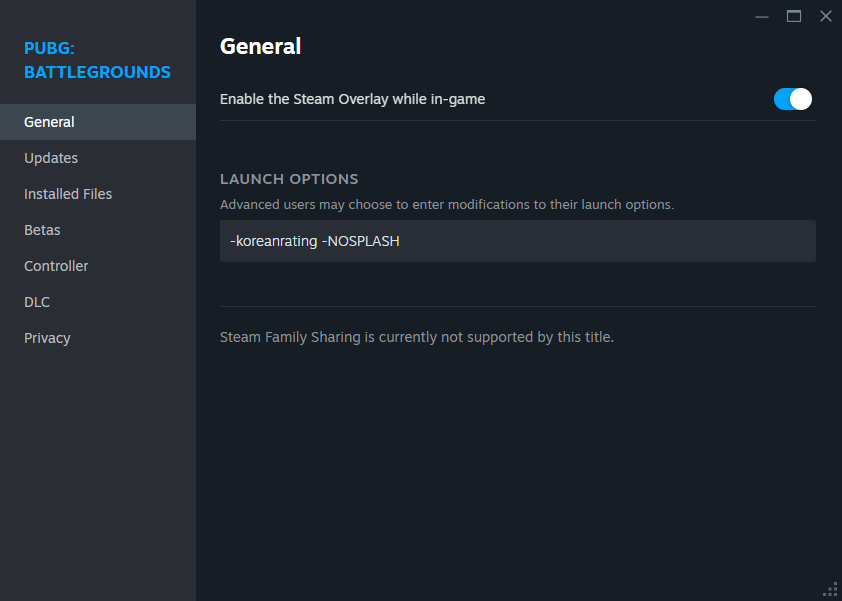
What it does:
- 💚 green blood (easier to spot an enemy getting dmg from distance)
- 💚 green molotov
- 💀 body model disappears instantly after kill
- 🔇 first aid/adrenaline audio is disabled, so you can hear everything around better by not being interrupted due to sound queue
If you don't use it
- Use color blind on protanopia (blue blood) 👀
What it does:
- 💚 green blood (easier to spot an enemy getting dmg from distance)
- 💚 green molotov
- 💀 body model disappears instantly after kill
- 🔇 first aid/adrenaline audio is disabled, so you can hear everything around better by not being interrupted due to sound queue
If you don't use it
- Use color blind on protanopia (blue blood) 👀
Wooting Settings
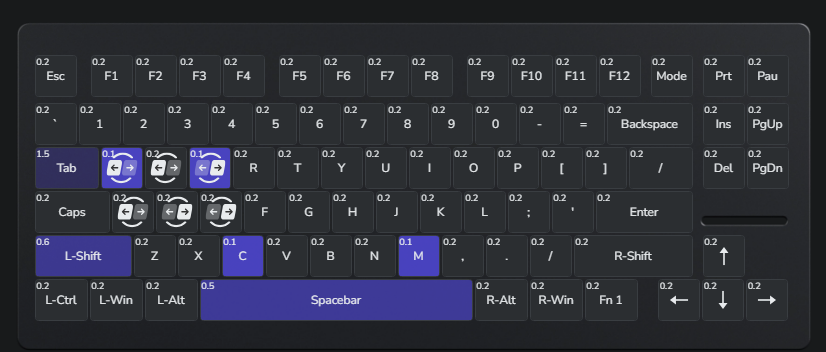
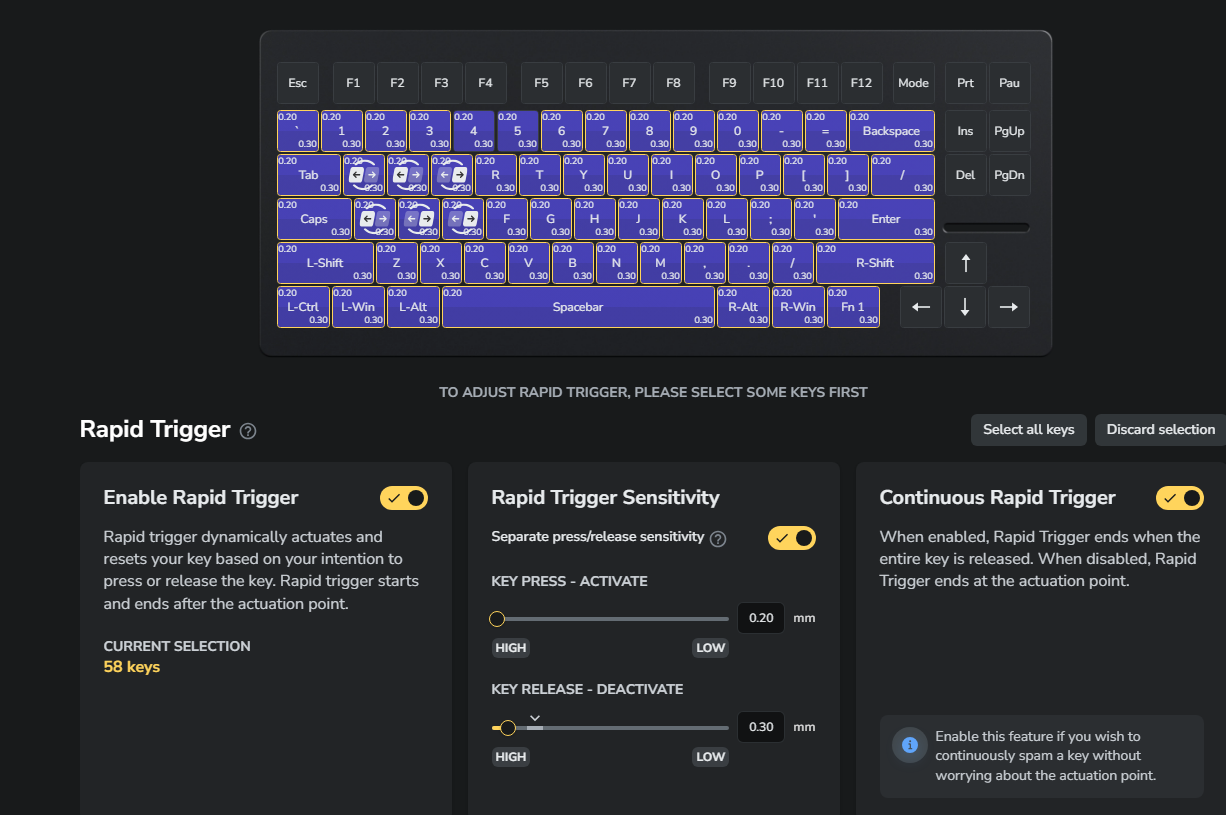
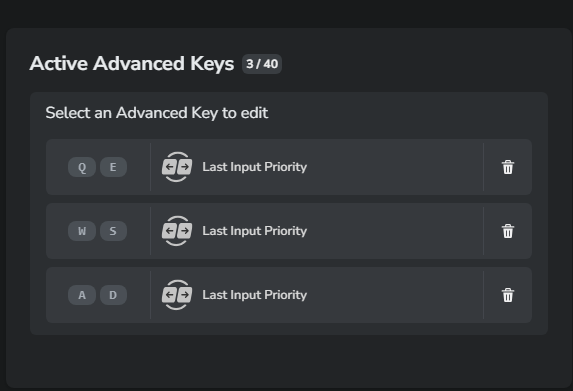
TGLTN's preset for Wooting 🎮
03e91cca522d904a280fedb6925aae99130a
Some screenshots with other settings:
Actuation Point
Rapid Trigger
SOCD
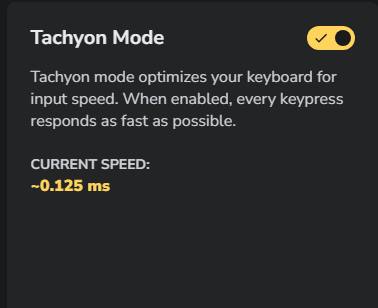
Tachyon Mode
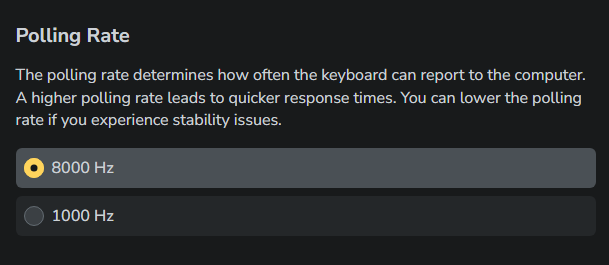
Polling Rate
03e91cca522d904a280fedb6925aae99130a
Some screenshots with other settings:
Actuation Point
Rapid Trigger
SOCD
Tachyon Mode
Polling Rate
Equalizer APO + Peace
1. Download: ⬇️
- Equalizer Apo[sourceforge.net] 🎛️
- Peace Interface[sourceforge.net] 🕊️
Install Equalizer APO as 1st, and then Peace Interface.
If you're a beginner, then I highly recommend checking out this YouTube guide to make the installation process easier for you. 🎧📺
It's important to set it correctly for your device. ⚙️
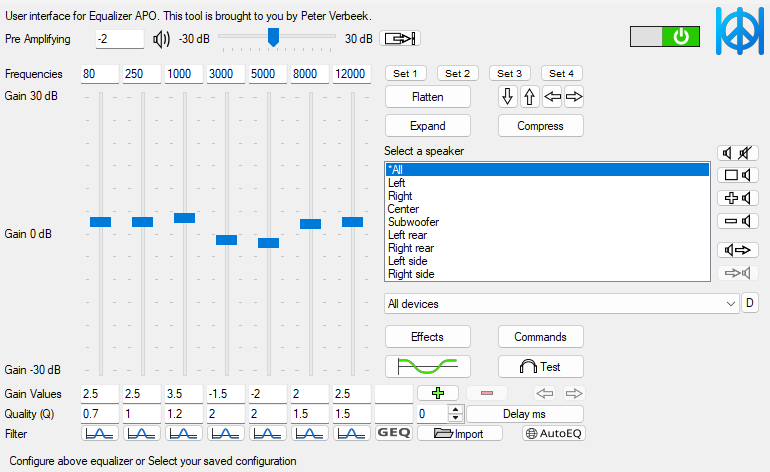
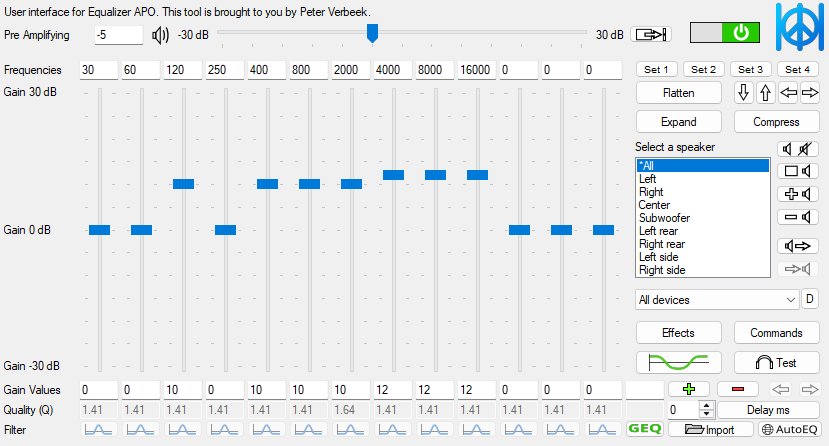
2. There are two presets that I tend to use. 🎚️
- Basic Boosted 🔹
- Hard Boosted 🔸
If you prefer to not lower the game/windows volume, then I highly recommend using the 'Basic Boosted' preset. 🔊
If you do not mind adjusting your game/windows volume, then 'Hard Boosted' (TGLTN Preset) might be fine for you. 🎧
Results and comfort heavily depend on your setup. 🖥️🎧
As for today - I've been using Beyerdynamic DT 900 PRO X, which I consider to be the best pair of headphones for gaming in its price + SoundBlaster AE7. 🎧🔥
Those settings fit my needs perfectly, I get proper results with them. ✔️
If both of the settings do not really suit your current headphones - then I highly recommend finding a preset made by oratory1990 (reddit & github) dedicated for your headphones. 🎧🔍
This dude's made an insane amount of presets so you're very likely to find the one for your headphones, but it's worth mentioning - those might be more/less optimal for gaming depending on the headphones. 🎮🎧
You can apply his settings with the help of @above guide or by directly following oratory1990's work.
Presets: 🎚️
Basic boosted:
Hard Boosted
- Equalizer Apo[sourceforge.net] 🎛️
- Peace Interface[sourceforge.net] 🕊️
Install Equalizer APO as 1st, and then Peace Interface.
If you're a beginner, then I highly recommend checking out this YouTube guide to make the installation process easier for you. 🎧📺
It's important to set it correctly for your device. ⚙️
2. There are two presets that I tend to use. 🎚️
- Basic Boosted 🔹
- Hard Boosted 🔸
If you prefer to not lower the game/windows volume, then I highly recommend using the 'Basic Boosted' preset. 🔊
If you do not mind adjusting your game/windows volume, then 'Hard Boosted' (TGLTN Preset) might be fine for you. 🎧
Results and comfort heavily depend on your setup. 🖥️🎧
As for today - I've been using Beyerdynamic DT 900 PRO X, which I consider to be the best pair of headphones for gaming in its price + SoundBlaster AE7. 🎧🔥
Those settings fit my needs perfectly, I get proper results with them. ✔️
If both of the settings do not really suit your current headphones - then I highly recommend finding a preset made by oratory1990 (reddit & github) dedicated for your headphones. 🎧🔍
This dude's made an insane amount of presets so you're very likely to find the one for your headphones, but it's worth mentioning - those might be more/less optimal for gaming depending on the headphones. 🎮🎧
You can apply his settings with the help of @above guide or by directly following oratory1990's work.
Presets: 🎚️
Basic boosted:
Hard Boosted
Monitor Settings
Every monitor has different settings and certain functions are named different way. Those are, at least to me, the most optimal settings for any FPS game. 🎮🖥️✨
🔍 Sharpening/Vivid Pixel (It's the same):
A) 25% 🔹
B) 50% 🔸
C) 75% 🔶
D) 100% 💎
I personally use 100%, choose which one you like the most 👌🔥
⚡ ELMB/Dyac/Motion blur reduction: ON
🎚️ Contrast: 87
🎯 Mode: FPS
🚫 Adaptive Sync: OFF
⚡ OverDrive: Either 80 or 120
📌 Note:
This setting is heavily depended on the amount of FPS you can achieve. Check sources (BlurBusters) for more details. 📚🕵️♂️
🌑 Shadow Boost: Either lvl3 or lvl5
🚫 Gsync: OFF
⚠️ NOTE:
If you can play smoothly above your refresh rate, then it's highly recommend to turn OFF the GSync as it's gonna highly affect your input lag/latency. (check the sources)
If you barely achieve your refresh rate or you experience screen tearing - You can use Gsync. 🎮⚡🔄
🔍 Sharpening/Vivid Pixel (It's the same):
A) 25% 🔹
B) 50% 🔸
C) 75% 🔶
D) 100% 💎
I personally use 100%, choose which one you like the most 👌🔥
⚡ ELMB/Dyac/Motion blur reduction: ON
🎚️ Contrast: 87
🎯 Mode: FPS
🚫 Adaptive Sync: OFF
⚡ OverDrive: Either 80 or 120
📌 Note:
This setting is heavily depended on the amount of FPS you can achieve. Check sources (BlurBusters) for more details. 📚🕵️♂️
🌑 Shadow Boost: Either lvl3 or lvl5
🚫 Gsync: OFF
⚠️ NOTE:
If you can play smoothly above your refresh rate, then it's highly recommend to turn OFF the GSync as it's gonna highly affect your input lag/latency. (check the sources)
If you barely achieve your refresh rate or you experience screen tearing - You can use Gsync. 🎮⚡🔄
Process Lasso
This topic is actually debatable 🤔
Some users notice that **'High Performance'** power plan offers them better performance, but for me - there's a blatant difference in %lows when I use **Bitsum High Performance**, that's why I highly recommend checking it. ⚡️
1. Download the software[bitsum.com] 💾
2. Open PUBG 🎮
3. Find the active process called: **tslgame.exe** 🔍
4. Right click on it and find the **'Power Plan'**, set it to **'**Bitsum High Performance**'** ⚙️
Some users notice that **'High Performance'** power plan offers them better performance, but for me - there's a blatant difference in %lows when I use **Bitsum High Performance**, that's why I highly recommend checking it. ⚡️
1. Download the software[bitsum.com] 💾
2. Open PUBG 🎮
3. Find the active process called: **tslgame.exe** 🔍
4. Right click on it and find the **'Power Plan'**, set it to **'**Bitsum High Performance**'** ⚙️
BIOS
⚙️ **Turn ON:** XMP
⚙️ **Turn ON:** HPET (If you can't find this option, it means it's already enabled)
🔬 Test HyperThreading OFF/ON
(as of the day of 03.08.2024 - Only a small % of games show positive results in benchmarks. Turning it **OFF** usually gives better performance and obviously improves latency)
⚙️ **Turn ON:** HPET (If you can't find this option, it means it's already enabled)
🔬 Test HyperThreading OFF/ON
(as of the day of 03.08.2024 - Only a small % of games show positive results in benchmarks. Turning it **OFF** usually gives better performance and obviously improves latency)
Software that affects performance/latency
🛡️ 1. AntiVirus
If you use any comercial AntiVirus software (MalwareBytes ; AVG ; Avast) it's highly advised to disable it and just run Windows Defender. Such software slows down PC by A LOT.
🛡️ 2. Vanguard
If you have Valorant/LoL Vanguard installed, disable it before playing PUBG.
🖱️ 3. Logitech Software
Official Logitech software could increase latency for some of the Gpro Wireless mouse users. It's recommended to completely uninstall the basic software and INSTEAD - Use the 2nd official software from Logitech called - 'OnboardMemoryManager'.
If you use any comercial AntiVirus software (MalwareBytes ; AVG ; Avast) it's highly advised to disable it and just run Windows Defender. Such software slows down PC by A LOT.
🛡️ 2. Vanguard
If you have Valorant/LoL Vanguard installed, disable it before playing PUBG.
🖱️ 3. Logitech Software
Official Logitech software could increase latency for some of the Gpro Wireless mouse users. It's recommended to completely uninstall the basic software and INSTEAD - Use the 2nd official software from Logitech called - 'OnboardMemoryManager'.
Sources
📚 Sources/inspiration/benchmarks:
1. Tgltn's resolution
2. MarkC Mouse Fix + Curve[donewmouseaccel.blogspot.com]
3. n1kobg[n1kobg.blogspot.com]
4. Intel Website[www.intel.com]
5. Nvidia Latency Blog[www.nvidia.com]
6. Calypto’s Latency Guide[docs.google.com]
7. Forum BlurBusters[forums.blurbusters.com]
8. Amit's research[github.com]
9. EpicGames blog about latency and ping[www.epicgames.com]
10. Nvidia Profile Inspector Wiki[www.pcgamingwiki.com]
11. Techquickie about HyperThreading
12. Optimum about input lag settings
13. LinusTech about Nvidia Reflex
14. LinusTech about FPS & Latency
15. LinusTech about ram
16. Proper way of capping FPS by Calypto
17. Calypto threaded optimization benchmark
18. Microsoft about Win32Priority[learn.microsoft.com]
19. Amit Win32 PrioritySeparation Table[github.com]
20. HunchoGorr (community member) own tests of Win32PrioritySeparation
21. RecoveryMonkey Processor Scheduling Research[recoverymonkey.org]
22. Melody's misconceptions about timers[sites.google.com]
1. Tgltn's resolution
2. MarkC Mouse Fix + Curve[donewmouseaccel.blogspot.com]
3. n1kobg[n1kobg.blogspot.com]
4. Intel Website[www.intel.com]
5. Nvidia Latency Blog[www.nvidia.com]
6. Calypto’s Latency Guide[docs.google.com]
7. Forum BlurBusters[forums.blurbusters.com]
8. Amit's research[github.com]
9. EpicGames blog about latency and ping[www.epicgames.com]
10. Nvidia Profile Inspector Wiki[www.pcgamingwiki.com]
11. Techquickie about HyperThreading
12. Optimum about input lag settings
13. LinusTech about Nvidia Reflex
14. LinusTech about FPS & Latency
15. LinusTech about ram
16. Proper way of capping FPS by Calypto
17. Calypto threaded optimization benchmark
18. Microsoft about Win32Priority[learn.microsoft.com]
19. Amit Win32 PrioritySeparation Table[github.com]
20. HunchoGorr (community member) own tests of Win32PrioritySeparation
21. RecoveryMonkey Processor Scheduling Research[recoverymonkey.org]
22. Melody's misconceptions about timers[sites.google.com]