Custom PDA Photos
 MartizPvP
(250 ratings)
Nov 23, 2022 @ 9:37am9,885267
CharactersClassesCraftingGame ModesGameplay BasicsLootMaps or LevelsModding or ConfigurationSecretsStory or LoreWalkthroughsEnglish
1. Take a screenshot in-game
Take a screenshot in Subnautica by pressing F11 (default key). We'll be replacing that screenshot with your custom image.
2. Open Subnautica's game folder
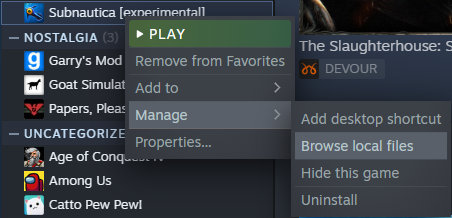
Go to your Steam library, right-click Subnautica, go to "Manage" and "Browse local files".
3. Locate your world's screenshots folder
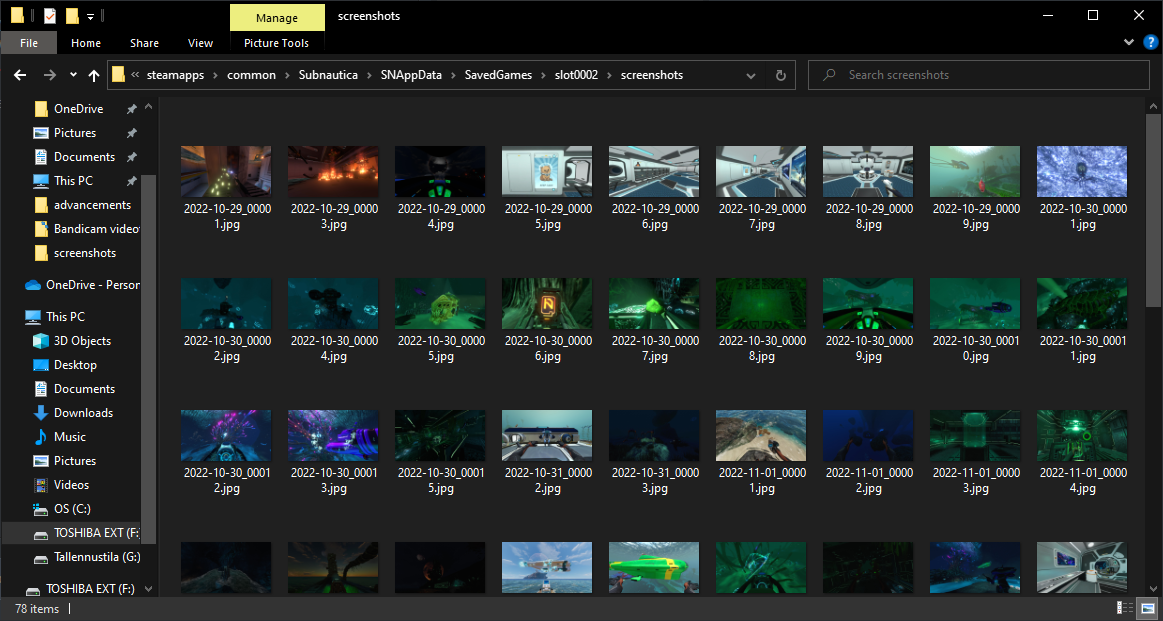
Find your save folder by heading to SNAppData and from there to SavedGames.
Open the world where you want your image to show up. The folders are generated in the same order as your worlds with the oldest being "slot0000" and newer ones "slot0001", "slot0002", "slot0003" accordingly.
Head over to your world's screenshots folder.
Open the world where you want your image to show up. The folders are generated in the same order as your worlds with the oldest being "slot0000" and newer ones "slot0001", "slot0002", "slot0003" accordingly.
Head over to your world's screenshots folder.
4. Replace the screenshot you took at step 1
Find the newest screenshot and copy it's name completely, including the file format (.jpg). Delete the screenshot, drag your custom image into the folder, and rename it with the same name you just copied.
Note that the screenshots must be in YYYY-MM-DD_(00001-99999).jpg format.
Note that the screenshots must be in YYYY-MM-DD_(00001-99999).jpg format.
5. View your custom image in-game
Restart Subnautica and load the correct world to see your custom image in your PDA's gallery.
Now you shall participate in a minuscule amount of tomfoolery with your newfound abilities!

Now you shall participate in a minuscule amount of tomfoolery with your newfound abilities!
You're welcome!
If you found this guide useful, dropping a like would help others to find it too!