

Recommended Options & Keyboard & Mouse Controls (GONE WILD)
 lexilogo
(65 ratings)
Feb 27, 2025 @ 9:25pm12,390130
Gameplay BasicsModding or ConfigurationEnglish
Intro
First, this guide is laid out for QWERTY keyboard users, depending on where you live you might be using a different keyboard layout like QWERTZ, AZERTY or etc and will have to adjust these settings accordingly.
If you’re using a controller, skip over The Keybinds and you will find a lot of useful option recommendations down there, much of which still applies to you!
My keybind recommendations are very subjective, you should take, leave or adjust each of my suggestions as it best fits how the game feels to you.
I'm also not a ranged weapon user, so the core of these keybinds will apply to melee weapons, I have added an extra segment for tweaking it for Ranged play but bear in mind I have minimal bowgun/bow experience to work off, you might find different binds better. Ranged players, skip the Weapon Controls segments and anything marked with ***, it will be addressed in your own section after the rest of the binds!
And finally, Poogie in the picture might be perfect, but my guide could never hope to be. If you have any additional information you think should be on here for people, alternate keybind recommendations that work better for you, or just requests for how this guide could've been more helpful to you, please comment it to help me improve this guide!
If you’re using a controller, skip over The Keybinds and you will find a lot of useful option recommendations down there, much of which still applies to you!
My keybind recommendations are very subjective, you should take, leave or adjust each of my suggestions as it best fits how the game feels to you.
I'm also not a ranged weapon user, so the core of these keybinds will apply to melee weapons, I have added an extra segment for tweaking it for Ranged play but bear in mind I have minimal bowgun/bow experience to work off, you might find different binds better. Ranged players, skip the Weapon Controls segments and anything marked with ***, it will be addressed in your own section after the rest of the binds!
And finally, Poogie in the picture might be perfect, but my guide could never hope to be. If you have any additional information you think should be on here for people, alternate keybind recommendations that work better for you, or just requests for how this guide could've been more helpful to you, please comment it to help me improve this guide!
Navigating The Options
As you'd expect, you can open your menu with ESC and get a few tabs, Options and etc are on Settings at the end.
If you press R to open the submenu, you could alter things like which tabs are displayed, set up a favourites tab to design your own menu, or show/hide the status display screen on the right, it's worth tweaking!
Everything in this guide will be in either the Options or Keyboard Configuration (keybinds) sections. If you can’t find an option, it is worth checking the Main Menu options or the in-game options, as I believe there are differences between both.
Bear in mind that each tab in the options menu has multiple pages, you can use 1 or 3 to switch page.
Also, in Keyboard Configuration, we now have the handy option to set up specific Profiles, in case you want to use different keybinds for specific weapons.
If you're unsure about an alternate bind I suggest, you could set up a profile for your main weapon to test it out (use R on either the melee/ranged weapon basics, then select Duplicate, that way any binds you've already set up will carry over to the test profile), then you can delete it once you're done testing.
If you press R to open the submenu, you could alter things like which tabs are displayed, set up a favourites tab to design your own menu, or show/hide the status display screen on the right, it's worth tweaking!
Everything in this guide will be in either the Options or Keyboard Configuration (keybinds) sections. If you can’t find an option, it is worth checking the Main Menu options or the in-game options, as I believe there are differences between both.
Bear in mind that each tab in the options menu has multiple pages, you can use 1 or 3 to switch page.
Also, in Keyboard Configuration, we now have the handy option to set up specific Profiles, in case you want to use different keybinds for specific weapons.
If you're unsure about an alternate bind I suggest, you could set up a profile for your main weapon to test it out (use R on either the melee/ranged weapon basics, then select Duplicate, that way any binds you've already set up will carry over to the test profile), then you can delete it once you're done testing.
The Keybinds
Ranged weapon users, skip Weapon Controls and anything marked with ***, everything else here should apply as normal.
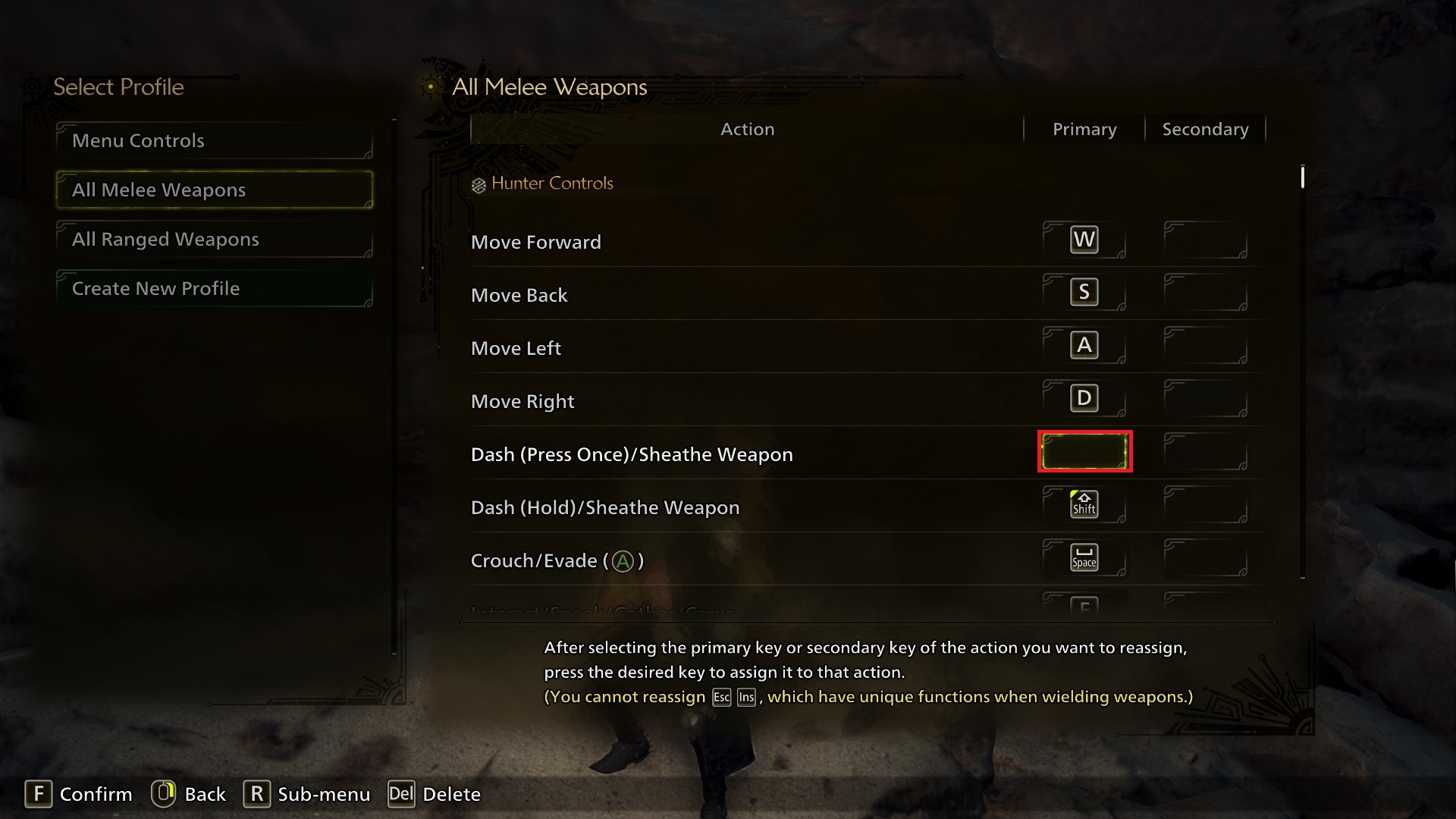
Dash (Press Once)/Sheathe Weapon is how Wilds handles Toggle Sprint as an option. Personally, I have left this as default, I don't like toggle sprint in Monster Hunter, but some people might feel differently.
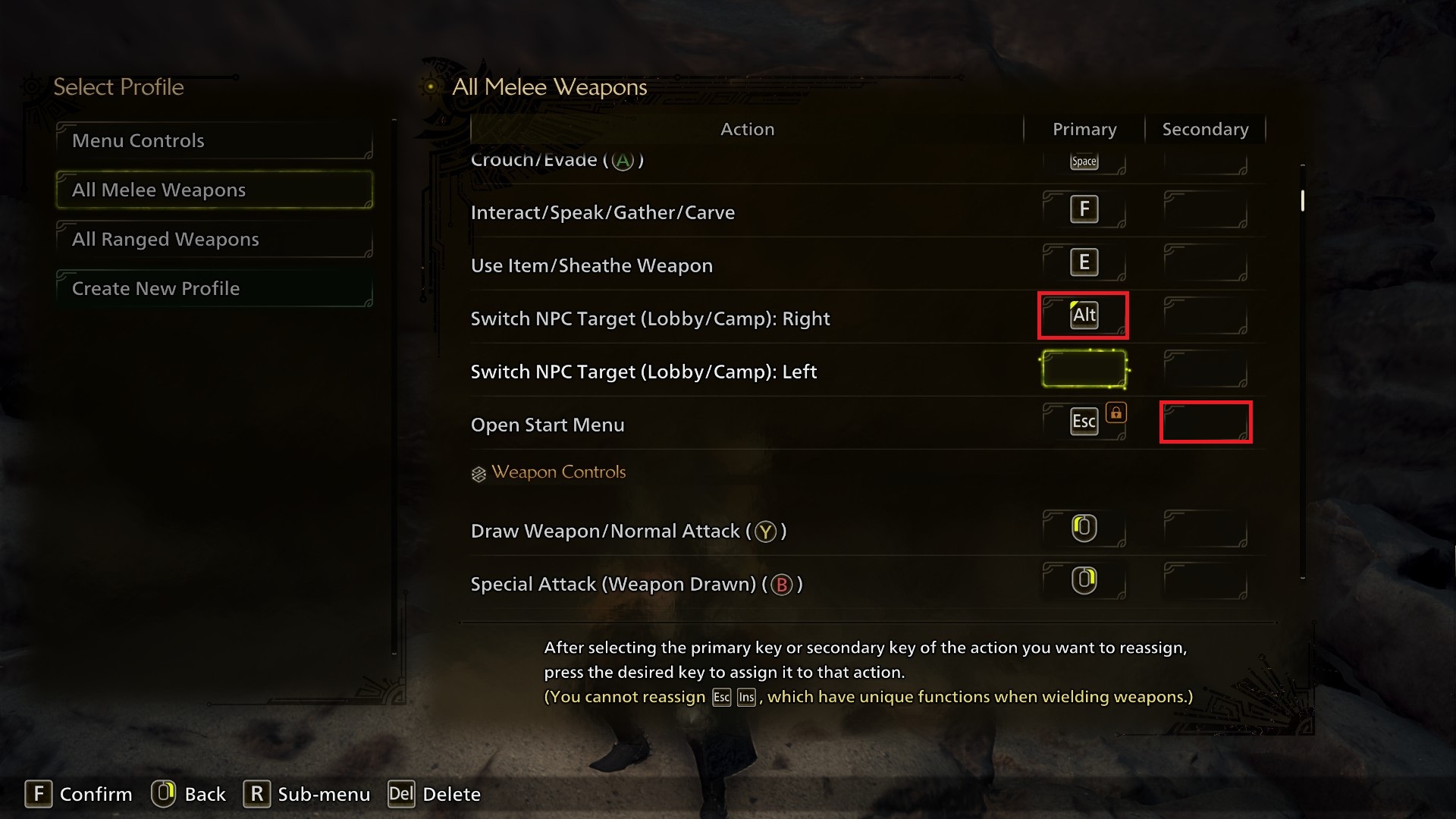
Switch NPC Target (Lobby/Camp): Right I have changed from R to left Alt. This option is used for if you have multiple interaction targets close together in town, you can switch between them. Since the full game released, I HAVE found situations when this has come in handy (thanks to a certain goober) and Alt works well as an intuitive button.
Open Start Menu unbound from H as a secondary input. (use Delete to unbind keys!) I don't think this secondary input is necessary, and it frees up the key.
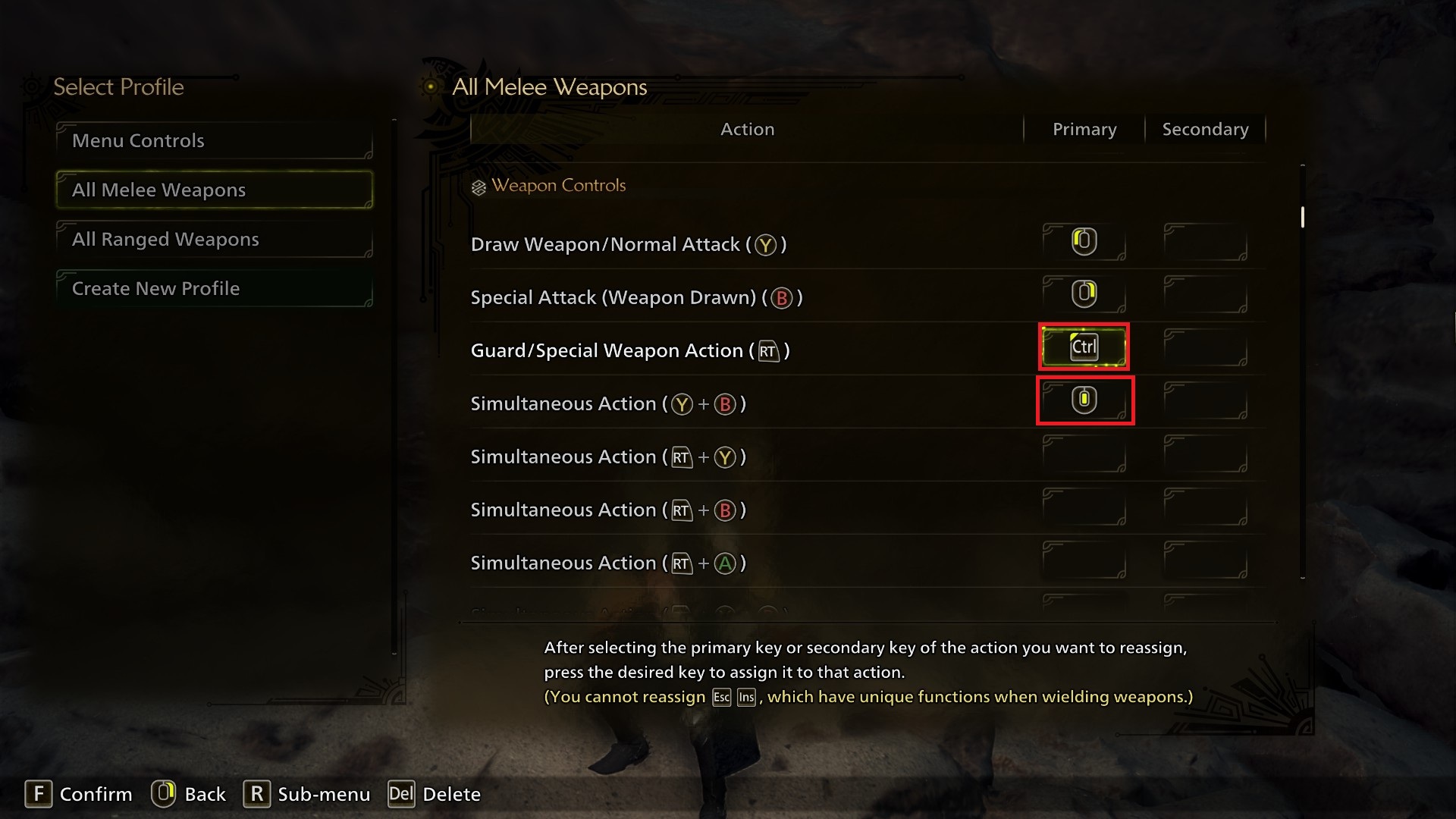
Guard/Special Weapon Action changed from R to Ctrl. My muscle memory from previous PC Monster Hunter games like World is why I'm using Ctrl, so if someone new to Wilds thinks using Ctrl for this feels unnatural, you could use a different button, such as perhaps Q or TAB, which can be swapped in this control scheme, or stick with R if that's what feels best to you.
Simultaneous Action (the first one) changed from whatever Wilds automatically assigned it (likely varies depending on your mouse, for me it was mouse 5) to middle mouse button. You can consider this optional, as this just allows you to press the two mouse buttons simultaneously with a single button. Personally, I'm a Hunting Horn player, the new attacks mean that being able to consistently do several of these inputs quickly with no accidents is important, so this bind is great for that.
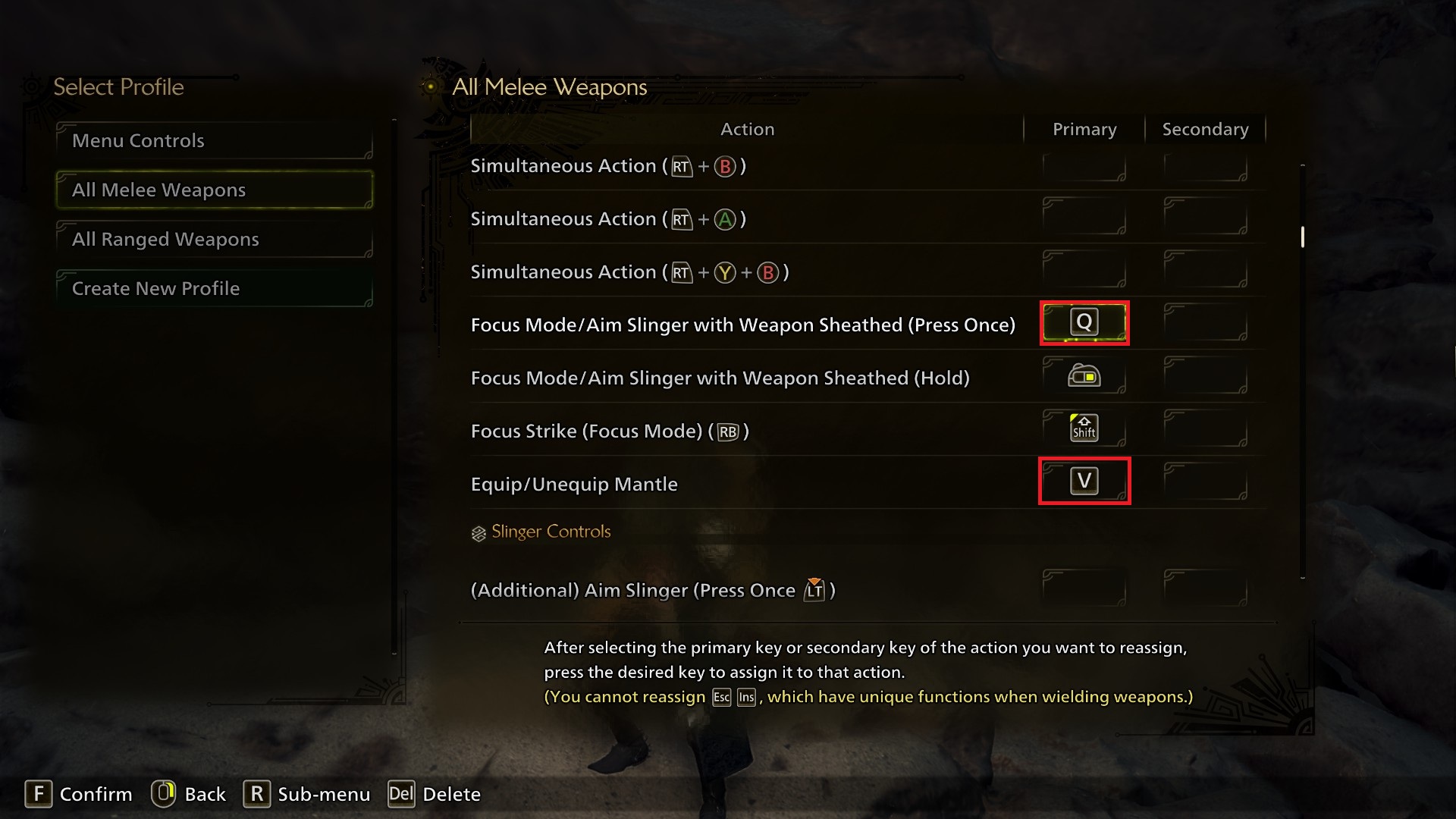
Focus Mode/Aim Slinger With Weapon Sheathed (Press Once) I have bound to Q instead of Alt. If you have no intention to remap the Seikret controls, you can avoid doing this if you'd prefer, I find that Q feels like a good button for this. (or maybe I just got too used to using it for Silkbinds in Rise?) Binding this away from Alt also helps if you're very alt-tab happy, like I am.
You could make this the “hold” button instead, but I think toggling Focus mode is going to be more comfortable for the majority of players. Controller players have to find the ability to do this in the Options, not in button rebinding.
Equip/Unequip Mantle changed from C to V, I don't think it needs to be this close, and this way (provided you also rebind Display Keyboard Shortcut to free up V) the C key is now free! (Note: This bind does not refer to using the Ghillie Mantle, which is inherent equipment in Wilds, it activates whatever's equipped in your other Mantle slot)
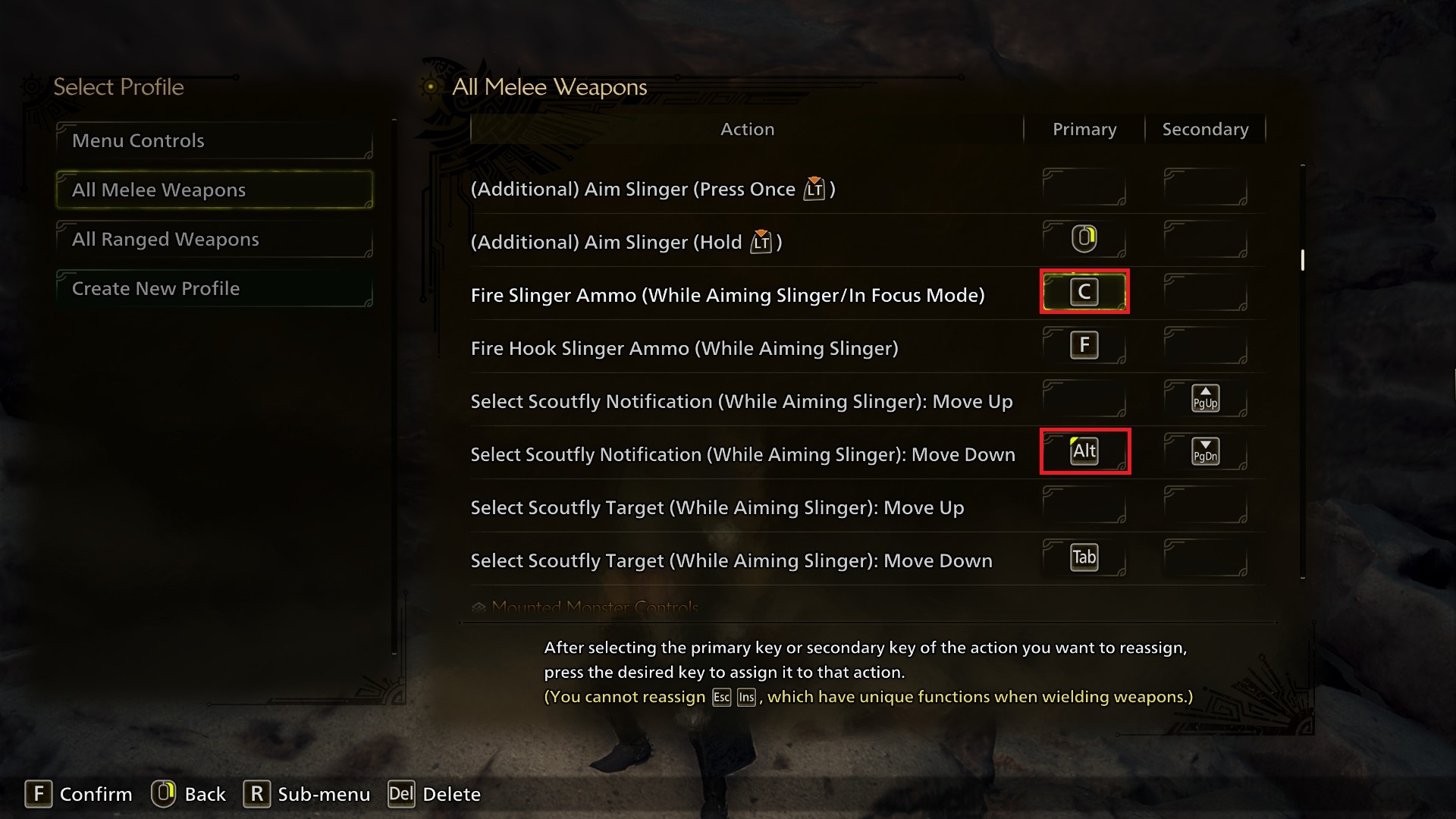
*** Fire Slinger Ammo (While aiming in Slinger/In Focus Mode) changed from middle mouse button to C, this feels intuitive to me. You might want to swap this around with the Hook Slinger bind (which remains F under this control scheme) depending on your own preference, or use a different button if C feels weird, I think this is the least likely of my keybinds for other people to prefer.
Select Scoutfly Notification (While Aiming Slinger): Move Down rebound from Q to left Alt. What this button does is let you press it to select a scoutfly notification on the left side of your screen, then you can just press the hook button and your hunter will grab the item without you needing to move the camera. This is quite handy, and IMO Alt is a button that makes sense for it.
Note: This section refers to the mounting status effect on monsters, not the Seikret.
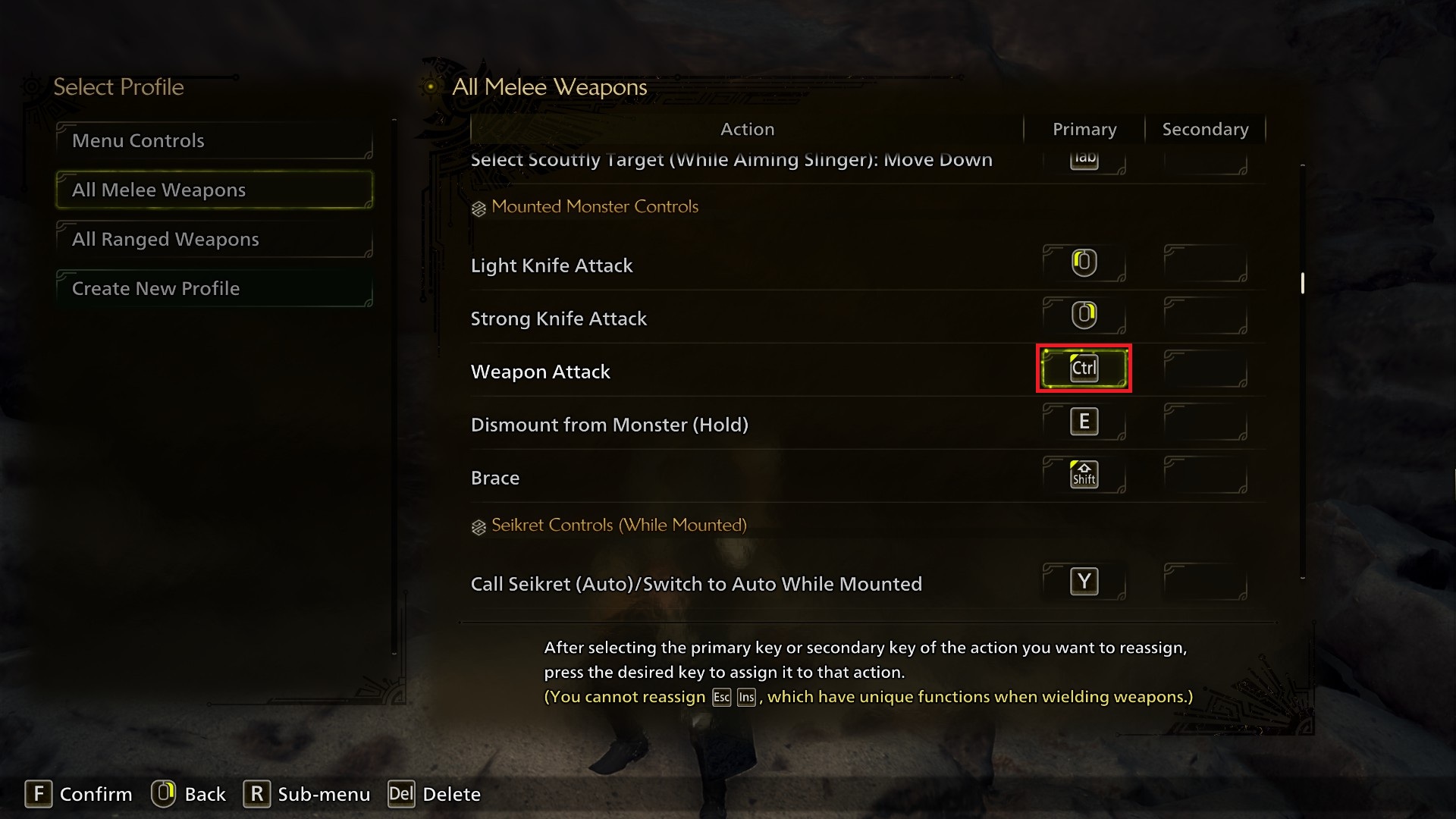
*** Weapon Attack changed from R to Ctrl, or whatever other button you decided to put Guard/Special Weapon action on. If you left it default, you won't need to touch this. This is only to avoid keybind conflicts.
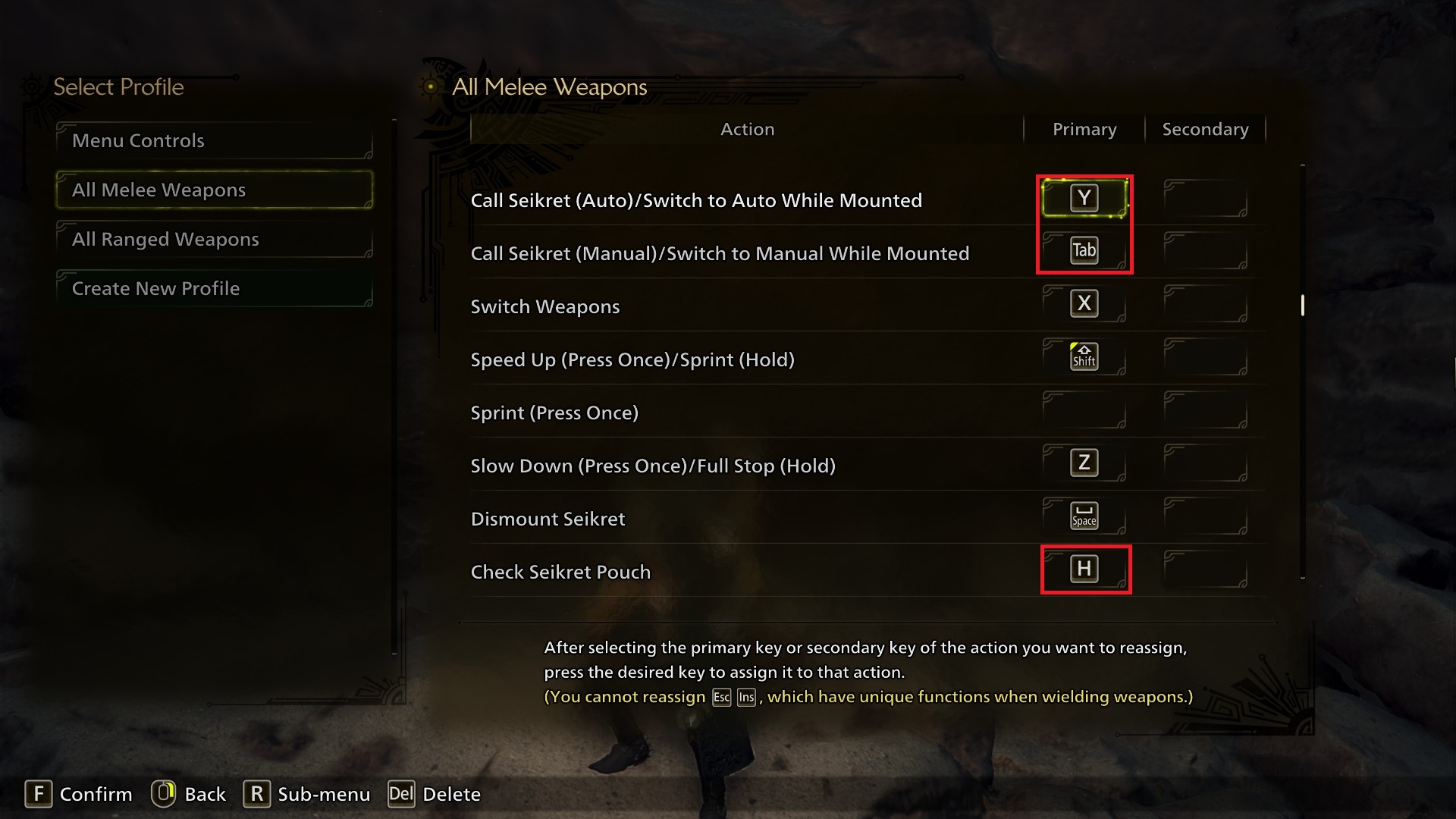
Call Seikret (Auto/Manual): In Auto mode, your Seikret is always trying to move to the quest target, in Manual mode you always control it.
Personally, I prefer Manual for most situations and only use Auto sometimes, so I've switched Auto to Y to be out of the way, and Manual to TAB to free up Q for the Focus Mode button. Depending on your own tastes you could leave the Seikret here on Q though if you want it as a high priority button. On a personal note, I would advise not abusing Auto too much for your own fun's sake, too. Auto mode is great to use sometimes, but if you're using it 24/7, especially when exploring new areas, you might lose your sense of direction.
Check Seikret Pouch changed to from N to H to free up that key.
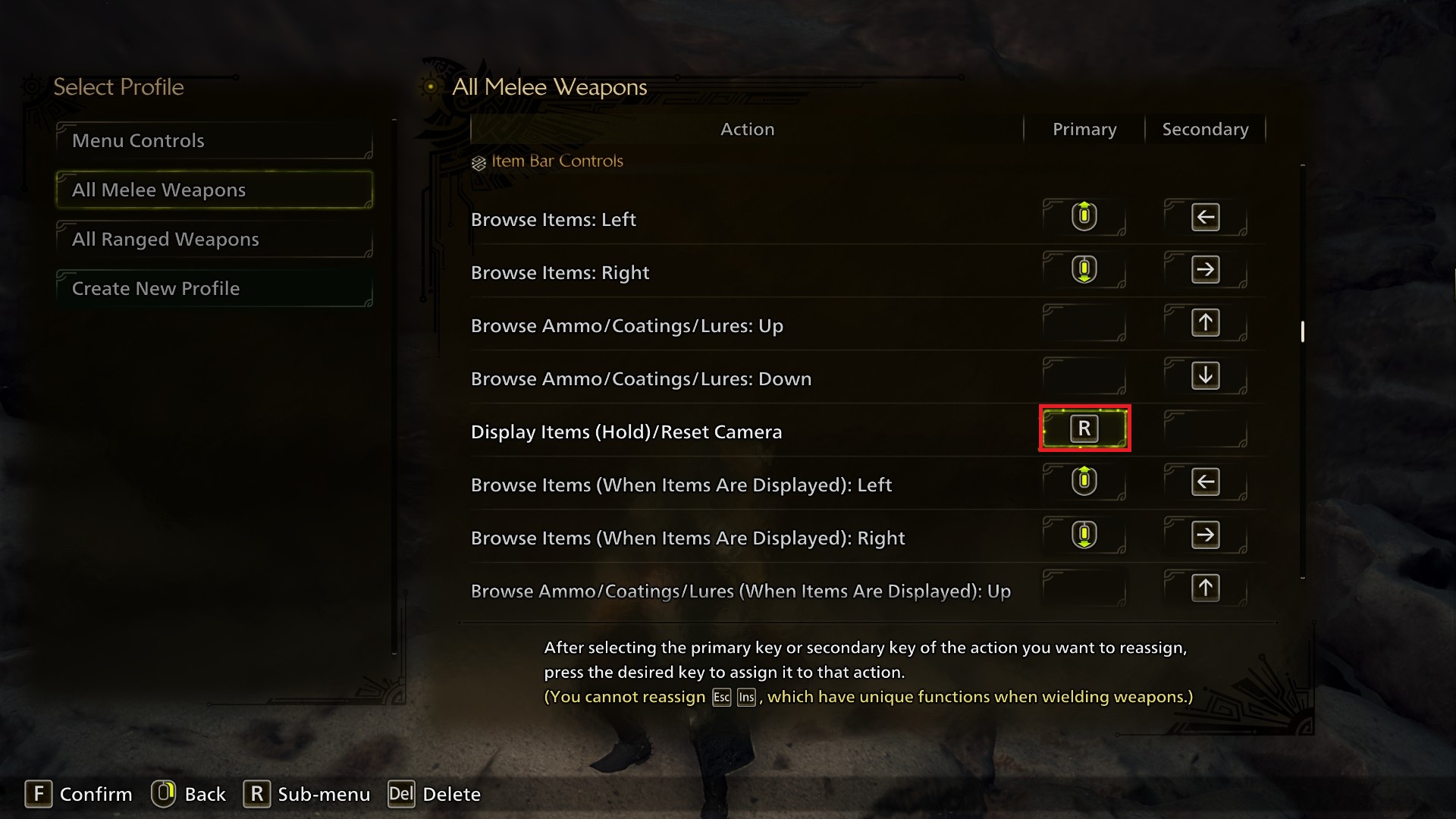
*** Display Items(Hold)/Reset Camera changed to R. In layman's terms, this button holds open the item bar, and also allows you to access your radial menus. This is the main reason I prefer to change the special attack button from R, this button is right next to E as use item and feels intuitive to me in managing the item bar.
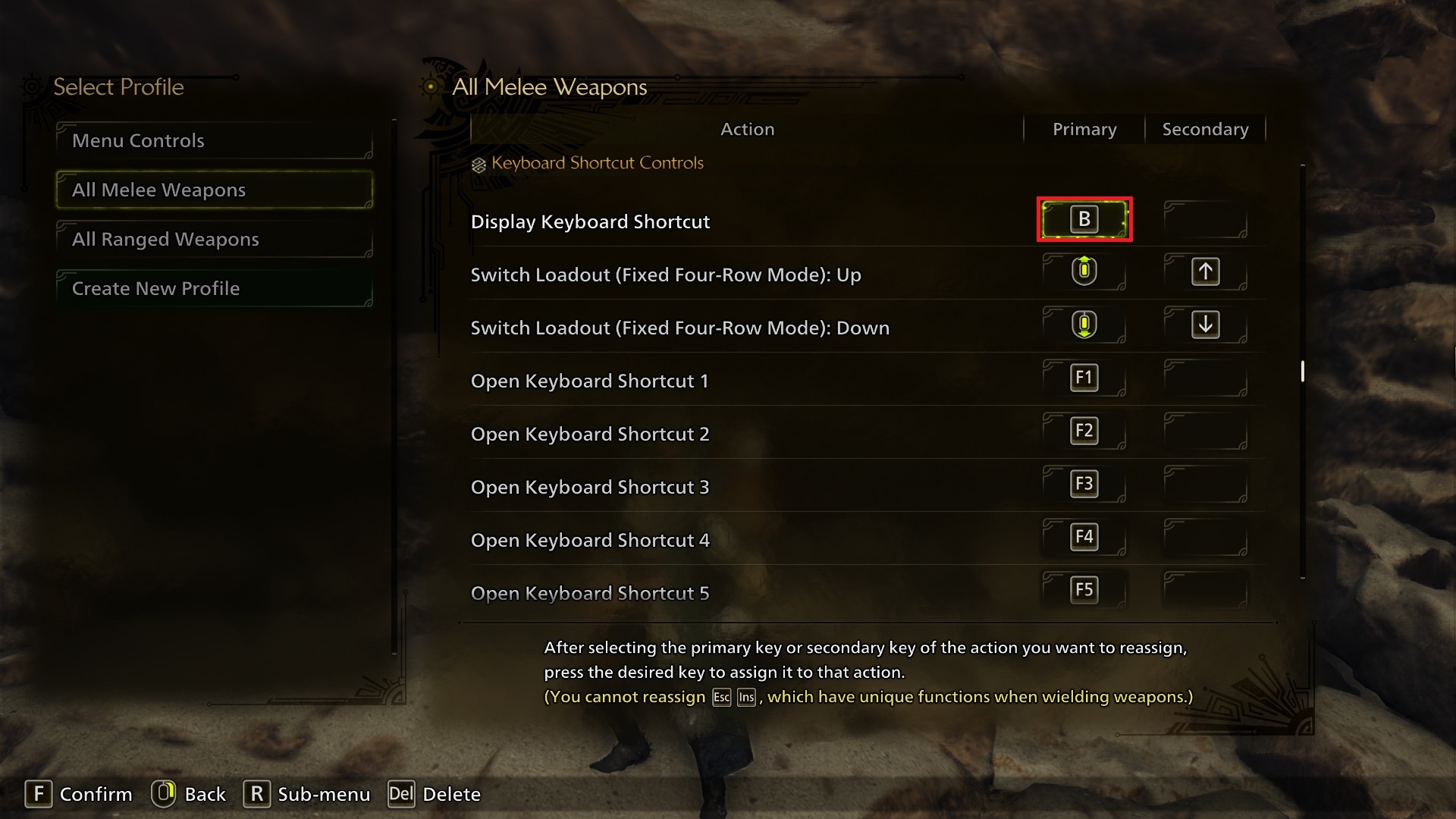
Display Keyboard Shortcut changed to B. This feels like "backpack" so it's sorta intuitive to me? I want to free up V for other binds and this isn't a very important button, as you can always just press the actual keyboard shortcut buttons to do the same thing. You could also unbind this entirely, if you'd prefer.
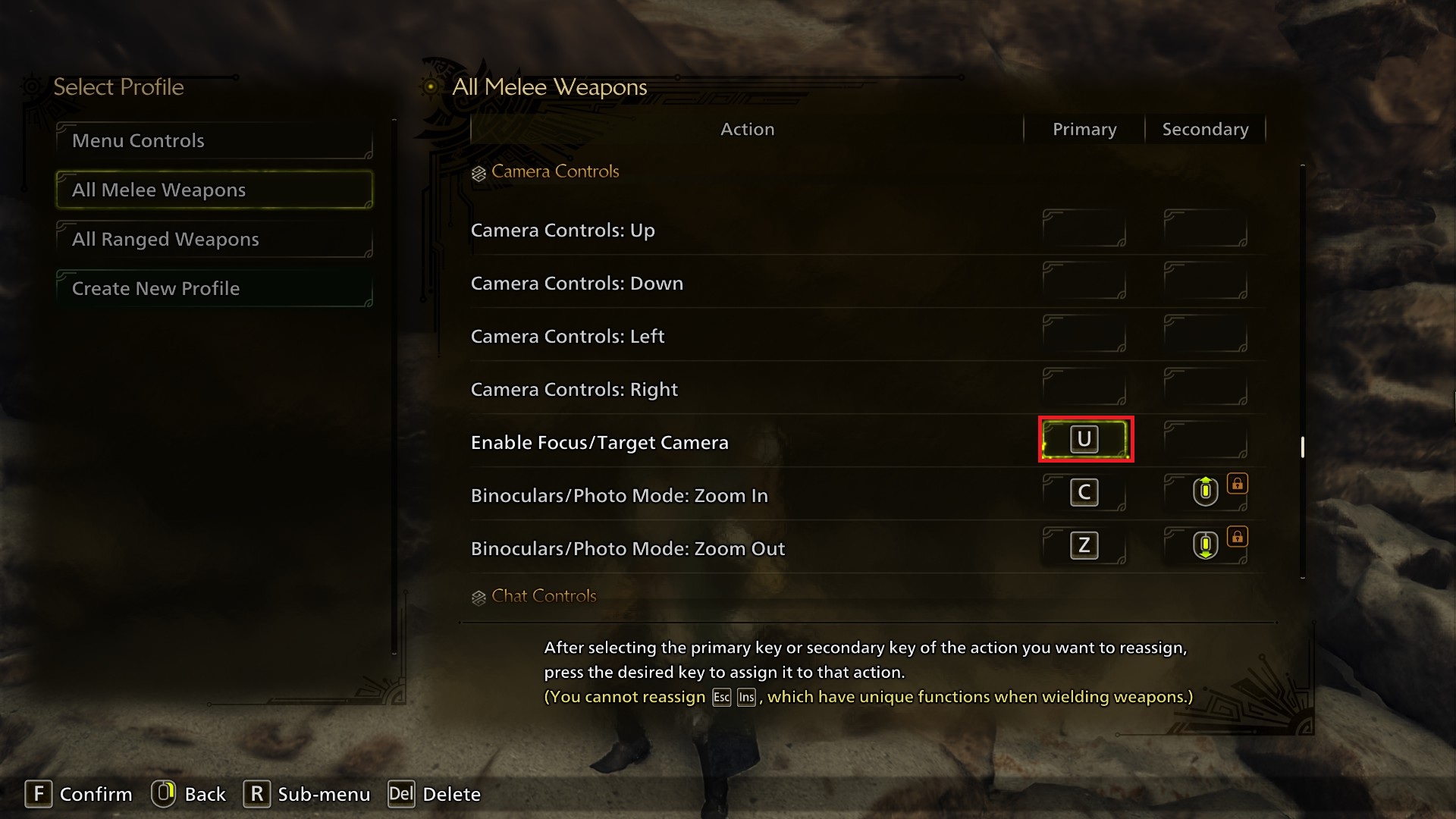
Enable Focus/Target Camera changed to U. Targeting the camera on a monster in Monster Hunter is not my style anyway, so I just put this one out of the way. You could also use T for "target" if you'd prefer, but you would have to figure out how to remap push to talk, that is T by default- If you aren't intending to use voicechat anyway, you could just dump push to talk somewhere.
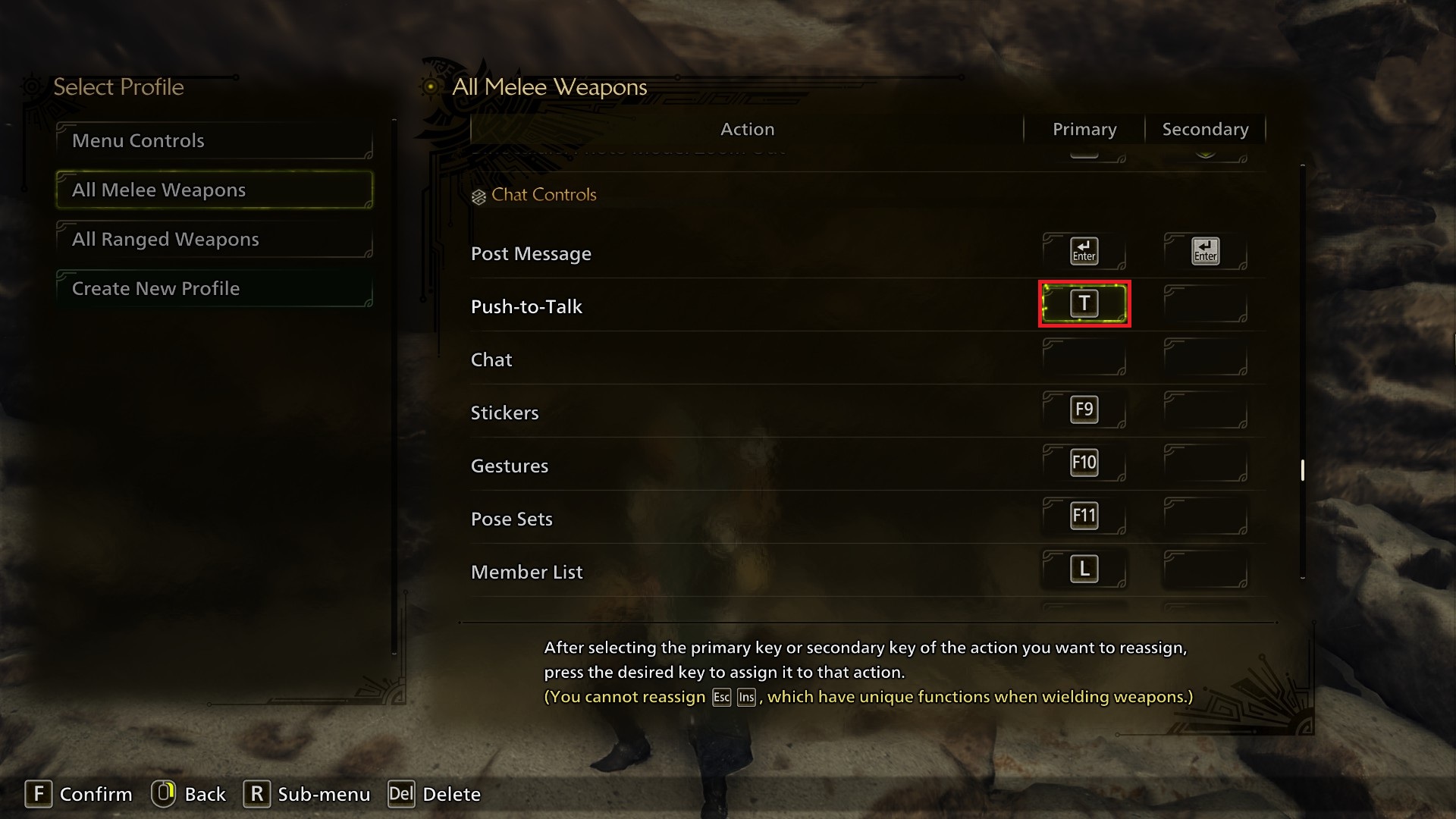
I don't think there's anything in here I'm interested in changing personally, but if you never intend to use Push To Talk as mentioned above, it's here to rebind/remove.
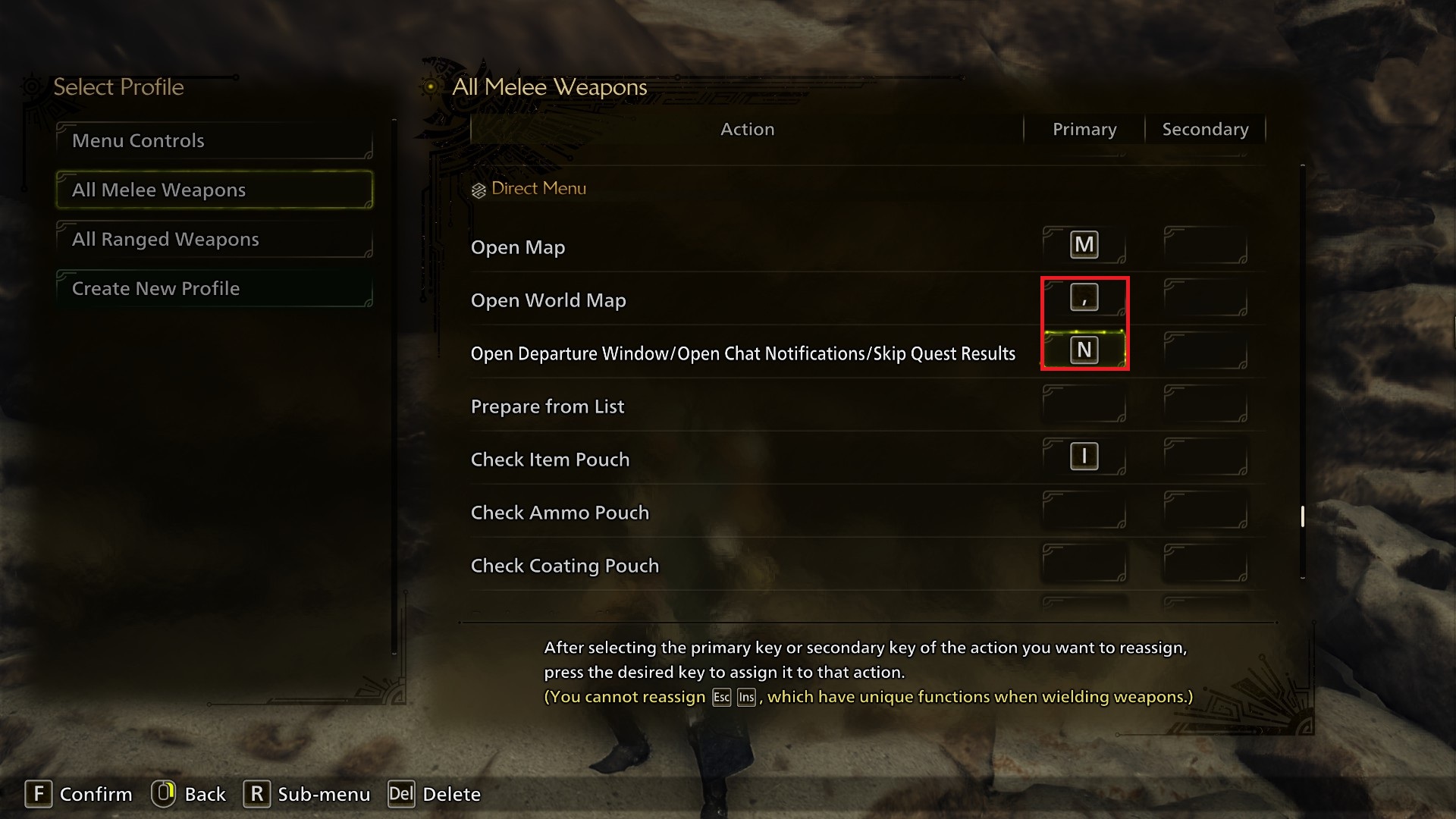
Open World Map Added the , input, this is a minor thing but it's right next to M but is a neat convenience to throw in here.
Open Departure Menu/Open Chat Notifications/Skip Quest Results rebound from Y to N. N is close to M, and the notifications this button closes block the Map button on M, so having these two close by is ideal. You should know that this button also skips the cinematic monster death camera at the end of quests!
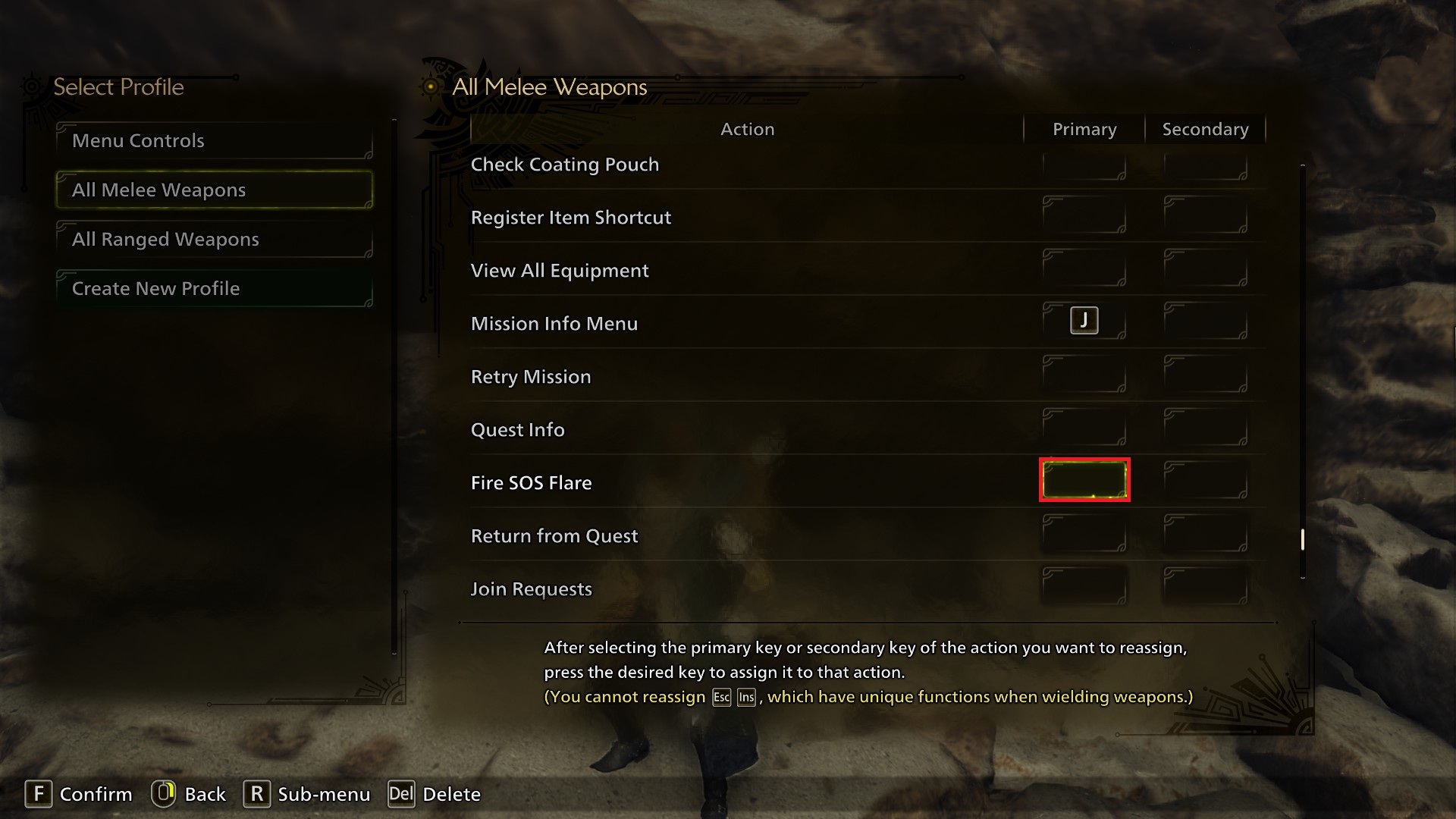
Fire SOS Flare unbound, I'd rather not do this on accident.
Hunter Controls
Dash (Press Once)/Sheathe Weapon is how Wilds handles Toggle Sprint as an option. Personally, I have left this as default, I don't like toggle sprint in Monster Hunter, but some people might feel differently.
Switch NPC Target (Lobby/Camp): Right I have changed from R to left Alt. This option is used for if you have multiple interaction targets close together in town, you can switch between them. Since the full game released, I HAVE found situations when this has come in handy (thanks to a certain goober) and Alt works well as an intuitive button.
Open Start Menu unbound from H as a secondary input. (use Delete to unbind keys!) I don't think this secondary input is necessary, and it frees up the key.
*** Weapon Controls
Guard/Special Weapon Action changed from R to Ctrl. My muscle memory from previous PC Monster Hunter games like World is why I'm using Ctrl, so if someone new to Wilds thinks using Ctrl for this feels unnatural, you could use a different button, such as perhaps Q or TAB, which can be swapped in this control scheme, or stick with R if that's what feels best to you.
Simultaneous Action (the first one) changed from whatever Wilds automatically assigned it (likely varies depending on your mouse, for me it was mouse 5) to middle mouse button. You can consider this optional, as this just allows you to press the two mouse buttons simultaneously with a single button. Personally, I'm a Hunting Horn player, the new attacks mean that being able to consistently do several of these inputs quickly with no accidents is important, so this bind is great for that.
Focus Mode/Aim Slinger With Weapon Sheathed (Press Once) I have bound to Q instead of Alt. If you have no intention to remap the Seikret controls, you can avoid doing this if you'd prefer, I find that Q feels like a good button for this. (or maybe I just got too used to using it for Silkbinds in Rise?) Binding this away from Alt also helps if you're very alt-tab happy, like I am.
You could make this the “hold” button instead, but I think toggling Focus mode is going to be more comfortable for the majority of players. Controller players have to find the ability to do this in the Options, not in button rebinding.
Equip/Unequip Mantle changed from C to V, I don't think it needs to be this close, and this way (provided you also rebind Display Keyboard Shortcut to free up V) the C key is now free! (Note: This bind does not refer to using the Ghillie Mantle, which is inherent equipment in Wilds, it activates whatever's equipped in your other Mantle slot)
Slinger Controls
*** Fire Slinger Ammo (While aiming in Slinger/In Focus Mode) changed from middle mouse button to C, this feels intuitive to me. You might want to swap this around with the Hook Slinger bind (which remains F under this control scheme) depending on your own preference, or use a different button if C feels weird, I think this is the least likely of my keybinds for other people to prefer.
Select Scoutfly Notification (While Aiming Slinger): Move Down rebound from Q to left Alt. What this button does is let you press it to select a scoutfly notification on the left side of your screen, then you can just press the hook button and your hunter will grab the item without you needing to move the camera. This is quite handy, and IMO Alt is a button that makes sense for it.
Mounted Monster Controls
Note: This section refers to the mounting status effect on monsters, not the Seikret.
*** Weapon Attack changed from R to Ctrl, or whatever other button you decided to put Guard/Special Weapon action on. If you left it default, you won't need to touch this. This is only to avoid keybind conflicts.
Seikret Controls (While Mounted)
Call Seikret (Auto/Manual): In Auto mode, your Seikret is always trying to move to the quest target, in Manual mode you always control it.
Personally, I prefer Manual for most situations and only use Auto sometimes, so I've switched Auto to Y to be out of the way, and Manual to TAB to free up Q for the Focus Mode button. Depending on your own tastes you could leave the Seikret here on Q though if you want it as a high priority button. On a personal note, I would advise not abusing Auto too much for your own fun's sake, too. Auto mode is great to use sometimes, but if you're using it 24/7, especially when exploring new areas, you might lose your sense of direction.
Check Seikret Pouch changed to from N to H to free up that key.
Item Bar Controls
*** Display Items(Hold)/Reset Camera changed to R. In layman's terms, this button holds open the item bar, and also allows you to access your radial menus. This is the main reason I prefer to change the special attack button from R, this button is right next to E as use item and feels intuitive to me in managing the item bar.
Keyboard Shortcut Controls
Display Keyboard Shortcut changed to B. This feels like "backpack" so it's sorta intuitive to me? I want to free up V for other binds and this isn't a very important button, as you can always just press the actual keyboard shortcut buttons to do the same thing. You could also unbind this entirely, if you'd prefer.
Camera Controls
Enable Focus/Target Camera changed to U. Targeting the camera on a monster in Monster Hunter is not my style anyway, so I just put this one out of the way. You could also use T for "target" if you'd prefer, but you would have to figure out how to remap push to talk, that is T by default- If you aren't intending to use voicechat anyway, you could just dump push to talk somewhere.
Chat Controls
I don't think there's anything in here I'm interested in changing personally, but if you never intend to use Push To Talk as mentioned above, it's here to rebind/remove.
Direct Menu
Open World Map Added the , input, this is a minor thing but it's right next to M but is a neat convenience to throw in here.
Open Departure Menu/Open Chat Notifications/Skip Quest Results rebound from Y to N. N is close to M, and the notifications this button closes block the Map button on M, so having these two close by is ideal. You should know that this button also skips the cinematic monster death camera at the end of quests!
Fire SOS Flare unbound, I'd rather not do this on accident.
Ranged Keybinds
The majority of these binds are identical to the ones seen above, but here's what you should know, starting with everything in the Weapon Controls tab:
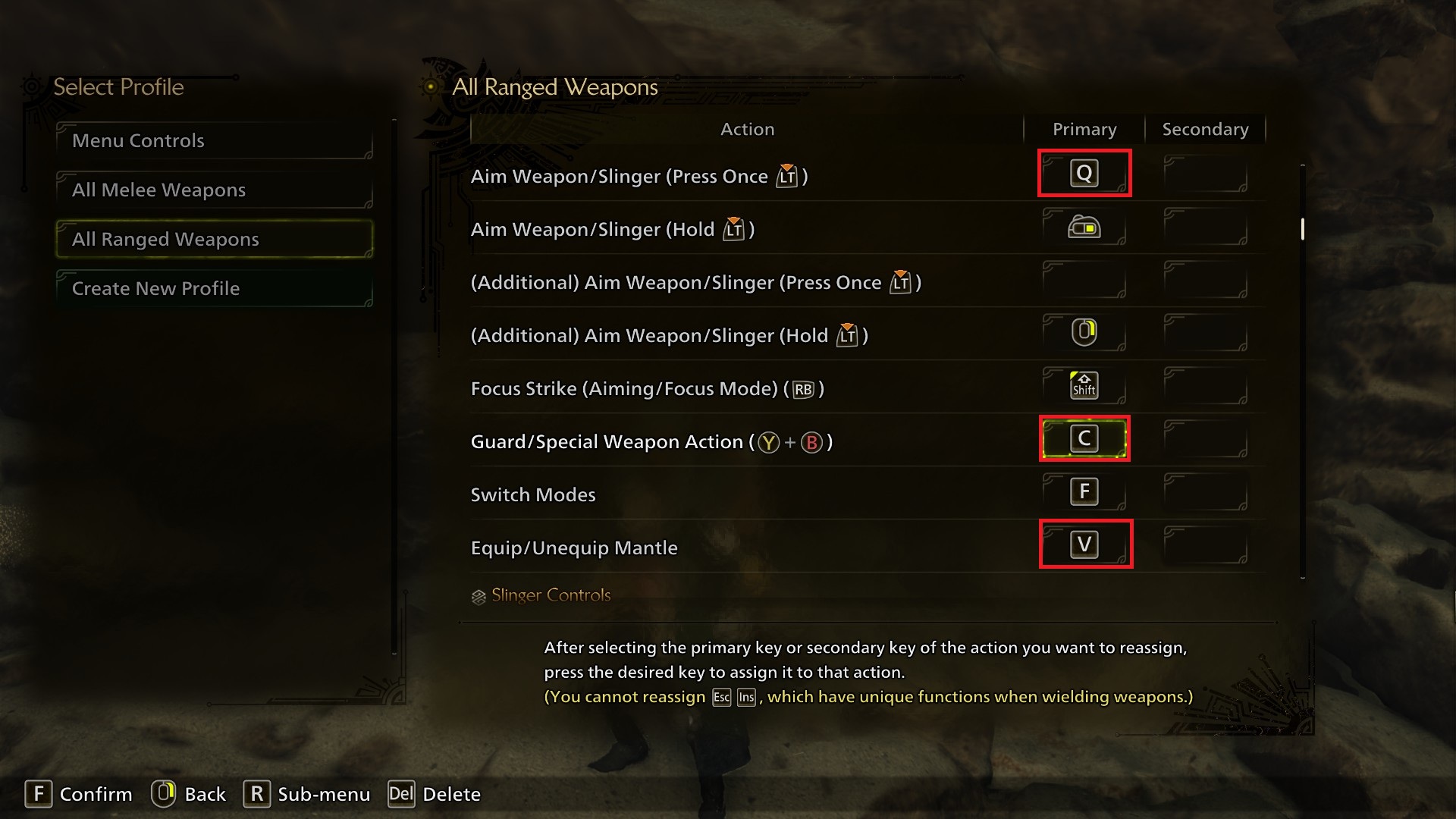
Aim Weapon/Slinger Press Once is still changed to Q. This leaves you with two options for aiming, using rightclick if you want a quick aim (thanks to the default bind for (Additional) Aim Weapon/Slinger (Hold)) and Q if you want a committed toggle aim. This can be customised a lot, Ranged weapons actually get an Additional bind slot for a total of 8 potential buttons controlling Focus Mode.
Guard/Special Weapon Action changed from a mouse button (mouse 4 for me) to C. This button acts as pressing R and F at the same time, so any actions in the Control Guide you see with R + F can be executed by just pressing this button below both of them.
Equip/Unequip Mantle is of course still changed, from C to V.
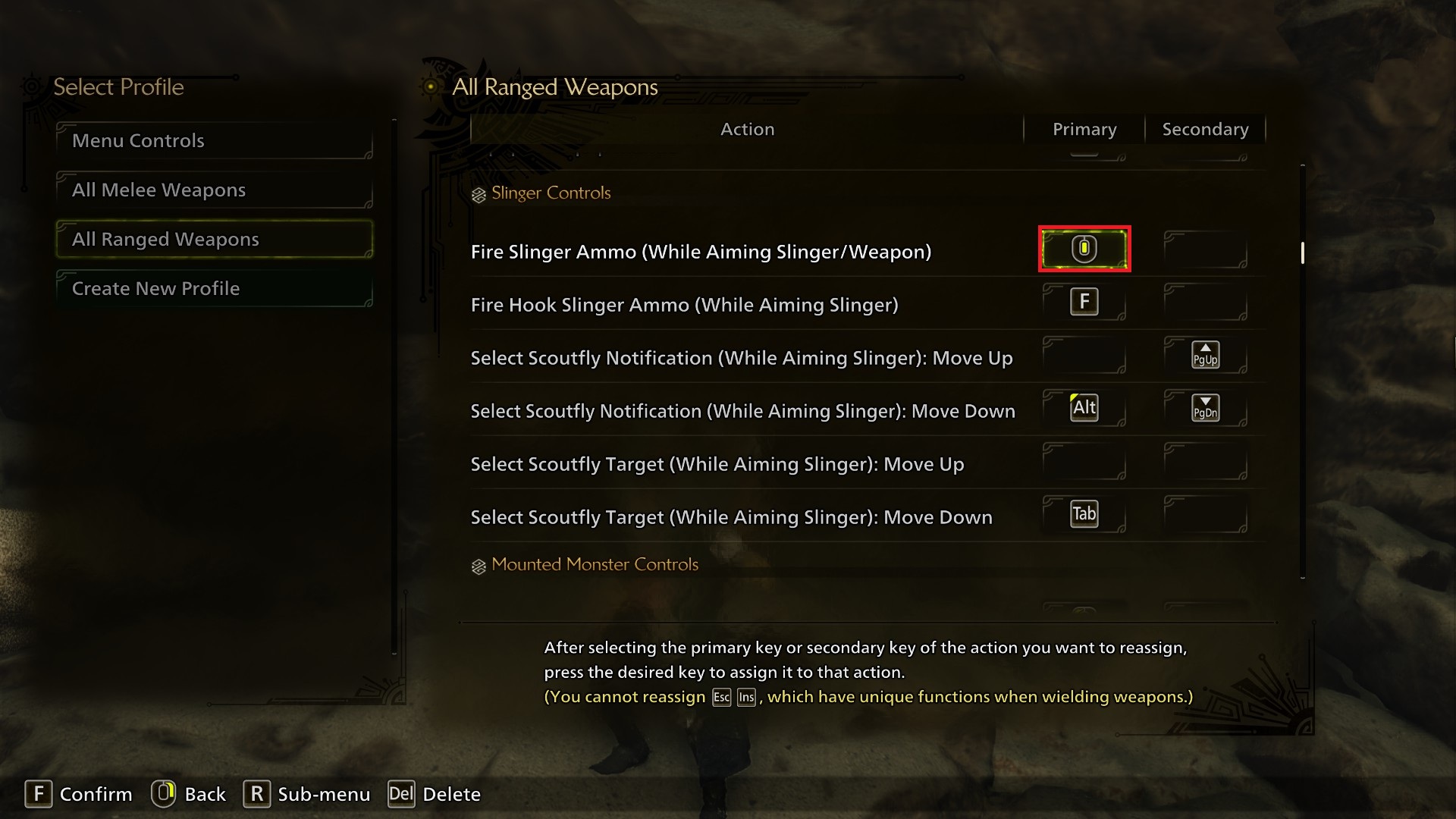
Fire Slinger Ammo left as default (middle mouse button). If you want an alternative suggestion on the keyboard your options are sadly a bit limited. Z is perfectly available, or perhaps T from Push To Talk?
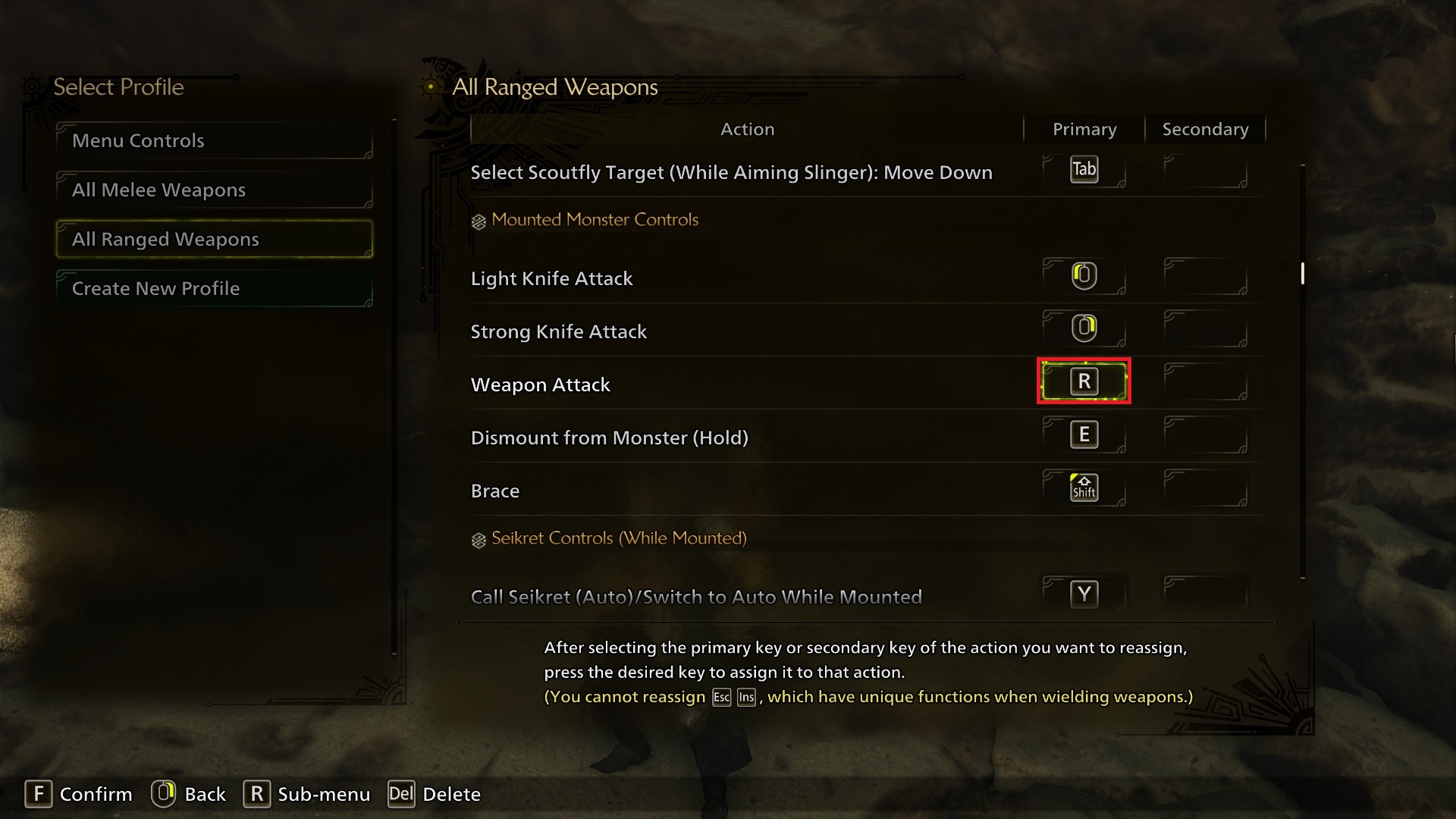
Weapon Attack should be left as R. For whatever reason, this bind sharing an input with Guard/Special Weapon Action flags up a keybind conflict in the Ranged binds, but didn't in the melee binds.
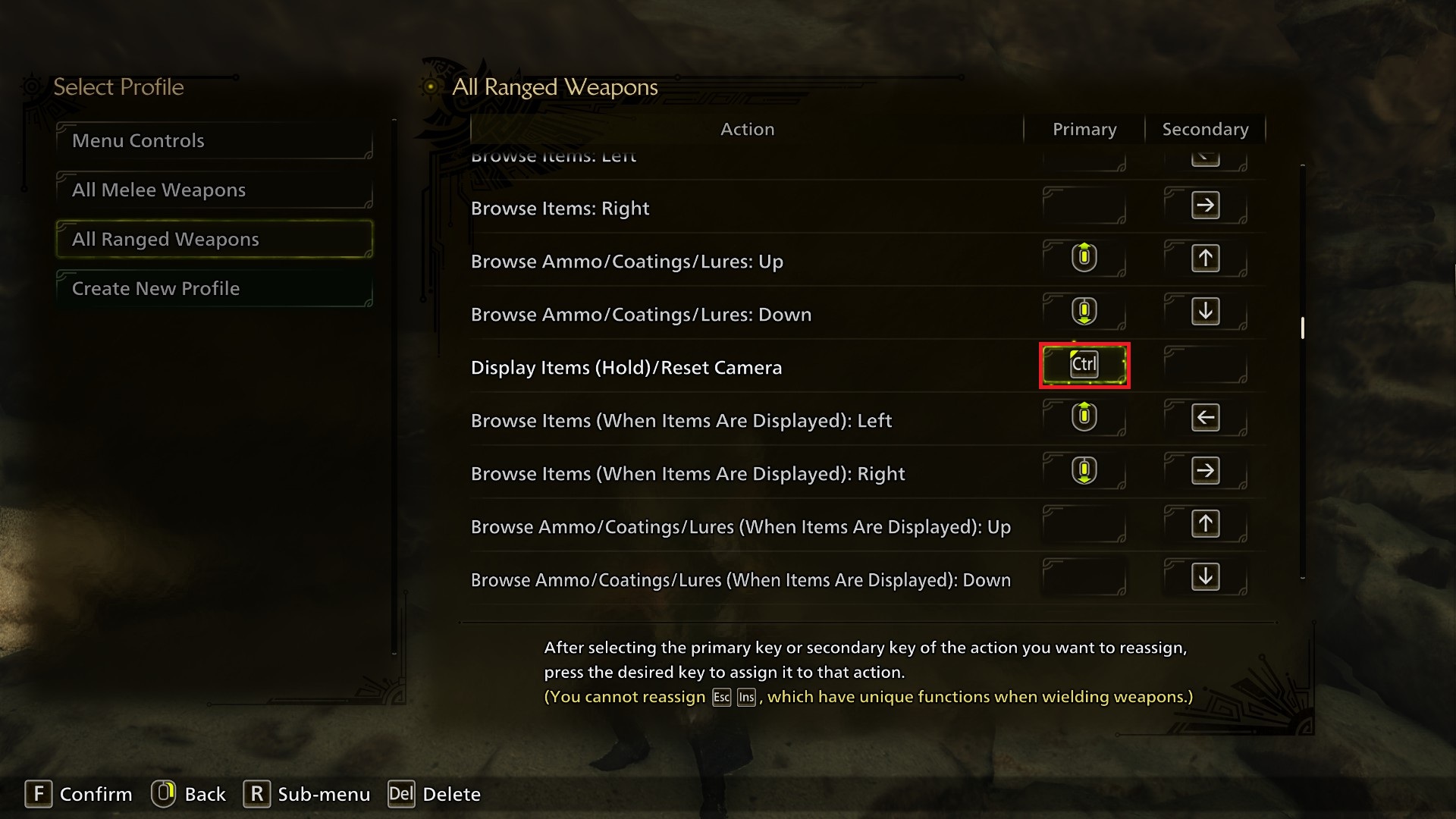
Display Items (Hold)/Reset Camera can't be R because that's much better served for Reload under Weapon Controls here. This button is way more important for Ranged weapon users, because it's how you alternate between scrolling through your Item Bar vs scrolling through your Ammo/Coatings. I think Wild's default for this bind, Ctrl works pretty well for Ranged weapons, but I could easily see ranged aficionados using something like mouse 4/ mouse 5 if they have those buttons.
Weapon Controls
Aim Weapon/Slinger Press Once is still changed to Q. This leaves you with two options for aiming, using rightclick if you want a quick aim (thanks to the default bind for (Additional) Aim Weapon/Slinger (Hold)) and Q if you want a committed toggle aim. This can be customised a lot, Ranged weapons actually get an Additional bind slot for a total of 8 potential buttons controlling Focus Mode.
Guard/Special Weapon Action changed from a mouse button (mouse 4 for me) to C. This button acts as pressing R and F at the same time, so any actions in the Control Guide you see with R + F can be executed by just pressing this button below both of them.
Equip/Unequip Mantle is of course still changed, from C to V.
Slinger Controls
Fire Slinger Ammo left as default (middle mouse button). If you want an alternative suggestion on the keyboard your options are sadly a bit limited. Z is perfectly available, or perhaps T from Push To Talk?
Mounted Monster Controls
Weapon Attack should be left as R. For whatever reason, this bind sharing an input with Guard/Special Weapon Action flags up a keybind conflict in the Ranged binds, but didn't in the melee binds.
Item Bar Controls
Display Items (Hold)/Reset Camera can't be R because that's much better served for Reload under Weapon Controls here. This button is way more important for Ranged weapon users, because it's how you alternate between scrolling through your Item Bar vs scrolling through your Ammo/Coatings. I think Wild's default for this bind, Ctrl works pretty well for Ranged weapons, but I could easily see ranged aficionados using something like mouse 4/ mouse 5 if they have those buttons.
The Options (Part 1)
I won't mention every option, but I will highlight some important stuff inside this giant options menu you might not initially be aware of, or might want to know where to find.
There's a filter you can activate with X- Setting this to "Shared + Keyboard + Mouse" will hide any options that only work for controllers, if you never intend to use a controller for Wilds (or vice versa for not intending to use a keyboard) this is handy!
Note: All these options are based on the in-game ones. I believe some of these don't display in the main menu options.
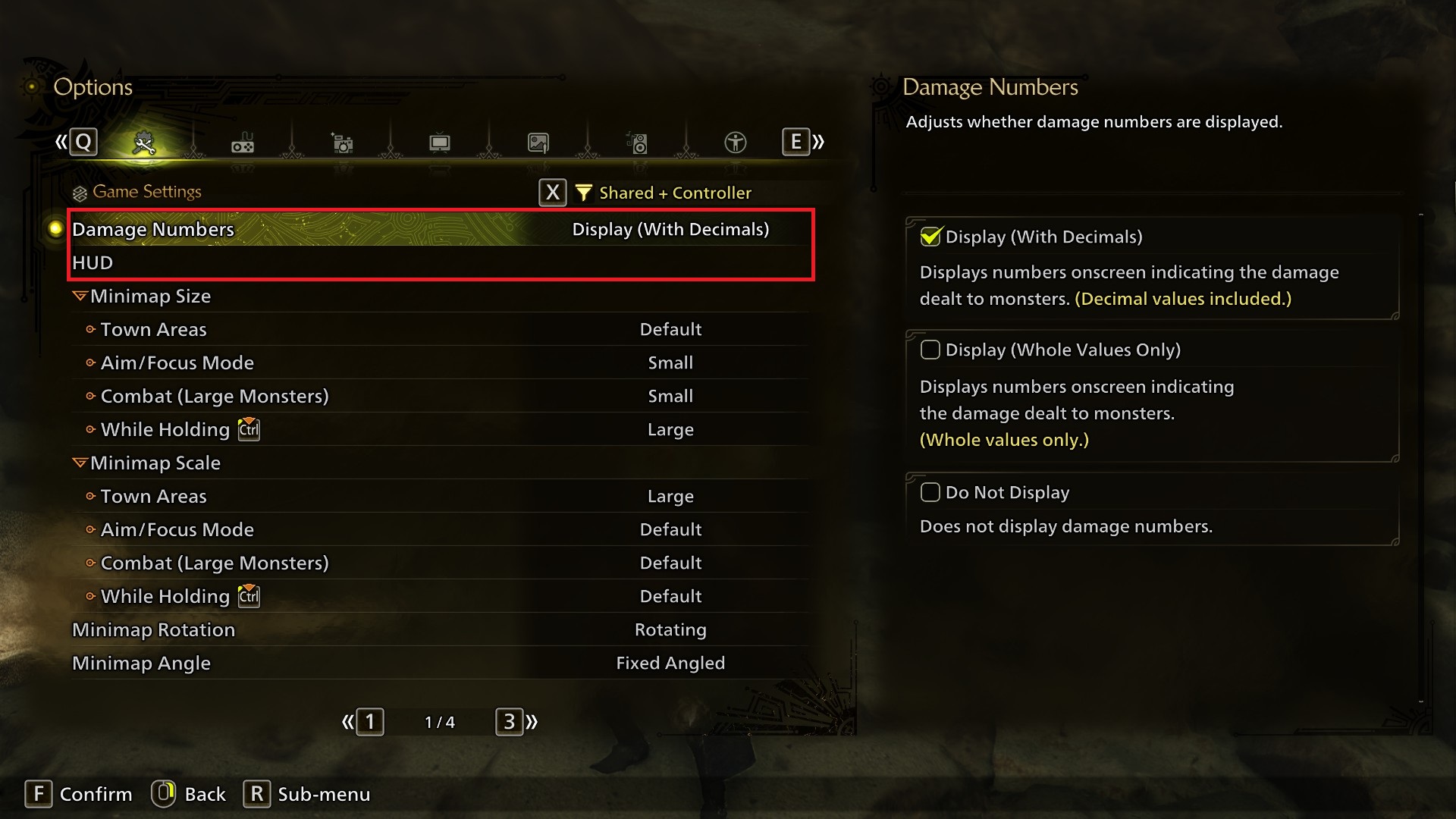
Damage Numbers: You could set these to Display With Decimals (Wilds tracks damage decimal points instead of round numbers now!) if you want precision, or Does Not Display if you don't like damage numbers.
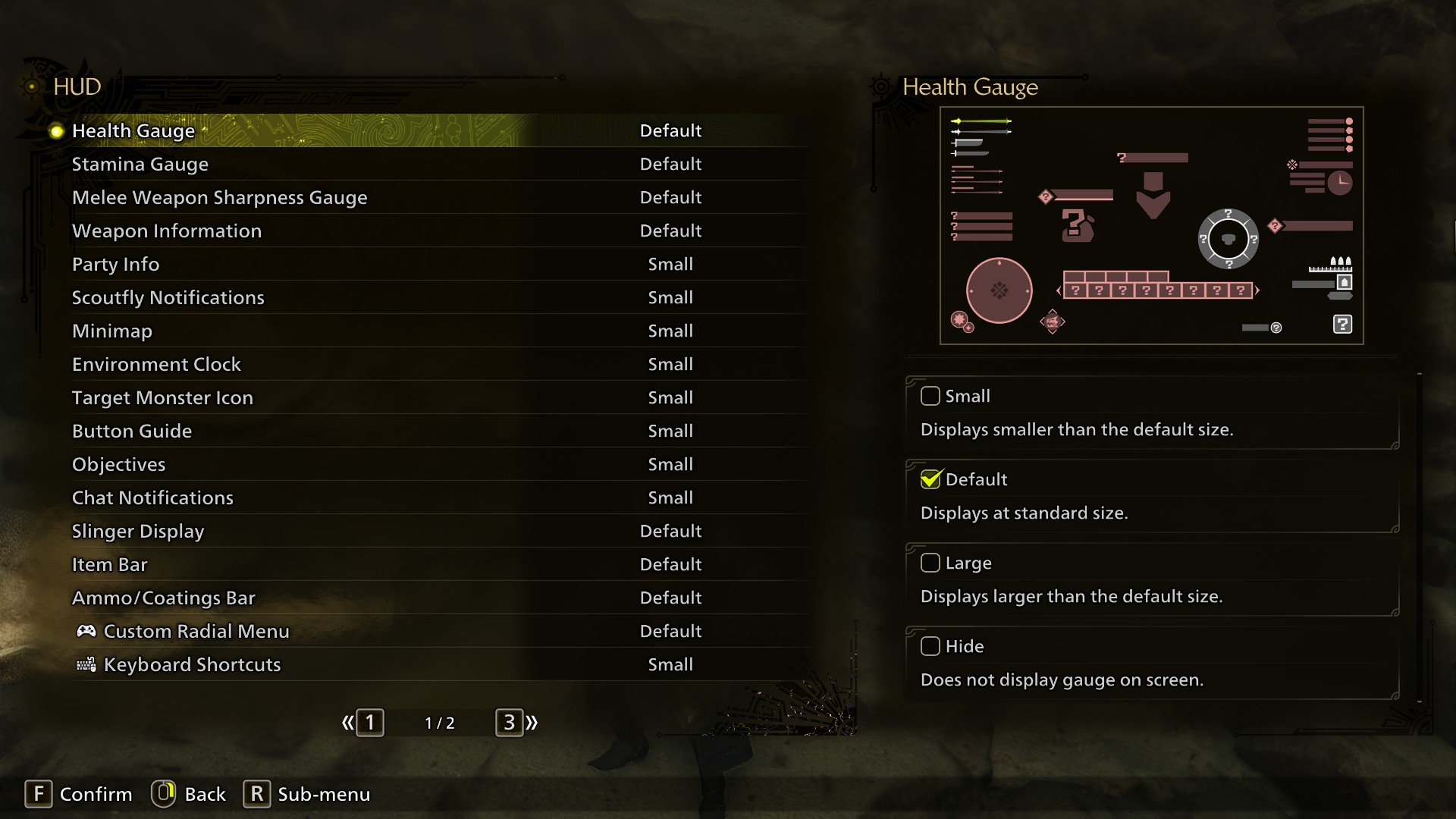
HUD: Press this to enter a full menu where you can review HUD elements and if you'd like to hide, shrink or enlarge them. Personally, I've shrunk down a lot of this stuff because I'm playing close to a screen, and hidden Name Display for characters to avoid online clutter. If this menu's giving you a headache, skip to Accessibility - Automatic Settings, that has 2 quick HUD size options.
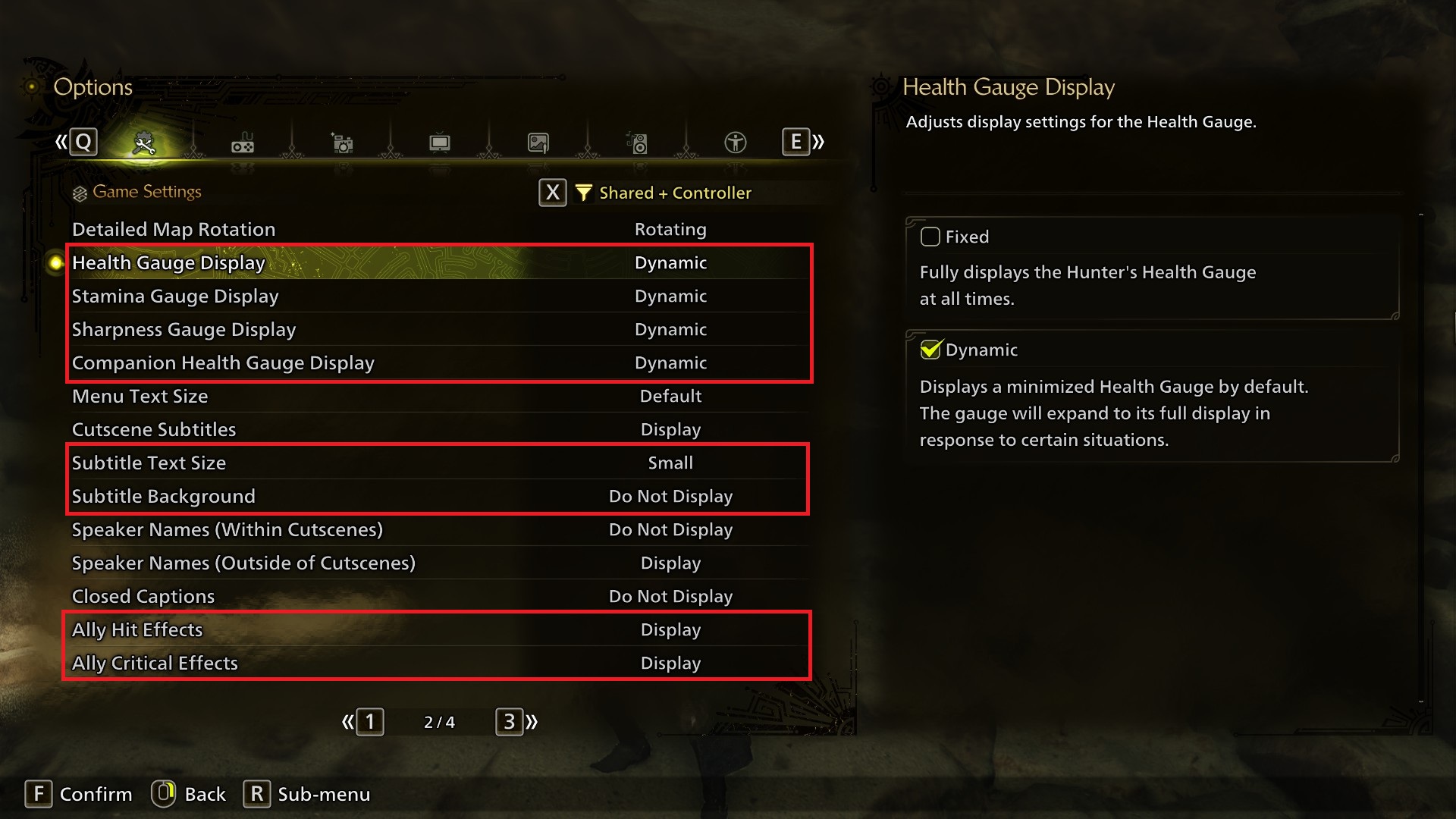
On the second page, you can set the Health/Stamina/Sharpness Gauge displays to if you want them seen at all times, or only in combat.
Subtitle Text Size is IMO a bit too big by default for people who don't need to rely on the subtitles to understand the game- If you do need the subtitles, you should probably leave it default or larger. There's a bunch of other subtitle options too like closed captions, speaker names or subtitle backgrounds for your customisation.
Ally Hit Effects/Critical Effects can be disabled, if multiplayer hunting is too visually cluttered for your tastes.
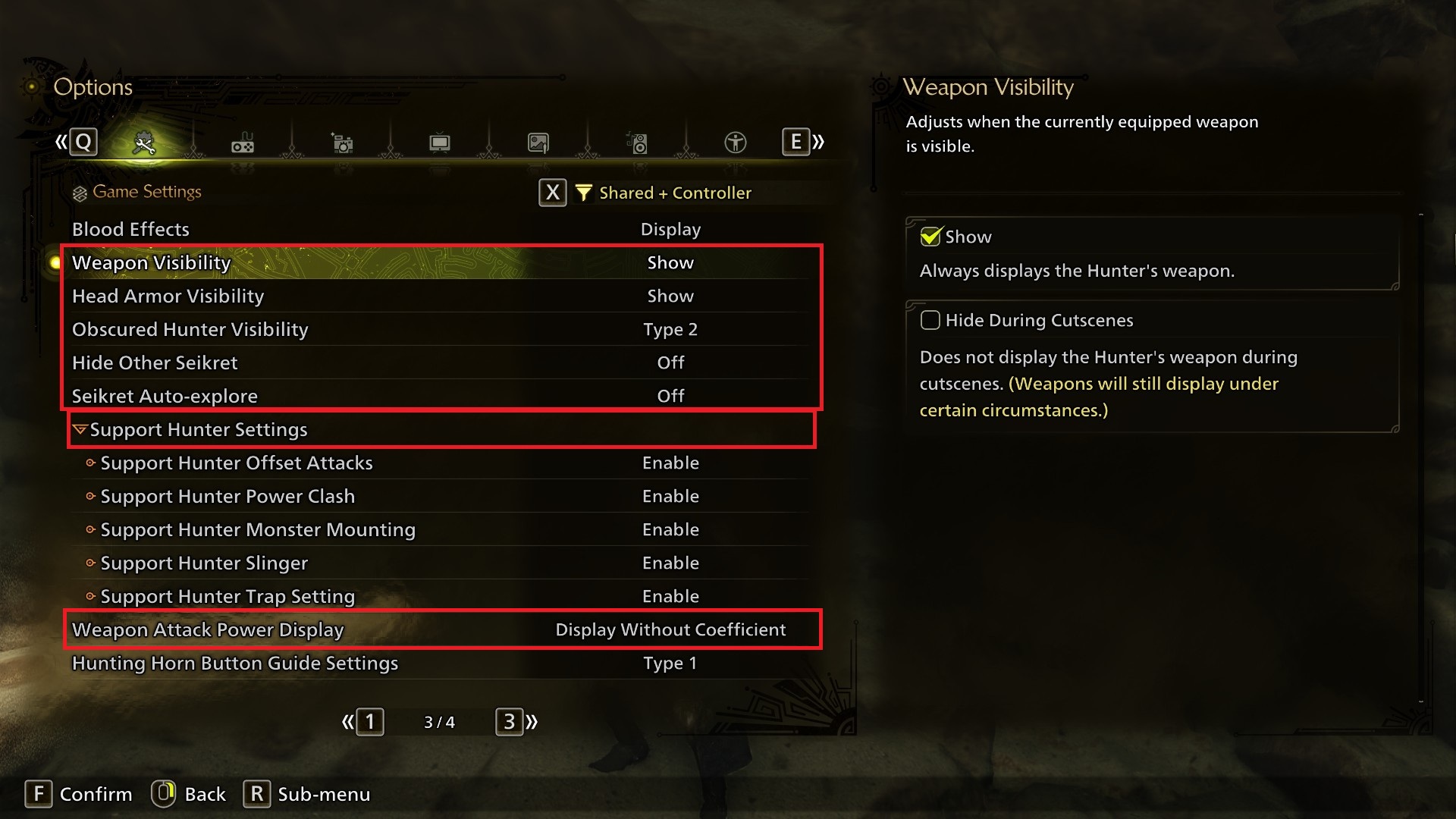
On the third page, you can check out the Weapon/Head Armor Visibility settings to adjust your cosmetic appearance a bit, if you'd rather not have the giant weapons or a helmet.
Obscured Hunter Visibility is partially on by default, to make sure you don't lose yourself if a monster's in front of the camera. You can adjust the outline's colour if you don't want it pure white, or turn it off. (though I recommend leaving it on)
Hide Other Players' Seikret is off by default, and I recommend leaving it off to avoid confusion/visual clutter.
Seikret Auto-Explore is on by default and I highly recommend turning this off. Even if you intend to use auto-move a lot, this can still be very disruptive because your Seikret will wander around to stick your face in herbs and I don't think you'll need the help.
Support Hunter Settings lets you adjust how NPC Hunters behave. (these guys show up in scenarios like using an SOS flare while you're offline) If you'd prefer, you can stop them doing potentially disruptive behaviours like mounting the monster.
Weapon Attack Power Display lets you turn off the “coefficient” that creates bloated damage stats, instead displaying every weapon’s true stats. The mainline team like to lie to you about what damage weapons do to avoid complete newbies assuming Great Sword is useless because it has the same core damage stat as Dual Blades. Most people will want this turned off.
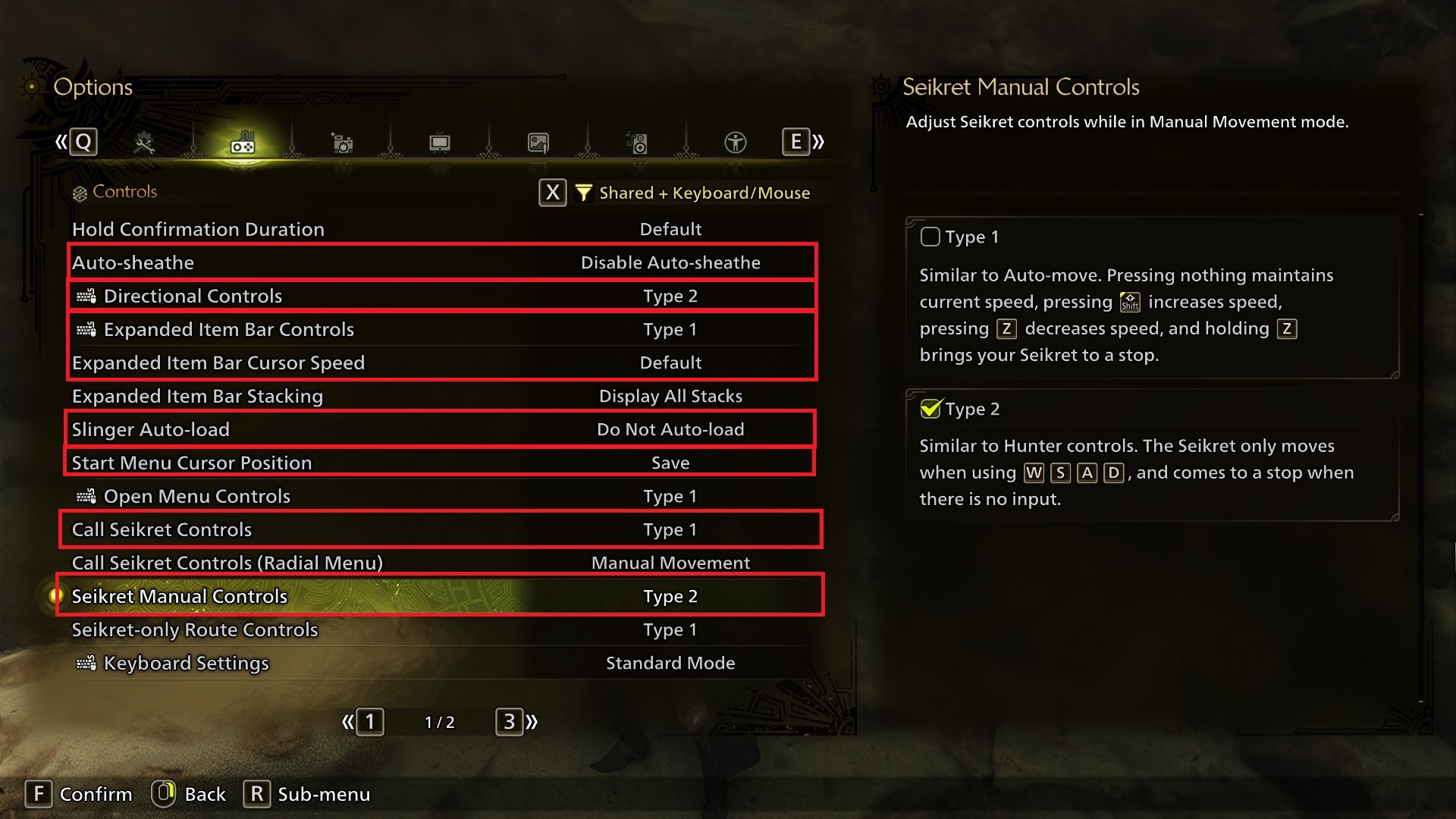
Seikret Manual Controls lets you change the controls from a "driving" style of raising/lowering your speed and steering, (Type 1) to simply holding a direction like normal movement. (Type 2)
I personally highly recommend Type 2 manual controls. It makes it much easier to use the Seikret for combat. The only thing you're really losing on KB+M is the ability for your Seikret to move slowly, only a controller's analog joystick input can do that under Type 2.
Auto Sheathe: I HIGHLY recommend disabling this, auto sheathing can get you killed.
Directional Controls: I personally left this on Type 2 as that's what makes sense to my brain (eg. if you are looking to your hunter's left while attacking, evade while holding W, your hunter evades forward instead of left) but this is personal preference, you could test both settings.
Expanded Item Bar Controls: This is a neat function that lets you display the Item Bar's full contents at once with an extra input. You can adjust how it works or disable it.
Expanded Item Bar Cursor Speed: Changes how quickly you can scroll through the item bar!
Slinger Auto Load: With this option, having a slinger ammotype selected in the item bar will have your hunter automatically load it after a moment. Manually loading is faster than auto loading, and I can confirm the slinger loading animation is not freely evade-cancellable, so I personally have turned this off.
Start Menu Cursor Position: Bear in mind that this setting also saves the tab you were on in the Start Menu as well. I personally like leaving this setting enabled.
Keyboard Settings: This is for people who want to use the keyboard as a secondary control input like for chat or keyboard shortcuts, while using a controller to primarily control the game.
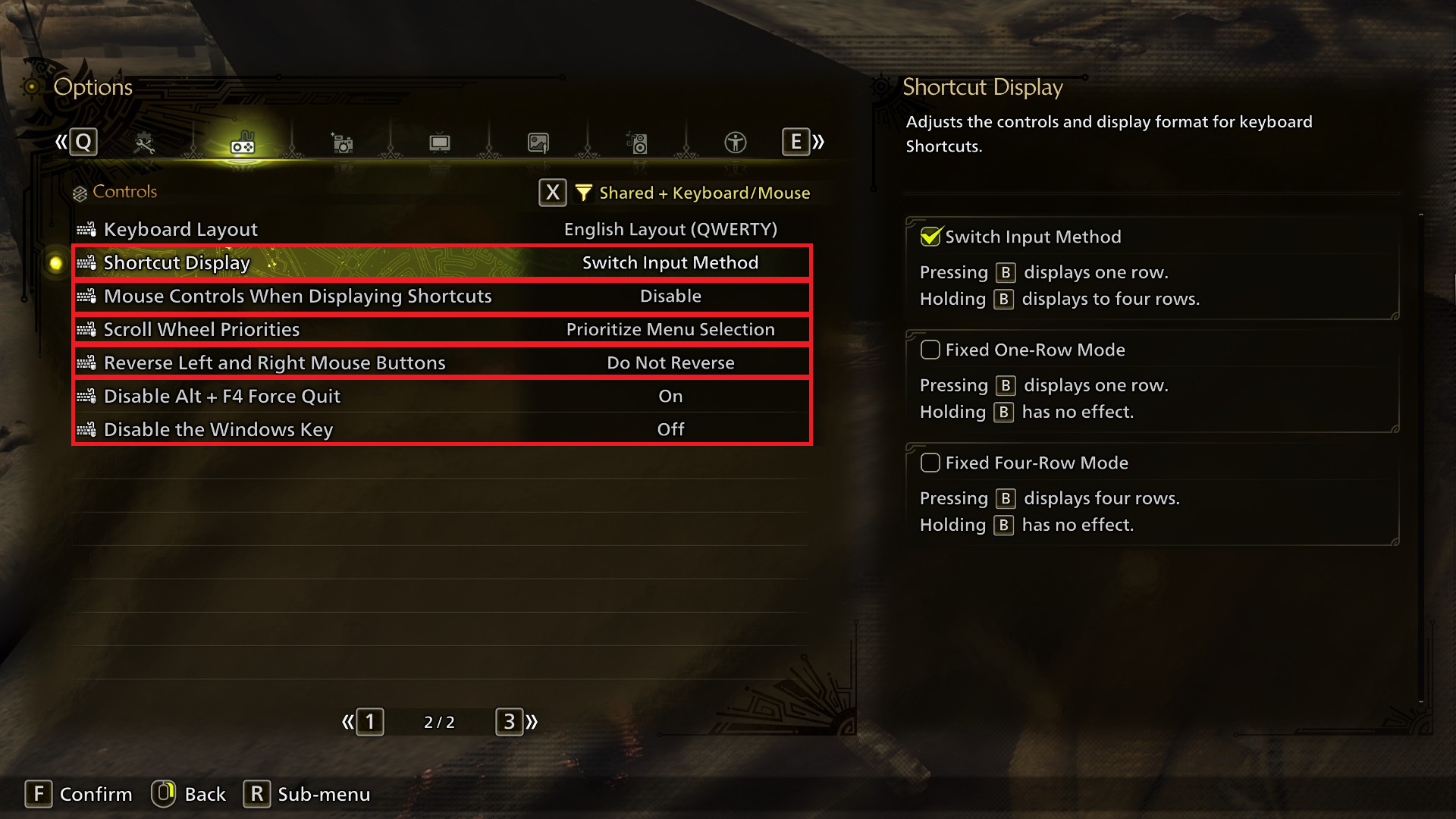
Shortcut Display: The keyboard shortcut button (B, under the keybind scheme in this guide) can be used either to display one set of keyboard shortcuts, or to display most of them at once and let you use the scroll wheel to dash through them. This can be really powerful for letting you select items quickly if you master it, but you should set it to Fixed Four-Row Mode if you want to master that forbidden art. If you'd rather not have the giant popup menu, leave it.
Mouse Controls When Displaying Shortcuts lets you use your mouse with the above shortcuts instead of needing to select everything via number keys, might be worth a try!
Scroll Wheel Priorities makes the scroll wheel scroll left to right through tabs like the one on your ESC menu instead of up and down. I prefer this one default (up and down) though.
Reverse left and right mouse buttons: Left handed players should give this some consideration!
Finally, there's two settings for disabling accidental Alt-F4s and etc, or leaving them intact, your choice whether or not to leave that stuff on!
(Controllers Only) Aim/Focus Mode Controls: If you're using a controller, this is where you find the ability to use Focus Mode as a toggle instead of a hold press by the way, it's on the second page! That's probably the most important thing here for you guys, but it's worth checking out the other controller options for modifying your inputs, in case you prefer them.
There's a filter you can activate with X- Setting this to "Shared + Keyboard + Mouse" will hide any options that only work for controllers, if you never intend to use a controller for Wilds (or vice versa for not intending to use a keyboard) this is handy!
Note: All these options are based on the in-game ones. I believe some of these don't display in the main menu options.
Game Settings
Damage Numbers: You could set these to Display With Decimals (Wilds tracks damage decimal points instead of round numbers now!) if you want precision, or Does Not Display if you don't like damage numbers.
HUD: Press this to enter a full menu where you can review HUD elements and if you'd like to hide, shrink or enlarge them. Personally, I've shrunk down a lot of this stuff because I'm playing close to a screen, and hidden Name Display for characters to avoid online clutter. If this menu's giving you a headache, skip to Accessibility - Automatic Settings, that has 2 quick HUD size options.
On the second page, you can set the Health/Stamina/Sharpness Gauge displays to if you want them seen at all times, or only in combat.
Subtitle Text Size is IMO a bit too big by default for people who don't need to rely on the subtitles to understand the game- If you do need the subtitles, you should probably leave it default or larger. There's a bunch of other subtitle options too like closed captions, speaker names or subtitle backgrounds for your customisation.
Ally Hit Effects/Critical Effects can be disabled, if multiplayer hunting is too visually cluttered for your tastes.
On the third page, you can check out the Weapon/Head Armor Visibility settings to adjust your cosmetic appearance a bit, if you'd rather not have the giant weapons or a helmet.
Obscured Hunter Visibility is partially on by default, to make sure you don't lose yourself if a monster's in front of the camera. You can adjust the outline's colour if you don't want it pure white, or turn it off. (though I recommend leaving it on)
Hide Other Players' Seikret is off by default, and I recommend leaving it off to avoid confusion/visual clutter.
Seikret Auto-Explore is on by default and I highly recommend turning this off. Even if you intend to use auto-move a lot, this can still be very disruptive because your Seikret will wander around to stick your face in herbs and I don't think you'll need the help.
Support Hunter Settings lets you adjust how NPC Hunters behave. (these guys show up in scenarios like using an SOS flare while you're offline) If you'd prefer, you can stop them doing potentially disruptive behaviours like mounting the monster.
Weapon Attack Power Display lets you turn off the “coefficient” that creates bloated damage stats, instead displaying every weapon’s true stats. The mainline team like to lie to you about what damage weapons do to avoid complete newbies assuming Great Sword is useless because it has the same core damage stat as Dual Blades. Most people will want this turned off.
Controls
Seikret Manual Controls lets you change the controls from a "driving" style of raising/lowering your speed and steering, (Type 1) to simply holding a direction like normal movement. (Type 2)
I personally highly recommend Type 2 manual controls. It makes it much easier to use the Seikret for combat. The only thing you're really losing on KB+M is the ability for your Seikret to move slowly, only a controller's analog joystick input can do that under Type 2.
Auto Sheathe: I HIGHLY recommend disabling this, auto sheathing can get you killed.
Directional Controls: I personally left this on Type 2 as that's what makes sense to my brain (eg. if you are looking to your hunter's left while attacking, evade while holding W, your hunter evades forward instead of left) but this is personal preference, you could test both settings.
Expanded Item Bar Controls: This is a neat function that lets you display the Item Bar's full contents at once with an extra input. You can adjust how it works or disable it.
Expanded Item Bar Cursor Speed: Changes how quickly you can scroll through the item bar!
Slinger Auto Load: With this option, having a slinger ammotype selected in the item bar will have your hunter automatically load it after a moment. Manually loading is faster than auto loading, and I can confirm the slinger loading animation is not freely evade-cancellable, so I personally have turned this off.
Start Menu Cursor Position: Bear in mind that this setting also saves the tab you were on in the Start Menu as well. I personally like leaving this setting enabled.
Keyboard Settings: This is for people who want to use the keyboard as a secondary control input like for chat or keyboard shortcuts, while using a controller to primarily control the game.
Shortcut Display: The keyboard shortcut button (B, under the keybind scheme in this guide) can be used either to display one set of keyboard shortcuts, or to display most of them at once and let you use the scroll wheel to dash through them. This can be really powerful for letting you select items quickly if you master it, but you should set it to Fixed Four-Row Mode if you want to master that forbidden art. If you'd rather not have the giant popup menu, leave it.
Mouse Controls When Displaying Shortcuts lets you use your mouse with the above shortcuts instead of needing to select everything via number keys, might be worth a try!
Scroll Wheel Priorities makes the scroll wheel scroll left to right through tabs like the one on your ESC menu instead of up and down. I prefer this one default (up and down) though.
Reverse left and right mouse buttons: Left handed players should give this some consideration!
Finally, there's two settings for disabling accidental Alt-F4s and etc, or leaving them intact, your choice whether or not to leave that stuff on!
(Controllers Only) Aim/Focus Mode Controls: If you're using a controller, this is where you find the ability to use Focus Mode as a toggle instead of a hold press by the way, it's on the second page! That's probably the most important thing here for you guys, but it's worth checking out the other controller options for modifying your inputs, in case you prefer them.
The Options (Part 2)
Camera
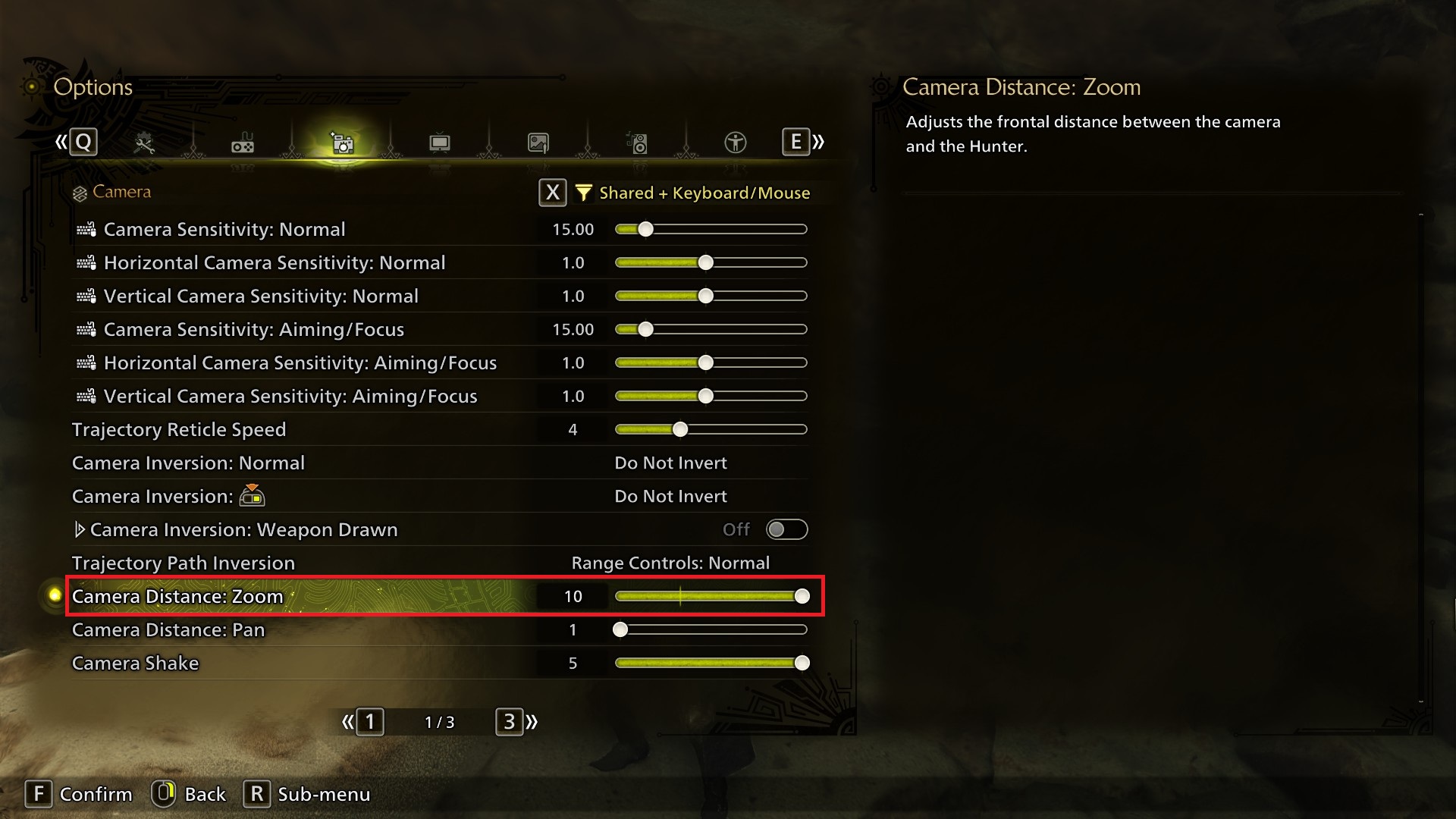
Camera Distance: Zoom on the first page might be worth tweaking, I have personally found especially in villages the default setting of 4 feels way too close-up.
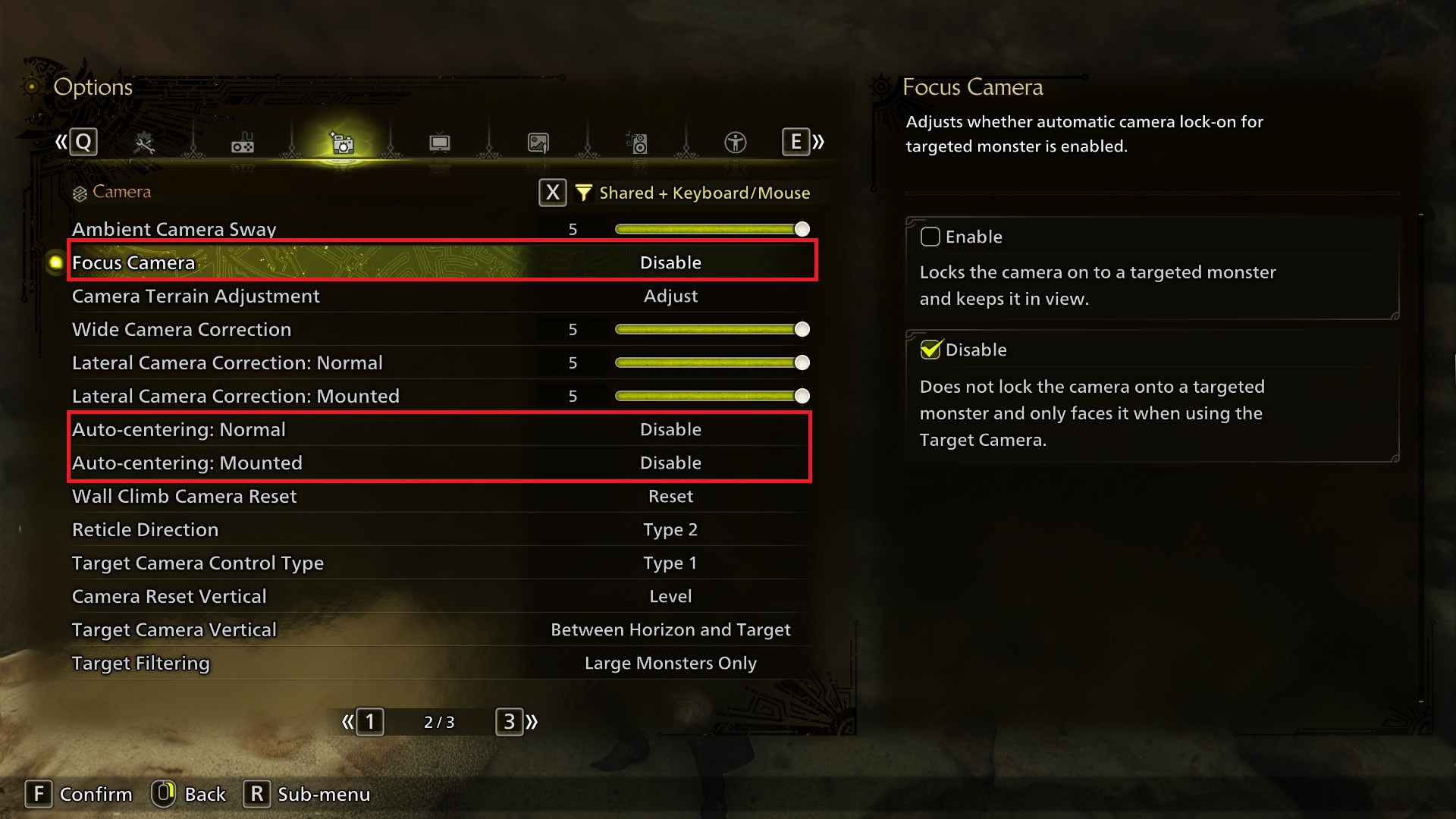
Focus Camera on the second page of this tab might be worth disabling, to stop yourself from engaging in a potentially unwanted lockon.
Auto Centering can also be found here, and while it's thankfully disabled by default on foot, it's not for the Seikret, so you might want to tweak that.
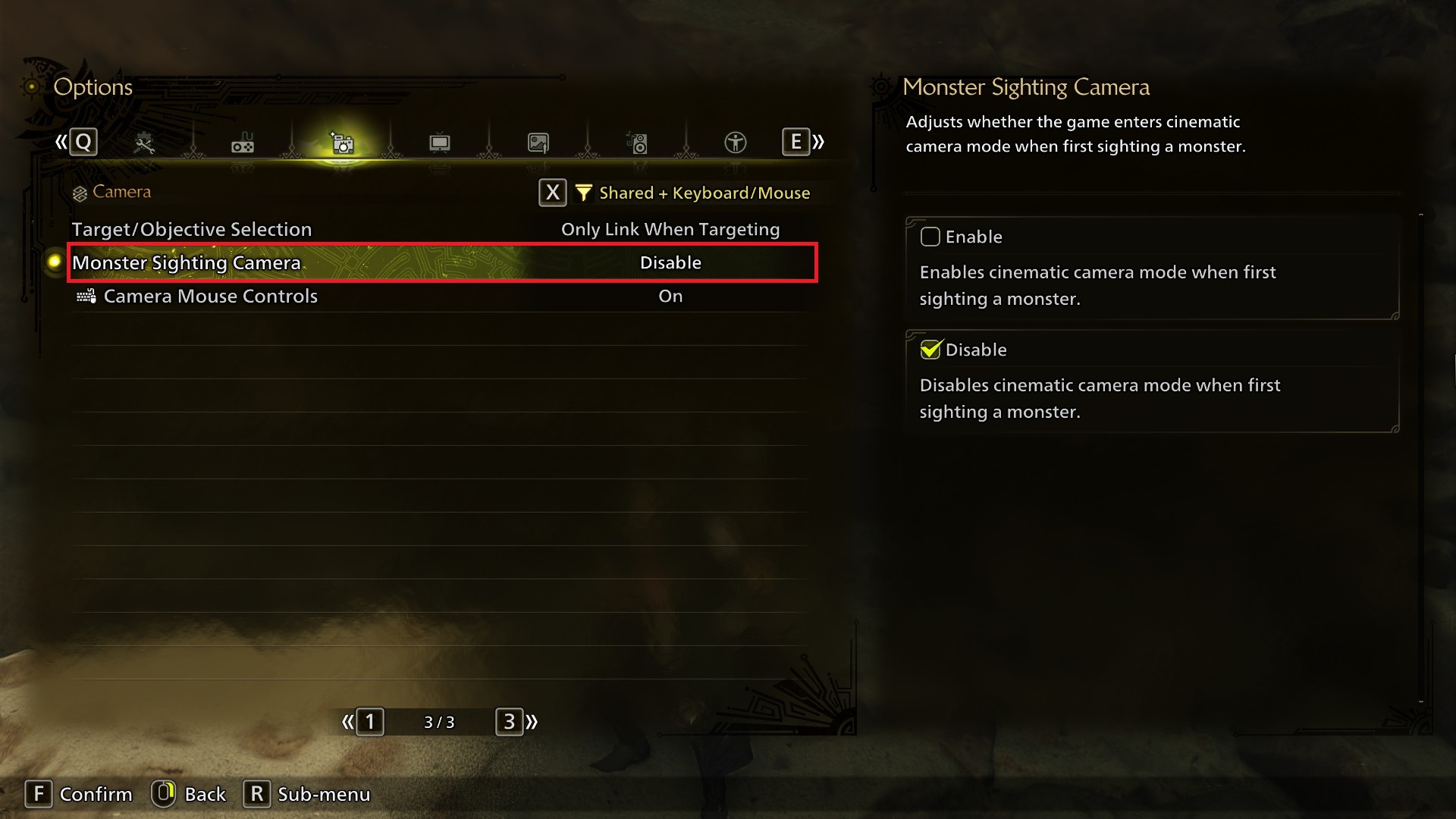
Monster Sighting Camera on the third page causes a zoom-in when you discover a monster for the first time, if you found this annoying in World we can now disable it!
Display
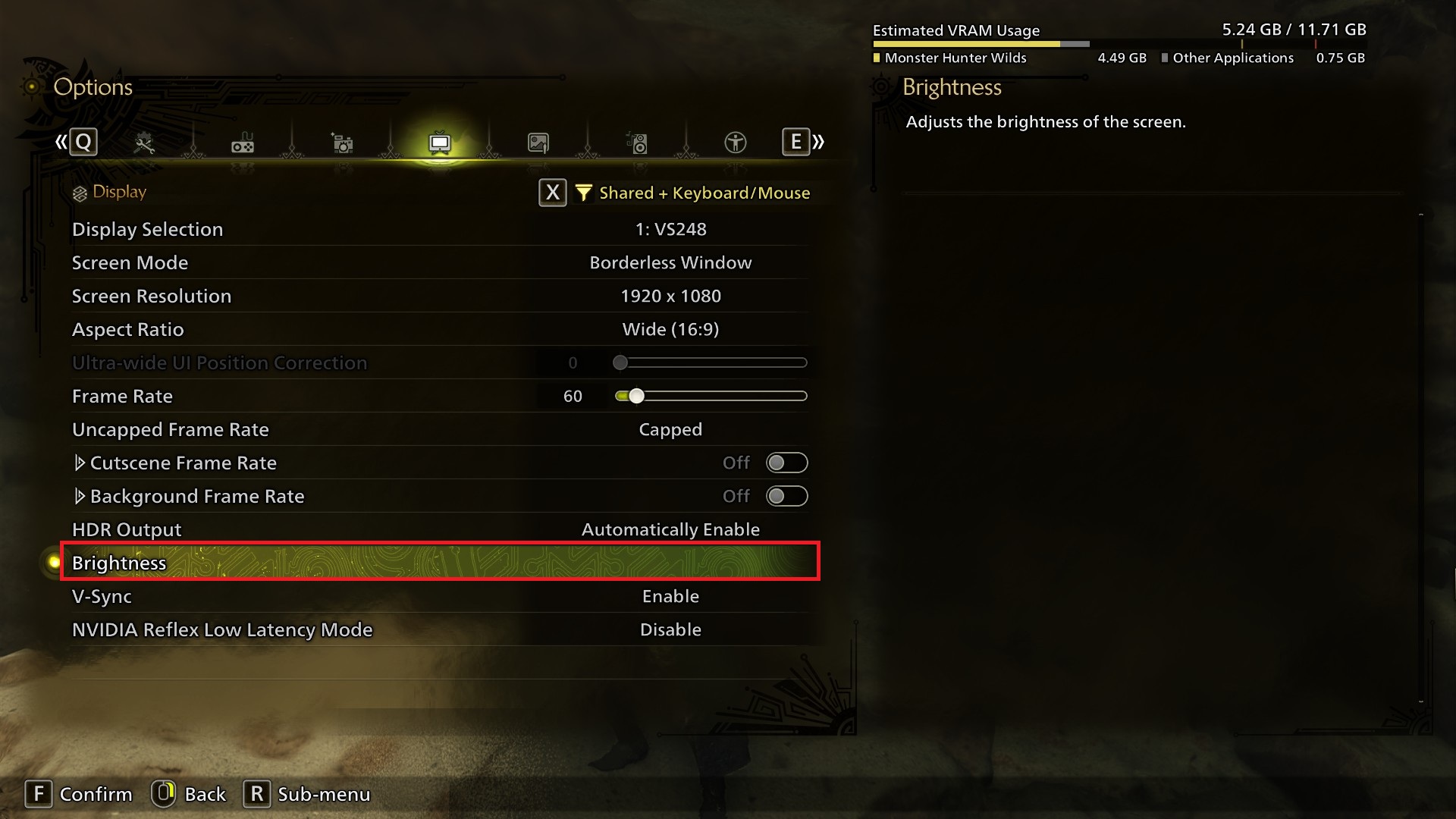
The only section I'll highlight here is brightness, you set this up when booting up the game of course, but it seems that unlike a lot of games, the default of 5 might be too bright for most monitors if you left it there, and that can make the game's colours look washed out. Take the text of the Brightness test seriously, and see if that makes the game a bit more vibrant.
Graphics
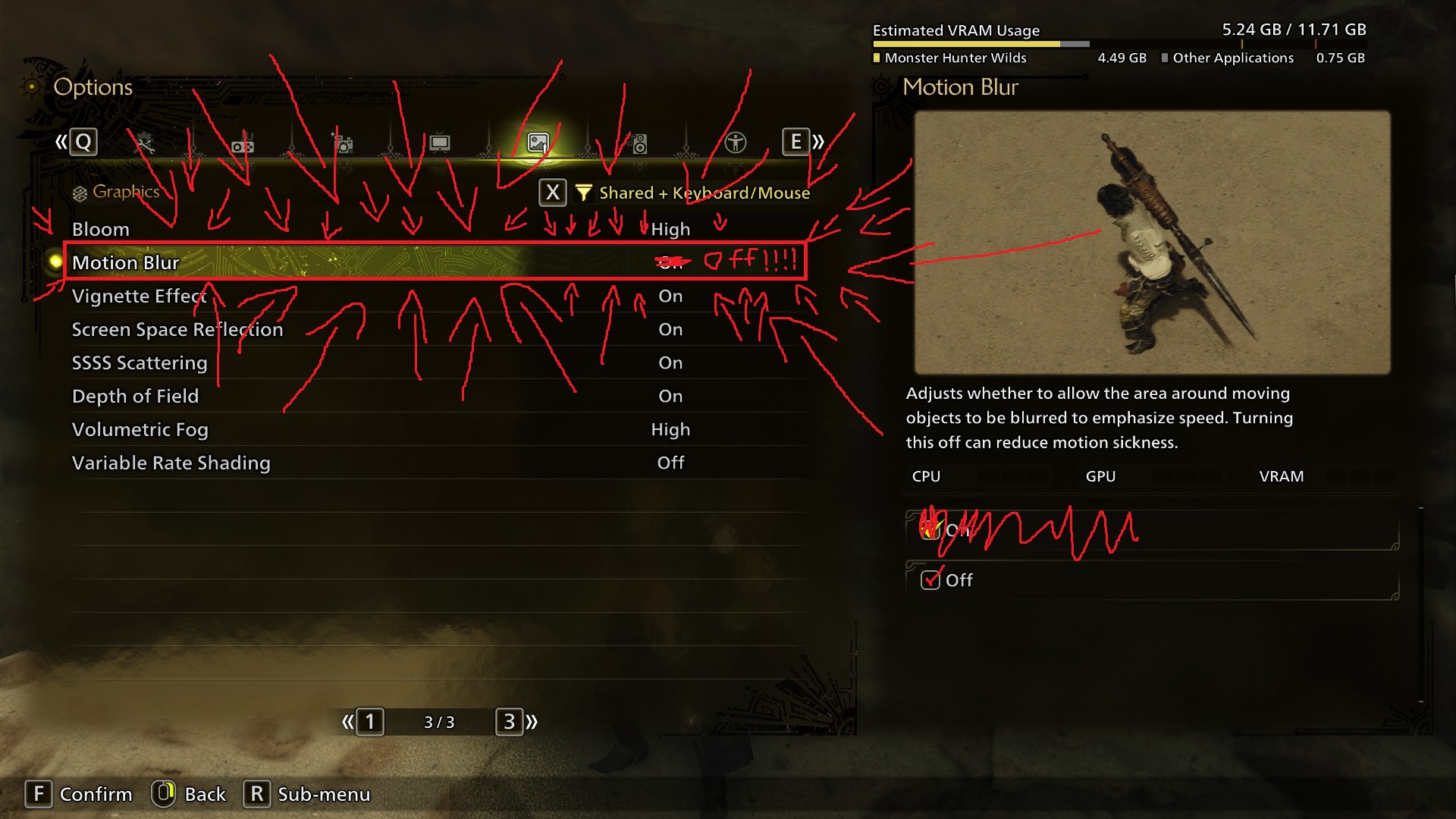
What graphics settings you're using all depends on your setup of course, I'd just like to highlight that Motion Blur (if you're already ingame) is on the third page, one option from the top, so strike that OFF button with the righteous fury of a thousand suns
Audio
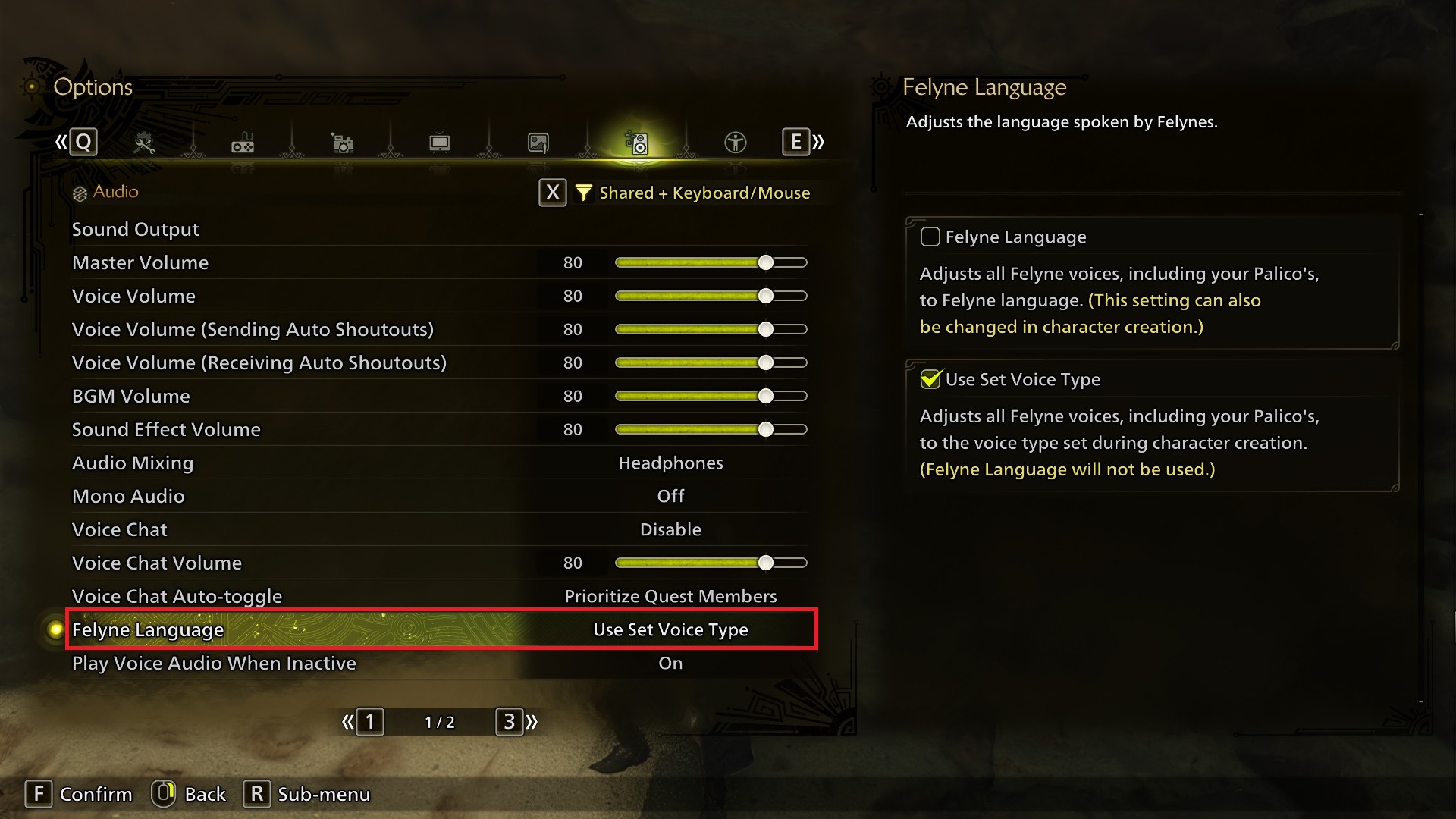
You can change the Palico Language here back to meows in case you're regretting your choice.
You can also set various sounds to not play while the game window is inactive, in case you're literally me and alt-tabbing all the time.
Accessibility
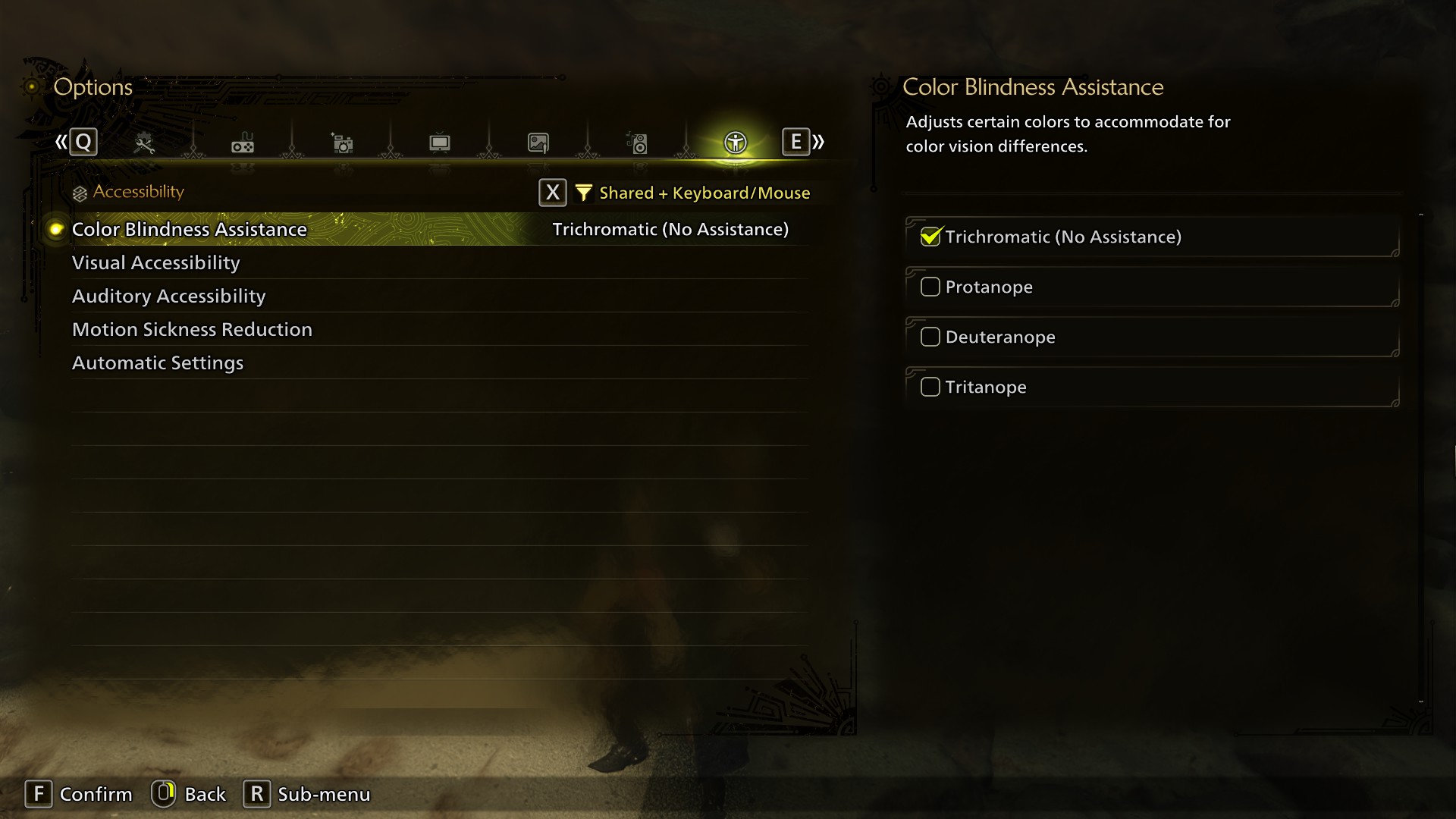
Colour Blindness Assistance changes the colour of certain HUD elements, including weapon specific ones like Charge Blade phials. If you have any form of colourblindness, give it a look.
Visual Accessibility, Auditory Accessibility, and Motion Sickness Reduction I believe are just "quick menus" that assemble previously seen options like Motion Blur or HUD size.
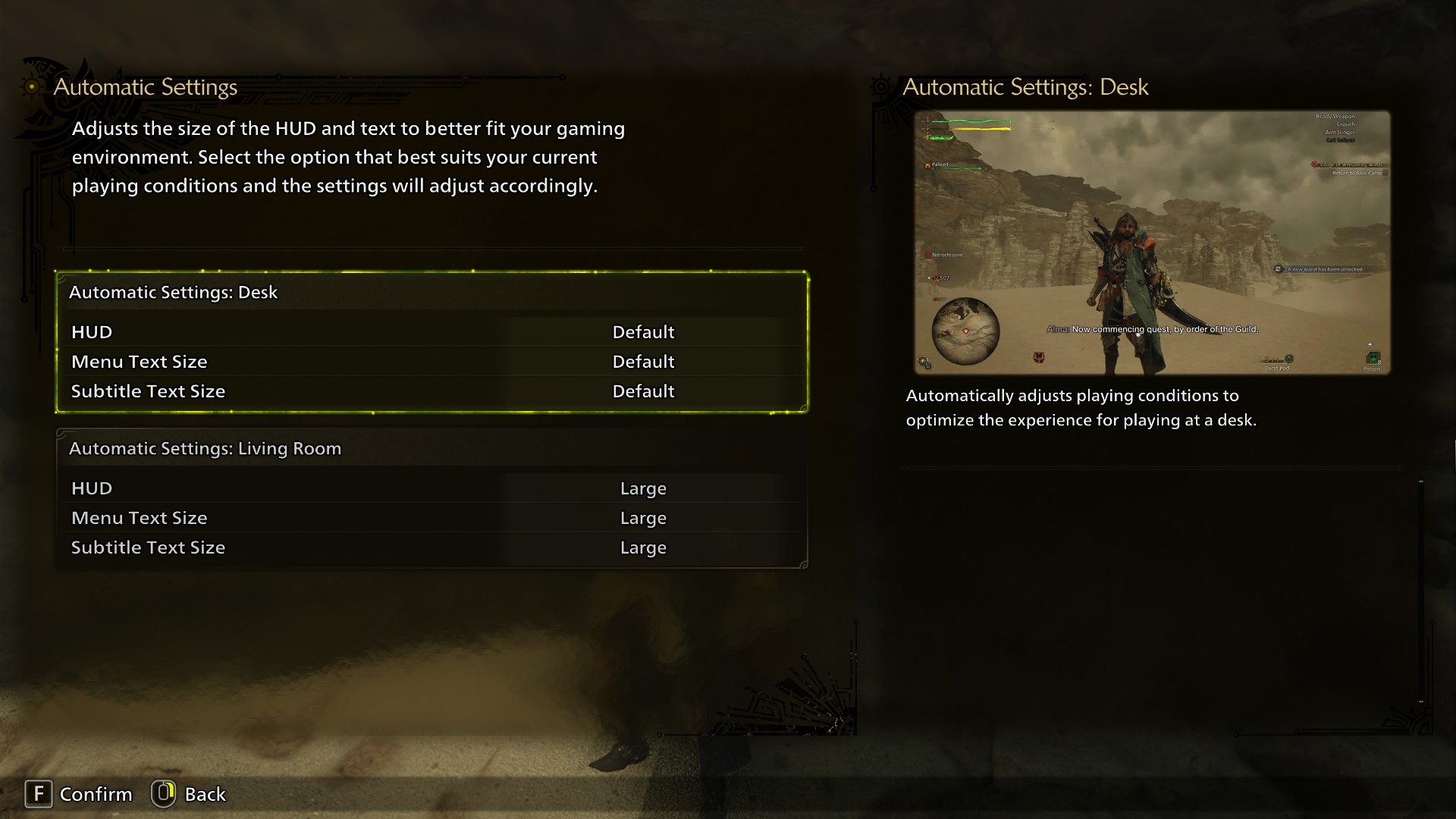
Automatic Settings is great if you don't want to customise your HUD manually. It provides two default sizes for desk/TV players.
Miscellaneous
Fishing controls are unintuitive on mouse & keyboard. You need to press forward and back (W and S for most people) with a rhythm until your hunter starts visibly reeling their rod to attract the fish's attention. Speed of your rhythm affects what kind of fish you'll attract.
On a controller, this mimics reeling a rod in, on PC it doesn't translate and so a lot of people, me included, were very confused at first!
On a controller, this mimics reeling a rod in, on PC it doesn't translate and so a lot of people, me included, were very confused at first!