

Crosshair X Automation: One Script to Rule Them All [An AutoHotkey Script Guide]
 Muppet Rat
Mar 29, 2025 @ 9:37pm1951
Modding or ConfigurationEnglish
Creating the script
1) Install AutoHotkey.
2) Right click desktop, select New>AutHotkey Script.
3) Right click the script and select edit
4) Copy the code below and paste into the new script. The default text at the top of the script can be ignored or deleted.
5) Click Start>AutoHotkey>Window Spy
6) Launch the game that will trigger the script
7) Return to Window Spy and check the box "Follow Mouse" (This will update the window information as you move your mouse)
8) Move the cursor over the game window. In the top pane of Window Spy, on the top line is your games window title
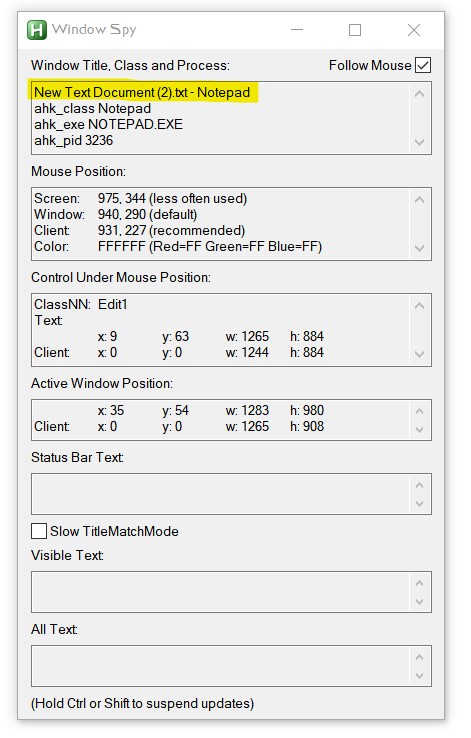
9) Return to the script. Press Ctrl+F and search for the word ADD
Replace the text !!!ADD GAME WINDOW TITLE!!! with the exact window title (case sensitive). Leave the " " that surrounds it.
10) Save the file and close the text editor.
2) Right click desktop, select New>AutHotkey Script.
3) Right click the script and select edit
4) Copy the code below and paste into the new script. The default text at the top of the script can be ignored or deleted.
5) Click Start>AutoHotkey>Window Spy
6) Launch the game that will trigger the script
7) Return to Window Spy and check the box "Follow Mouse" (This will update the window information as you move your mouse)
8) Move the cursor over the game window. In the top pane of Window Spy, on the top line is your games window title
9) Return to the script. Press Ctrl+F and search for the word ADD
Replace the text !!!ADD GAME WINDOW TITLE!!! with the exact window title (case sensitive). Leave the " " that surrounds it.
10) Save the file and close the text editor.
Testing
1) Double click the script and check the system tray for the AHK icon.
2) Launch the trigger game
3) CrosshairX should launch automatically within a few seconds.
4) Close the game and your crosshair should disappear (assuming you have used the code below, which includes a "toggle off" command)
5) Restart the game once or twice to check consistency
2) Launch the trigger game
3) CrosshairX should launch automatically within a few seconds.
4) Close the game and your crosshair should disappear (assuming you have used the code below, which includes a "toggle off" command)
5) Restart the game once or twice to check consistency
Running on startup
1) Right click the script and create a shortcut
2) Move the shortcut to the Startup folder. The path to this folder is: %userprofile%\AppData\Roaming\Microsoft\Windows\Start Menu\Programs\Startup (paste into Explorer's address bar)
An alternative way to open the Startup folder:
* Press Win + R to open the Run dialog.
* Type shell:startup and press Enter.
2) Move the shortcut to the Startup folder. The path to this folder is: %userprofile%\AppData\Roaming\Microsoft\Windows\Start Menu\Programs\Startup (paste into Explorer's address bar)
An alternative way to open the Startup folder:
* Press Win + R to open the Run dialog.
* Type shell:startup and press Enter.
The Code
#Persistent
SetTitleMatchMode, 2
game1_title := "!!!ADD GAME WINDOW TITLE!!!"
game2_appid := "1366800" ; Crosshair X AppID
crosshair_exe := "CrosshairX.exe" ; Executable name of Crosshair X
SetTimer, CheckGame1, 1000
CheckGame1:
IfWinExist, %game1_title%
{
if (!game1_running) ; Only do this once when game 1 is first open.
{
ProcessExist := ProcessExist("CrosshairX.exe")
if(ProcessExist = 0)
{
Run, steam://rungameid/%game2_appid%
}
else
{
Send, +!z ; Send Shift+Alt+Z
}
game1_running := true
}
}
else
{
if (game1_running) ; Check if Game 1 was running and just closed
{
Send, +!z ; Send Shift+Alt+Z when game closes.
game1_running := false
}
}
return
ProcessExist(exeName) {
Process, Exist, %exeName%
return ErrorLevel
}