

Perfect game settings. DLSS4.5,Input Lag,Graphics
 Hadim
Hadim(45 ratings)
Jul 14, 2025 @ 6:30am3,44195
Modding or ConfigurationEnglish
1.1 Picture quality
This section is divided into two parts, as I want to cover all the features and believe it is impossible to explain them without diving into all the technical nuances introduced with the DLSS 4.5 update.
In the first part, we will break down the key features of the updated DLSS 4.5, the activation process, and optional sharpening settings via NVPI-R and (DL)DSR.
The second part contains recommendations tailored to specific resolutions and graphics cards.
In the first part, we will break down the key features of the updated DLSS 4.5, the activation process, and optional sharpening settings via NVPI-R and (DL)DSR.
The second part contains recommendations tailored to specific resolutions and graphics cards.
1.2 DLSS 4.5
One of the key innovations in DLSS 4.5 is the introduction of two new 2nd Generation Transformer models for SR (Super Resolution). This has significantly improved image quality in Hunt, especially regarding ghosting, though not without certain caveats.
To take full advantage of these improvements, ensure you have the latest updates installed:
DLSS 4.5 Preset Automation: DLSS 4.5 now features an automatic model selection system. The model chosen depends on the selected DLSS Quality preset.
How it works (see the diagram below):
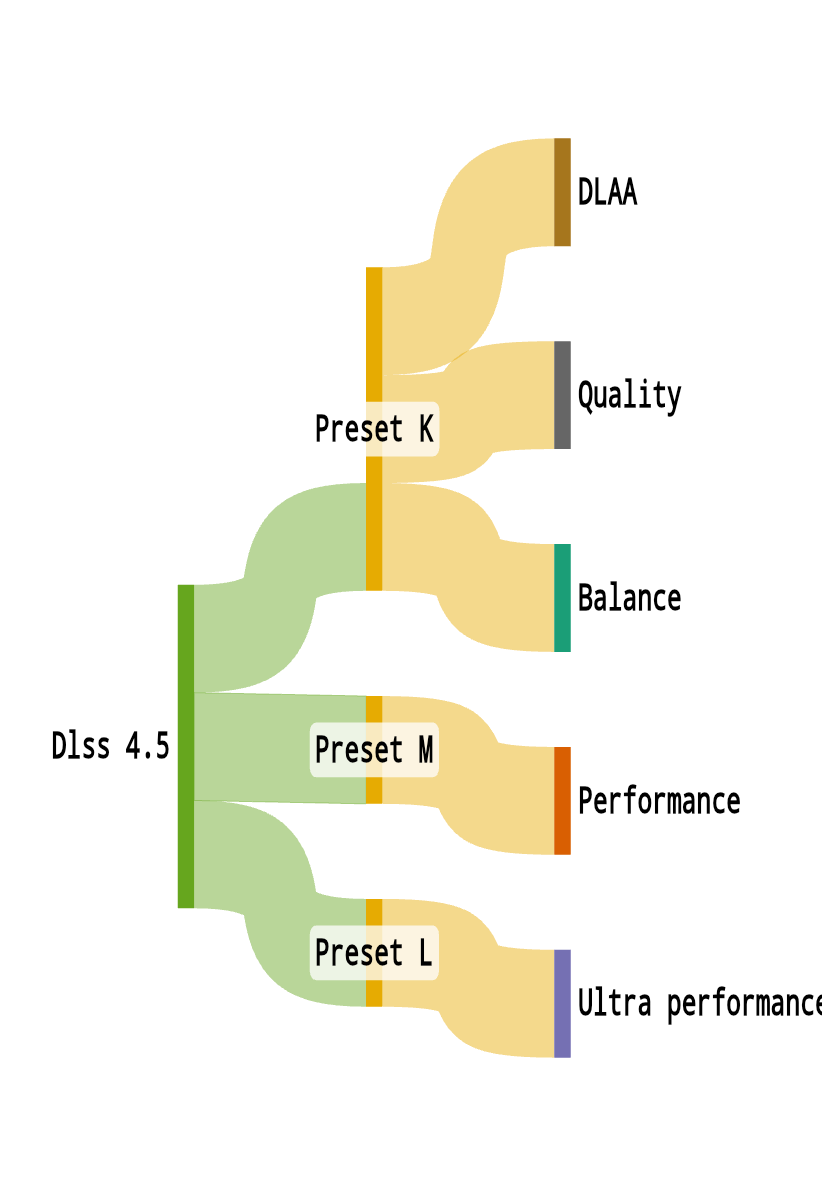
What is the difference between K, M, and L?
Model K: The legacy model based on the 1st Generation Transformer architecture.
Model M: Updated 2nd Generation Transformer. Priority mode – Performance. However, it can be used in higher quality modes via manual selection.
Model L: Updated 2nd Generation Transformer. Priority mode – Ultra Performance. Recommended for UHD resolutions to minimize detail loss. It is very sharp but quite demanding in higher presets.
The main nuance with the new presets is the transition to FP8 (8-bit floating point) calculations. RTX 20 and 30 series graphics cards lack hardware support for this format.
As a result, previous-generation cards spend extra resources on data conversion (quantization).
Official upscaling latency charts from NVIDIA at Performance quality:
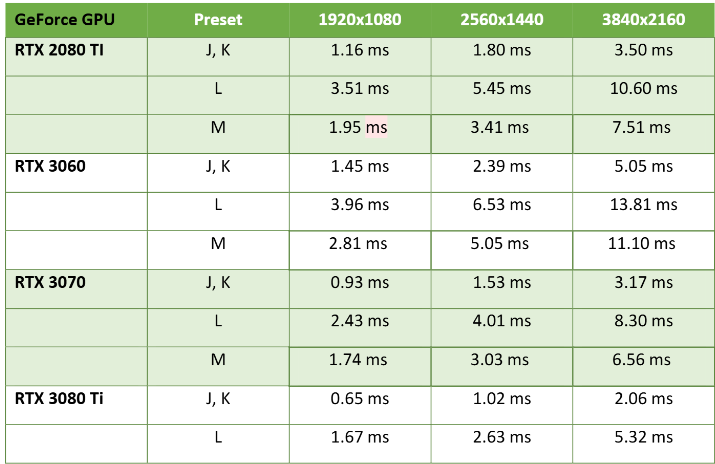
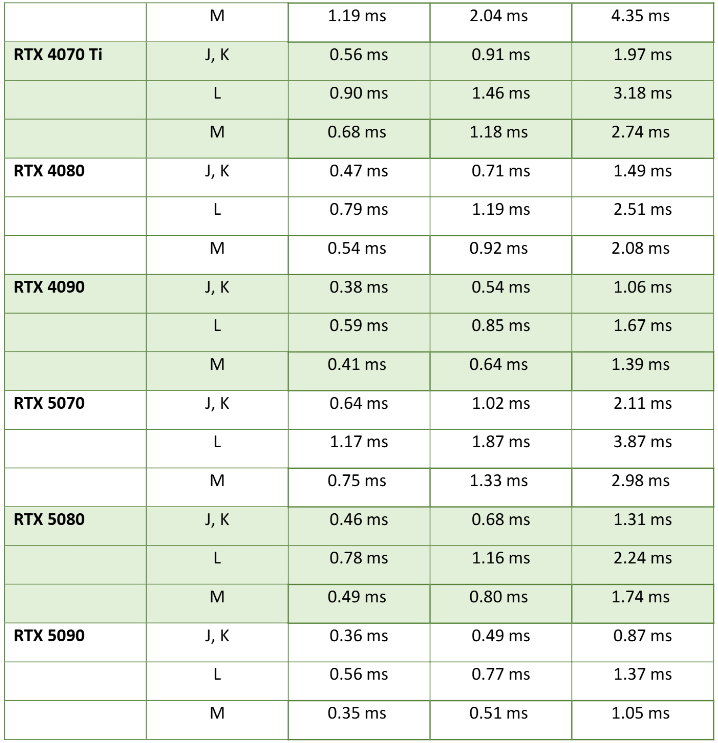
Additionally, i2hard conducted a test in Hunt using an RTX 3060-level card and shared their findings here.[t.me]
To take full advantage of these improvements, ensure you have the latest updates installed:
- Driver: version 591.74 or higher.
- NVIDIA App: version 11.0.6.379 or higher.
DLSS 4.5 Preset Automation: DLSS 4.5 now features an automatic model selection system. The model chosen depends on the selected DLSS Quality preset.
How it works (see the diagram below):
What is the difference between K, M, and L?
Model K: The legacy model based on the 1st Generation Transformer architecture.
Model M: Updated 2nd Generation Transformer. Priority mode – Performance. However, it can be used in higher quality modes via manual selection.
Model L: Updated 2nd Generation Transformer. Priority mode – Ultra Performance. Recommended for UHD resolutions to minimize detail loss. It is very sharp but quite demanding in higher presets.
Performance (Important)
The new Transformer models in DLSS 4.5 are significantly "heavier" than their predecessors, which is why NVIDIA implemented automatic selection.The main nuance with the new presets is the transition to FP8 (8-bit floating point) calculations. RTX 20 and 30 series graphics cards lack hardware support for this format.
As a result, previous-generation cards spend extra resources on data conversion (quantization).
Official upscaling latency charts from NVIDIA at Performance quality:
Additionally, i2hard conducted a test in Hunt using an RTX 3060-level card and shared their findings here.[t.me]
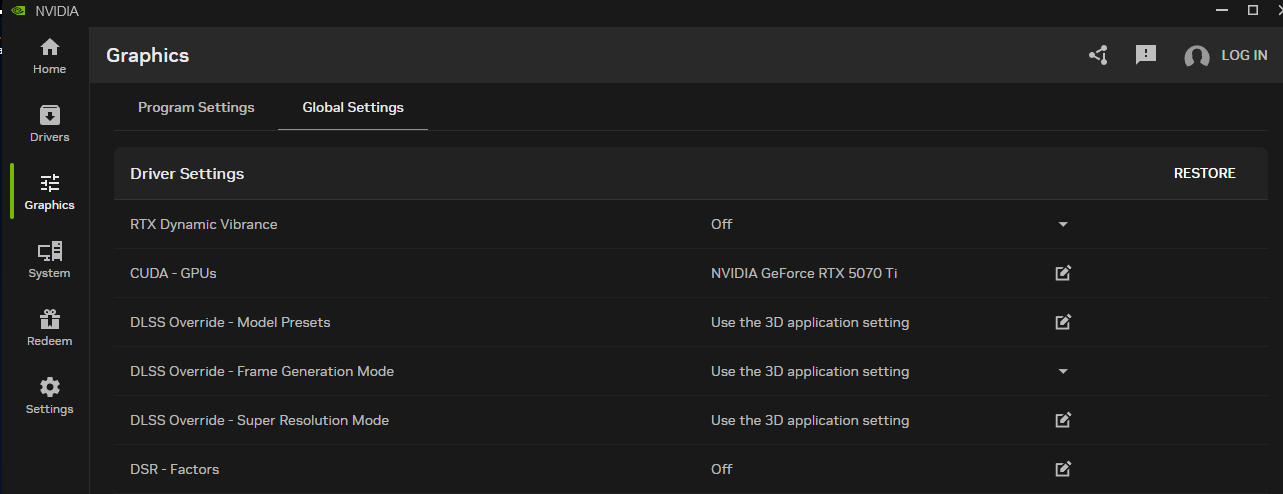
Enabling DLSS Override
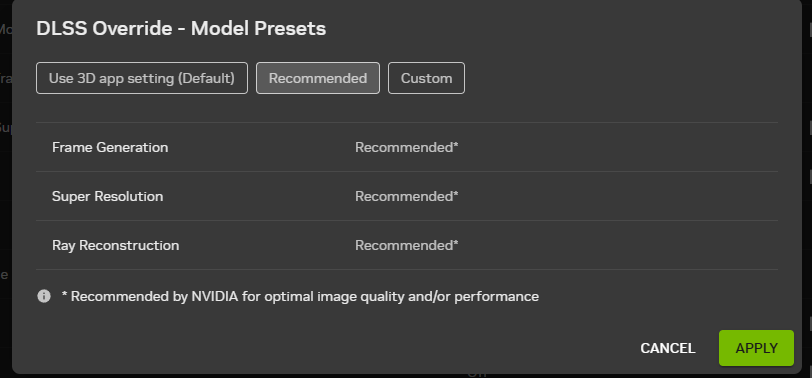
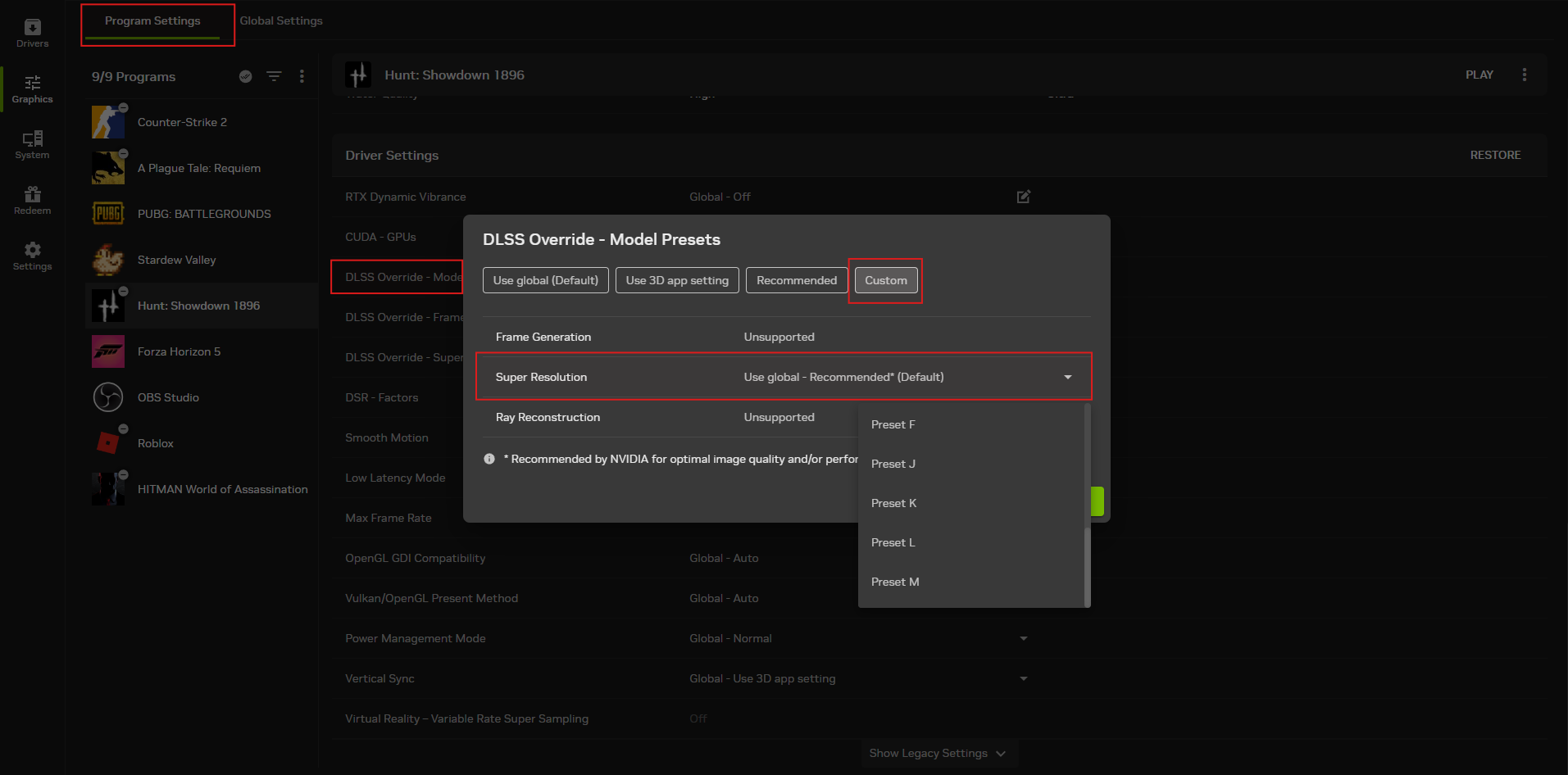
I would recommend enabling the global override to "Recommended" and then manually setting specific presets in the game profile only when necessary.- Go to Nvidia App -> Graphics -> Global Settings -> DLSS Override - Model Preset
- In the window that appears, set it to "Recommended" (or "Custom" to manually choose a model)Individual Game SettingsThe process is the same as the global setup:
Go to Program Settings -> Select the game -> Scroll to the very bottom of the page.
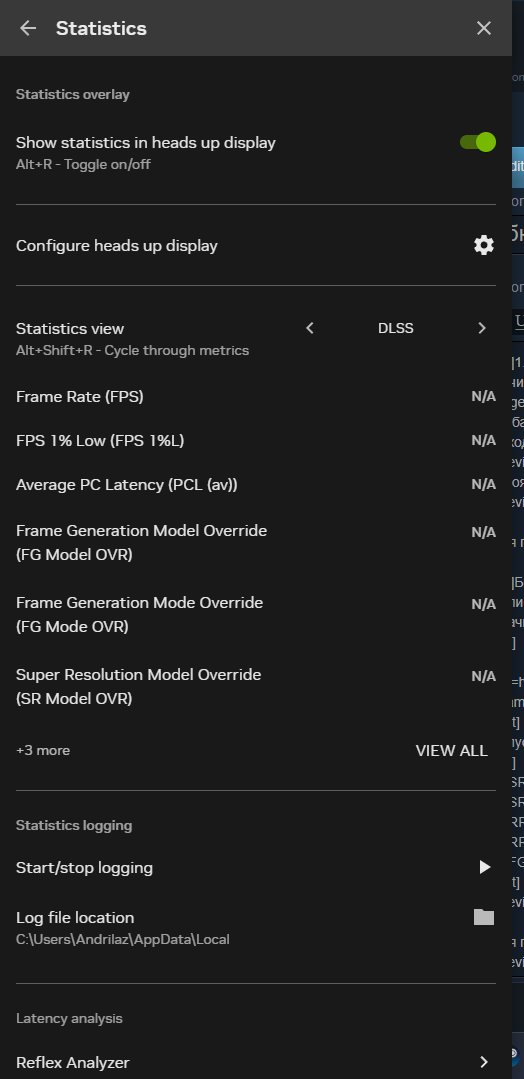
To verify if the DLSS Override is active, NVIDIA has added a DLSS preset indicator to its monitoring overlay:
Look for the middle line: "SR OVR"

1.3 NIS Sharpening
The ingame NVsharpening has a very poor implementation; even at 0.1, aliasing and strange oversharpening artifacts appear.
Therefore, we never use it.
We will configure sharpening through NVPI-Revamped[github.com].
Search for the game profile in the top bar and select it.
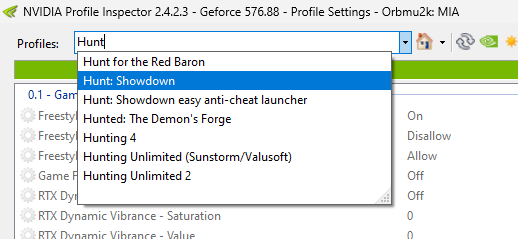
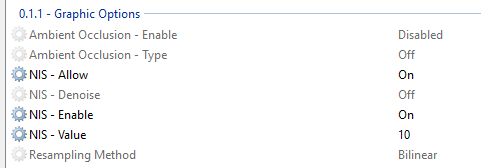
Under 0.1.2 - Game Filters:
Therefore, we never use it.
We will configure sharpening through NVPI-Revamped[github.com].
Search for the game profile in the top bar and select it.
Under 0.1.2 - Game Filters:
- NIS-Allow - ON
- NIS-Enable - ON
- NIS-Value - Sharpening Percentage
1.4 (DL)DSR
It is enabled in the global NVAPP settings. The main drawback is the need to adjust the "Smoothness" parameter when using non-integer scaling. And Always set the (DL)DSR resolution in the system before entering the game to ensure there are no problems with Composed:Flip.
Be careful: MPO is disabled at (DL)DSR resolutions (see the "Input Lag" section for more details).
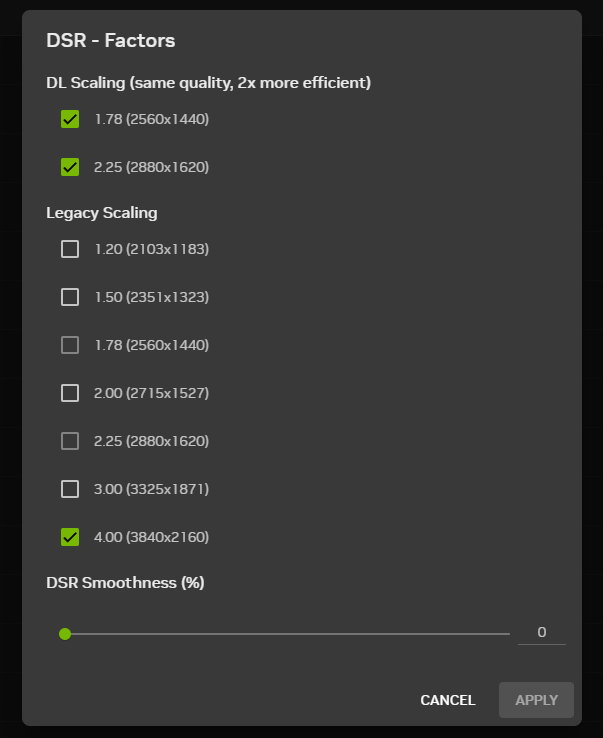 Suggest try 70-95% smothness first. it can be changing realtime
DSR vs. DLDSR: What’s the difference and what does "Smoothness" do?
DSR (Legacy) – classic supersampling. It delivers ideal results only at a 4x ratio, where one game pixel maps perfectly onto a 2x2 grid of monitor pixels. With non-integer values (e.g., 2.25x), "pixel fragmentation" occurs, creating artifacts and aliasing that can be even worse than at native resolution.
Be careful: MPO is disabled at (DL)DSR resolutions (see the "Input Lag" section for more details).
Suggest try 70-95% smothness first. it can be changing realtimeDSR vs. DLDSR: What’s the difference and what does "Smoothness" do?
DSR (Legacy) – classic supersampling. It delivers ideal results only at a 4x ratio, where one game pixel maps perfectly onto a 2x2 grid of monitor pixels. With non-integer values (e.g., 2.25x), "pixel fragmentation" occurs, creating artifacts and aliasing that can be even worse than at native resolution.
- The "Smoothness" parameter in DSR: Uses standard Gaussian blur to software-hide artifacts caused by non-integer scaling. However, at 4x, it is not needed at all (0%).
- The "Smoothness" parameter in DLDSR: In this mode, the slider controls the intensity of the AI filter. The lower the percentage, the more pronounced and sharper the final image will be, though this may also introduce AI filter artifacts.
1.5 Settings
Choose DLSS quality presets based on your target FPS and desired image quality.
However, keep in mind the internal resolution being upscaled. The base resolution in games significantly impacts modern graphical features (such as SSR, GI, and even draw distance, depending on the game).
Quick note on DLSS presets:
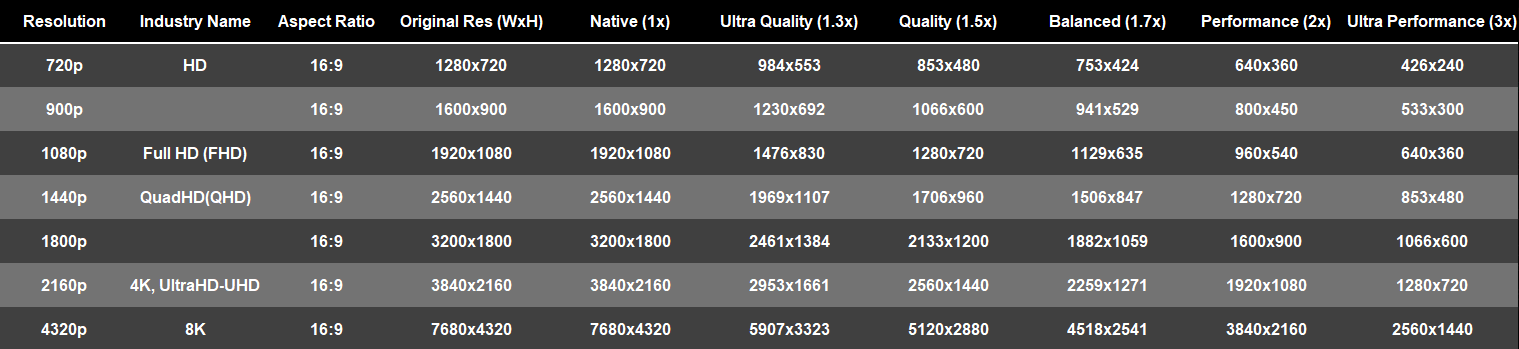
The technical foundation we covered above is meant to provide an understanding of how these technologies function. [
With this knowledge, you can fine-tune the game for your specific graphics card and resolution.
While every rig is unique, you can start with my recommended settings below to see what works best for you.»
Preset: K
NIS Sharpening: 10-15%
For high-end 30-series cards, you can experiment with Model M:
Preset: M
Ideally combined with DLDSR (1.78x or 2.25x) and manual "Smoothness" tuning.
Optional: NIS Sharpening at 10%.
Monitor your FPS — if it's too low, revert to the entry-level settings.
Preset: M
Ideally combined with DLDSR (1.78x or 2.25x) and manual "Smoothness" tuning.
Optional: NIS Sharpening at 10%.
For high-end GPUs:
Preset: M
Optional: NIS Sharpening at 10%.
Ideally combined with DLDSR (1.78x or 2.25x) and manual "Smoothness" adjustment.
OR
DSR 4x with "Smoothness" set to 0%.
Again, a reminder: test everything yourself.
Personally, on my 5070 Ti, I play using DSR 4x on "Balanced" quality without NIS sharpening. I believe that if your GPU can handle it, DSR 4x (0% smoothness) is superior to DLDSR and manual smoothness tuning.
Preset: K
NIS Sharpening: 10-15%
For high-end 30-series cards, you can try Model M:
Preset: M
Optional: NIS Sharpening at 10%.
Monitor your FPS — if it's too low, use the entry-level settings.
Preset: M
Optional: NIS Sharpening at 10%.
However, keep in mind the internal resolution being upscaled. The base resolution in games significantly impacts modern graphical features (such as SSR, GI, and even draw distance, depending on the game).
Quick note on DLSS presets:
The technical foundation we covered above is meant to provide an understanding of how these technologies function. [
With this knowledge, you can fine-tune the game for your specific graphics card and resolution.
While every rig is unique, you can start with my recommended settings below to see what works best for you.»
FullHD (1080p)
After thorough testing, I found that the new Model M doesn't perform well in 1080p on quality presets higher than "Performance." The image becomes overly sharp and exhibits strange oversharpening artifacts. Conversely, using "Performance" in 1080p means upscaling from a very low internal resolution, which negatively impacts the quality of various graphical technologies in the game.RTX 30/20 Series
For all RTX 20 and entry-level RTX 30 cards (3060, 3070):Preset: K
NIS Sharpening: 10-15%
For high-end 30-series cards, you can experiment with Model M:
Preset: M
Ideally combined with DLDSR (1.78x or 2.25x) and manual "Smoothness" tuning.
Optional: NIS Sharpening at 10%.
Monitor your FPS — if it's too low, revert to the entry-level settings.
RTX 50/40 Series
For entry-level GPUs:Preset: M
Ideally combined with DLDSR (1.78x or 2.25x) and manual "Smoothness" tuning.
Optional: NIS Sharpening at 10%.
For high-end GPUs:
Preset: M
Optional: NIS Sharpening at 10%.
Ideally combined with DLDSR (1.78x or 2.25x) and manual "Smoothness" adjustment.
OR
DSR 4x with "Smoothness" set to 0%.
Again, a reminder: test everything yourself.
Personally, on my 5070 Ti, I play using DSR 4x on "Balanced" quality without NIS sharpening. I believe that if your GPU can handle it, DSR 4x (0% smoothness) is superior to DLDSR and manual smoothness tuning.
U/QHD (1440p/4K)
At these resolutions, Model M performs consistently well, so it can be used with any quality preset.RTX 30/20 Series
For all RTX 20 and entry-level RTX 30 cards (3060, 3070):Preset: K
NIS Sharpening: 10-15%
For high-end 30-series cards, you can try Model M:
Preset: M
Optional: NIS Sharpening at 10%.
Monitor your FPS — if it's too low, use the entry-level settings.
RTX 50/40 Series
For all GPUs:Preset: M
Optional: NIS Sharpening at 10%.
2. Input lag
This is a very broad topic but in short. 100% GPU load is bad! The game adds up to x2 latency when relying on the GPU.
There is also a difference in how the game is displayed on the screen and why disabling MPO can have a negative impact on performance. If you're interested you can read Presentation Model [wiki.special-k.info]
!!!!
Do not use third-party overlays, especially Discord, which breaks MPO and VRR
Recording and Instant Replay Nvidia APP with the “Record Desktop” checkbox enabled breaks MPO!
Never use the new NIS 2.0 (NVIDIA Image Scaling) upscaler in the NVIDIA Control Panel. It completely breaks MPO across the entire system.
!!!!
I recommend use latest offical build Windows 11 24H2/25H2 without "heavy tweaks"
100% GPU. Without Reflex/in-game FPS limit. We get a whopping 21 ms of latency at 130 FPS which is not normal
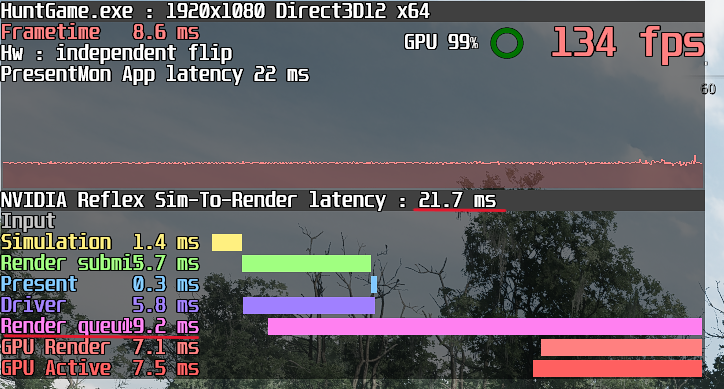
With Reflex/FPS limit. We get a normal latency for this FPS
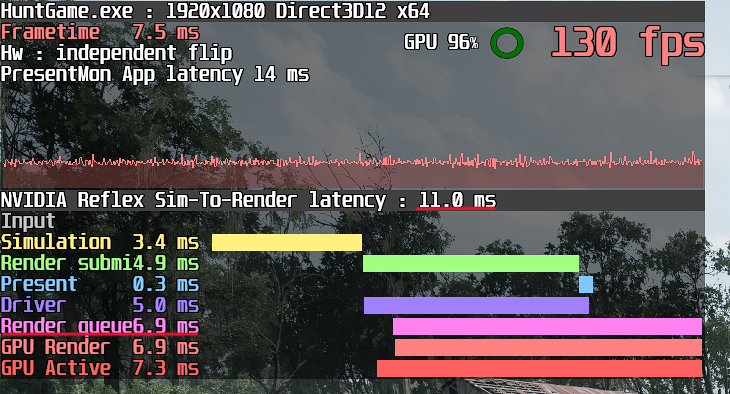
Now let's look at 3 options depending on your monitor
If your monitor has a Display Port and is connected to it, then in 99% of cases it supports VRR. VRR technology has also become available in HDMI since version 2.1.
There is also a difference in how the game is displayed on the screen and why disabling MPO can have a negative impact on performance. If you're interested you can read Presentation Model [wiki.special-k.info]
!!!!
Do not use third-party overlays, especially Discord, which breaks MPO and VRR
Recording and Instant Replay Nvidia APP with the “Record Desktop” checkbox enabled breaks MPO!
Never use the new NIS 2.0 (NVIDIA Image Scaling) upscaler in the NVIDIA Control Panel. It completely breaks MPO across the entire system.
!!!!
I recommend use latest offical build Windows 11 24H2/25H2 without "heavy tweaks"
100% GPU. Without Reflex/in-game FPS limit. We get a whopping 21 ms of latency at 130 FPS which is not normal
With Reflex/FPS limit. We get a normal latency for this FPS
Correct FPS limitation
Important: to limit FPS do not use external tools i.e. Nvidia driver limiter, RTSS... or ultra-low latency mode in the Nvidia control panel!!!!Now let's look at 3 options depending on your monitor
Monitor with VRR support (G-sync, Freesync, Adaptive-sync)
The best optionIf your monitor has a Display Port and is connected to it, then in 99% of cases it supports VRR. VRR technology has also become available in HDMI since version 2.1.
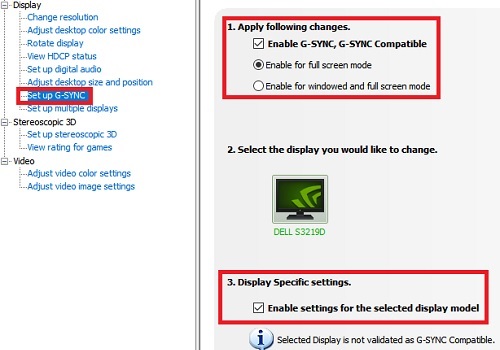
- 1. Go to the monitor OSD settings and enable adaptive-sync, g-sync, freesync (the name may depend on the monitor)
- 2. Go to the Nvidia Control Panel, enable G-sync in only full-screen and check the box “Apply settings to this display.” Click Apply.
- 3. Go to the game and enable V-sync and Reflex+boost in the graphics settings.
This way, with VRR + V-Sync enabled, you get a guaranteed tear-free image, while Reflex completely eliminates the latency typically associated with the V-Sync render queue. It achieves this by capping your frame rate and optimizing the rendering pipeline for the lowest possible delay.
If everything is configured correctly, your maximum FPS should be automatically limited by the following formula:
Refresh - (Refresh x Refresh / 3600) = FPS Cap- 360Hz -> 324 FPS
- 240Hz -> 224 FPS
- 180Hz -> 171 FPS
- 165Hz -> 157 FPS
- 144Hz -> 138 FPS
- 120Hz -> 116 FPS
IF WE EXPERIENCE A SIGNIFICANT LATENCY
1.Try disable in game V-SYNC and enabling V-sync via the Nvidia Control Panel in the Hunt:Showdown profile and Reflex via the attributes.xml file (see the Reflex section below).
2. Check if MPO is working via SpecialK[www.special-k.info] in the settings tab.
3. If nothing helps, use the method for monitors without VRR below.
*You can also use this method in other games.
*VA and OLED displays may start to flicker in brightness when FPS rapidly changes.
*Nvidia has an issue with MPO when using multiple monitors.
*Do not enable ULLM (ultra low latency mode) or V-sync in the Nvidia Control Panel global profile.Monitor without VRRIf your monitor does not have VRR or you do not want to enable it you can get around this by enabling Reflex via the config or using the in-game FPS limit.
This method does not use V-syncReflexSince the developer of Hunt is a genius and only allows Reflex to be switched on with V-Sync, it must be enabled manually via the attributes.xml file.- 1 Go to \steamapps\common\Hunt Showdown 1896\USER\Profiles\default\ open attributes.xml in a text editor and add <Attr name="NVidiaReflex" value="2"/>
- 2. Go to the game and test it.
In-game FPS limitIf for some reason Reflex is not working properly the standard limit in the game settings can help.
You need to limit the FPS with a margin from the average FPS. For example if you have an average of 140 FPS you need to limit the FPS to 100–120.
If you are not satisfied with the suggested FPS limit range you can set it manually using the same attributes.xml file
<Attr name="MaxFPS" value="xx"/>Latency monitoringhttps://steamcommunity.com/sharedfiles/filedetails/?id=3648583470 (it will be translated later) - 360Hz -> 324 FPS


3. Graphics settings
It's better to leave the display mode as Fullscreen Windowed in modern games, there is no difference compared to Fullscreen.
For those who prefer a stretched resolution: in Fullscreen Windowed mode, any non-native resolution will stretch to the desktop aspect ratio, and if MPO (Multi-Plane Overlay) is active, there shouldn't be any issues.
Fullscreen is useful for those whose MPO isn't working and want paly with non-native resolution
Do not set the VRAM allocation above 80%. If the game starts to stutter/freeze over time, set it to 70%
These are purely subjective recommendations; personally, I prefer graphics over fps.
The information is taken from Dmitryagi's (I2HARD) video + personal tests.
Low-end GPU
Mid-range GPU
High-end GPU:
For those who prefer a stretched resolution: in Fullscreen Windowed mode, any non-native resolution will stretch to the desktop aspect ratio, and if MPO (Multi-Plane Overlay) is active, there shouldn't be any issues.
Fullscreen is useful for those whose MPO isn't working and want paly with non-native resolution
Do not set the VRAM allocation above 80%. If the game starts to stutter/freeze over time, set it to 70%
These are purely subjective recommendations; personally, I prefer graphics over fps.
The information is taken from Dmitryagi's (I2HARD) video + personal tests.
Low-end GPU
- Object Quality: Low/Medium
- Texture Quality: Medium
- Texture Filtering: X8 Anisotropic
- Lighting Quality: High
- Global Illumination: Medium
- Water Quality: Medium
- View Distant Ratio: High
- GPU tessellation: On if it does not affect FPS
- Everything else: Low
Mid-range GPU
- Object Quality: Medium/High
- Texture Quality: Medium-Very high depending on VRAM
- Texture Filtering: X8 Anisotropic
- Lighting Quality: High
- Global Illumination: Medium
- Shadow Filtering: Medium
- Water Quality: Medium
- View Distant Ratio: High
- GPU tessellation: On
- Everything else: Low
High-end GPU:
- Object Quality: Ultra
- Texture Quality: Ultra
- Texture Filtering: X16 Anisotropic
- Lighting Quality: Very High
- Global Illumination: Medium
- Shadow Quality: Medium
- Shadow Filtering: Medium
- Water Quality: High
- View Distant Ratio: High
- View Distant Lights: High
- View Distant Vegetation: High
- GPU tessellation: On
- Everything else: Low