

How to prevent Shot Meter/HUD and Controller settings from resetting on PC
 Bear Dad
Jan 1 @ 6:10am6445
Modding or ConfigurationWalkthroughsEnglish
How to prevent Shot Meter/HUD and Controller settings from resetting on PC
I hope this will help some people out there from pulling their hair out over this ridiculous bug that should not still be around. This is the only fix that has worked for me and I'm sorry if it doesn't work for you. I have tested this on both my Xbox One and PS5 controller.
I did notice that in my Career when going to Street Kings or sometimes in other areas my HUD settings will sometimes reset. I have no idea why. But controller settings now save. I no longer have had them reset. Which is a huge plus when you change like 6 things like I do.
If your controller still shows as P2 or whatever other than P1 than you need to figure out what else you have connected. Unhook any sim wheels, numpads, extra controllers, make sure no programs like vjoy, joy2key or anything like that is running and repeat my steps. Also enable or disable Steam Input for the controller through steam. Do so in the settings on Steam, or by right clicking on 2K26 and go to properties, then the Controller section. Enable or disable it then test.
I will do my best to explain step by step what to do, and I will provide a video down below on what exactly to do.
Turn your controller on, or plug it in.
Start Steam Big Picture mode.
Disconnect your keyboard and your mouse, if wireless turn them both off. Once they are disconnected use your controller and start 2K26
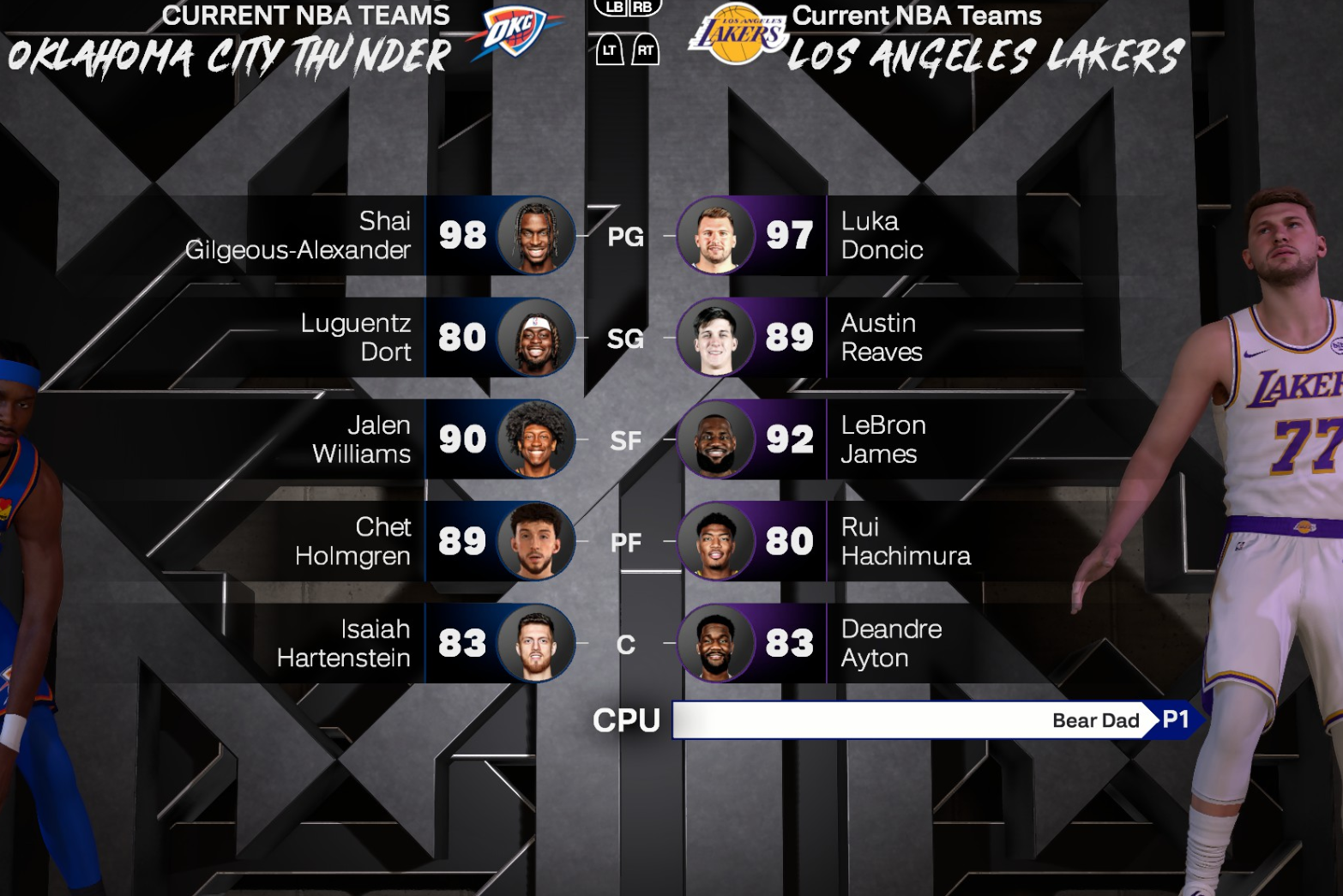
Once in the main menu go to Play Now.
Click on Quick Play. Do not start a game, when you're at the team select screen check the bottom where it shows your username and you choose sides. If yours shows your controller as P1 you're done. You can reconnect your keyboard and mouse. Now go change your settings and they should now save.
I did notice that in my Career when going to Street Kings or sometimes in other areas my HUD settings will sometimes reset. I have no idea why. But controller settings now save. I no longer have had them reset. Which is a huge plus when you change like 6 things like I do.
If your controller still shows as P2 or whatever other than P1 than you need to figure out what else you have connected. Unhook any sim wheels, numpads, extra controllers, make sure no programs like vjoy, joy2key or anything like that is running and repeat my steps. Also enable or disable Steam Input for the controller through steam. Do so in the settings on Steam, or by right clicking on 2K26 and go to properties, then the Controller section. Enable or disable it then test.
I will do my best to explain step by step what to do, and I will provide a video down below on what exactly to do.
Step 1
Turn your controller on, or plug it in.
Step 2
Start Steam Big Picture mode.
Step 3
Disconnect your keyboard and your mouse, if wireless turn them both off. Once they are disconnected use your controller and start 2K26
Step 4
Once in the main menu go to Play Now.
Click on Quick Play. Do not start a game, when you're at the team select screen check the bottom where it shows your username and you choose sides. If yours shows your controller as P1 you're done. You can reconnect your keyboard and mouse. Now go change your settings and they should now save.
Video Tutorial