

Fix blurry textures with this simple trick
 strateg0S
May 6, 2024 @ 11:41am5,01921
Modding or ConfigurationEnglish
We just need to edit one file...
In order to achieve good quality textures you need to first locate your GZW config file. But don't worry, we won't have to look far. To locate GZW folder with configs hit
Win+R and type in the text field "appdata" > hit ENTER.
Your File Explorer should open said location. If you have problems with this step maybe you need to enable one setting in File Explorer.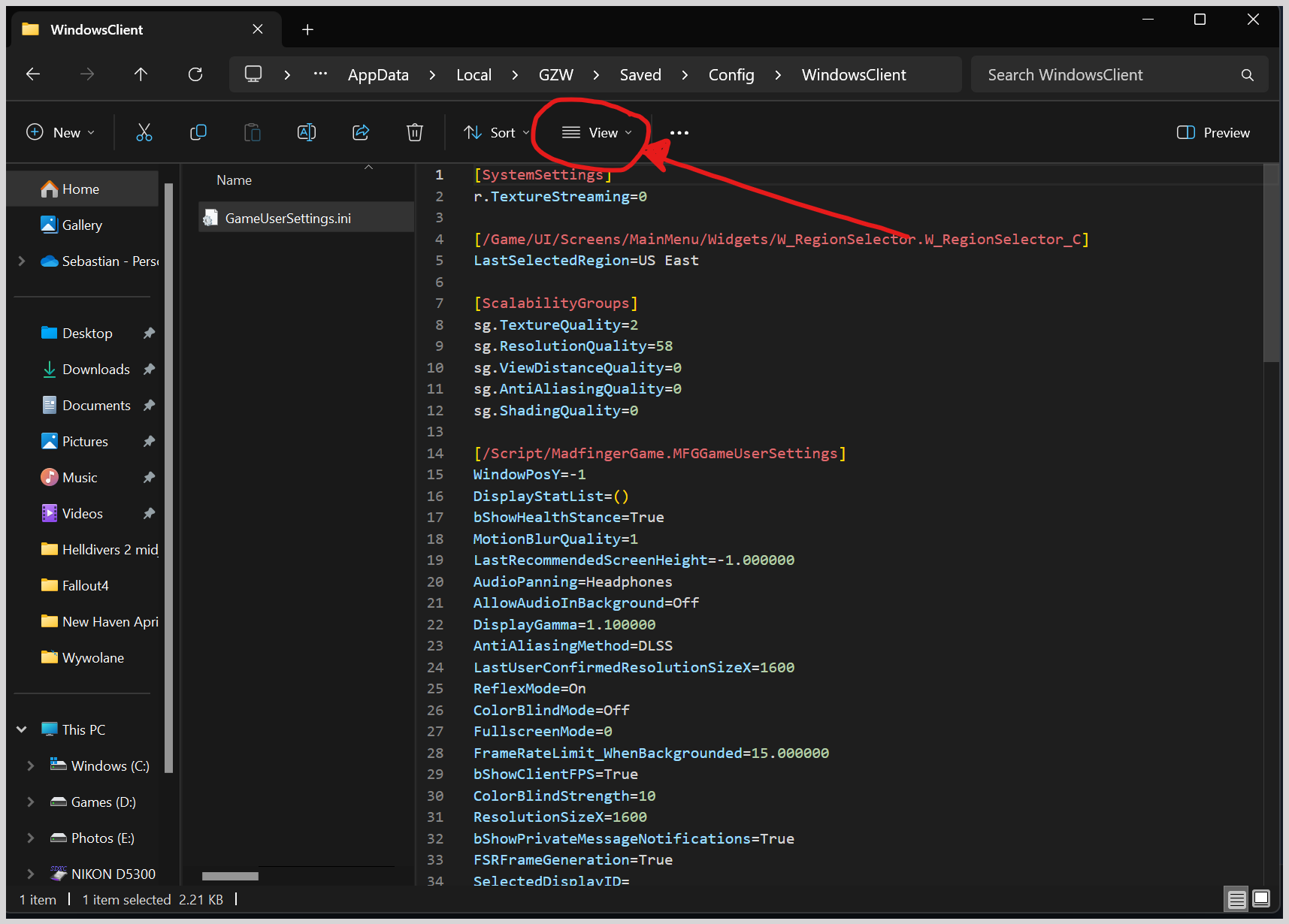
Then head to "Show" and enable Show Hidden Items setting
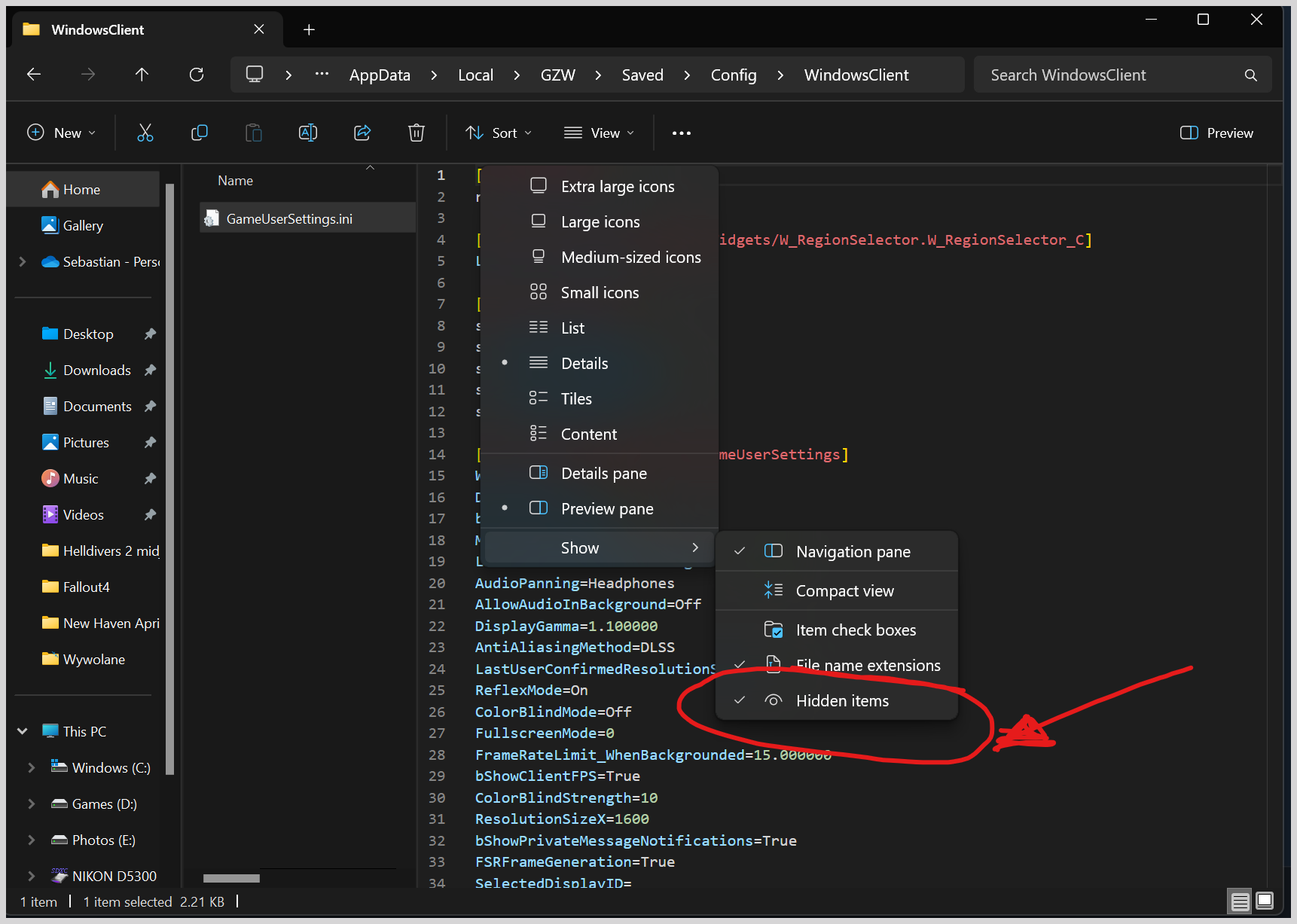
Once you have completed those steps. You should be able to see all hidden files and folders in your Windows.
Now we need to look for a GZW location.
In AppData head to Local and search for GZW folder.
Double click and head to Saved then Config and finally WindowsClient
AppData\Local\GZW\Saved\Config\WindowsClient
There you should see file GameUserSettings.ini open that file with Notepad. We will edit One line.
Locate the following textstring sg.TextureQuality note it's value, if it's set to ZERO, change it to 4 and hit Ctrl+S to save config file. Now go and launch your Gray Zone Warfare.
You should be able to see the difference right away.
But please note, that now your GPU is processing high resolution textures so if your rig was struggling with performance, this change in settings will likely decrease that performance even more. Let's hope that MFG will implement some more robust optimisations in the near future.
That's it.
Win+R and type in the text field "appdata" > hit ENTER.
Your File Explorer should open said location. If you have problems with this step maybe you need to enable one setting in File Explorer.
Then head to "Show" and enable Show Hidden Items setting
Once you have completed those steps. You should be able to see all hidden files and folders in your Windows.
Now we need to look for a GZW location.
In AppData head to Local and search for GZW folder.
Double click and head to Saved then Config and finally WindowsClient
AppData\Local\GZW\Saved\Config\WindowsClient
There you should see file GameUserSettings.ini open that file with Notepad. We will edit One line.
Locate the following textstring sg.TextureQuality note it's value, if it's set to ZERO, change it to 4 and hit Ctrl+S to save config file. Now go and launch your Gray Zone Warfare.
You should be able to see the difference right away.
But please note, that now your GPU is processing high resolution textures so if your rig was struggling with performance, this change in settings will likely decrease that performance even more. Let's hope that MFG will implement some more robust optimisations in the near future.
That's it.