

🔥FIX LAGS: FPS Boost in ARK SA🔥
 Monsigny💖
(82 ratings)
Mar 2 @ 4:53am2,910156
AchievementsCharactersClassesCo-opCraftingGame ModesGameplay BasicsLootMaps or LevelsModding or ConfigurationMultiplayerSecretsStory or LoreTradingWalkthroughsWeaponsWorkshopEnglish
🚀 Ultimate FPS Boost Config for ARK: Survival Ascended
This guide is designed to turn your "slideshow" into a smooth gameplay experience. We will disable the heaviest Unreal Engine 5 features (Lumen, clouds, shadows), providing a massive performance boost without losing image clarity.
⭐ 4 GB

🛠️ Quick Setup (One Command)
Open the in-game console (press ~) and paste the following line:grass.sizeScale 0 | grass.DensityScale 0 | foliage.DensityScale 0 | sg.EffectsQuality 1 | r.ShadowQuality 0 | r.Shadow.CSM.MaxCascades 0 | r.Lumen.DiffuseIndirect.Allow 0 | r.ContactShadows 0 | r.DistanceFieldAO 0 | r.VolumetricCloud 0 | r.VolumetricFog 0 | r.Water.SingleLayer.Reflection 1 | r.Fog 0 | r.ViewDistanceScale 0.5 | r.Nanite.MaxPixelsPerEdge 1 | r.MotionBlurQuality 0 | r.BloomQuality 0 | r.ReflectionMethod 0 | r.Shadow.Virtual.Enable 0 | r.SkeletalMeshLODBias 1 | r.DetailMode 0 | r.SceneColorFringeQuality 0 | r.DistanceFieldShadowing 0 | r.CustomDepth 0 | r.SSGI.Quality 0 | r.SSR.Quality 0 | r.AmbientOcclusionLevels 0 | r.RefractionQuality 0 | r.ScreenPercentage 100 | r.EyeAdaptationQuality 2 | r.EyeAdaptation.LensAttenuation 0.4 | r.SkylightIntensityMultiplier 0.7 | r.Streaming.PoolSize 5000Fastest way to do it:
- 1. Highlight the entire text in the field above (from start to finish).
- 2. Press Ctrl + C (copy).
- 3. Go to the game, open the console, and press Ctrl + V (paste).
- 4. Press Enter. All commands will apply instantly.
📦 Video Memory (VRAM) Setup
You can replace 5000 at the end of the main command with the appropriate number based on your GPU:⭐ 4 GB
r.Streaming.PoolSize 2000-3000
⭐ 6 GB r.Streaming.PoolSize 3000-4000
⭐ 8 GB r.Streaming.PoolSize 4000-6000
⭐ 12 GB+ r.Streaming.PoolSize 8000-10000
⚡ Image & Smoothness Optimization (DLSS / FSR)
In ARK SA, you can combine technologies to balance quality and speed.1. Maximum Clarity
- In Menu: Set DLSS (DLAA) or FSR (Native) + enable Frame Generation (DLSS / FSR).
- In Console: Type r.ScreenPercentage 100
- Result: Crystal clear image without "blur" and high smoothness.
2. Maximum FPS
- In Menu: Set Quality/Balance preset + enable Frame Generation (DLSS / FSR).
- In Console: DO NOT ENTER r.ScreenPercentage 100.
- Result: Huge frame rate boost for low and mid-range PCs.
⚠️ Note: Frame Generation causes input lag. To reduce "floaty" mouse movement, enable Reflex (NVIDIA) or Anti-Lag (AMD). It is recommended to disable Frame Generation (DLSS / FSR) during PVP combat.
💡 Note (Lens Flare & Adaptive Brightness)
r.EyeAdaptationQuality 2 | r.EyeAdaptation.LensAttenuation 0.4 | r.SkylightIntensityMultiplier 0.7⚠️ Warning: Exposure settings were tuned on a calibrated OLED monitor! If you don't like the result, you can adjust the values to suit your own display.If glare or adaptive brightness bothers you, try changing these parameters:
r.SkylightIntensityMultiplier 1
r.EyeAdaptationQuality 0
gamma 2.2
- r.SkylightIntensityMultiplier 1 - Restores default sky lighting brightness.
- r.EyeAdaptationQuality 0 - Completely disables dynamic exposure.
- gamma 2.2 - Standard default value.
- gamma 3 - 4 - Optimal range for visibility adjustments.
🔍 Command Breakdown
🌿 1. Foliage & World
grass.sizeScale 0
Grass size multiplier (set to zero).grass.DensityScale 0
Primary command to disable grass density.foliage.DensityScale 0
Complete removal of small foliage and bushes.r.ViewDistanceScale 0.5
Object draw distance (1 = 100%).r.DetailMode 0
Reduces detail levels (removes small debris).r.Water.SingleLayer.Reflection 1
Simplified water surface reflections.🌑 2. Shadows & Geometry
r.ShadowQuality 0
Disables main dynamic shadows.r.Shadow.CSM.MaxCascades 0
Removes cascaded sun shadows.r.Shadow.Virtual.Enable 0
Disables Virtual Shadow Maps.r.DistanceFieldAO 0
Removes Ambient Occlusion in small crevices.r.DistanceFieldShadowing 0
Disables distance field-based shadowing.r.Nanite.MaxPixelsPerEdge 1
Nanite optimization to reduce GPU load.r.SkeletalMeshLODBias 1
Reduces creature model detail at distance.r.ContactShadows 0
Disables contact shadows.💡 3. Lighting & Adaptation
r.Lumen.DiffuseIndirect.Allow 0
Disables Lumen (massive FPS boost).r.ReflectionMethod 0
Disables heavy reflection calculation methods.r.SSGI.Quality 0
Disables Screen Space Global Illumination.r.SSR.Quality 0
Disables Screen Space Reflections.r.AmbientOcclusionLevels 0
Completely disables AO levels.r.EyeAdaptationQuality 2
Enables light metering algorithm.r.EyeAdaptation.LensAttenuation 0.4
Adjusts light intensity on the "lens".r.SkylightIntensityMultiplier 0.7
Sky light multiplier for a softer image.☁️ 4. Atmosphere & Weather
r.VolumetricCloud 0
Disables volumetric clouds.r.VolumetricFog 0
Disables volumetric fog.r.Fog 0
Removes standard fog.🎬 5. Effects & System Settings
r.BloomQuality 0
Disables bloom (glow effect).r.MotionBlurQuality 0
Disables motion blur.r.SceneColorFringeQuality 0
Disables chromatic aberration.r.CustomDepth 0
Disables depth pass for special effects.r.RefractionQuality 0
Disables light refraction quality.r.ScreenPercentage 100
Sets screen resolution scale.r.Streaming.PoolSize 5000
VRAM limit for textures (in MB).sg.EffectsQuality 1
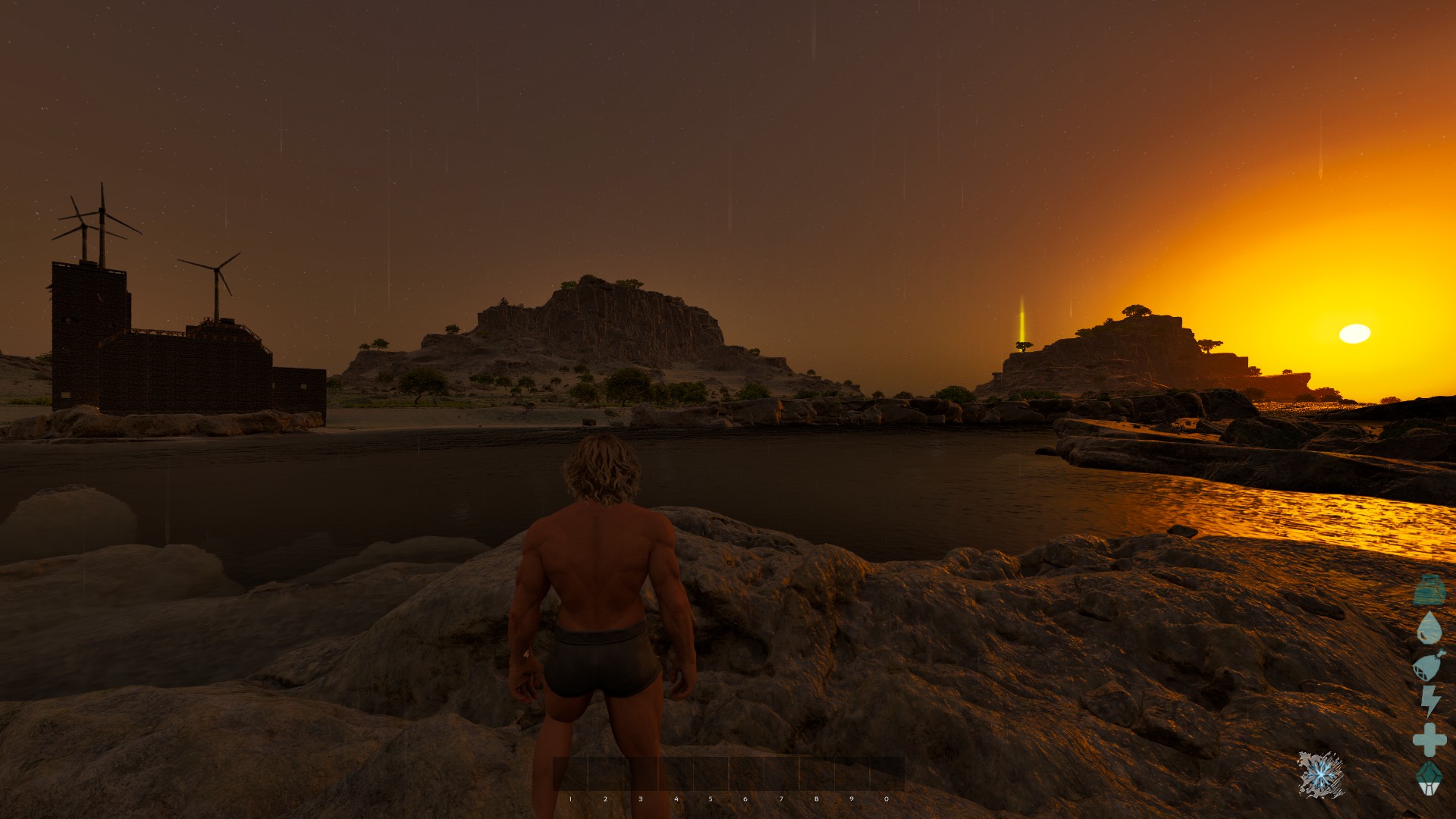
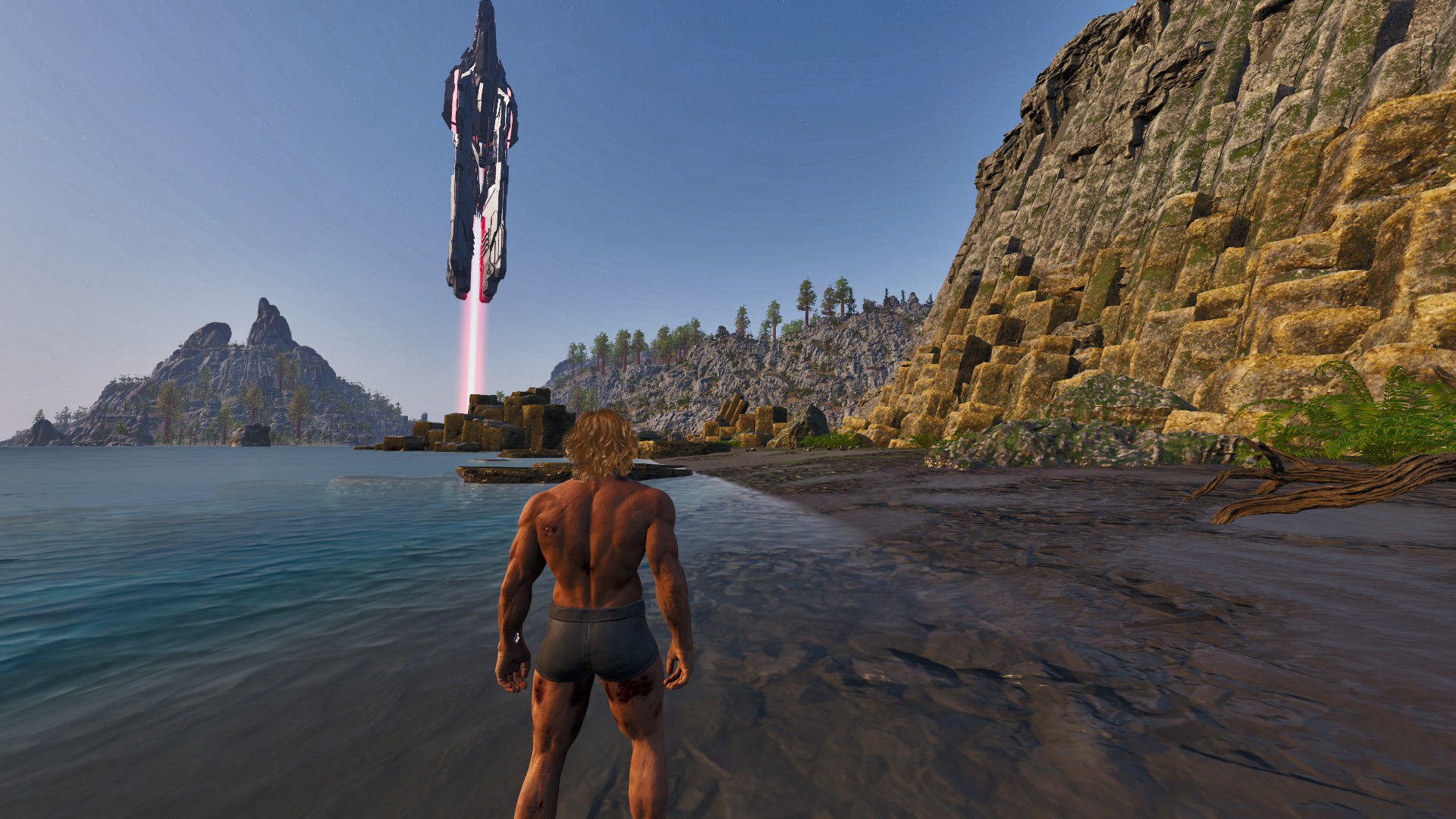
Critically important setting. Fixes visual artifacts.🏞️ Screenshots
⚙️ In-game Graphics Settings


Graphics Presets: CUSTOM
Custom preset for manual adjustment.Advanced Graphics: High
Overall graphics quality.View Distance: Medium
Object rendering distance.Textures: High
Texture quality.Reflections: Low
Reflection quality (heavy FPS impact).Post Processing: Low
Post-processing quality.General Shadows: Low
Basic shadow quality.Global Illumination Quality: Low
Global illumination quality.Effects Quality: Medium
Visual effects quality.Foliage Quality: Low
Vegetation rendering quality.Motion Blur: OFF
Disables motion blur.Light Bloom: OFF
Glow effect for bright objects.Light Shafts: OFF
Light rays (God Rays).Low-Light Enhancement: OFF
Visibility boost in low-light conditions.Enable Foliage & Fluid Interaction: OFF
Player interaction with grass and water.Foliage Interaction Distance Multiplier: 0.01
Multiplier for foliage interaction distance.Foliage Interaction Distance Limit: 0.5
Foliage interaction distance limit.Foliage Interaction Quantity Limit: 0.5
Limit on the number of interactions.Enable Footstep Particles: OFF
Particles from footsteps (dust, splashes).Enable Footstep Decals: OFF
Footprints on the ground.Disable HLOD: OFF
Disables High Level of Detail layers.GUI 3D Widget Quality: 0
Interface 3D widget quality.Cinematic Lighting Mode (EXPENSIVE): OFF
Cinematic lighting (very demanding).Reduce Resolution In Inventory: OFF
Lower resolution when inventory is open.🔄 How to restore everything?
If you want to go back to the default graphics settings, you don't need to enter any "undo" commands.INSTRUCTIONS:
Just restart the game. All console commands are automatically reset when you exit to the desktop.
⚠️ Important Note:
The settings in the game menu (Graphics) that you changed manually will remain. You will need to revert them back yourself.
Just restart the game. All console commands are automatically reset when you exit to the desktop.
⚠️ Important Note:
The settings in the game menu (Graphics) that you changed manually will remain. You will need to revert them back yourself.
 If this guide helped you — please leave a like and add it to your favorites! Good luck surviving! 🦖