

The ORIGINAL HD2 Optimized Settings Guide
 Vapor_Willy
(166 ratings)
Jul 24, 2025 @ 10:38pm7,895392
Gameplay BasicsModding or ConfigurationMultiplayerWalkthroughsEnglish
System Specs Used for the Tests
My PC is mid-range:
CPU - AMD Ryzen 5 5600X
GPU - Nvidia RTX 4070
RAM - 16GB @3600 MT/s
SSD - 1TB M.2 PCIe with NVMe
*In January 2025 I doubled my RAM to 32GB for another video testing 16 vs. 32. For Helldivers 2 this increased FPS by 13%, so it was totally worth the upgrade!
CPU - AMD Ryzen 5 5600X
GPU - Nvidia RTX 4070
RAM - 16GB @3600 MT/s
SSD - 1TB M.2 PCIe with NVMe
*In January 2025 I doubled my RAM to 32GB for another video testing 16 vs. 32. For Helldivers 2 this increased FPS by 13%, so it was totally worth the upgrade!
Video Guide
This is the original video guide. Since its release there have been a few changes to settings that I cover in guide below. The recommended settings shown at the end are not as accurate anymore, so scroll to the bottom or click on the "Optimized Settings" section on the right to see an updated image➡️
https://youtu.be/bVcaC7x7xBU?si=Iyz_Q1-AT0ZH-BKR&t=80
https://youtu.be/bVcaC7x7xBU?si=Iyz_Q1-AT0ZH-BKR&t=80
Texture Quality
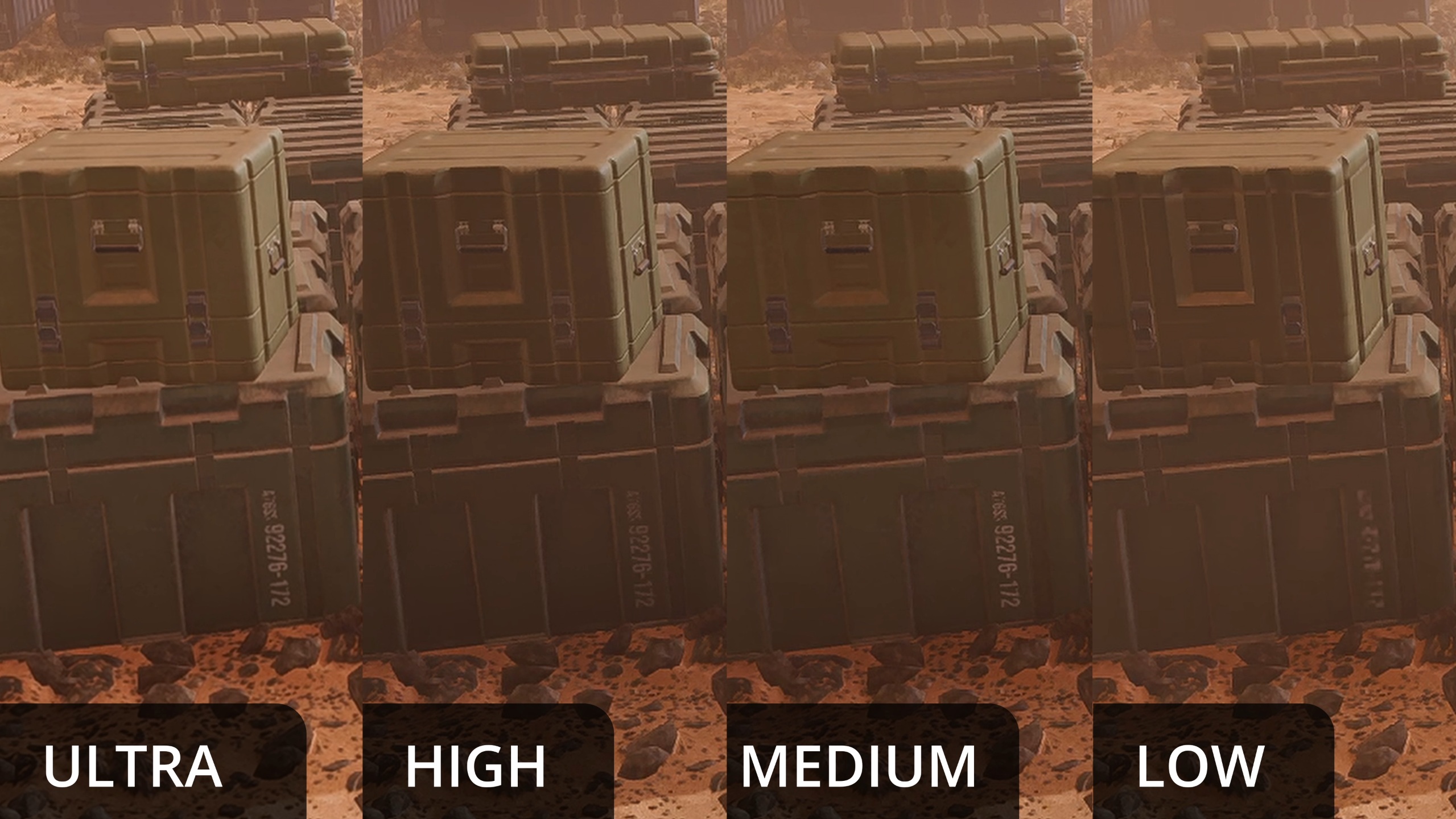 Changes the resolution used for Textures. Set this based on how much VRAM you have:
Ultra - 10GB
High - 8GB
Medium - 6GB
Low - 3GB
Dropping from Ultra to Medium will only gain about 1% FPS. Low looks pretty bad, so don't use it unless you have less than 6GB of VRAM (like with the Steam Deck)
Object Detail Quality
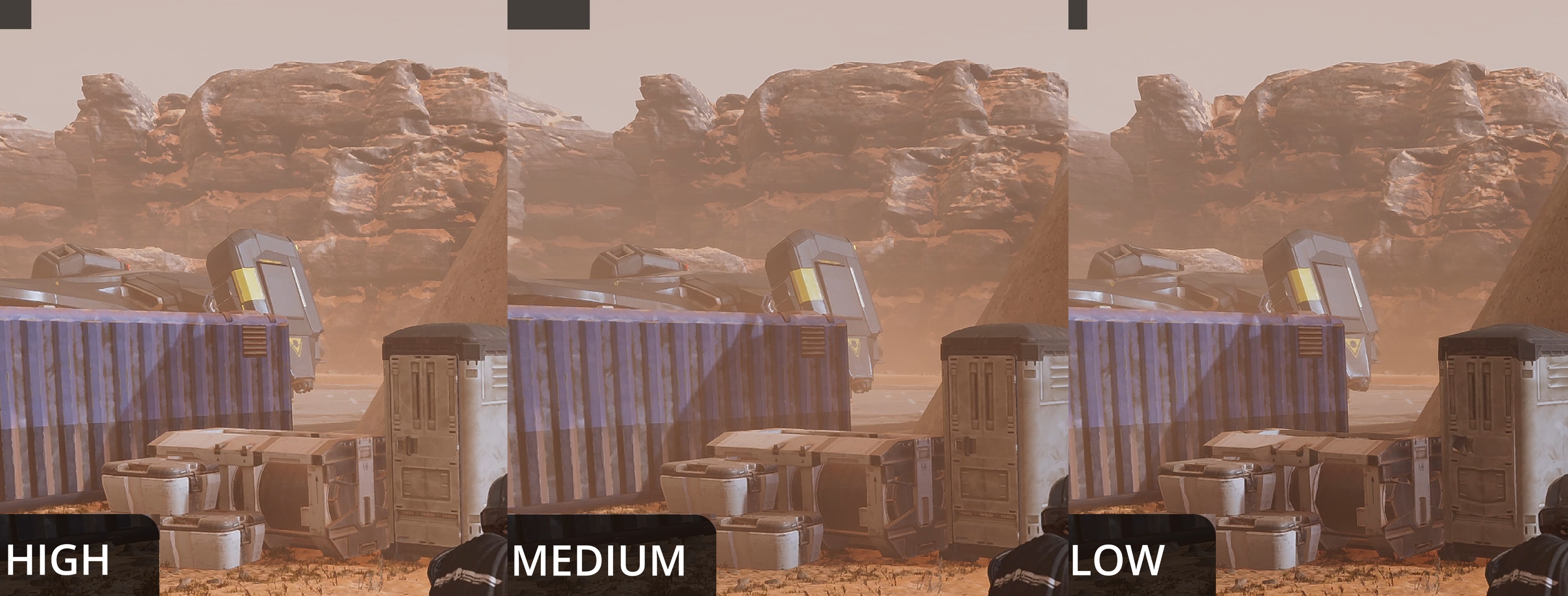 This changes how many polygons are used for objects.
High - All objects at full quality
Medium - Polygons are reduced in objects further than ~20 meters from the player
Low - All objects have polygon count greatly reduced, and LOD pop-in will happen very close to the player
Keep this on High unless you REALLY need to squeeze out more FPS. Low gains ~2% performance uplift but greatly reduces object quality.
Render Distance
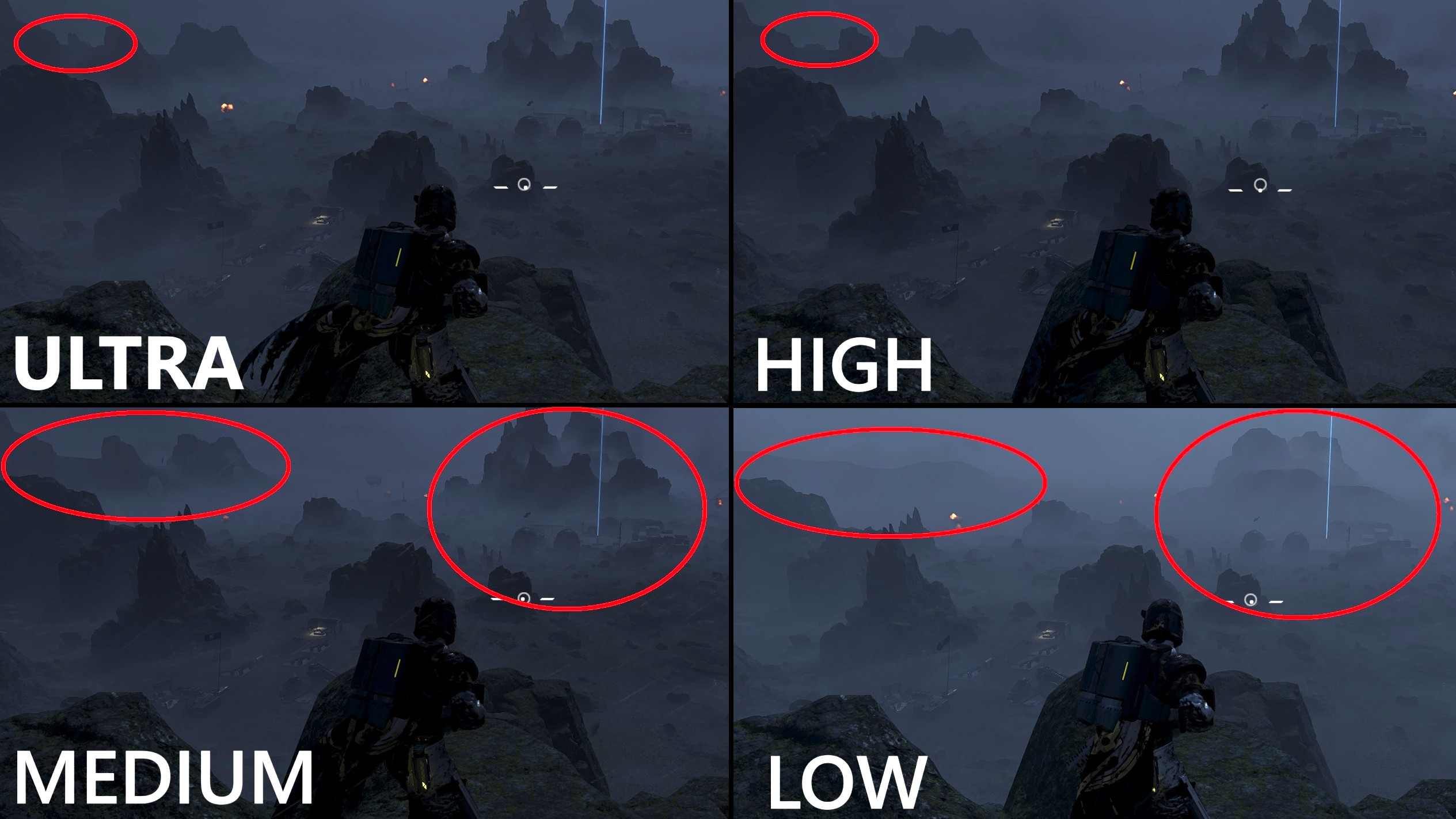 Changes the render Quality/Quantity of distant terrain and objects
Ultra - Highest quality for extremely distant terrain
High - Very far terrain quality is reduced (~600 meters & further) +1% FPS
Medium - Very far terrain turned into basic shapes (~600 meters & further) +3% FPS
Low - Medium-distant terrain quality turned into basic shapes and objective objects removed (~200 meters & further) +1-2% FPS
Retesting this setting since the original video showed that much more terrain is affected by this setting. Further, setting this to low could make the game more difficult since objects and terrain found around certain objectives will not render if further than ~200 meters away!
I recommend setting this to Medium, since you'll rarely see the extremely far away terrain that would be rendered on High/Ultra.
Shadow Quality
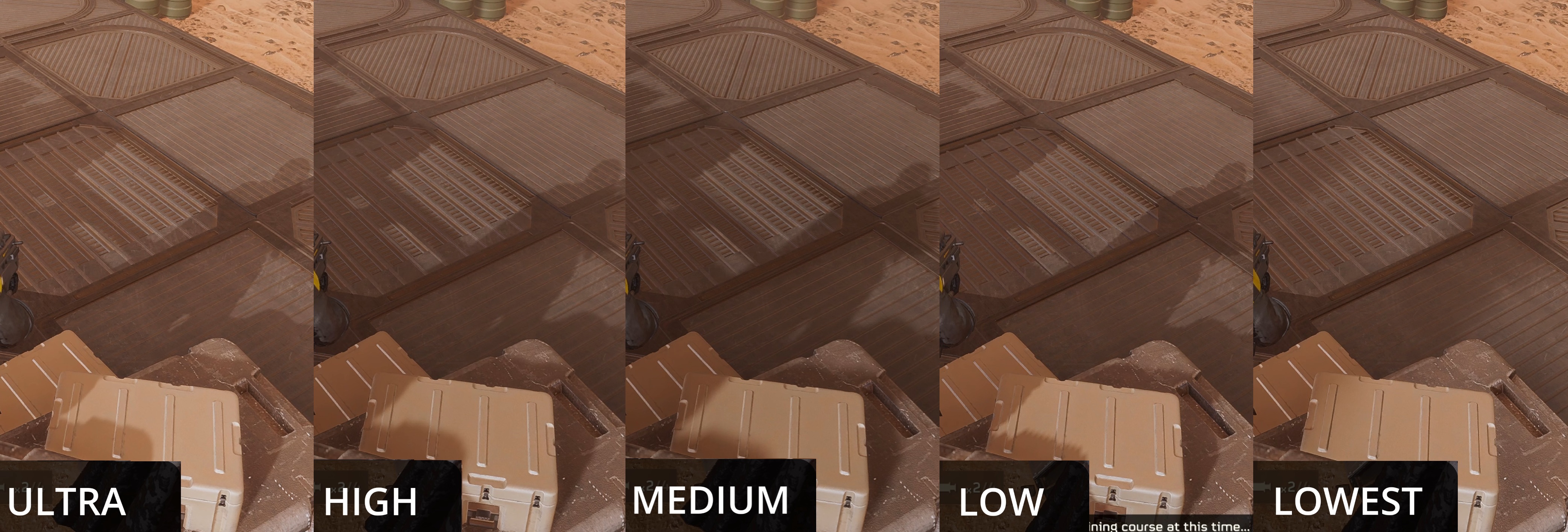 Changes the resolution and sharpness of shadows.
Ultra - Sharp and High res
High - Soft and High res (+2% FPS)
Medium - Soft and Medium res (+2% FPS)
Low - Sharp and Low res (+4% FPS)
Lowest - Extremely blurred and Low Res (no FPS improvement)
I recommend using Medium here because you'll gain 4% FPS compared to Ultra, and it's only slightly lower quality than High. Low will gain 8% FPS compared to Ultra, so it could be useful for low-end hardware.
Particle Quality
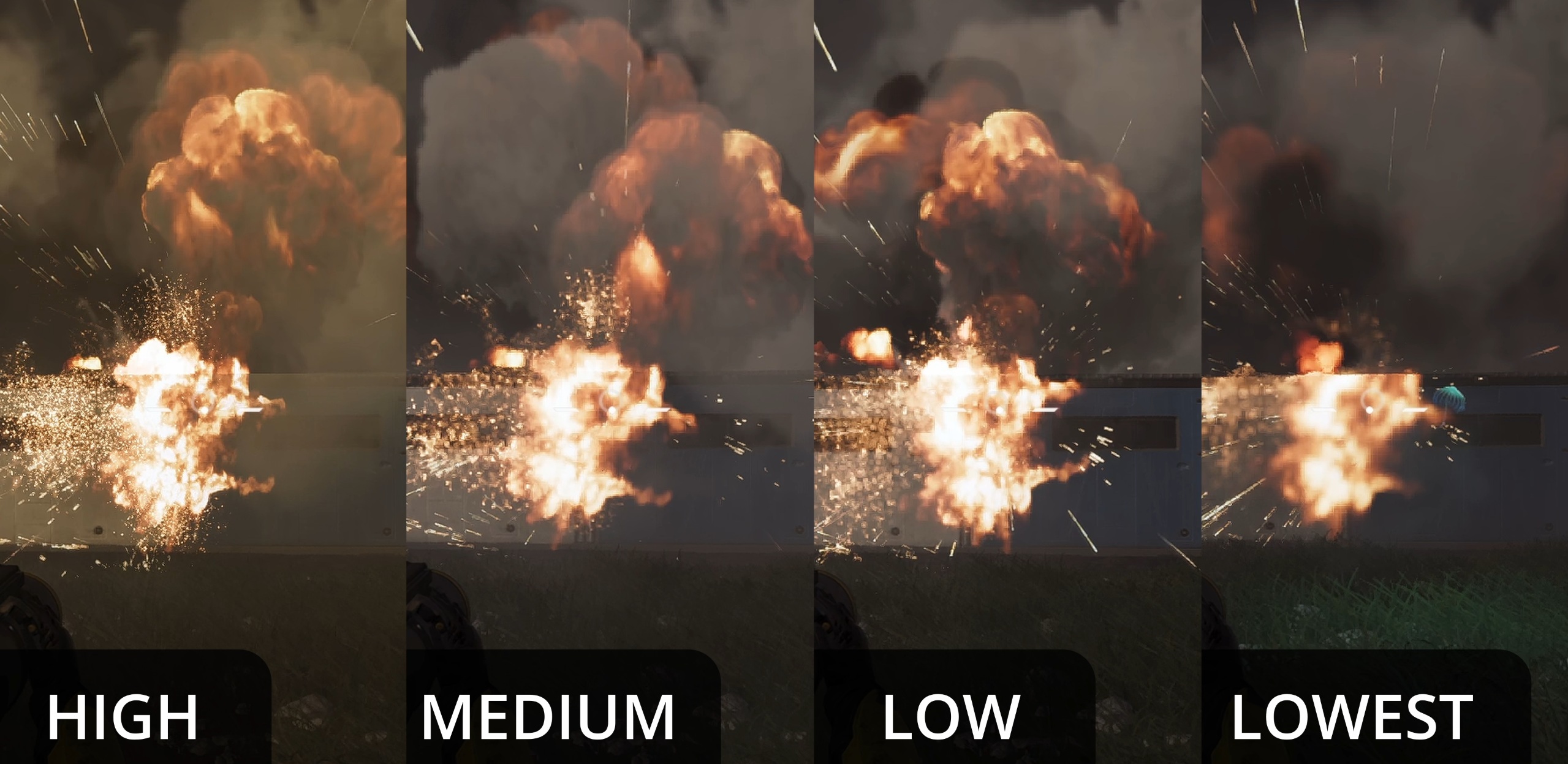 Changes the resolution of stratagems, fire, explosions, lasers, and other particle effects.
I recommend using High, as there's a huge reduction in quality going any lower. It looks like the resolution of fire and sparks is 50% lower on Medium, and even worse on Low & Lowest.
Medium will increase FPS by ~3% and going lower will only gain ~1-2% and look very pixelated, so I don't recommend Low/Lowest unless you're using a small screen, e.g. handhelds.
Reflection Quality
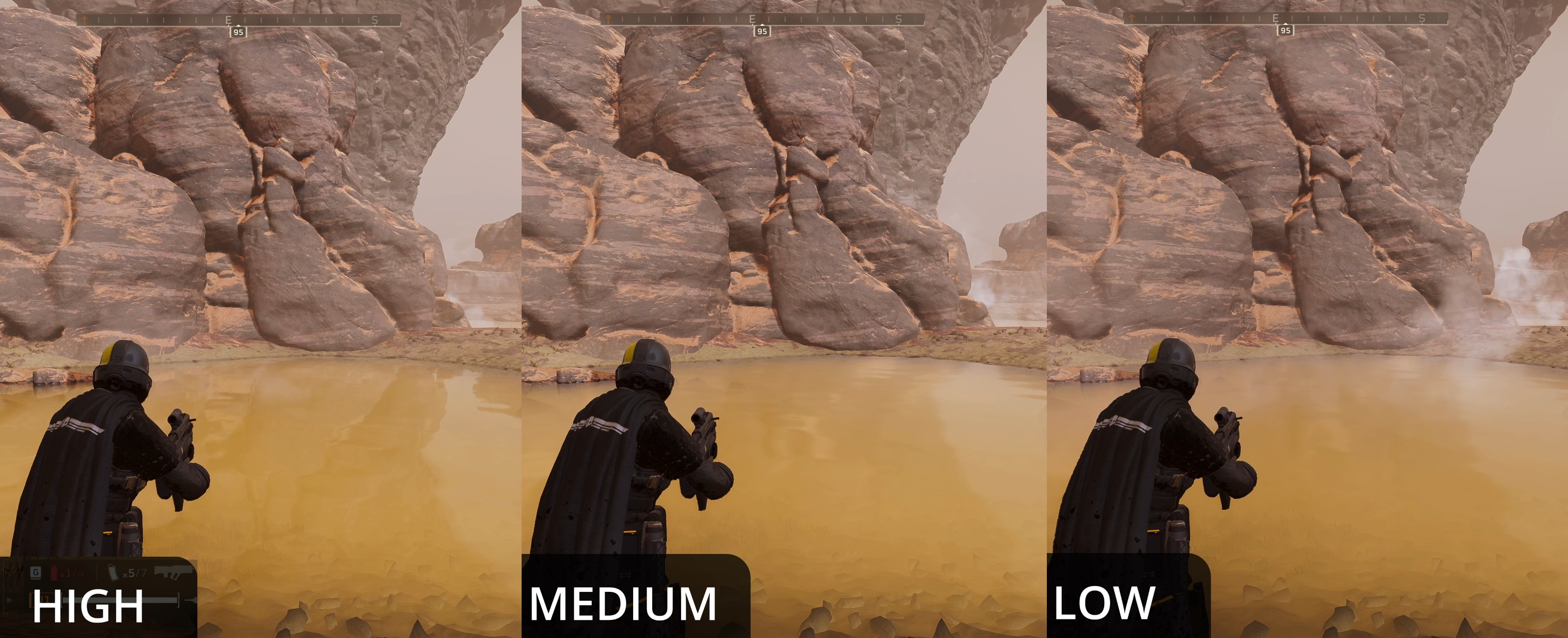 High - Screen Space Reflections (SSR)
Medium - Cubemaps +4% FPS
Low - Cubemaps (slightly lower res) +3%FPS
Lowest - No Reflections +1%FPS
I recommend using the Low setting because there's a 7% increase in FPS compared to High. If you're fine with SSR artifacts, then High might be worth it for planets with lots of water, but even if there's NO water on a planet you'll still take the performance hit!😒
Space Quality
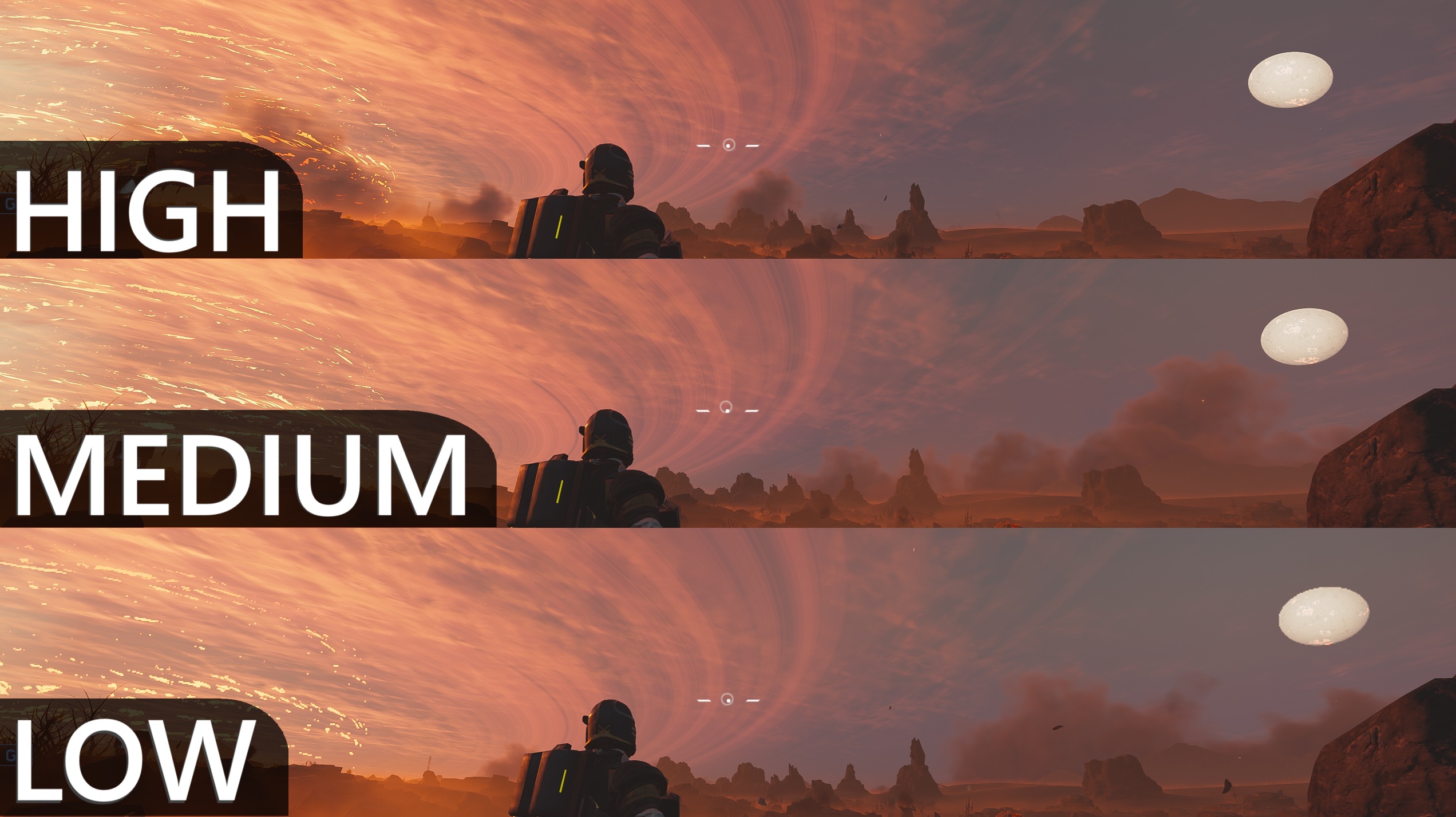 *This setting has changed since my original video.
Going from High to Low only changes ONE star in the sky and makes a huge performance difference, so I would recommend using Low.
Since an update sometime near the end of 2024, they fixed this setting. So now, going from High to Medium and Low actually changes the resolution of all the stars and planets in the sky.
High - Full Quality
Medium - Resolution of stars reduced +7% FPS
Low - Resolution of planets and stars GREATLY reduced +3% FPS
I recommend Medium since there's a big bump in performance and only a minor difference in quality.
Only use Low if you really need to squeeze out more FPS, since it drops the resolution by a lot.
Ambient Occlusion (AO)
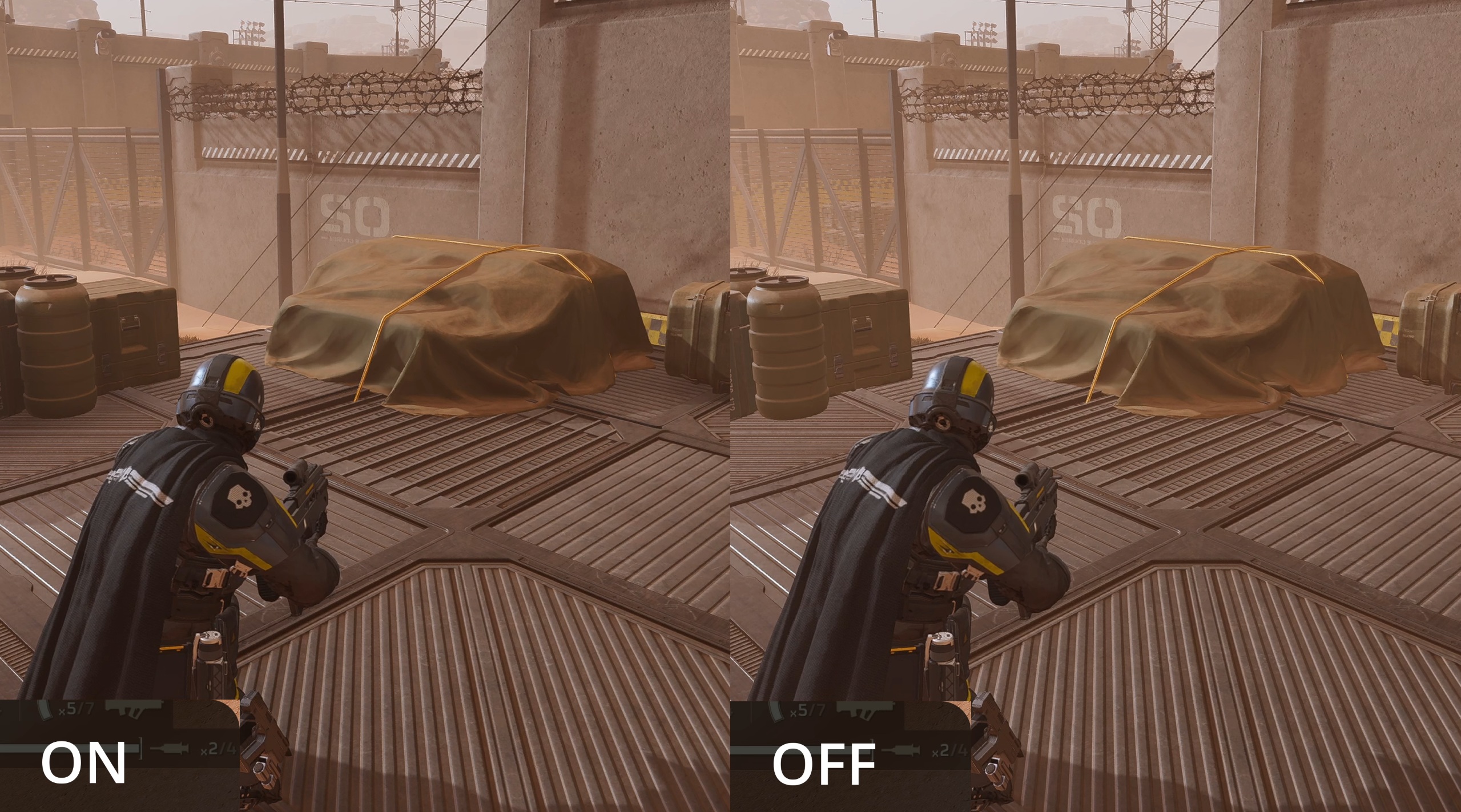 AO will darken around objects in close proximity. HD2 uses basic SSAO, so it doesn't apply to small objects, terrain, foliage, and large objects that SHOULD get darker, like mountains and skyscrapers that are near each other.
Turning this off will give ~4% higher performance, but the game will look significantly worse, so I recommend you keep AO ON.
(I have multiple videos where I use Reshade to inject Ray Tracing into HD2, and when using RTGI you should turn off the in-game AO and SSGI⬇️)
Screen-Space Global Illumination (SSGI)
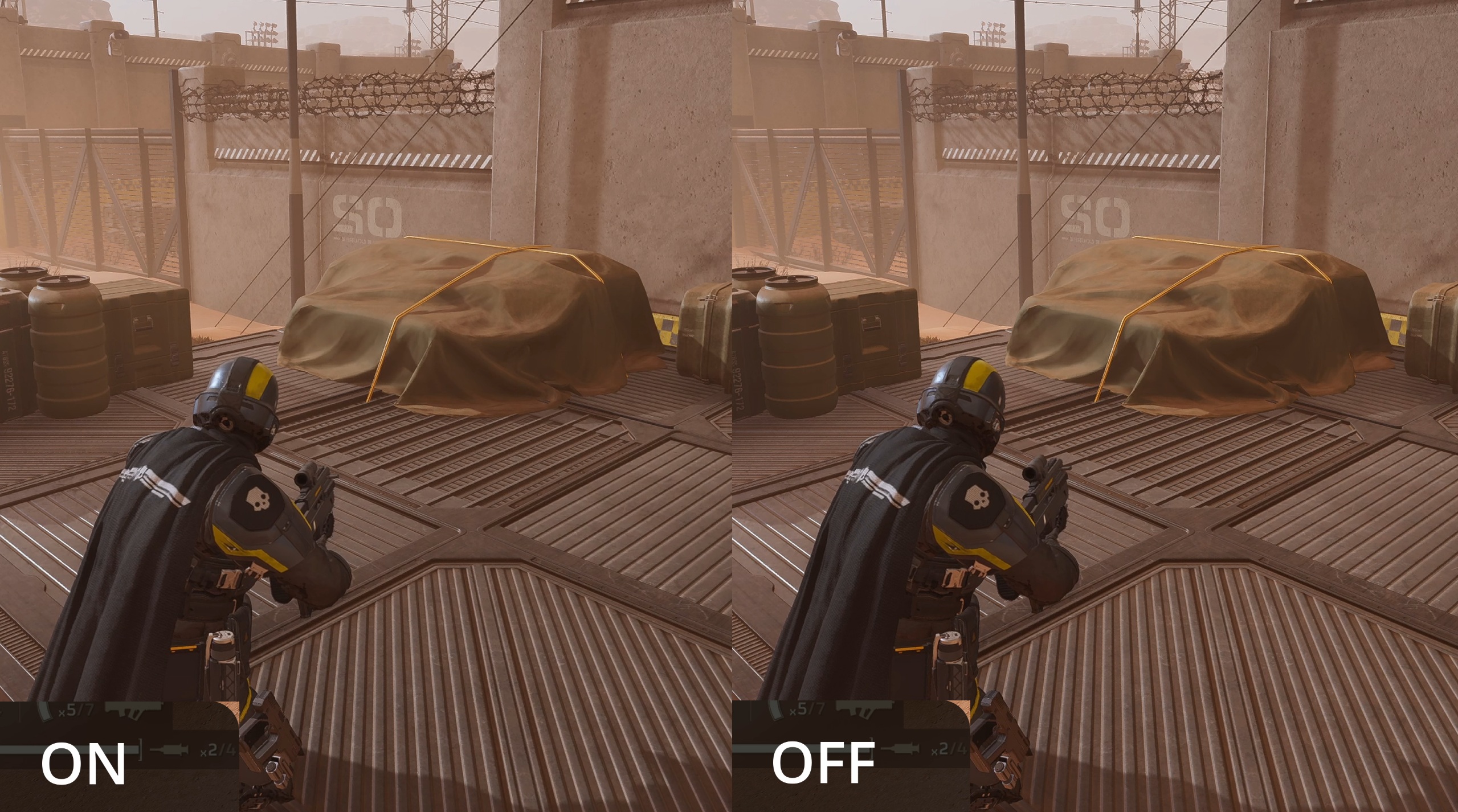
This setting was removed as of Feb. 2026
SSGI is SUPPOSED to upgrade visual quality by mimicking bounce lighting found in Ray Tracing. Sadly, the Stingray Engine's method of achieving this is imprecise and VERY low quality, so it doesn't look very good.Turning this setting off will increase performance by ~3% (and imo look better anyway).
Vegetation and Rubble Density
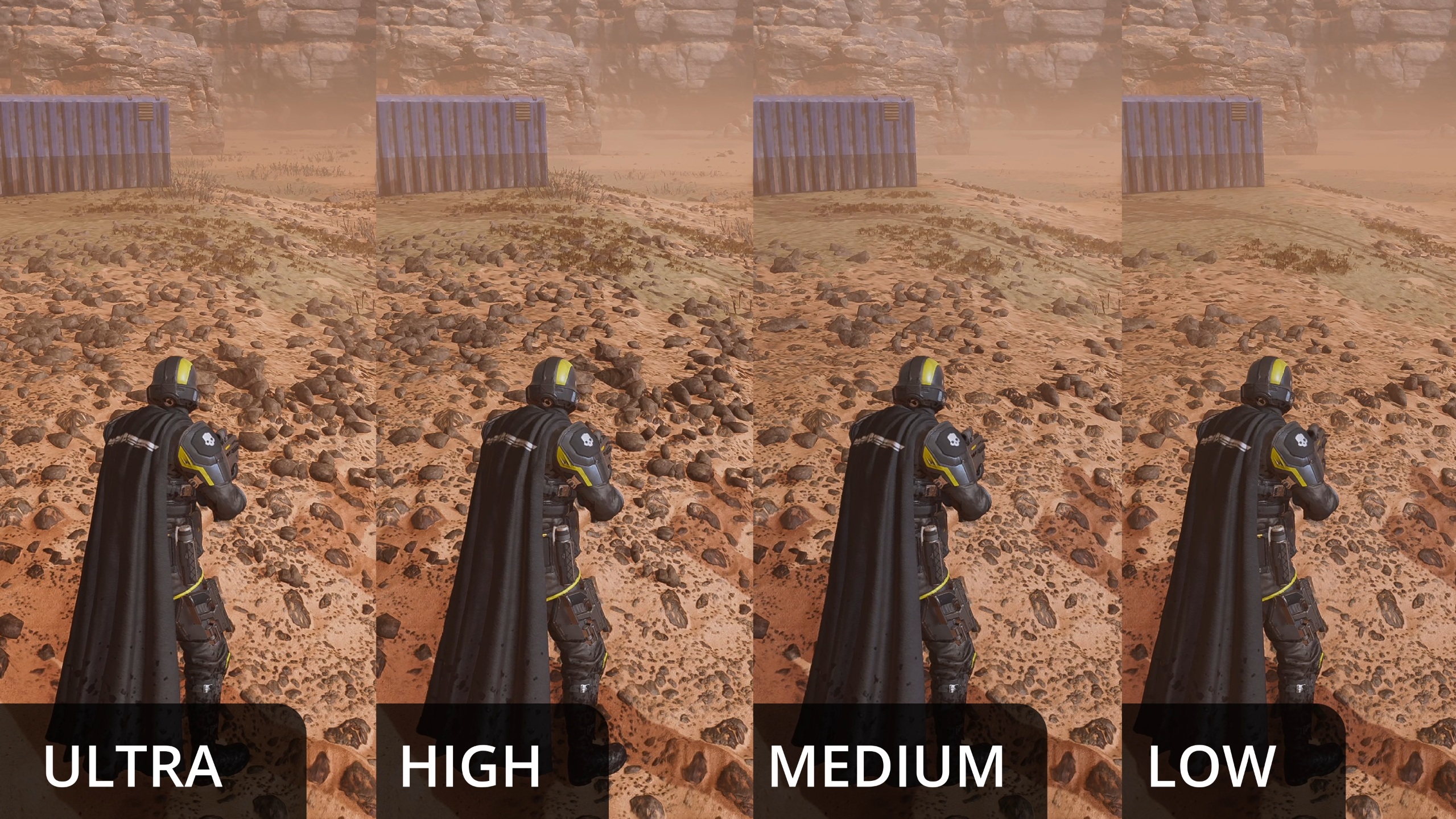 Changes the render distance and quantity of grass, shrubs, rubble, and rocks.
(usually referred to as LOD or Level of Detail)
Ultra - Furthest/Densest LOD
High - Reduces distant LOD
Medium - Reduces LOD for all grass/shrubs far away & rubble/rocks near the player
Low - Greatly reduces the LOD for grass/shrubs & rubble/rocks near the player and REMOVES them further away
Each step down increases performance by 4%
I recommend the High setting to reduce LOD pop-in, but going further will help improve FPS on slower hardware (Medium +8%, Low +12%)
Terrain Quality
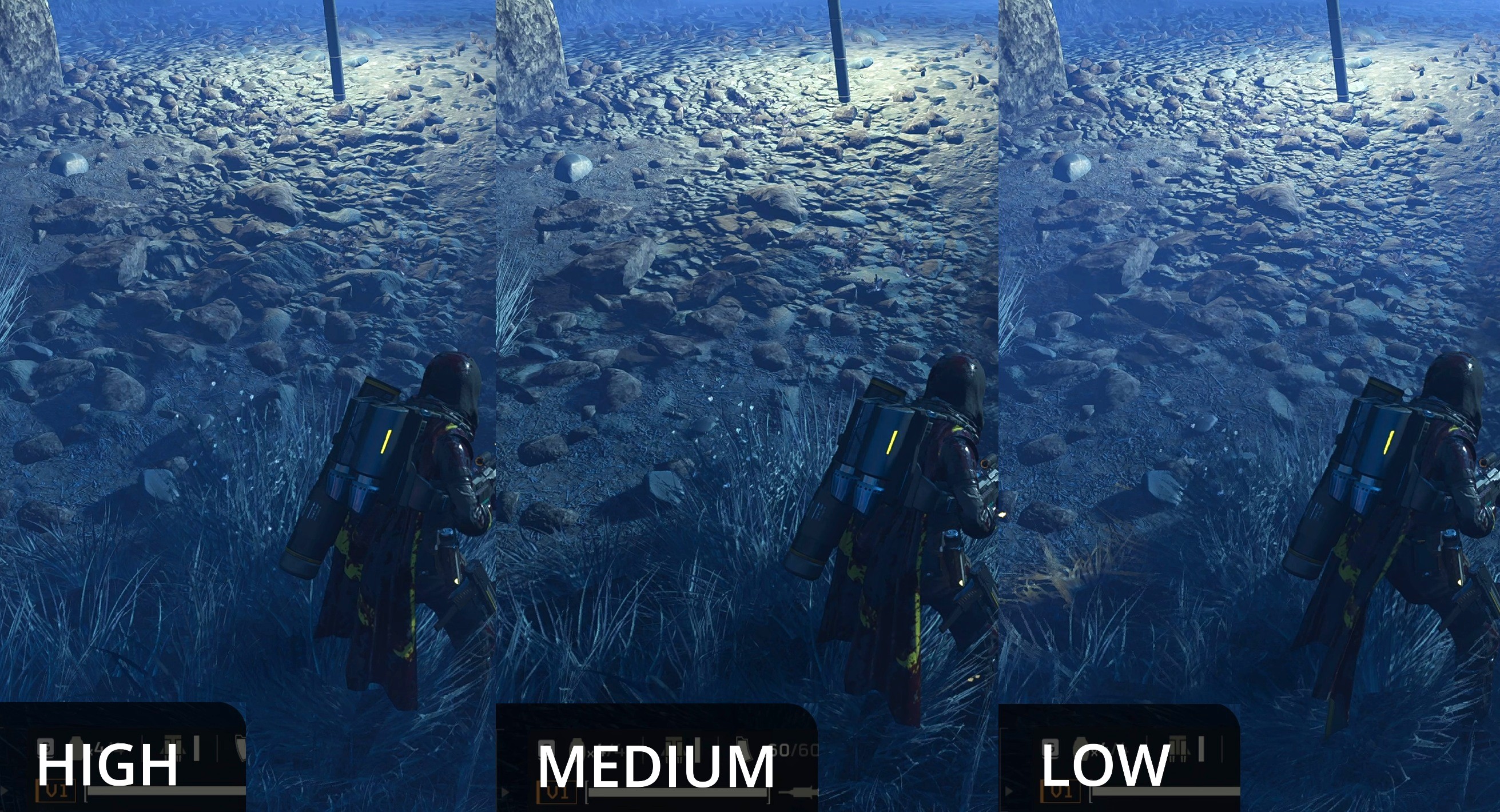 High - Highest polygon count and bump maps used
Medium - Reduces quality of bump maps +1% FPS
Low - Further reduces quality of bump maps, ground texture quality, and polygon count +3%FPS
I recommend using High for the improved quality or low for improved performance (medium isn't really worth using for only a 1% difference)
Volumetric Fog Quality
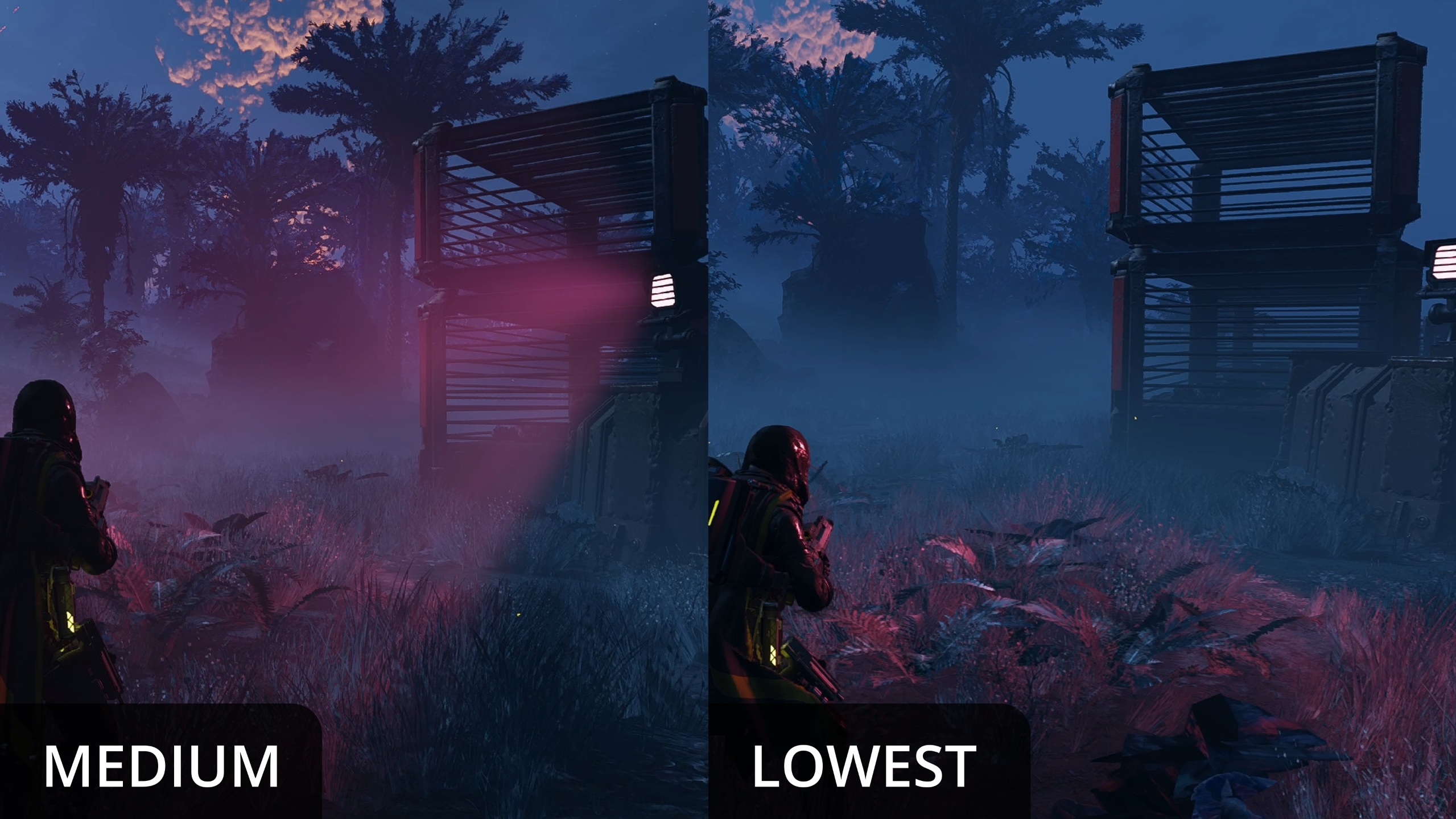 Affects the complexity of light shafts and light casting objects (i.e. lamp posts and Automaton base search-lights). High and Medium show these light shafts, Low and Lowest do not.
I recommend using Medium for a 2% improvement over High at basically the same quality.
If you're OK with the missing light shafts, then Lowest will give a 5% improvement over the High setting.
Volumetric Cloud Quality
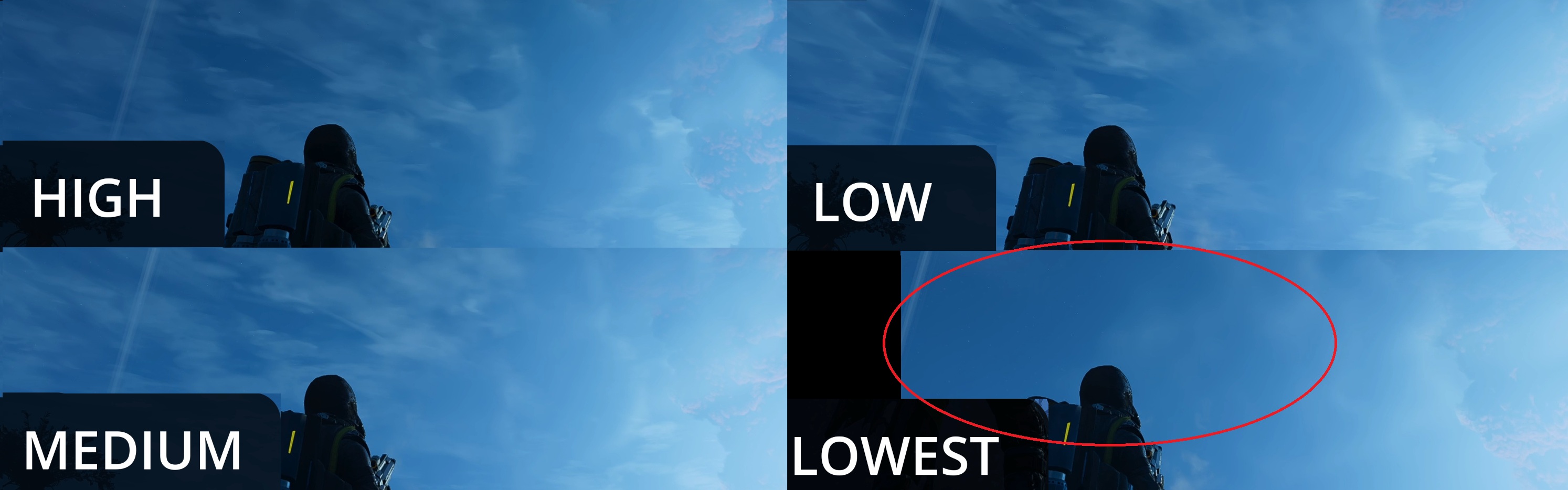 High - Full res volumetric clouds
Medium - Slightly lower res volumetric +2%FPS
Low - Further reduced res volumetrics +3% FPS
Lowest - Nice volumetrics are replaced with basic blob shape clouds +2%FPS
High, Medium, and Low look so similar that I recommend just sticking with Low for the 5% performance bump. Lowest isn't worth it unless you REALLY need that extra 2%
Lighting Quality
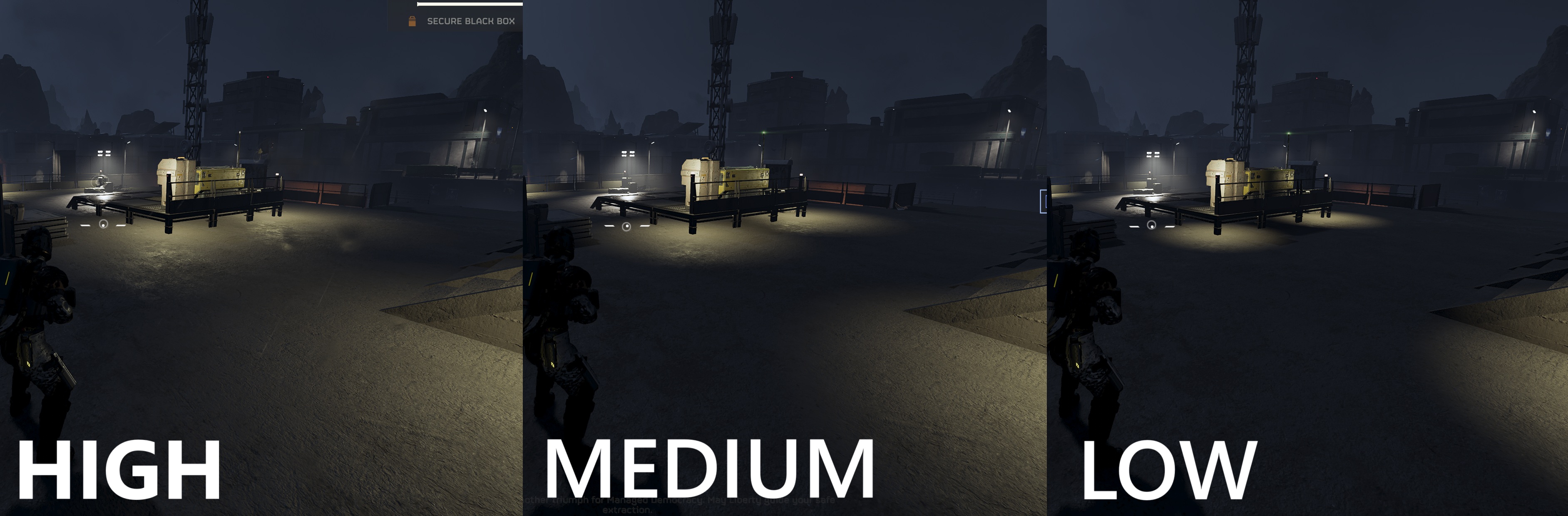 Changes some lighting on the ship, but no difference during missions. Stick to Low for a 3% performance improvement.
 *This bug got fixed, so it WILL affect light casting objects on the planet (i.e. lamps, fire, and other lights)
High, Medium, and Low change the distance light will travel from the object casting it. Low makes lamps look like a circle of light is directly beneath it, and medium is only a little better.
High looks the most realistic, so I recommend sticking with it unless you really need the 3% performance improvement you'll get by dropping to Low.
Anti Aliasing
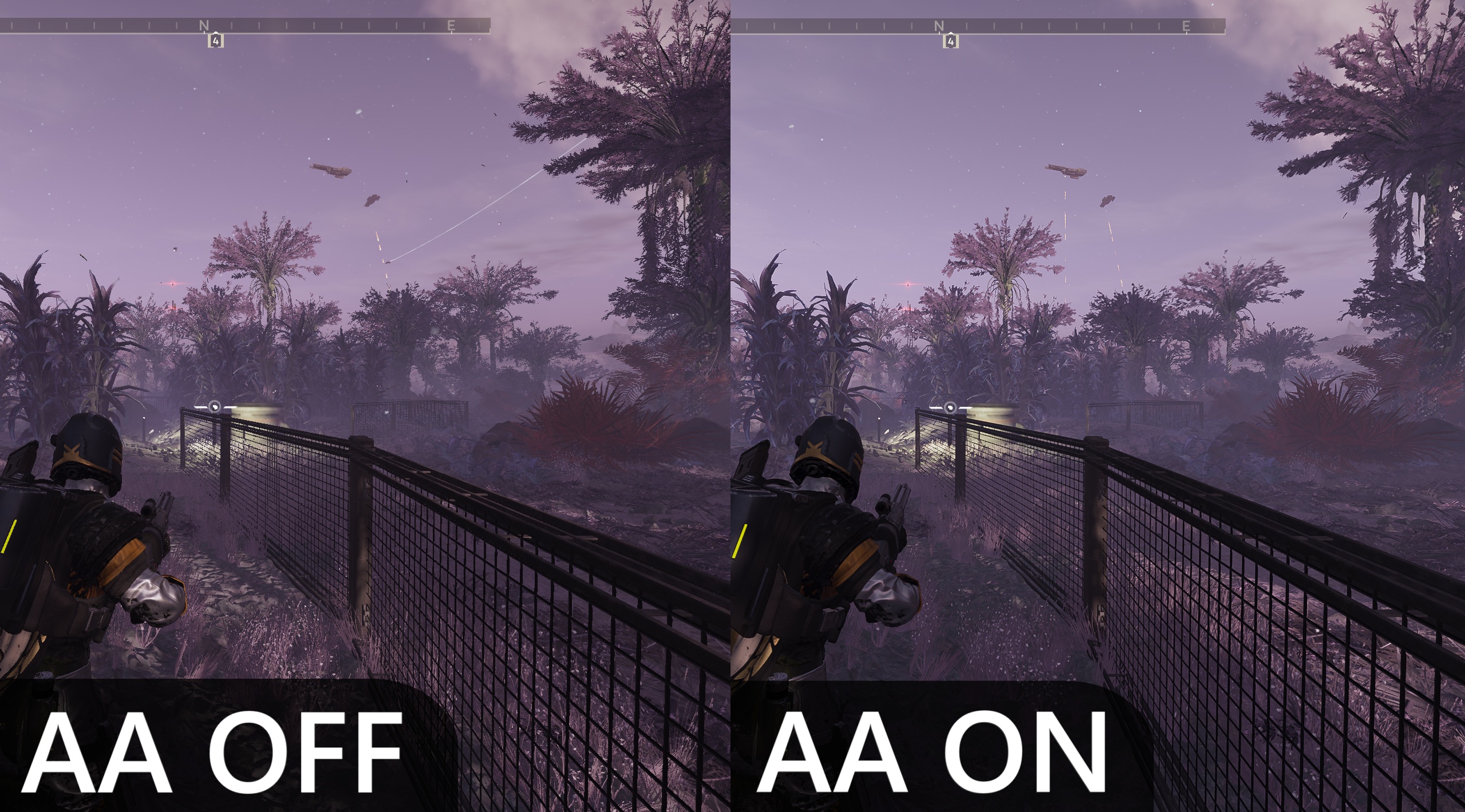 HD2 uses Temporal Anti-Aliasing (TAA) to remove the jaggies. Keep this ON with the "Sharpness" setting near the top also set to 1.00 (there's no noticeable performance hit between on/off)
If you don't like TAA's blur/artifacts and you want the game to look sharp without the intrusive aliasing, I highly recommend injecting SMAA or FXAA using Reshade. I cover using Reshade in multiple other videos, but this one specifically covers using SMAA and AMD CAS for higher quality visuals: https://youtu.be/juTUWenTm0w
I don't use AMD CAS anymore, though. Instead, I use a combination of multiple Rehade shaders and the Lossless Scaling App for upscaling, better AA, sharpening, and injecting Ray Tracing. I've got videos covering each of the methods used if you're interested in taking this game's visuals to the next level.
Use Async Compute
This setting offloads some calculations from the CPU to the GPU. Turning it on might increase FPS if your CPU is old and your GPU is being underutilized. If your CPU is at least decent then you won't see an improvement, and if you're GPU-bound then this will actually reduce performance.
This setting lowers performance for me. I'm injecting RTGI with Reshade, which is extremely GPU intensive, so mine is pinned at 100% even on the ship. With Reshade off this setting make no difference since I have a decent, mid-range CPU.
This setting lowers performance for me. I'm injecting RTGI with Reshade, which is extremely GPU intensive, so mine is pinned at 100% even on the ship. With Reshade off this setting make no difference since I have a decent, mid-range CPU.
Display Tab
Now that we've optimized the Graphics Settings tab, let's make sure you're display settings are optimal.
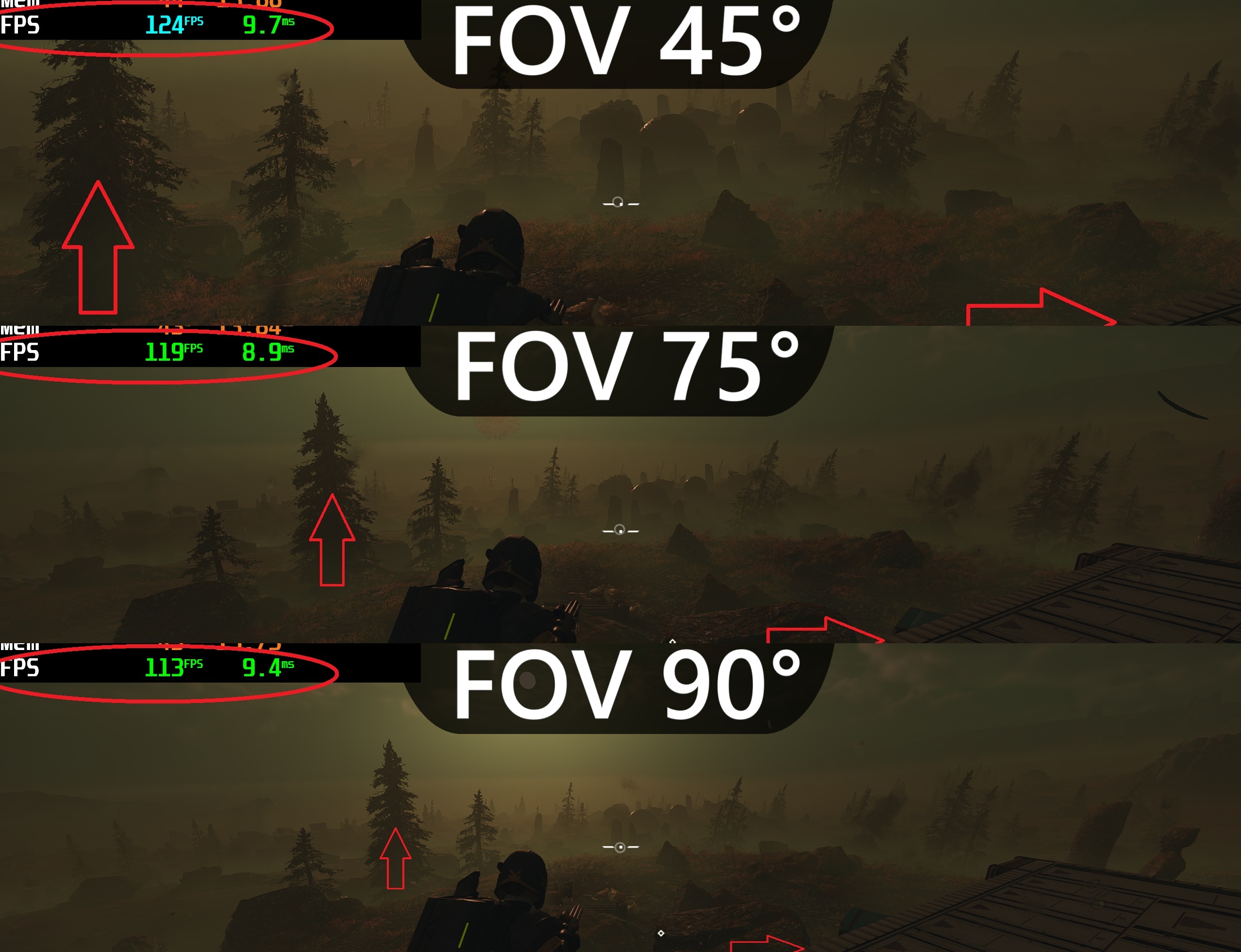 Arrows are for reference points. Notice how near/far the farm buildings look in the center with 45° vs. 90°
When turning down Render Scale, you'll also need to have Anti-Aliasing ON to properly upscale the image.
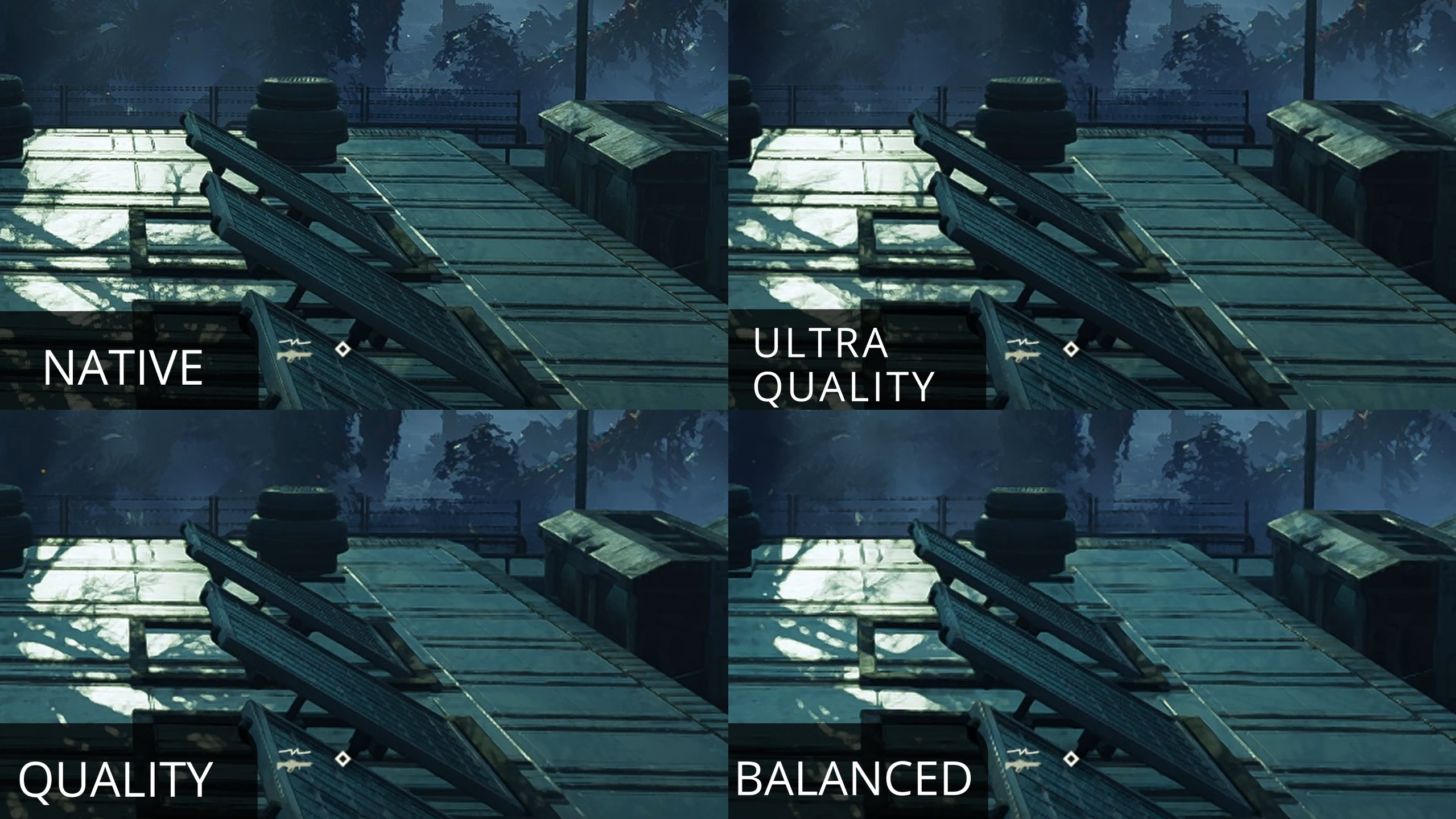
Using the Lossless Scaling App you can inject much better upscaling with AI using LS1 (FSR, SGSR, and NIS are other options too). I set my game to 1080p Native and use LS1 to upscale to 1440p. This app can also add Frame Generation to your game!
https://youtu.be/TL0yAzQSu2I
(I'm not sponsored by them, it's just a really good Steam app I use for tons of games)
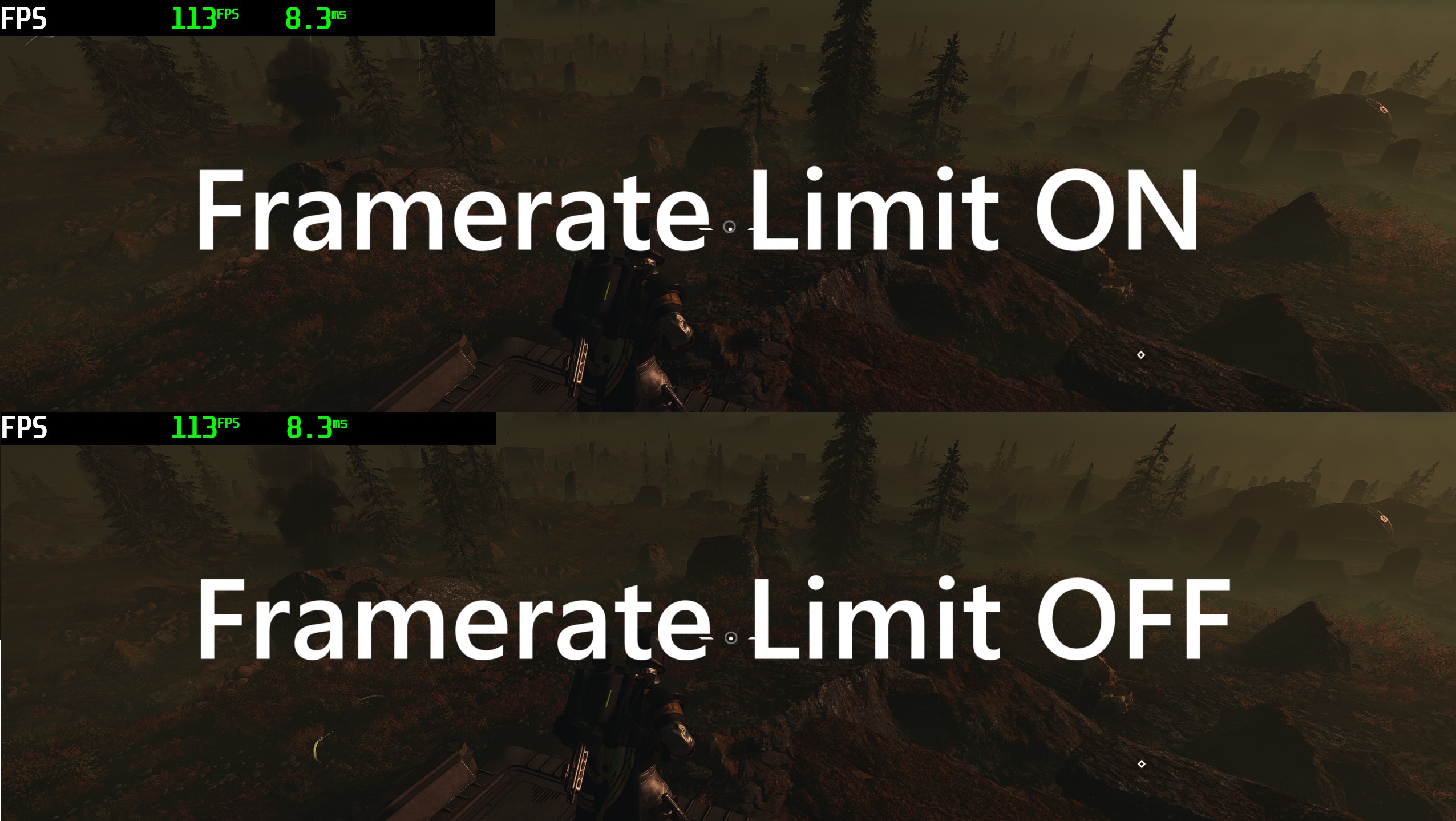
Another myth passed around the forums is "turning on Framerate Limit will increase FPS!" This one is also false, as I'm seeing the same FPS regardless of it being on vs. off.
 Also, the in-game FPS cap doesn't properly cap the frame time. For example, if I set it to 60FPS the goal would be 16.6ms for each frame. As you can see, the graph shows it bouncing up above this with an average of 17.011ms, which translates to 58.8FPS!
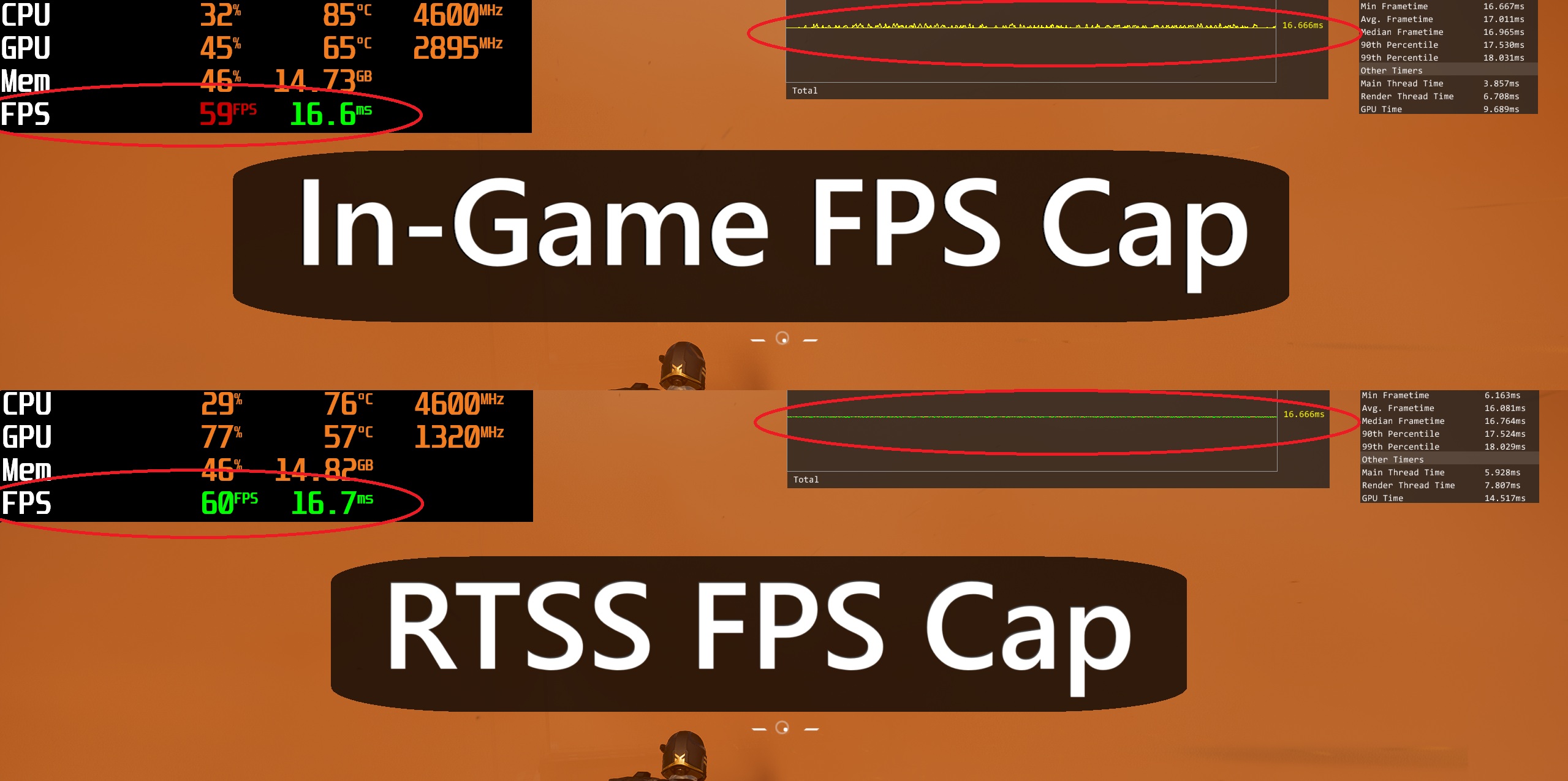 if you need to set an FPS cap, do so through your GPU's settings (i.e. the Nvidia App) or a third-party app like RTSS.
V-Sync should NEVER be used as it will significantly increase input latency. If you're consistently getting FPS above your monitor's refresh rate, then you should enable an FPS cap.
Screen Brightness, UI Brightness, HDR, and Camera Shake Strength
These are a personal preference for what looks good to you on your monitor. I play with Camera Shake turned off, however certain actions and weapons will still cause the camera to shake (like the Stalwart and Machine Guns)Vertical FOV
You can adjust your Field of View (FOV) with this slider between 45°-90° It's mostly personal preference on how wide you want your FOV; HOWEVER, this setting will also have a significant impact on performance since a higher FOV means rendering more stuff on screen. There's about a 10% FPS difference between 45° & 90°, so turning this down on low-end hardware will help claw back some performance.Arrows are for reference points. Notice how near/far the farm buildings look in the center with 45° vs. 90°Resolution and Render Scale
You can play at your monitor's resolution and turn down the Render Scale to increase FPS if your GPU-bound. In my video, I noted a 21% increase going down to Ultra-Quality. This is only the case when I'm recording, streaming, or doing anything else that hammers my GPU while gaming.When turning down Render Scale, you'll also need to have Anti-Aliasing ON to properly upscale the image.
There's A Better Way To Upscale
HD2's built-in upscaling is VERY low quality. It's basically just temporal AA mixed with a bilinear filter.Using the Lossless Scaling App you can inject much better upscaling with AI using LS1 (FSR, SGSR, and NIS are other options too). I set my game to 1080p Native and use LS1 to upscale to 1440p. This app can also add Frame Generation to your game!
https://youtu.be/TL0yAzQSu2I
(I'm not sponsored by them, it's just a really good Steam app I use for tons of games)
Display Mode, Framerate Limit, and V-Sync
Some people SWEAR Fullscreen increases performance in games and say you should always use it. Through all my testing, I've found a negligible difference between Fullscreen and Borderless (if anything, I was seeing MAYBE a 1% improvement using Borderless 🤷♂️). I use Windowed with the Lossless Scaling app, or Borderless without.Another myth passed around the forums is "turning on Framerate Limit will increase FPS!" This one is also false, as I'm seeing the same FPS regardless of it being on vs. off.
Also, the in-game FPS cap doesn't properly cap the frame time. For example, if I set it to 60FPS the goal would be 16.6ms for each frame. As you can see, the graph shows it bouncing up above this with an average of 17.011ms, which translates to 58.8FPS!if you need to set an FPS cap, do so through your GPU's settings (i.e. the Nvidia App) or a third-party app like RTSS.V-Sync should NEVER be used as it will significantly increase input latency. If you're consistently getting FPS above your monitor's refresh rate, then you should enable an FPS cap.
Optimized Settings
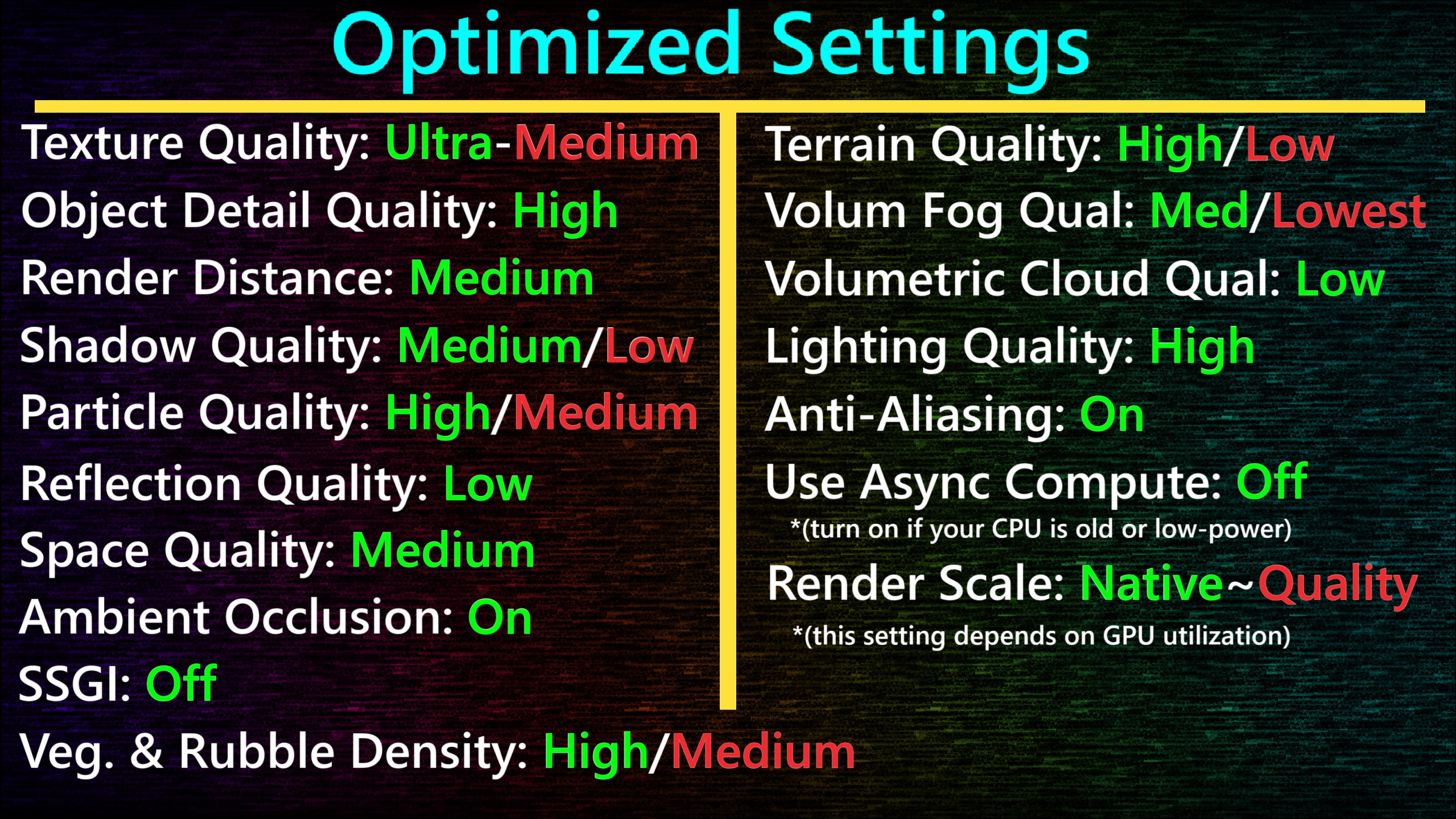 The optimal settings to balance performance and image quality are highlighted in GREEN and will net a total of 36% higher FPS compared to maxed out settings!
The settings in RED are for lower-powered systems, and will gain a further 20% meaning a total of 56% higher FPS compared to maxed out settings! (for context that will increase 34 fps to 60, or 79 fps to 120!)