

Getting better FPS and Stability in Helldivers 2
 Tofuman
(643 ratings)
Feb 24, 2024 @ 4:43am62,4421,305
Modding or ConfigurationMultiplayerSecretsWalkthroughsEnglish
Introduction
I keep getting low fps and stuttering while on my laptop while playing Helldivers 2. Can't even aim properly. This helps me tremendously while boosting my frame per seconds in the game.
Disclaimer: There are reports that those who are on some specific modern hardware do not benefit from this guide and are better off using native DirectX 12. If it does work for you, I am glad to be of help. Game is funky, let's try and hope for the best. Cheers
If it doesn't work for you, revert the changes you made here.
NEW ADDITION: Toaster Mode launch option to make your game run at minimal graphics and boost performance
Disclaimer: There are reports that those who are on some specific modern hardware do not benefit from this guide and are better off using native DirectX 12. If it does work for you, I am glad to be of help. Game is funky, let's try and hope for the best. Cheers
If it doesn't work for you, revert the changes you made here.
NEW ADDITION: Toaster Mode launch option to make your game run at minimal graphics and boost performance
The Way (DirectX 11)
For extra stability and increased frame per seconds:
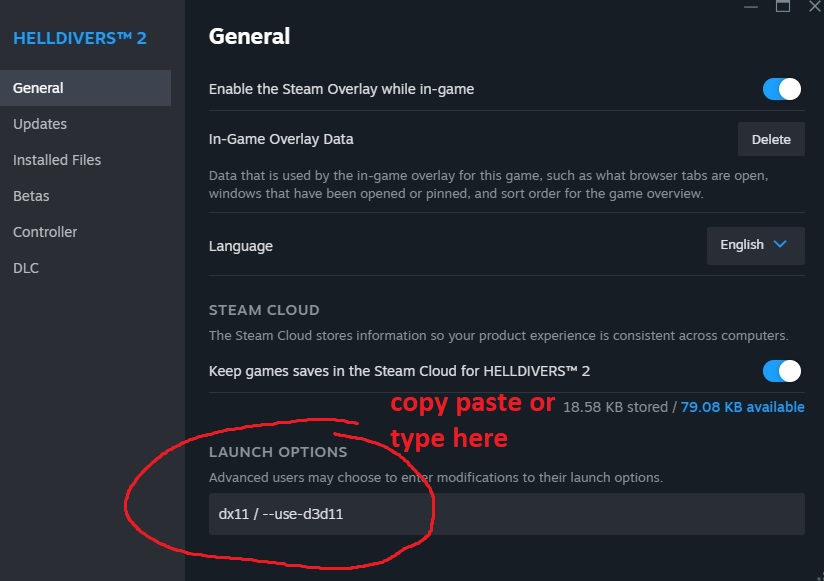
.
or type %appdata% into the start menu and navigate to the folder above
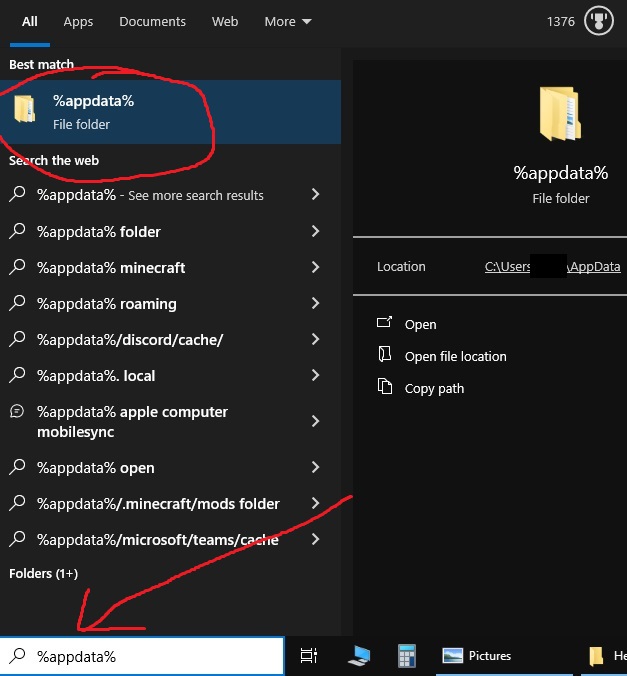
.
Delete EVERYTHING in that shader_cache folder.
.
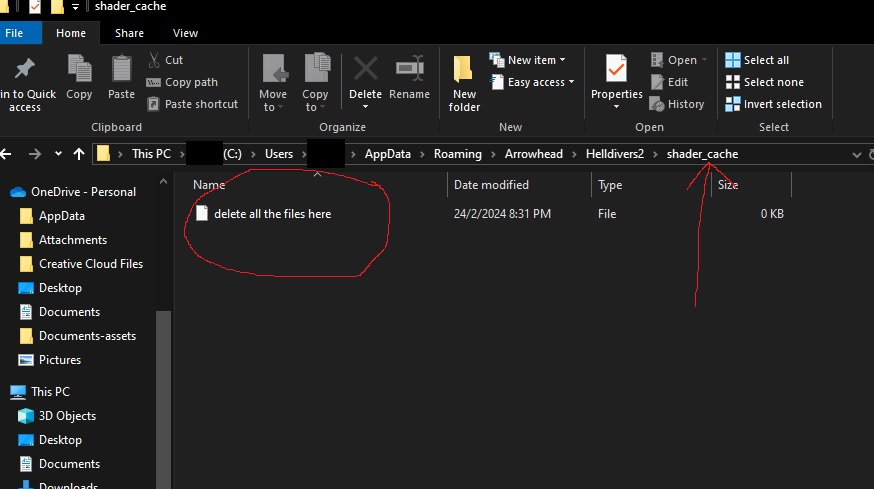
.
Do all that BEFORE launching the game. Then launch it, the game will be having a black screen for few minutes, WAIT IT OUT. After that, the game should have better FPS and stability.
I get from 20-40fps with stuttering to 60-80fps smooth as baby's butt. I'm using RTX 3050 Laptop, give it a try.
My laptop specs:
16gb of ram
RTX 3050 Laptop
AMD Ryzen 7 6800H
My graphics settings are all Low, Native resolution, and Anti Aliasing On. The game is also in Borderless mode
- 1. update your graphic drivers to the latest
- 2. To start the game in DirectX11, put one of the command line onto the game launch parameter (right click the game and properties, under "launch options";
--use-d3d11or
dx11 / --use-d3d11
.
- 3. Delete the game shader cache at
or type %appdata% into the start menu and navigate to the folder above
.
Delete EVERYTHING in that shader_cache folder.
.
.
Do all that BEFORE launching the game. Then launch it, the game will be having a black screen for few minutes, WAIT IT OUT. After that, the game should have better FPS and stability.
I get from 20-40fps with stuttering to 60-80fps smooth as baby's butt. I'm using RTX 3050 Laptop, give it a try.
My laptop specs:
16gb of ram
RTX 3050 Laptop
AMD Ryzen 7 6800H
My graphics settings are all Low, Native resolution, and Anti Aliasing On. The game is also in Borderless mode
TOASTER MODE! (New addition)
For extra EXTRA increased frame per seconds:
YES, the option can be combined with DirectX11 launch option! Game will looks like crap tho, like PS2 era grahpics, but hey, at least you get to squeeze more FPS out of the game.
Optional: Change all of your graphics settings to low
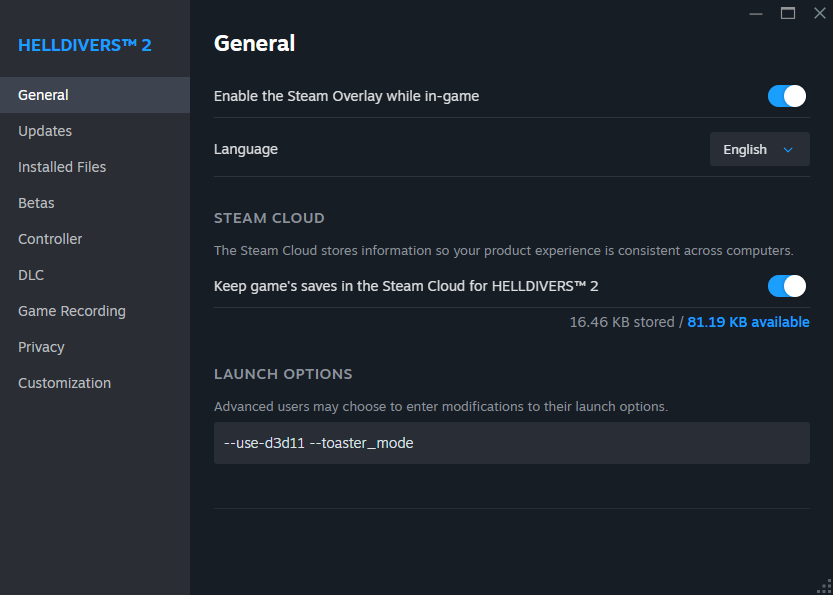
TOASTER MODE PREVIEW
- Add in toaster mode command line, put one of the command line onto the game launch parameter (right click the game and properties, under "launch options";
--toaster_modeor,
--use-d3d11 --toaster_mode
YES, the option can be combined with DirectX11 launch option! Game will looks like crap tho, like PS2 era grahpics, but hey, at least you get to squeeze more FPS out of the game.
Optional: Change all of your graphics settings to low
TOASTER MODE PREVIEW
Conclusion
So what do these steps do?
Step no. 1 is just a precautionary update, in case if you have an outdated driver. Some say certain older driver works better, but there are mixed reports. Drop a comment below for others to see which driver you are using.
Step no. 2 is running the game in DirectX 11, instead of running the game in native DirectX 12. DirectX 11 can be more stable and gives more FPS due to the nature of API is a lot more closed and being developed longer.
Step no. 3 is deleting shader cache, which will refreshes your game shader after DirectX changes. If you want to stay with DirectX 12, step no. 3 may also be beneficial after a game update.
Thanks, and cheers.
If DirectX11 doesn't work for you, you might want to stay on native DirectX12 and revert the changes that you made here by removing the command line and clearing the cache again.
Step no. 1 is just a precautionary update, in case if you have an outdated driver. Some say certain older driver works better, but there are mixed reports. Drop a comment below for others to see which driver you are using.
Step no. 2 is running the game in DirectX 11, instead of running the game in native DirectX 12. DirectX 11 can be more stable and gives more FPS due to the nature of API is a lot more closed and being developed longer.
Step no. 3 is deleting shader cache, which will refreshes your game shader after DirectX changes. If you want to stay with DirectX 12, step no. 3 may also be beneficial after a game update.
Thanks, and cheers.
If DirectX11 doesn't work for you, you might want to stay on native DirectX12 and revert the changes that you made here by removing the command line and clearing the cache again.
Patch no. 1.000.100 Onwards
Some user suggested that removing the command line and running the game in DirectX 12 AND THEN changing back to DirectX 11 did the trick to increase the FPS after the latest patch. Thanks @Dobidob
Try the following steps:
Hopefully this fix works for you guys.
You can also try to clear DirectX 11 cache by using "Disk Cleanup" utility:
You might also want to clear the cache at
Cheers
Try the following steps:
- 1. remove the command line.
- 2. launch the game and the load it into the ship.
- 3. Quit the game
- 4. Add one of the command line like --use-d3d11
- 5. Relaunch the game
Hopefully this fix works for you guys.
You can also try to clear DirectX 11 cache by using "Disk Cleanup" utility:
- 1. Type Disk Cleanup at the windows search bar
- 2. Pick C: drive
- 3. Click "Clean up system files"
- 4. Tick DirectX Shader Cache
- 5. Click "Ok".
You might also want to clear the cache at
C:\Program Files (x86)\Steam\steamapps\shadercache\553850
and delete everything there. Note that your steam installation folders might differs to where you install steam.Cheers