

How to swap DLSS 4 and get Glitchless Frame Generation
 Is it really that time again?
(194 ratings)
Feb 28, 2025 @ 2:20am31,973270
Modding or ConfigurationWalkthroughsEnglish
Swap DLSS 4 (or newer) via the Nvidia App
1. Open the Nvidia App (if you don't have it, here is the LINK[www.nvidia.com] to download it)
2. When the application opens, click on the "Graphics" tab on the left.

3. Search for the Monster Hunter Wilds on the list. If you don't see it, please see to point 3.1
3.1 To add Monster Hunter Wilds to the list, click on the three dots in the Nvidia App.
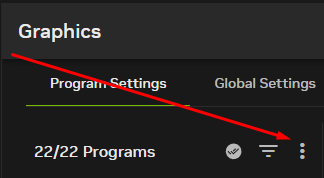
3.2 Click on "Add a program"
3.3 Search for the Monster Hunter Wilds installation folder and double click on the
MonsterHunterWilds.exe
(for me it is C:\Program Files (x86)\Steam\steamapps\common\MonsterHunterWilds)
4. Click on "Use different settings for each DLSS Technology"
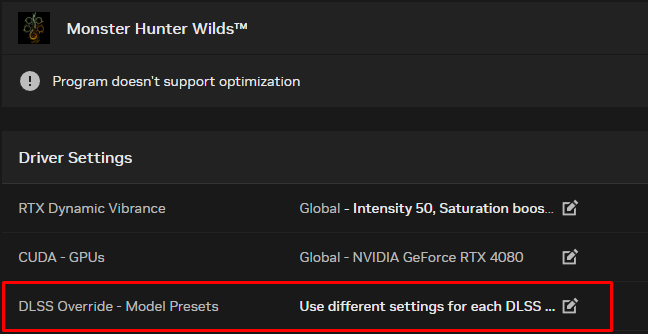
5. In the "Super Resolution" tab change to "Latest" option and click APPLY
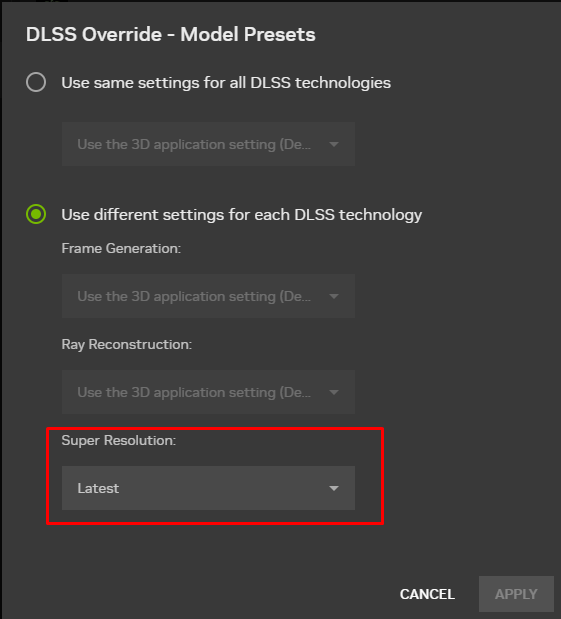
6. Enjoy sharper DLSS in the game. You can also use DLAA instead of DLSS for even sharper image but it comes with a performance hit
2. When the application opens, click on the "Graphics" tab on the left.
3. Search for the Monster Hunter Wilds on the list. If you don't see it, please see to point 3.1
3.1 To add Monster Hunter Wilds to the list, click on the three dots in the Nvidia App.
3.2 Click on "Add a program"
3.3 Search for the Monster Hunter Wilds installation folder and double click on the
MonsterHunterWilds.exe
(for me it is C:\Program Files (x86)\Steam\steamapps\common\MonsterHunterWilds)
4. Click on "Use different settings for each DLSS Technology"
5. In the "Super Resolution" tab change to "Latest" option and click APPLY
6. Enjoy sharper DLSS in the game. You can also use DLAA instead of DLSS for even sharper image but it comes with a performance hit
Glitchless Frame Generation (Only for Geforce RTX 40xx and newer)
Unfortunately Nvidia App won't allow us to swap Frame Gen part of DLSS so we need to download DLSS Swapper.
1. Download the latest release of the APP[github.com]
2. Open the DLSS Swapper
3. Search for the Monster Hunter Wilds and click on it
4. Change DLSS Frame Generation for 310.2 or newer (DO NOT CHANGE DLSS EVEN IF IT SAYS IT'S AN OLDER VERSION, BECAUSE YOU WILL PROBABLY OVERRIDE DLSS 4 SWAPPED IN THE NVIDIA APP)
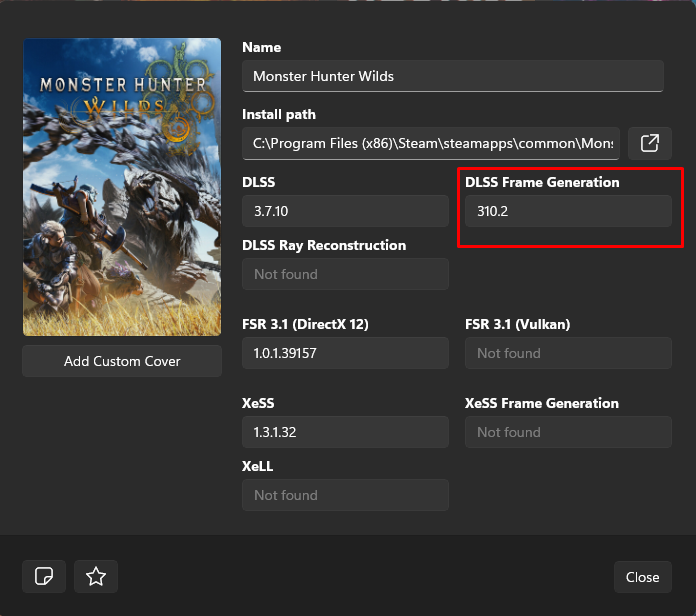
5. Close the program and enjoy vastly better Frame Gen
!!!WARNING!!!
BEFORE YOU DO THIS, UPDATE YOUR GRAPHICS CARD DRIVERS, SET THE IN-GAME RESOLUTION TO 1080P OR 1440P AND DISABLE EVERY OTHER OVERLAY THAN STEAM (e.g Discord, FPS monitor, Rivatuner) AS THIS MAY CAUSE A BLACK SCREEN BUG1. Download the latest release of the APP[github.com]
2. Open the DLSS Swapper
3. Search for the Monster Hunter Wilds and click on it
4. Change DLSS Frame Generation for 310.2 or newer (DO NOT CHANGE DLSS EVEN IF IT SAYS IT'S AN OLDER VERSION, BECAUSE YOU WILL PROBABLY OVERRIDE DLSS 4 SWAPPED IN THE NVIDIA APP)
5. Close the program and enjoy vastly better Frame Gen
Enjoy DLSS 4 with better Frame Gen